

What is an API?
An API is a set of rules that lets two programs talk to each other. Think of a waiter in a restaurant. You tell the waiter what you want. The waiter goes to the kitchen and brings it back. The API is the waiter between your app and your site.
What is REST?
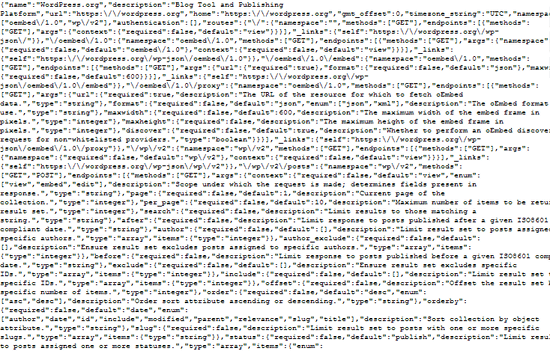
REST is a popular style of API. It uses ordinary web addresses and the same methods your browser uses. The data comes back in JSON. JSON is a simple text format that programs read easily. It looks like a list of names and values.
With the WordPress REST API, an app can get your posts, add a page or update a user. A phone app or another website can use your content this way.
Common methods
GETreads data.POSTcreates new data.PUTorPATCHchanges existing data.DELETEremoves data.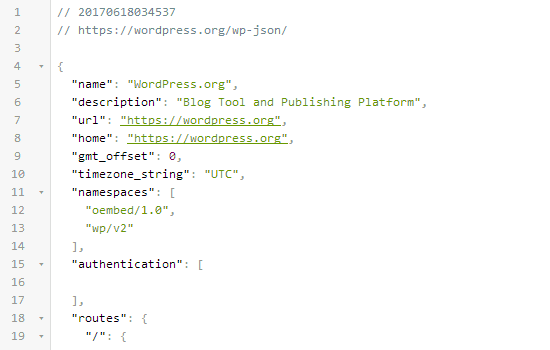
Try it yourself
You can read public posts without logging in.
- Open a new browser tab.
- Type your site address, followed by
/wp-json/. You will see a long page of text. That is the list of what the API offers. - Now type your address followed by
/wp-json/wp/v2/posts. - You will see your latest posts in JSON form.
If your site uses plain permalinks, use /?rest_route=/wp/v2/posts instead.
Useful addresses
| Address ending | What it returns |
|---|---|
/wp-json/wp/v2/posts | Posts |
/wp-json/wp/v2/pages | Pages |
/wp-json/wp/v2/categories | Categories |
/wp-json/wp/v2/media | Media items |
Using the command line
curl https://yourdomain.com/wp-json/wp/v2/posts?per_page=3This asks for your three latest posts. Replace the domain with your own.
Logging in for private actions
Creating or changing content needs proof of who you are. WordPress offers "Application Passwords" for this. Go to Users, then Profile, and look for the Application Passwords section. Make one for each app. It is safer than using your normal password.
Quick recap
- The REST API lets apps talk to your WordPress site.
- Data comes back as JSON.
- Try
/wp-json/wp/v2/postsin your browser. - Use application passwords for private actions.