Before you fix anything
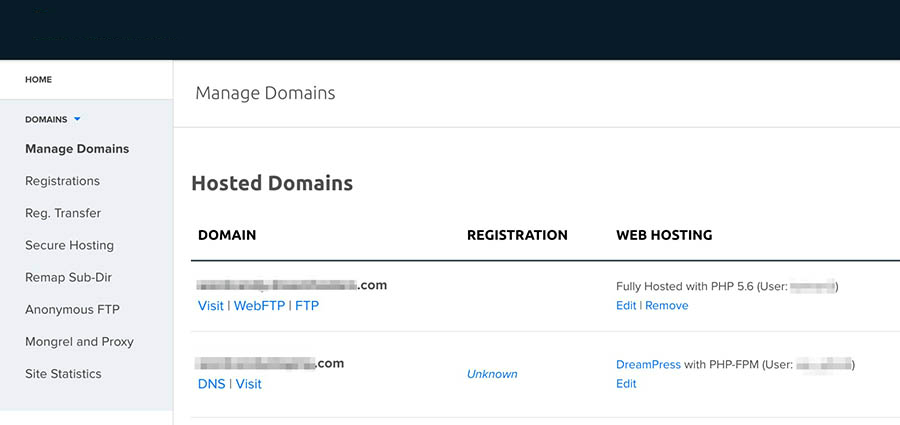
Take a backup of your files and database first. A database is where WordPress stores your posts and settings. Many fixes need you to open your files. Use File Manager in your hosting control panel, or an FTP program. FTP is a way to move files between your computer and your hosting.
The 12 errors
1. White screen of death
The page is blank. This is often a plugin or theme problem, or the site ran out of memory. Rename the plugins folder inside wp-content to plugins-off. If the site returns, a plugin is the cause. Rename the folder back and turn plugins off one by one.

2. Error establishing a database connection
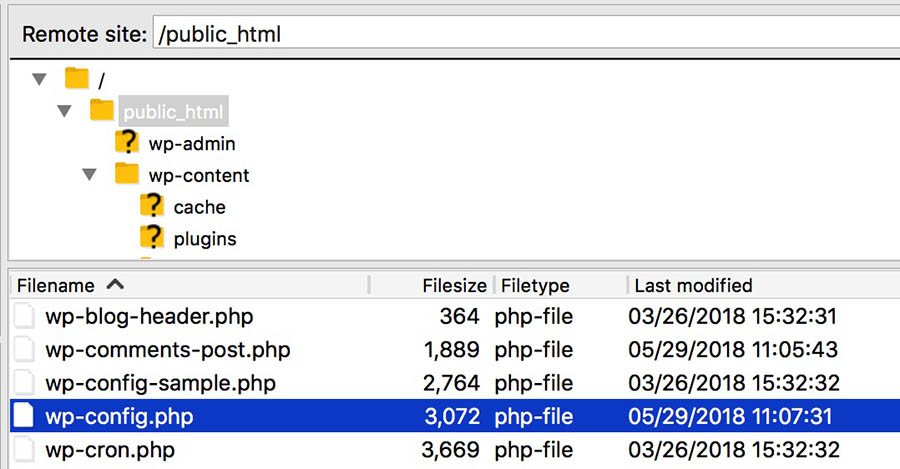
WordPress cannot talk to its database. Check the database name, user and password in wp-config.php. Ask Hostvento support if the database server is down.
3. 500 Internal Server Error
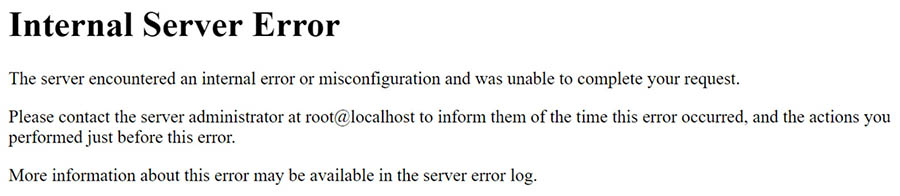
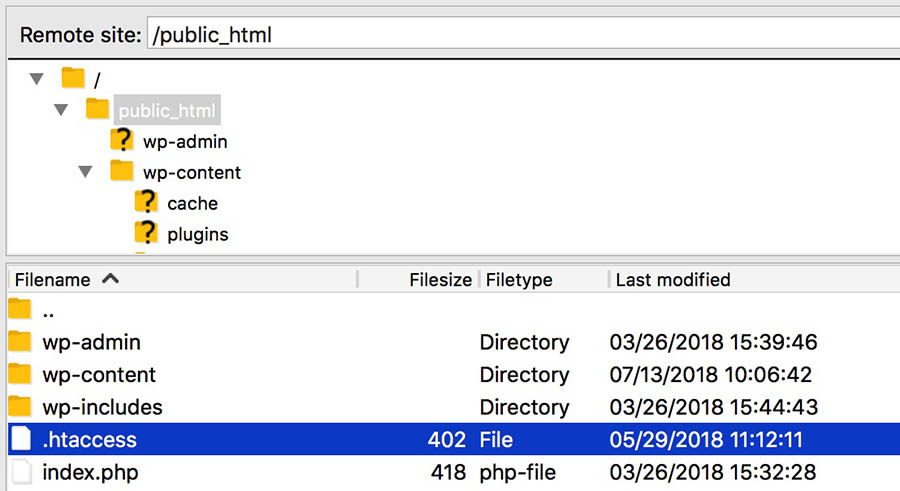
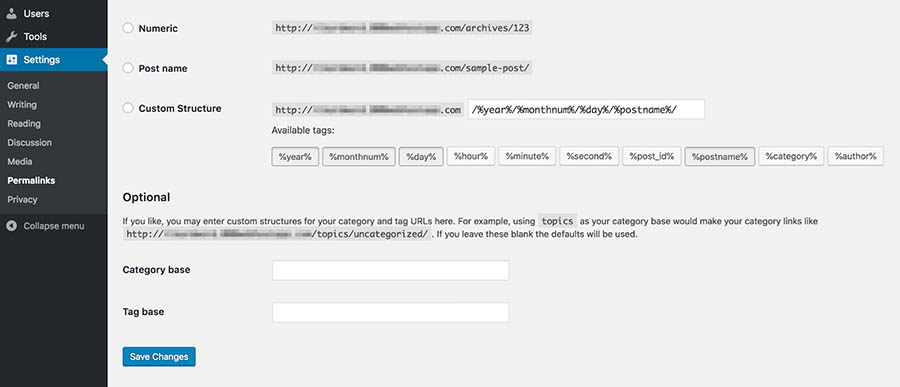
This is a general "something went wrong". Rename the file .htaccess to .htaccess-old. Then go to Settings, then Permalinks and click Save Changes to make a fresh one.
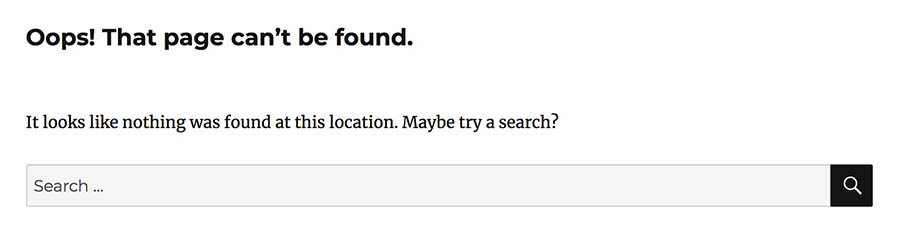
4. 404 Not Found on posts
Your pages work but posts show 404. Go to Settings, then Permalinks, and click Save Changes.
5. Locked out of the dashboard
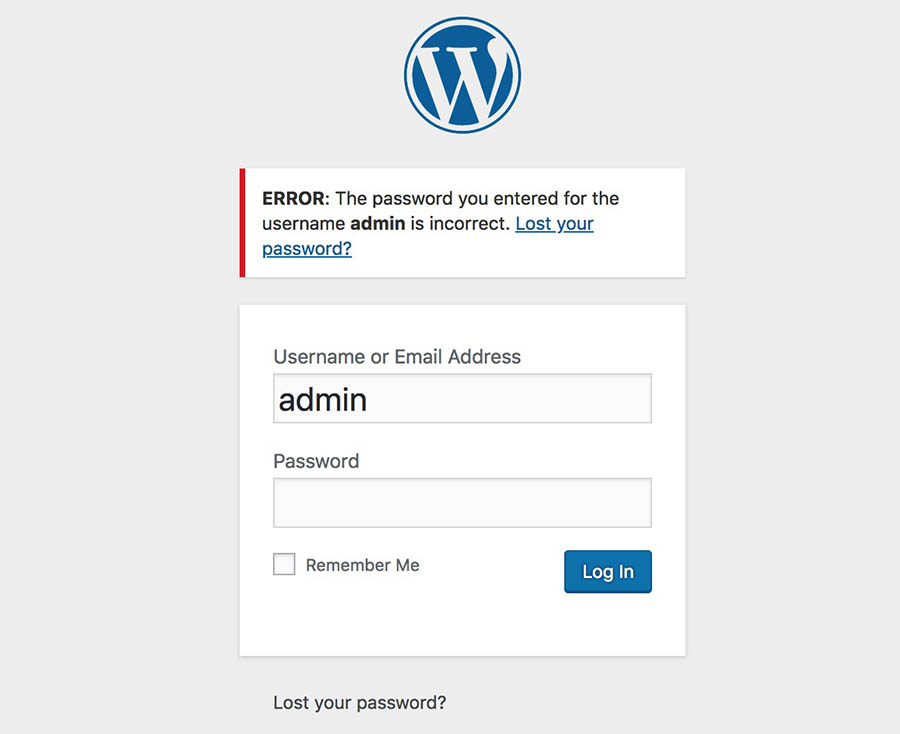
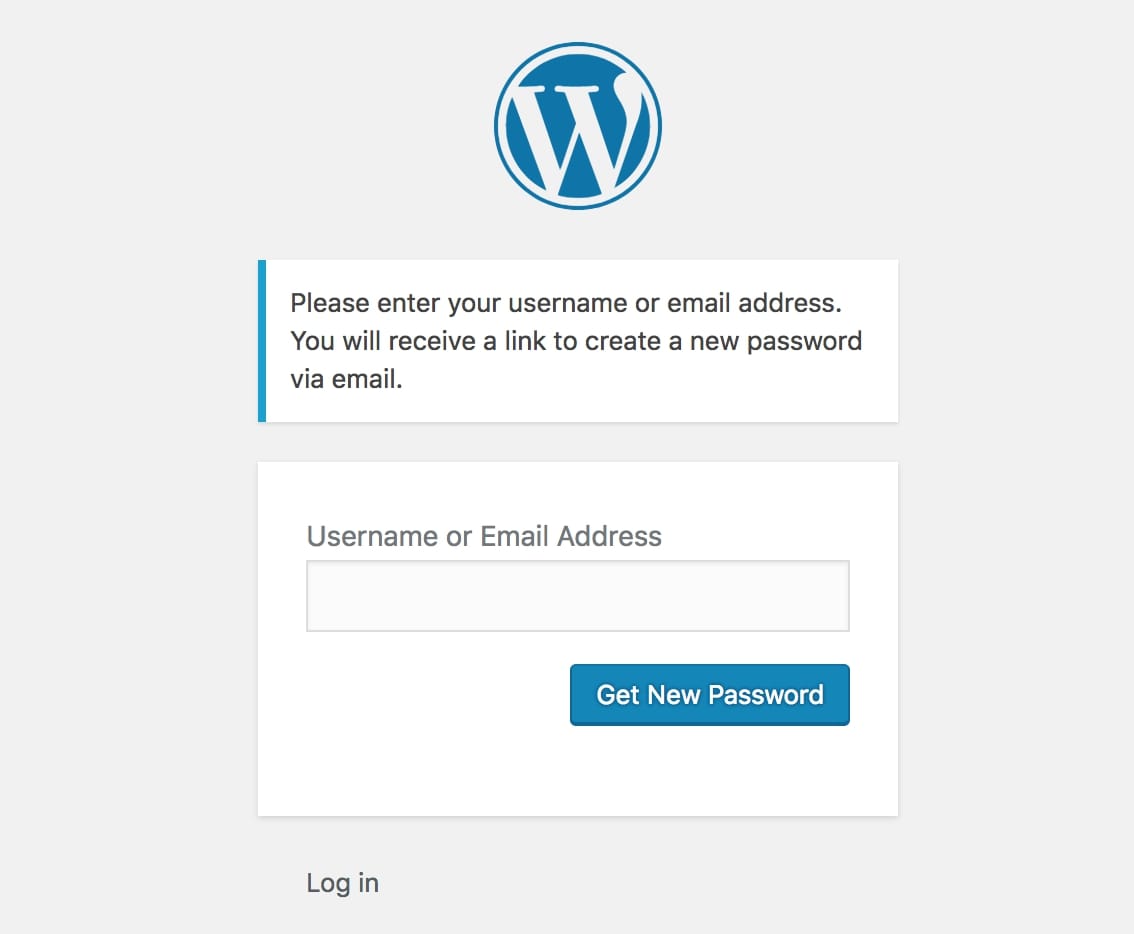
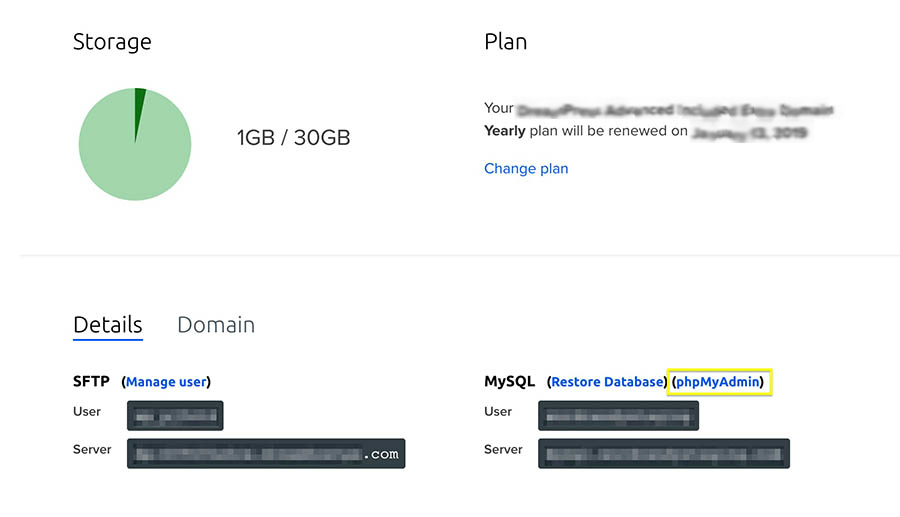
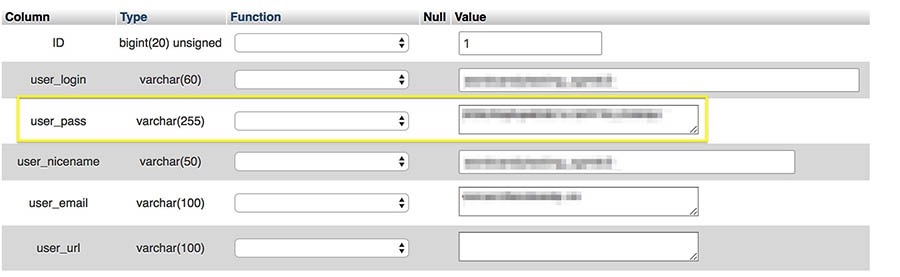
Use Lost your password? on the login page. If that fails, reset it in phpMyAdmin, a tool for editing your database.
6. Briefly unavailable for scheduled maintenance
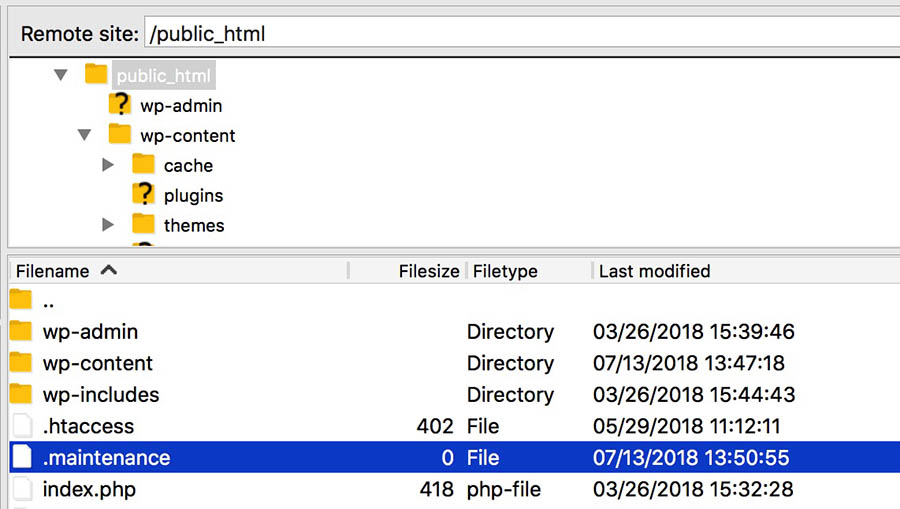
An update stopped half way. Delete the file .maintenance from your WordPress folder.
7. Allowed memory size exhausted
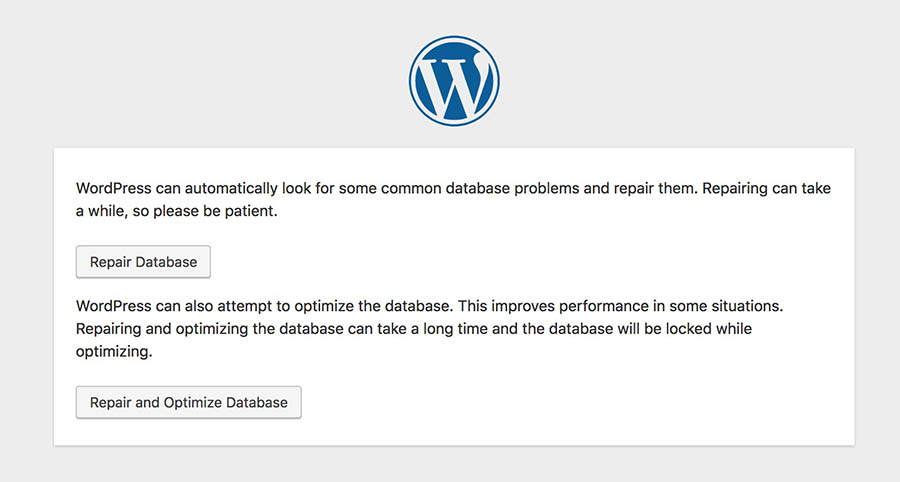
Your site needs more memory. Add this to wp-config.php: define( 'WP_MEMORY_LIMIT', '256M' );. If it still happens, ask Hostvento support.
8. Too many redirects
The site sends visitors round in circles. Clear your browser cookies. Then check Settings, then General, for the wrong address. Turn off redirect plugins to test.
9. Upload: exceeds the maximum upload size
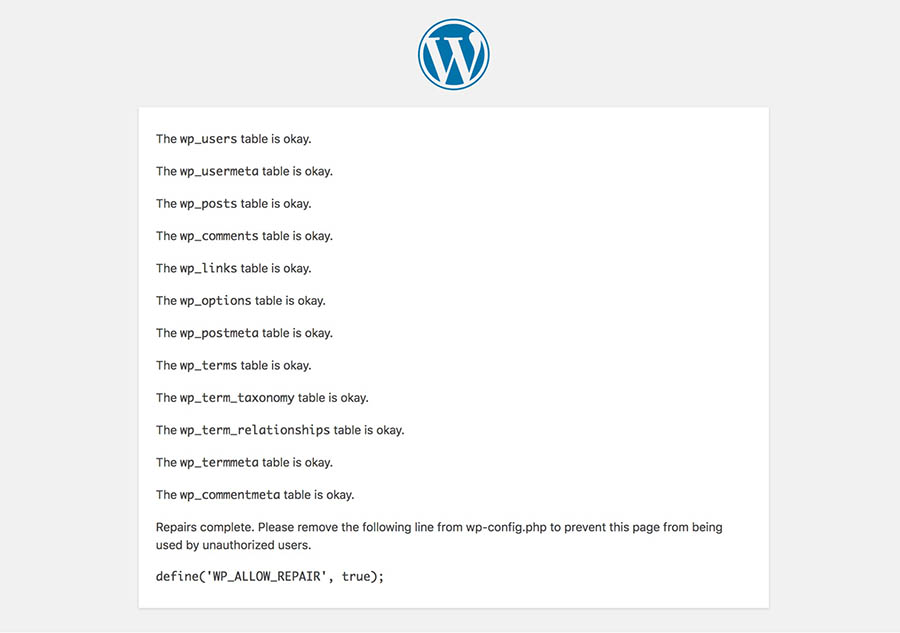
The file is too big. Ask Hostvento support to raise the limit, or make the file smaller.
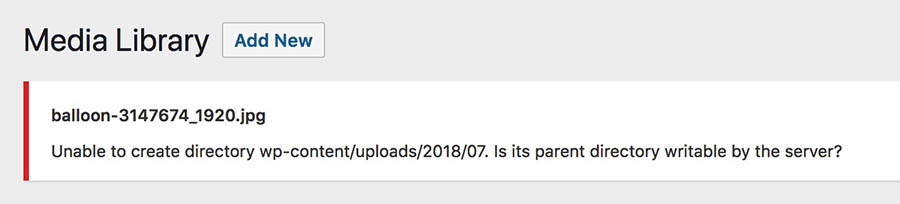
10. Failed to write file to disk or "Could not create directory"
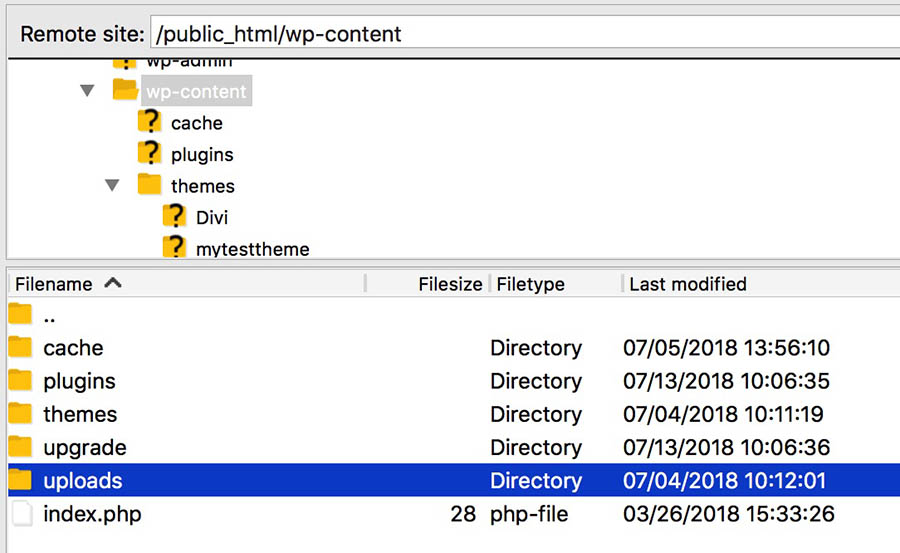
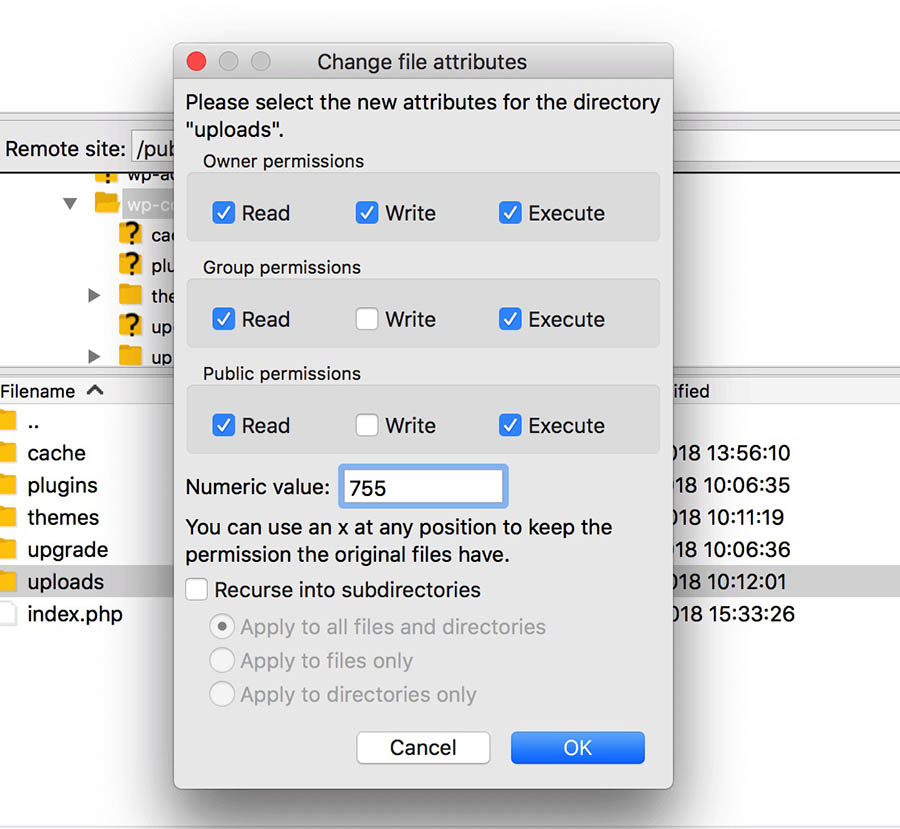
File permissions are wrong. Folders are normally 755 and files 644. Your disk may also be full.
11. Parse error: syntax error
There is a typing mistake in a PHP file, often after you edited code. The message names the file and line. Fix the mistake, or restore the file from your backup.
12. Mixed content or "Not secure" warning
Your page uses https, but some images load with http. Install a plugin that fixes this, or change the old links to https.

wp-config.php, set WP_DEBUG to true. Turn it off again afterwards, because visitors should not see errors.Quick recap
- Back up first.
- Many errors come from plugins, themes,
.htaccessorwp-config.php. - Rename a folder or file to test, instead of deleting it.
- If you are stuck, open a support ticket with the exact error message.