

What is a username?
A username is the name you type to log in, together with your password. WordPress does not let you change it in the normal profile screen. A name like "admin" is easy to guess, so changing it makes your site safer.
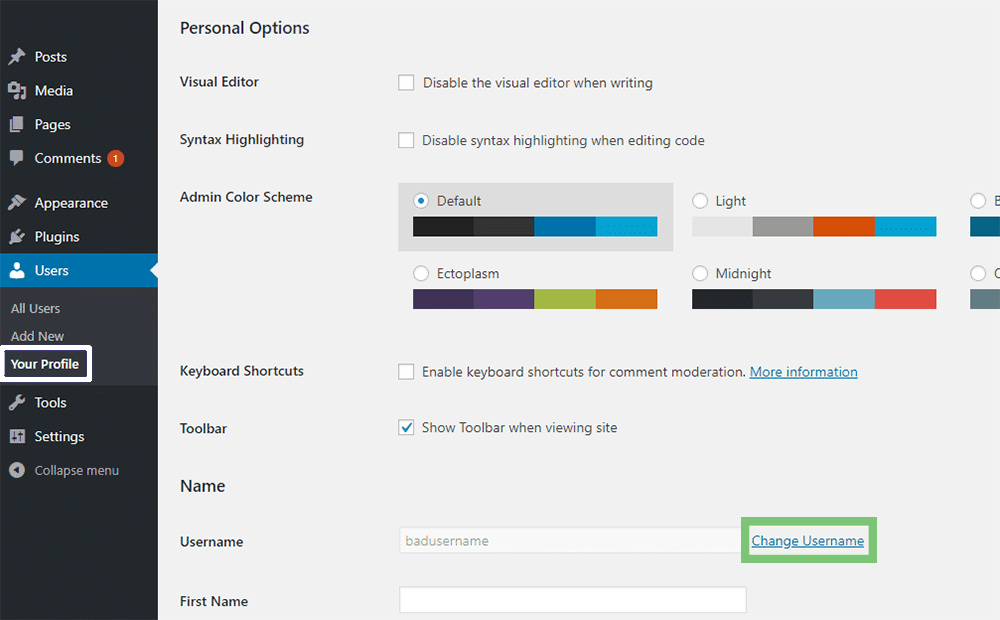
Warning: Take a backup first. A backup is a saved copy of your site. Write down your new username so you do not get locked out.
Method 1: Use a plugin
A plugin is a small add-on program for WordPress. This is the easiest way.
- Log in to your WordPress dashboard.
- Click Plugins, then Add New.
- Search for "Username Changer".
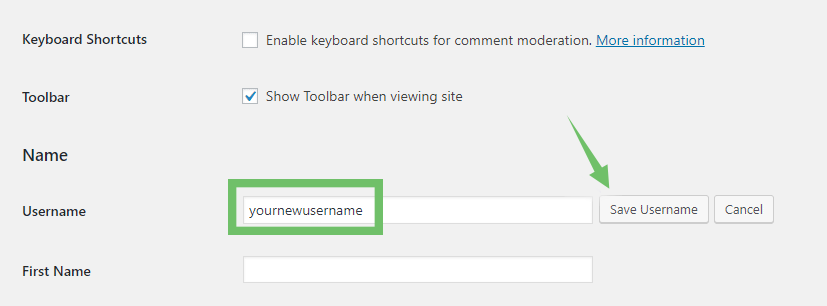
- Click Install Now, then Activate.
- Click Users, then All Users.
- Click the user you want to change.
- Look for the username field. The plugin makes it editable.
- Type the new name.
- Click Update User.
Log out and log in again with the new name. You can remove the plugin afterwards.
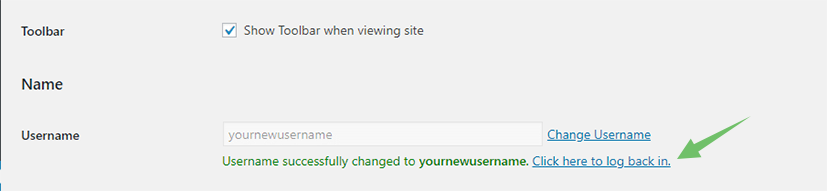
Method 2: Use phpMyAdmin
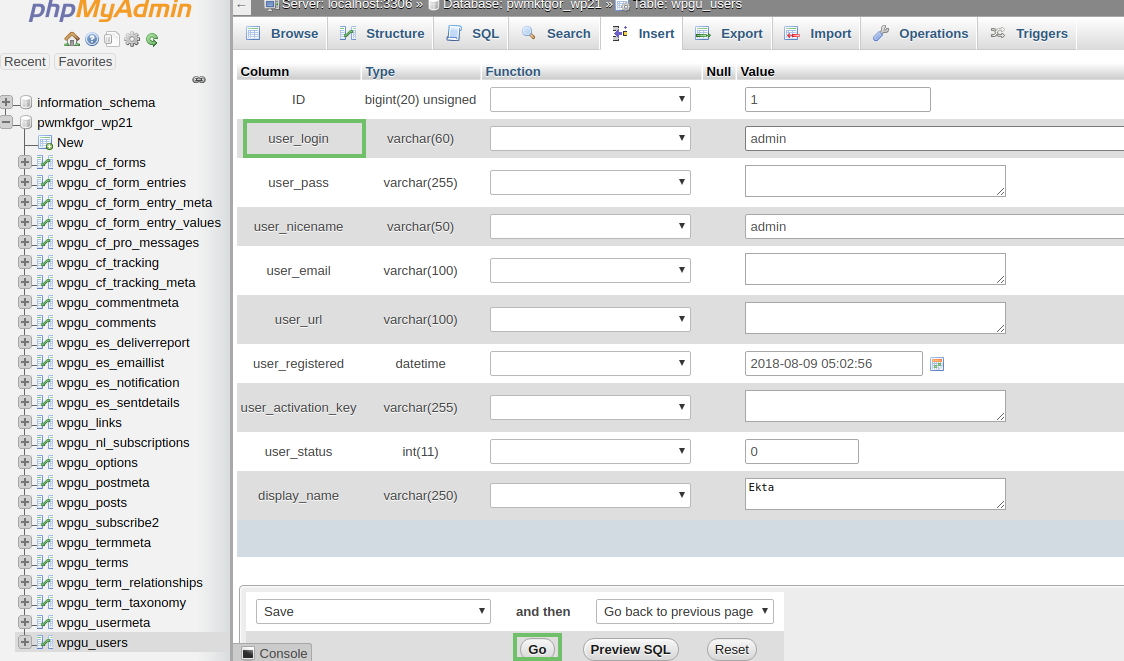
phpMyAdmin is a tool that lets you look inside your database. A database is where WordPress keeps your users, posts and settings. You find phpMyAdmin in your hosting control panel.
- Log in to your hosting control panel.
- Open phpMyAdmin.
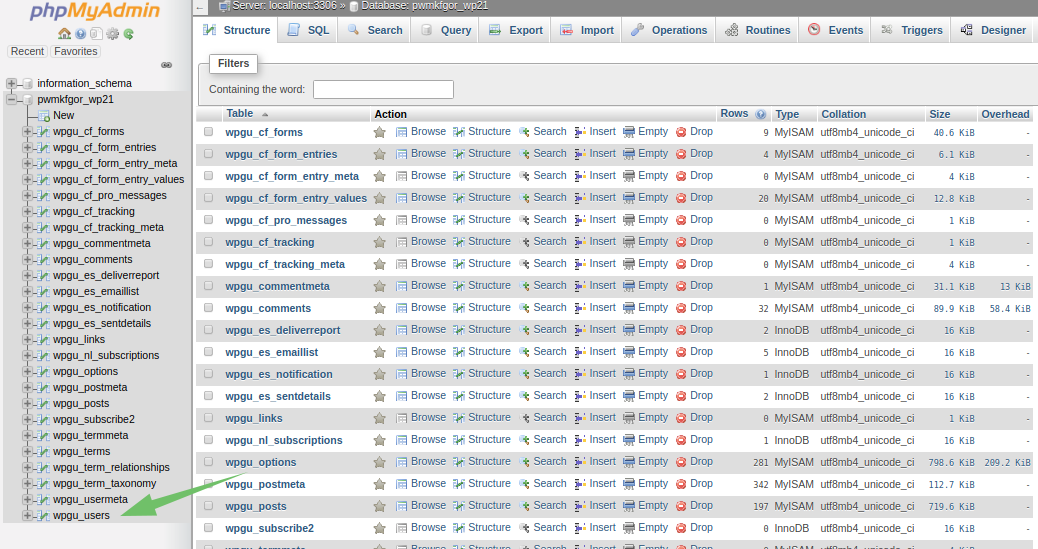
- Click your WordPress database on the left.
- Click the table that ends in
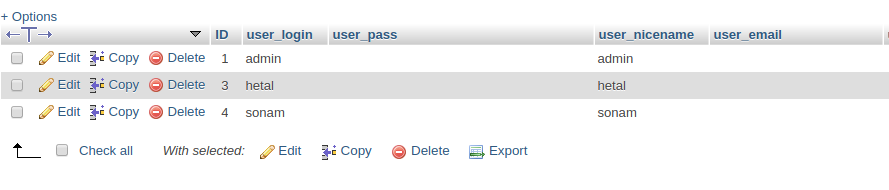
_users. The first part of the name may differ, such aswp_users. - Find the row with your old username.
- Click Edit on that row.
- Change the value in the
user_loginfield to your new name. - Click Go at the bottom to save.
Tip: Only change
user_login. Do not change other fields. A wrong change in the database can stop your site working.Another easy way
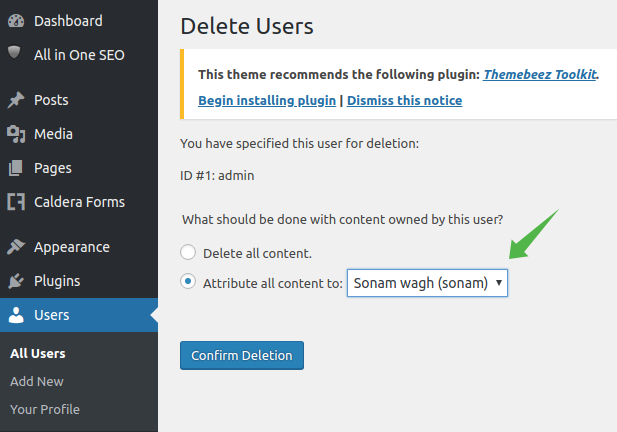
Create a new user with the name you want. Give it the Administrator role. Log in as the new user. Then delete the old user. When WordPress asks, choose to give the old user's content to the new user.
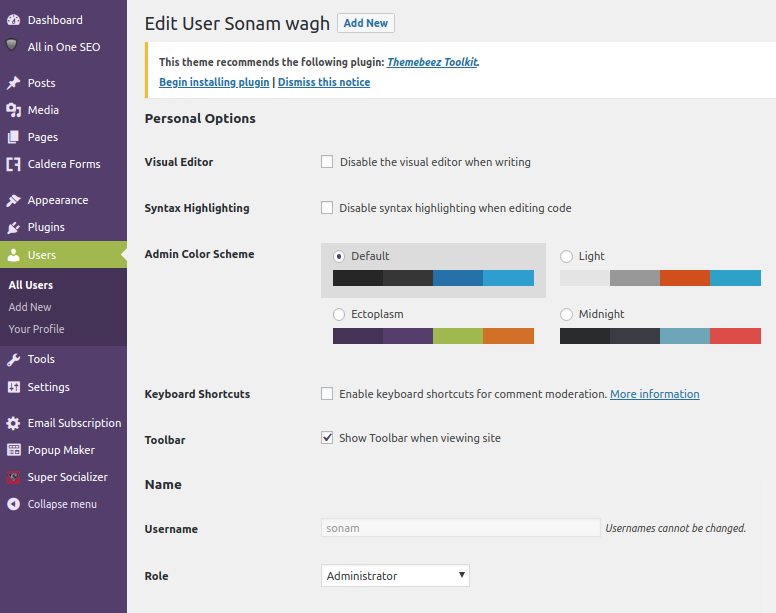

- Click Users, then Add New.
- Fill in the new name, email and password.
- Set Role to Administrator.
- Click Add New User.
- Log out and log in as the new user.
- Delete the old user under Users, and pick the new user for the content.
Quick recap
- WordPress does not let you rename a user in the profile.
- A plugin is the easiest way.
- phpMyAdmin works too. Edit only
user_login.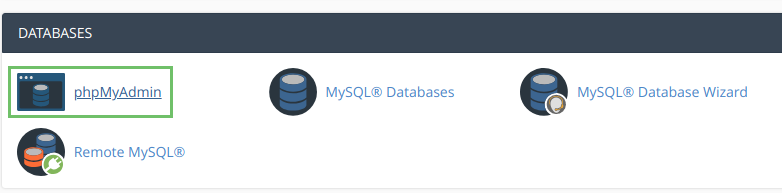
- Back up first and write down your new login.