

Set up your AdSense account
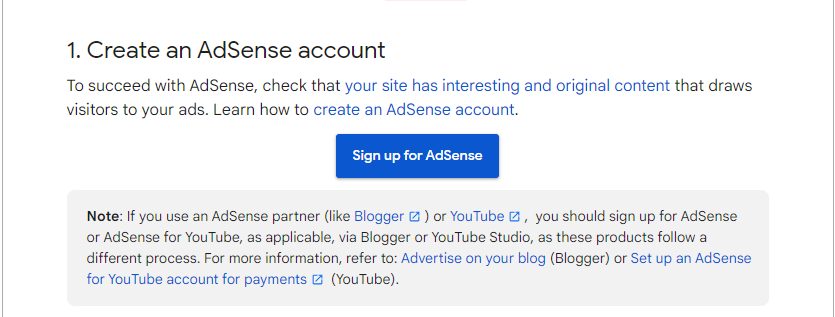
- Open the Google AdSense website and click Sign up.
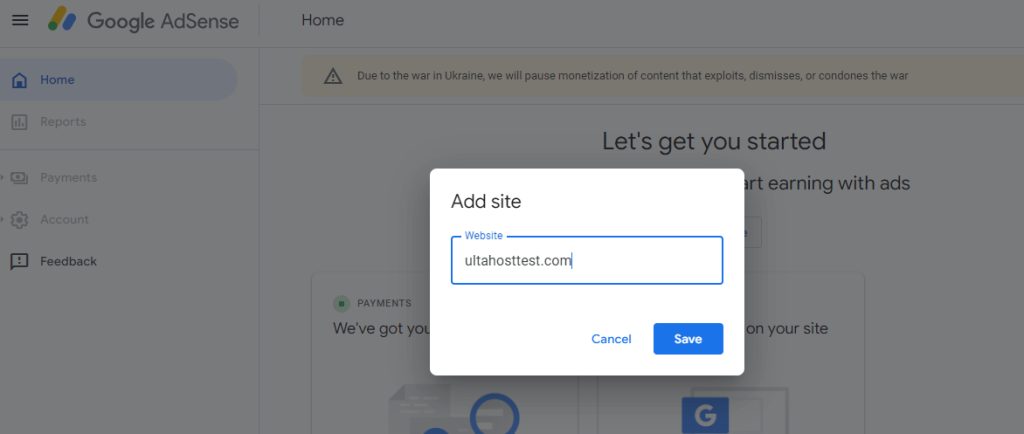
- Enter your site address and your contact details.
- Accept the terms. Wait for Google to review and approve your site.
Terms you will see
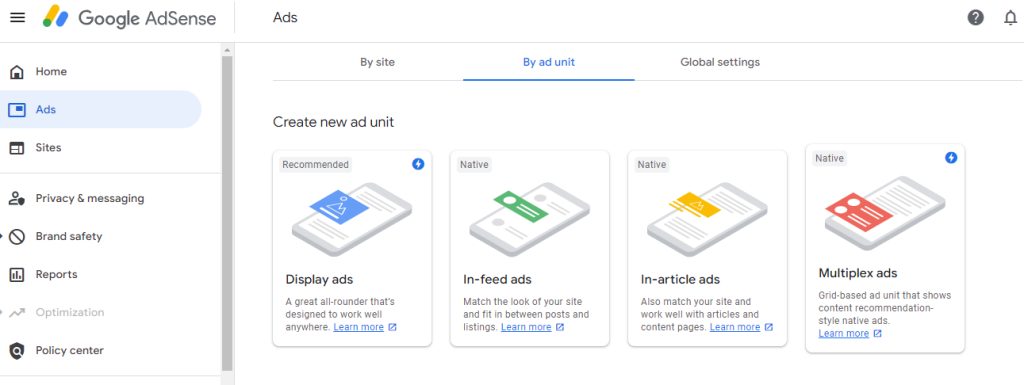
- Ad unit. A group of ads with a set size and type.
- Display ads. Normal banner ads in many sizes.
- In-feed ads. Ads placed in a list of posts.
- In-article ads. Ads placed inside a post.
- AdSense code. The snippet that shows ads on your site.
- CTR (click-through rate). The share of visitors who click an ad.
Create an ad unit
- Log in to AdSense. Go to Ads, then By ad unit, then Create new ad unit.
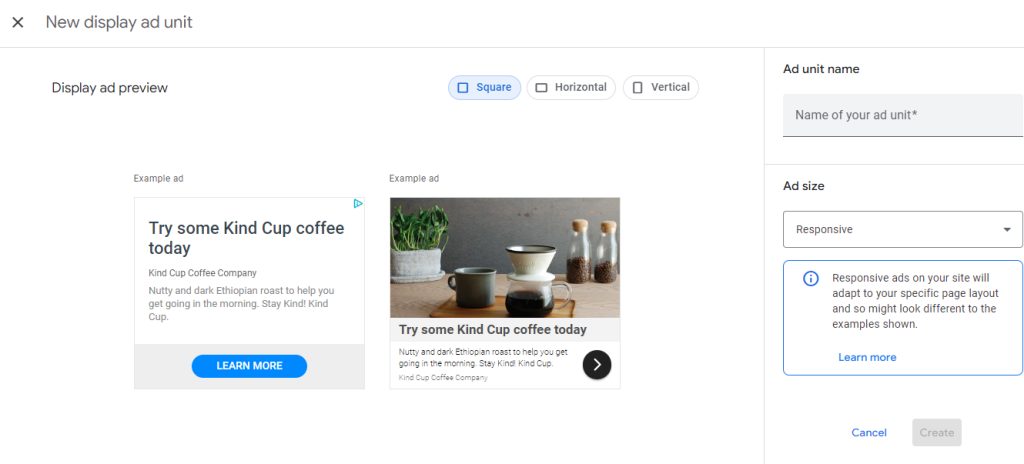
- Give it a clear name, such as
Sidebar Ad. Choose a size or Responsive. - Click Create and copy the ad code.
Add ads to WordPress
Method 1: Paste the code
- In WordPress, go to Appearance, then Theme File Editor.
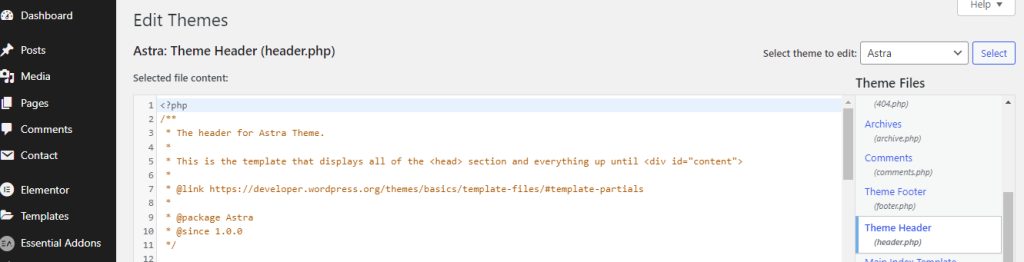
- Open
header.php(orfooter.php). Paste the AdSense code just before</head>. - Click Update File.
Method 2: Use the Site Kit plugin
- Go to Plugins, then Add New. Search for Site Kit by Google, then install and activate it.
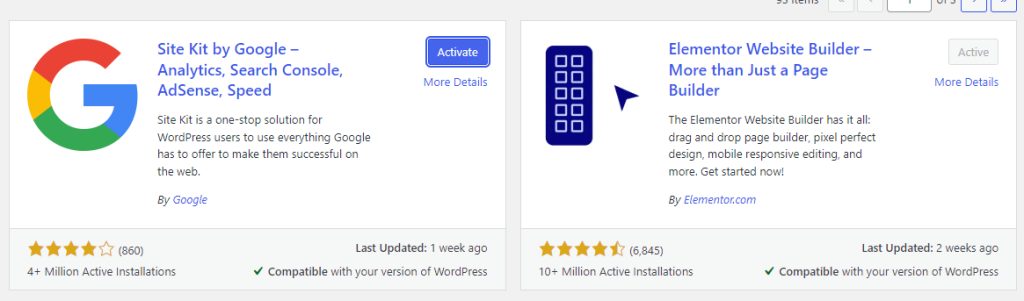
- Follow the setup to connect your Google account.
- In Site Kit, open Settings, then Connect more services, and connect AdSense.
Tip: Use a child theme or a plugin. A direct edit of theme files is lost when the theme updates.
Good ad placement
- Put ads where people see them: the sidebar, the header or inside the content.
- Do not fill the page with ads. Too many ads drive visitors away.
- Test different spots and compare the results.
Keep your account in good shape
- Publish good, original content.
- Keep your site clean and fast.
- Follow the AdSense program policies.
Quick recap
- Get your site approved, create an ad unit, and add the code.
- Site Kit is the easiest way to connect AdSense.
- Place ads with care.