

What is a dropdown menu?
A dropdown menu shows a list of links under one main menu item. Visitors hover over or tap the main item and the sub-links appear. It keeps a busy menu clean and tidy.
Steps
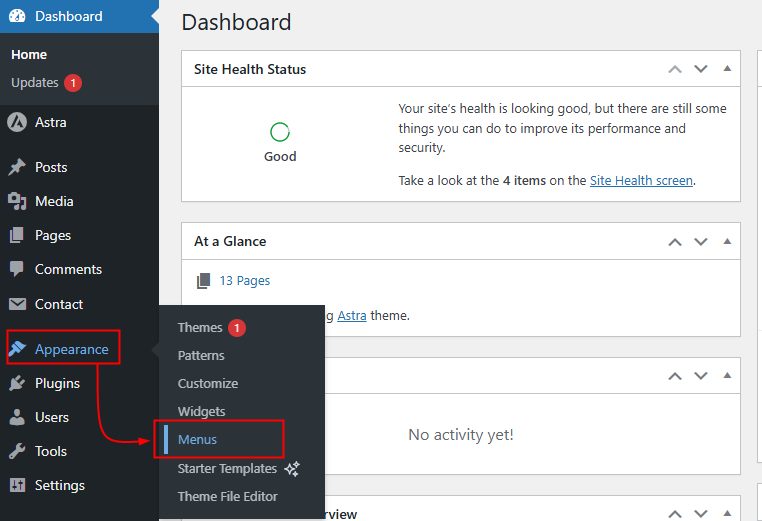
- Log in to WordPress. Go to Appearance, then Menus.
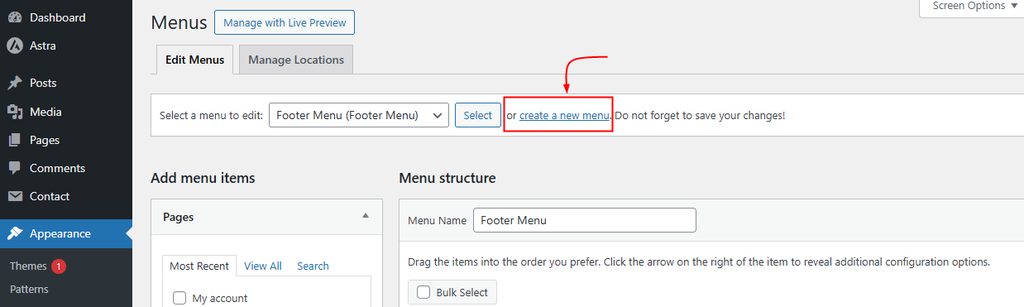
- Click create a new menu at the top of the page.
- Type a name, such as
Main Menu. Choose a display location and click Create Menu.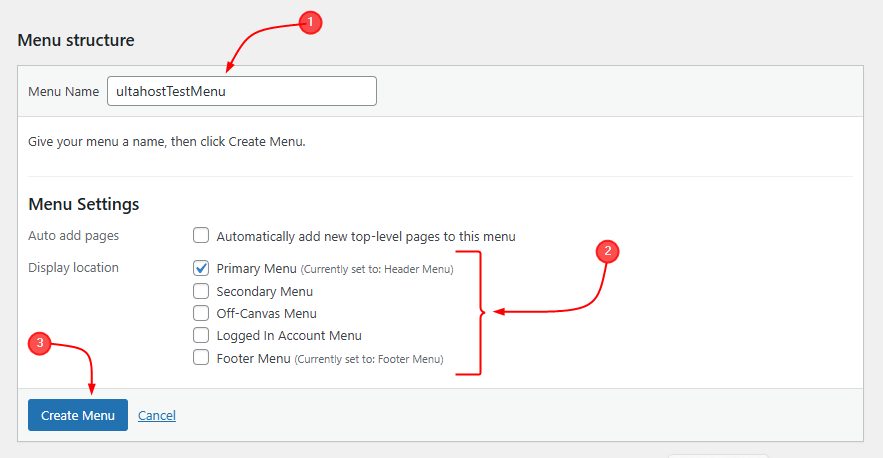
- On the left, tick the pages, posts, links or categories you want. Click Add to Menu.
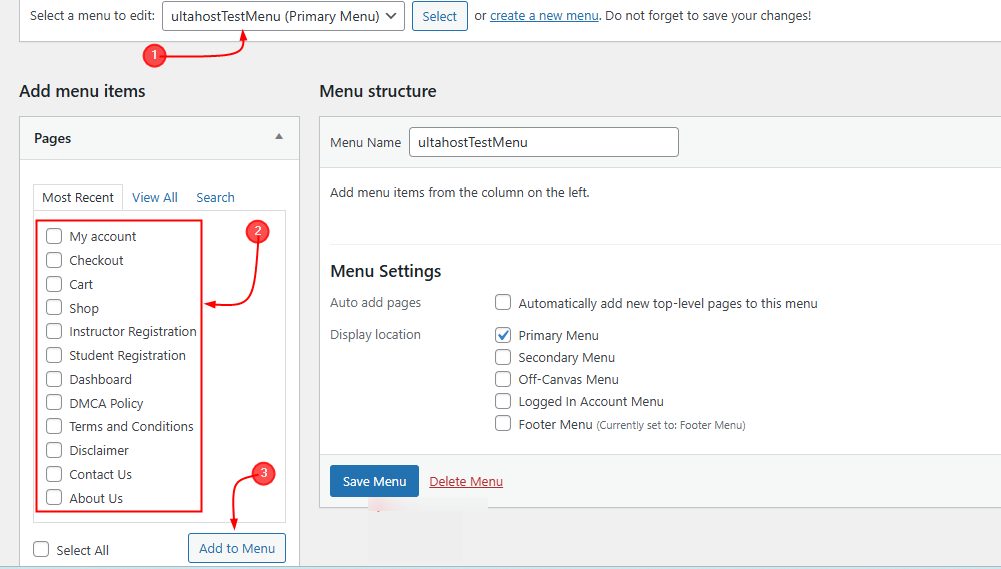
- Click Save Menu.
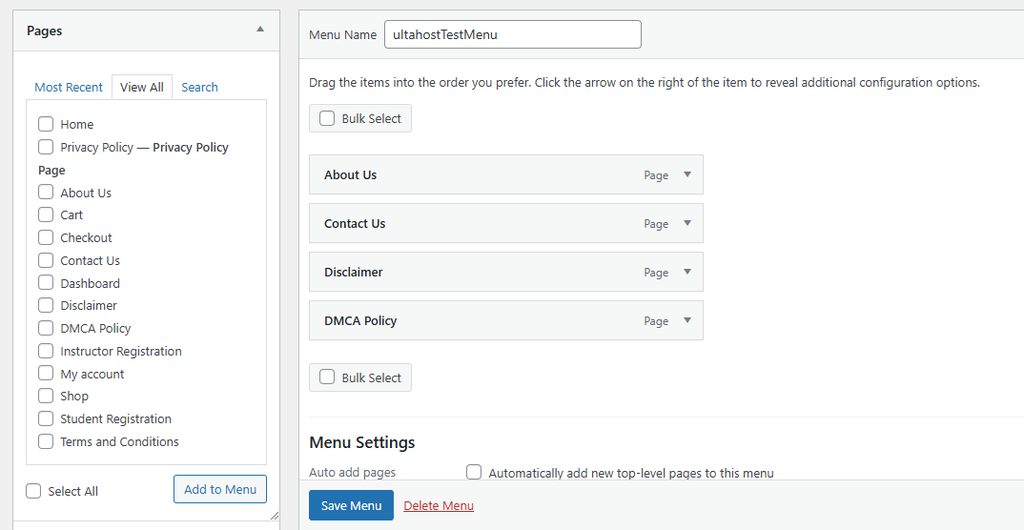
- Drag a menu item a little to the right, under the main item. It becomes a sub-item. For example, drag each page under About Us.
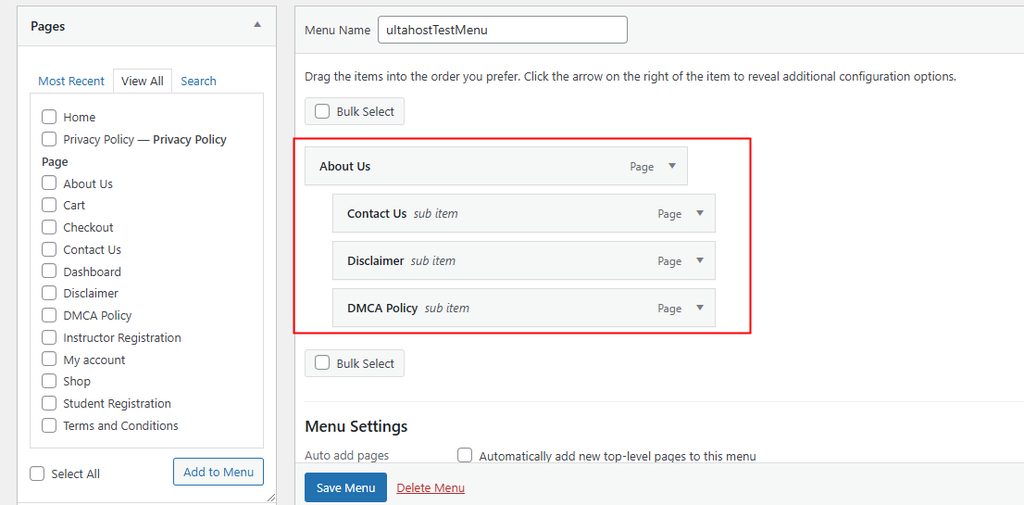
- Click Save Menu again.
- Open your site and hover over the main item. The sub-menu should appear. Test it on a phone too.
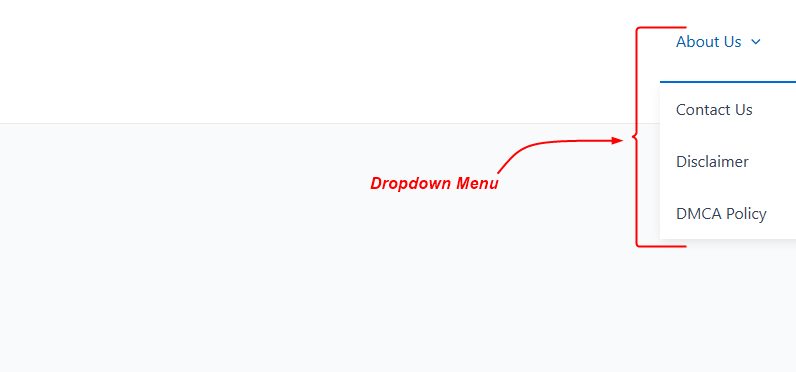
Change how the dropdown looks
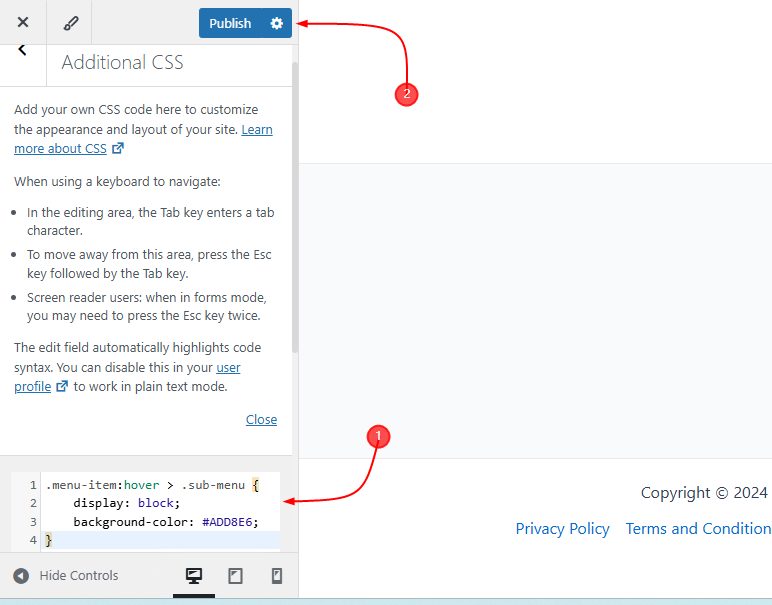
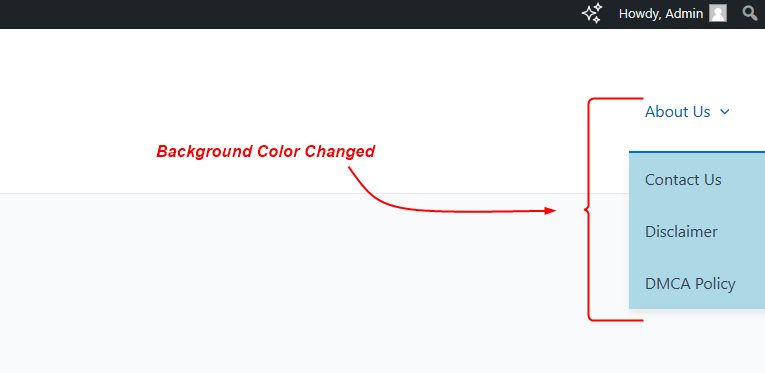
Go to Appearance, then Customize, then Additional CSS. This example gives the dropdown a light blue background when you hover:
.menu-item:hover > .sub-menu {
    display: block;
    background-color: #ADD8E6;
}
Open your site and hover over the item to see the result.
Tip: Class names differ from theme to theme. If the style does not change, inspect the menu in your browser and use the class names of your theme.
Quick recap
- Create a menu under Appearance, then Menus.
- Drag items to the right to make sub-items.
- Save, then test on desktop and mobile.