

What is Multisite?
WordPress Multisite lets you run many websites from one WordPress install. Picture an apartment building. There is one building, but each flat has its own door and its own things inside. In the same way, each site has its own pages and posts, but they share the same WordPress files, plugins and themes.
The person who runs the whole network is called the Super Admin. Only a Super Admin can add sites. Your Multisite must already be turned on. If it is not, set it up first.
Multisite can use two address styles:
- Subdomains, like
shop.example.com - Subdirectories, like
example.com/shop
You chose one when you set up the network. It decides how new site addresses look.
Steps
- Log in to your WordPress dashboard as the Super Admin.
- In the top bar, click My Sites, then Network Admin, then Dashboard.
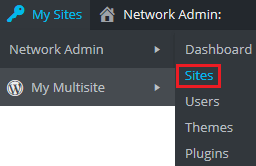
- On the left menu, click Sites, then Add New Site.
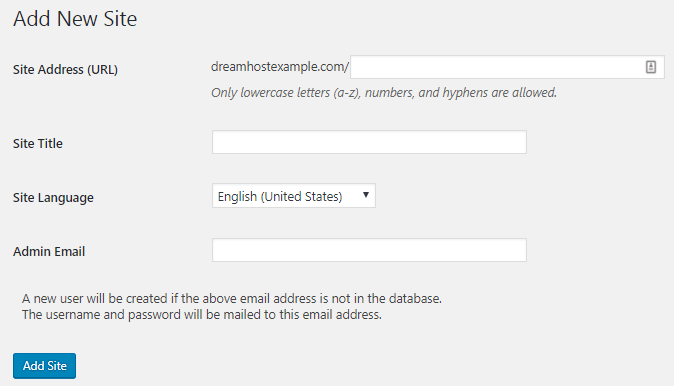
- In Site Address, type the short name for the new site. For example, type
shop. Use only lowercase letters and numbers. - In Site Title, type the name people will see.
- Choose the Site Language.
- In Admin Email, type the email of the person who will manage this site. If that person has no account, WordPress creates one and sends them a password.
- Click Add Site.
The new site now appears in the list under Sites in the Network Admin.
Visit and manage the new site
- Go to Sites, then All Sites.
- Point at the site name.
- Click Dashboard to manage it, or Visit to see it as a visitor.
Using your own domain name
You can give a site its own domain, like myshop.com. This is called domain mapping. The domain must point to your hosting through its DNS settings. DNS is like a phone book for the internet. It tells browsers where a site lives. Check your welcome email or ask Hostvento support what to point it to.
- Go to Sites, then All Sites, and click Edit under the site.
- Change the Site Address (URL) to the new domain.
- Click Save Changes.
Quick recap
- Multisite runs many sites from one WordPress install.
- Only the Super Admin can add sites.
- Go to Network Admin, then Sites, then Add New Site.
- Fill in address, title, language and admin email, then click Add Site.