

What is an excerpt?
An excerpt is a short summary of a post. It is like the blurb on the back of a book. It gives readers a quick idea of what is inside. Many themes show excerpts on the blog page, in search results on your site and in lists of posts.
If you do not write one, WordPress makes one for you. It takes the first 55 words of the post. That can cut a sentence in a strange place, so writing your own is better.
Steps in the block editor
The block editor is the modern WordPress writing screen where everything is made of blocks.
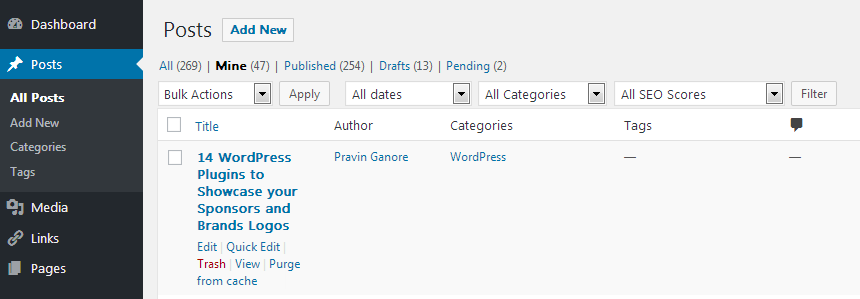
- Go to Posts, then All Posts.
- Open the post you want to edit, or click Add New to start a new one.
- If the settings sidebar on the right is hidden, click the settings icon at the top right.
- Click the Post tab.
- Find the panel called Excerpt. Click its name to open it.
- Type your summary in the box. Write one or two short sentences.
- Click Update or Publish.
If you do not see an Excerpt panel, click the three-dot menu at the top right, choose Preferences, then Panels, and turn on Excerpt.
Steps in the classic editor
The classic editor is the older writing screen with one big text box.
- Open the post.
- At the top right, click Screen Options.
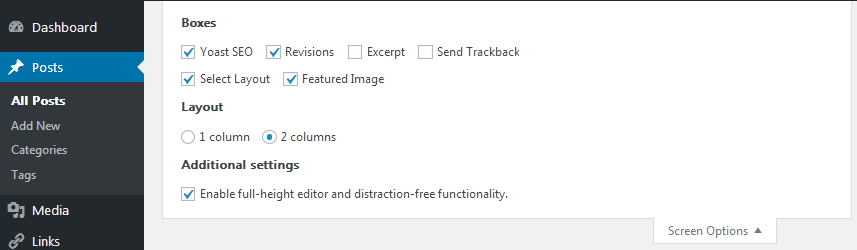
- Tick the box for Excerpt.
- Scroll below the writing box until you find a box called Excerpt.

- Type your summary there.
- Click Update.
Make your theme show the excerpt
Some themes show the whole post on the blog page instead of the excerpt. To fix this on a block theme, go to Appearance, then Editor. Open the blog template and find the Post Content block. Replace it with a Post Excerpt block. On other themes, look in Appearance, then Customize for an option about showing the full text or a summary.
Quick recap
- An excerpt is a short summary of a post.
- If you leave it empty, WordPress copies the first 55 words.
- In the block editor, use the Excerpt panel in the Post settings.
- In the classic editor, turn on Excerpt in Screen Options.
- Your theme must be set to show excerpts.