

What is a homepage?
The homepage is the first page people see when they type your site address. It is like the front door of a shop. WordPress can show one of two things there:
- Your latest blog posts, in a list.
- A fixed page that you made, called a static page. "Static" just means it does not change by itself.
Many business sites use a static page, so they can say who they are straight away.
Steps: use a static page as the homepage
You need to have made at least one page first. If you have not, do Part 1. Otherwise, go on to Part 2.
Part 1: Create the pages
- Go to Pages, then Add New.
- Type a title, such as "Home".
- Add your content.
- Click Publish.
- If you also want a blog, make a second page called "Blog" and publish it. Leave it empty. WordPress fills it with your posts.
Part 2: Tell WordPress which page to use
- Go to Settings, then Reading.
- Next to Your homepage displays, choose A static page.
- In the Homepage drop-down, pick your "Home" page.
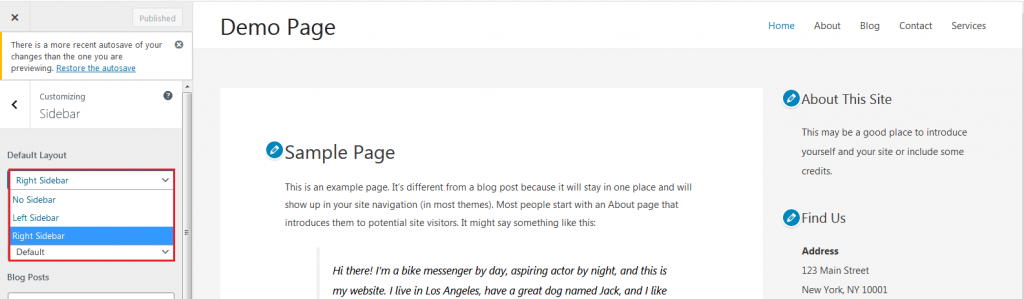
- In the Posts page drop-down, pick your "Blog" page. If you do not want a blog page, leave it as is.
- Click Save Changes.
- Open your site address in a new tab to check it.
Steps: go back to showing latest posts
- Go to Settings, then Reading.
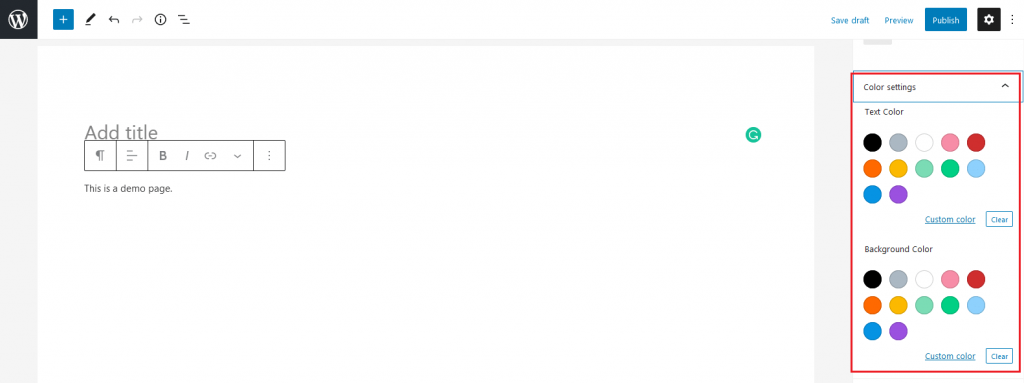
- Choose Your latest posts.
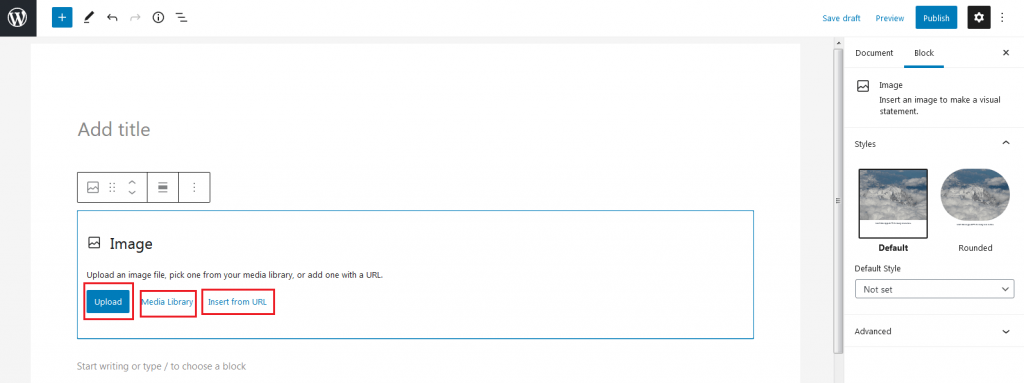
- Click Save Changes.
Another way: the Customizer
The Customizer is a live-preview settings screen that many themes use.
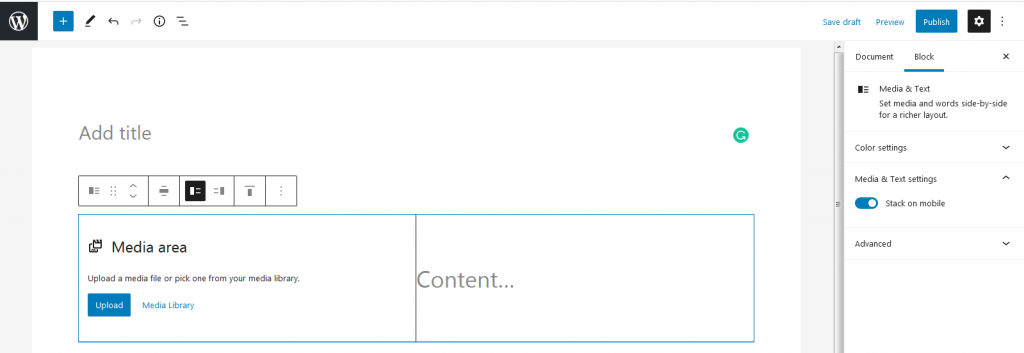
- Go to Appearance, then Customize.
- Click Homepage Settings.
- Choose your options as in the steps above.
- Click Publish.
On a block theme, the Customizer may be missing. Use Settings, then Reading or Appearance, then Editor to edit the homepage template.
Tip: If the homepage looks the same after you save, clear your cache. A cache is a saved copy of your pages that makes the site load faster. Clear it in your caching plugin, and in your browser.
Quick recap
- The homepage is the first page visitors see.
- Make a page first, such as "Home".
- Go to Settings, then Reading, choose A static page and pick it.
- Choose Your latest posts to go back.