

What is Softaculous?
Softaculous is a tool found in many hosting control panels. It installs apps like WordPress with a few clicks. It can also copy, back up and update them. Ask Hostvento support if Softaculous is available on your plan. The screens below may look a little different from yours.
What is cloning?
Cloning means making a copy of your whole site. The copy has the same pages, posts, theme and plugins. People clone a site to test a new plugin or design without risking the real one. A copy used for testing is often called a staging site. You can also clone to move a site to a new address.
Before you start, decide where the copy goes. It can be a new folder, for example yourdomain.com/test, or a different domain or subdomain. A subdomain is a prefix on your domain, like test.yourdomain.com. If you use a subdomain, create it first in your control panel.
Steps
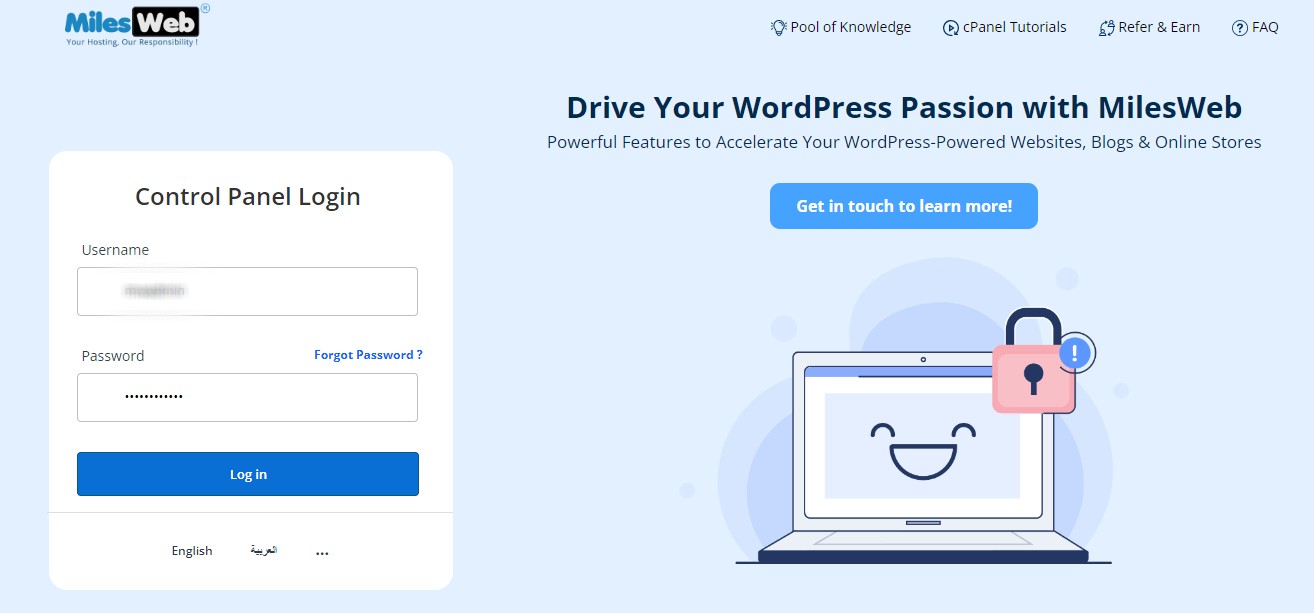
- Log in to your hosting control panel. You can reach your services from your client area at https://secure.hostvento.com/clientarea.php.
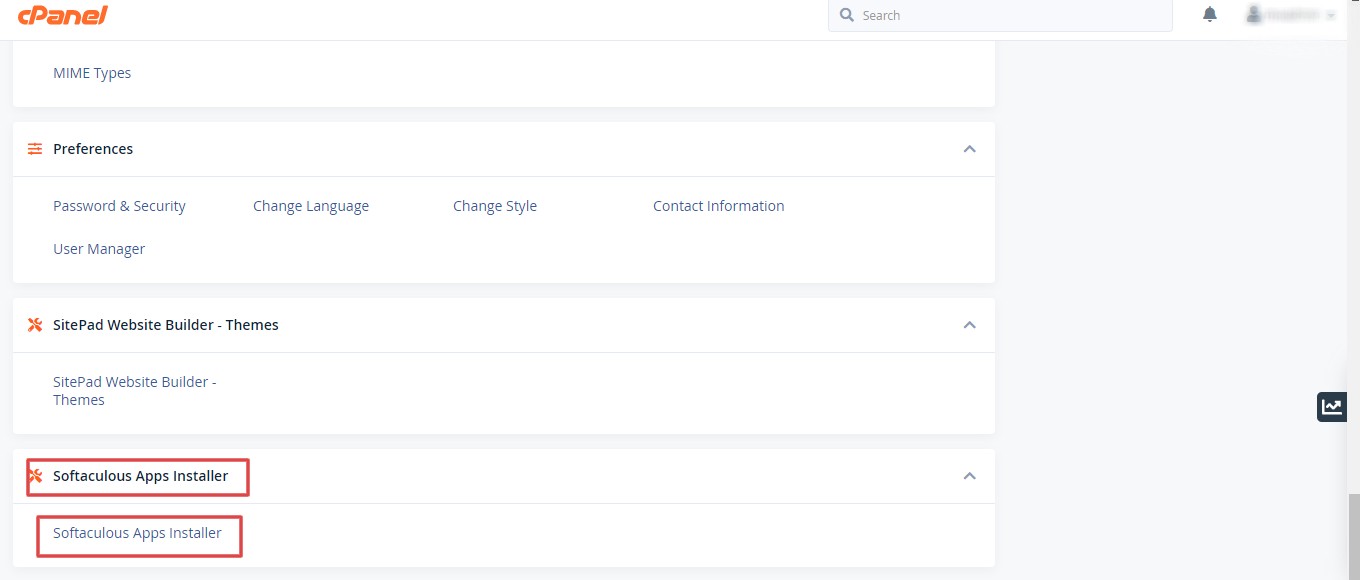
- Find and open Softaculous Apps Installer. Some panels show a WordPress Manager icon instead.
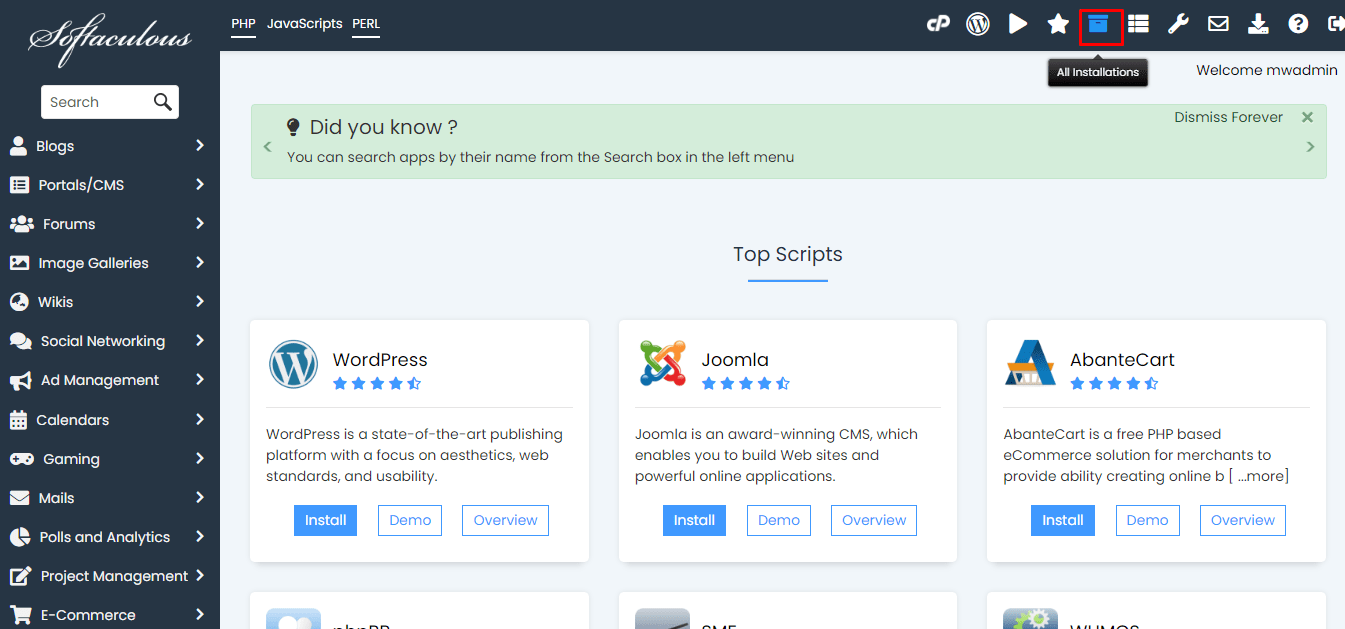
- Click All Installations, or look for the list of installed apps.
- Find the WordPress site you want to copy.
- Click the Clone icon next to it. It looks like two overlapping squares.
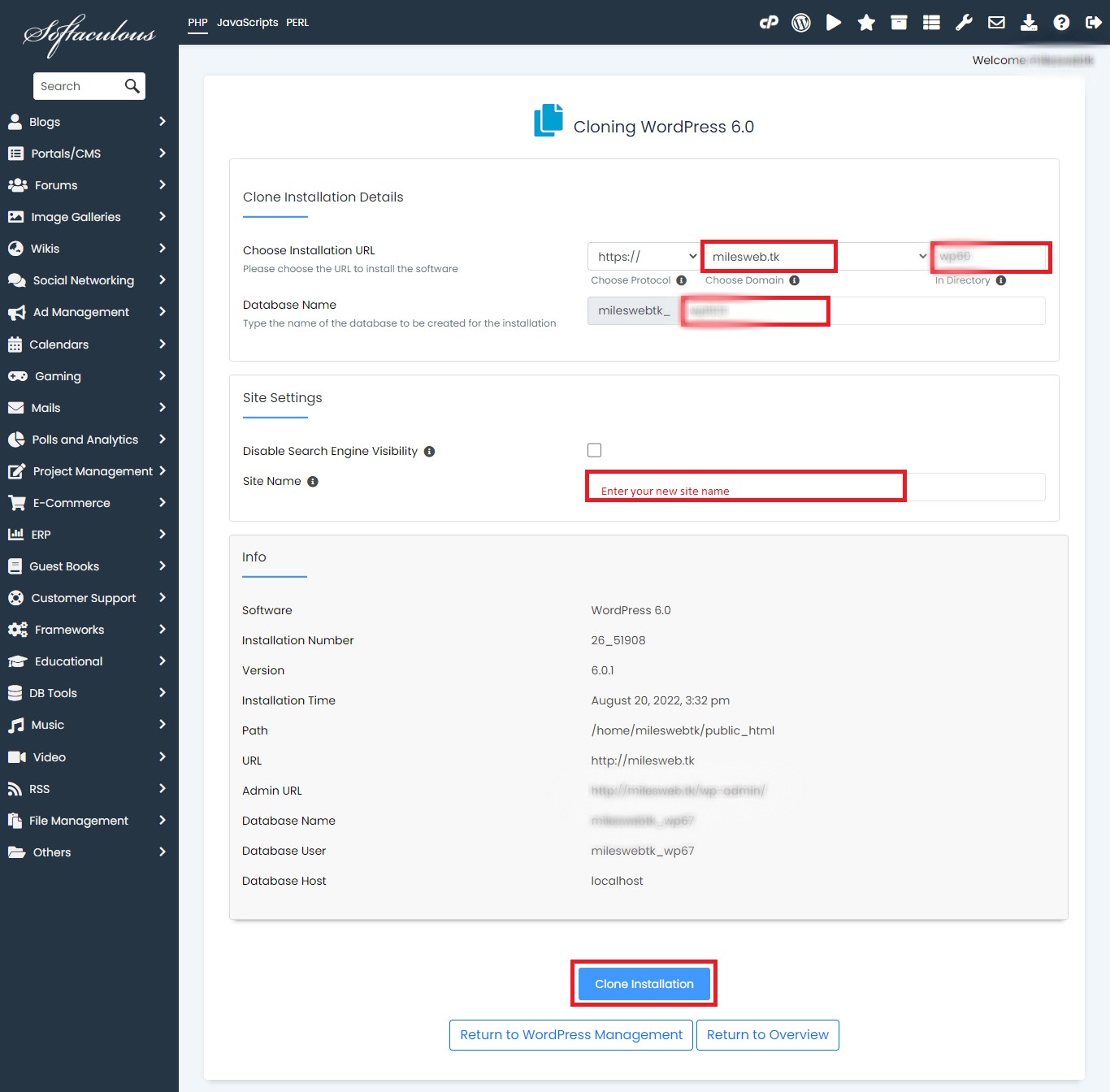
- Choose the Domain for the copy.
- In In Directory, type the folder name for the copy, such as
test. Warning: if you leave it empty, Softaculous may try to write over the main site folder. Always type a new folder name, or choose an empty location. - Optionally, change the database name. A database is where WordPress stores your posts and settings. The default name is fine.
- Click Install, or Clone Installation.
- Wait until Softaculous says it is done. It then shows the links to the new site and its admin page.
Check the copy
- Open the new address in your browser.
- Log in at
/wp-adminwith the same username and password as the original. - Check pages, images and menus.
Keep the test site out of Google
- In the test site, go to Settings, then Reading.
- Tick Discourage search engines from indexing this site.
- Click Save Changes.
This asks search engines to leave the copy out of their results.
Quick recap
- Cloning copies your whole WordPress site.
- In Softaculous, open the installations list and click the Clone icon.
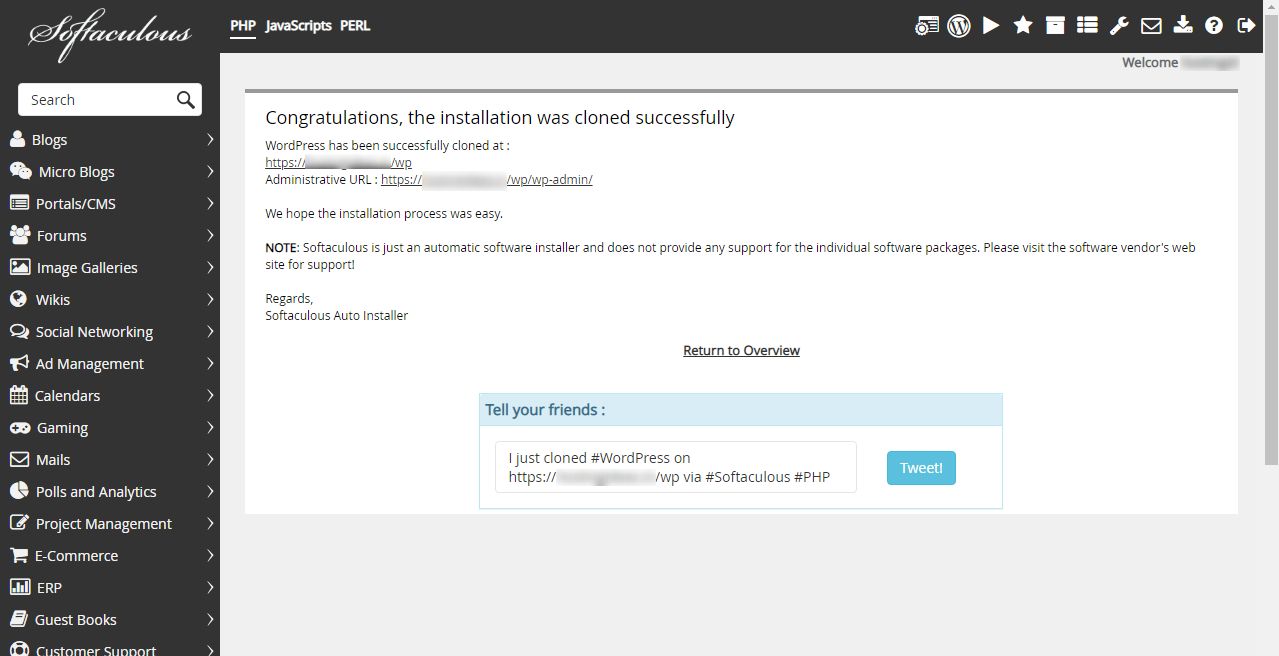
- Pick a domain and a new folder. Do not leave the folder blank by mistake.
- Test the copy, and ask search engines to ignore it.