

What is a domain?
A domain name is your website's address, like example.com. WordPress remembers its own address inside its database. A database is the store where WordPress keeps your posts and settings. So when you get a new domain, you must tell WordPress about it. If you do not, the site may load without styling or send you back to the old address.
Warning: a wrong step can make your site unreachable. Take a full backup of your files and database first.
Steps
Part 1: Point the new domain to your hosting
- Log in to your client area at https://secure.hostvento.com/clientarea.php.
- If you bought the domain elsewhere, set its nameservers or DNS records to the ones in your welcome email. Nameservers say where a domain's address book is kept. DNS is the internet's phone book. If you are unsure, ask Hostvento support.
- In your hosting control panel, add the new domain. Look for Addon Domains, Domains or a similar menu. If you want the new domain to be the main one, ask support how to change your primary domain.
- Wait for the change to spread. This can take a few hours, and sometimes up to a day or two.
Part 2: Tell WordPress the new address
- Log in to your WordPress dashboard. Use the old address if the new one is not working yet.
- Go to Settings, then General.
- Change both WordPress Address (URL) and Site Address (URL) to the new domain. Start with
https://if you have an SSL certificate. An SSL certificate encrypts data between visitors and your site.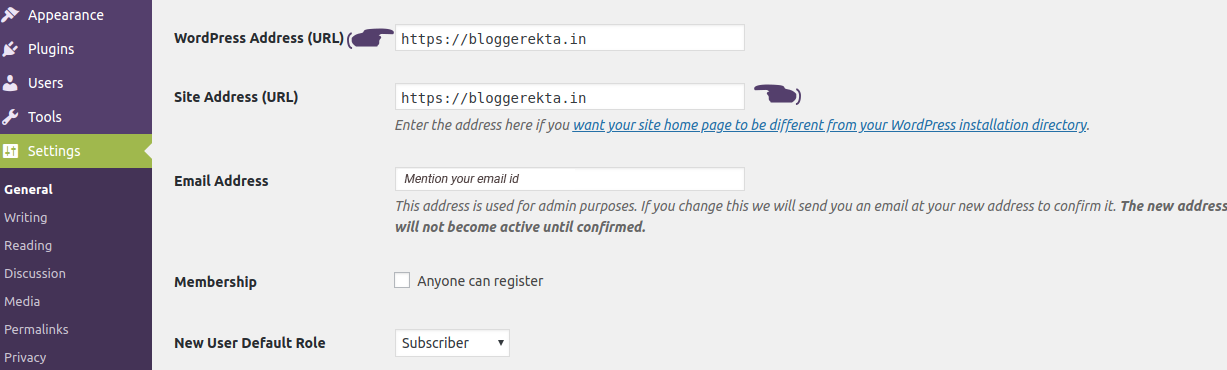
- Click Save Changes. You will be logged out.
- Log in again at the new address,
newdomain.com/wp-admin.
Part 3: Fix the old links inside your content
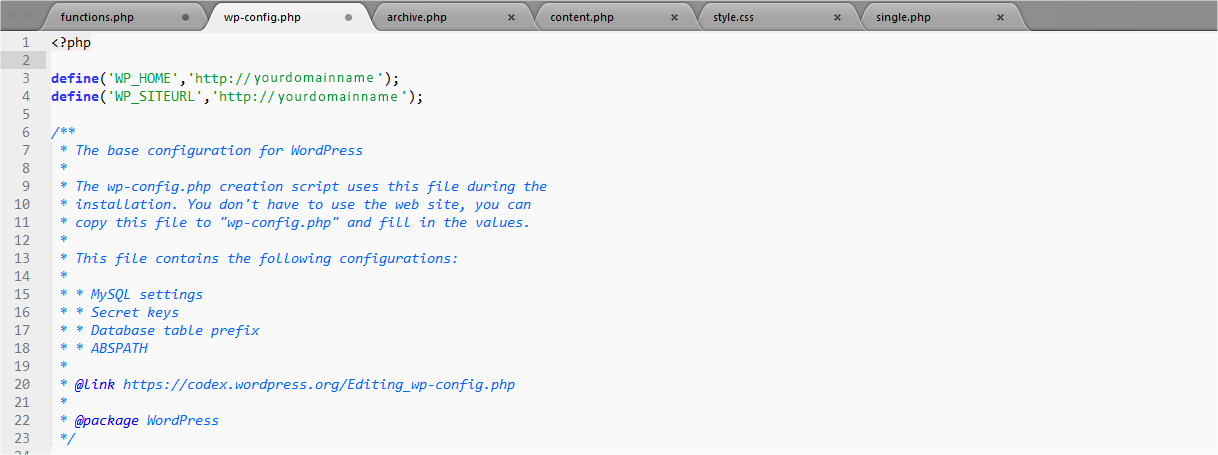
Old posts may still have images and links to the old domain.
- Go to Plugins, then Add New.
- Search for a search and replace plugin. Install and activate it.
- Find its tool, often under Tools.
- Search for the old domain. Replace it with the new domain.
- Run a dry run first if the plugin offers one. This shows what would change without changing it.
- Run the real replace.
Part 4: Redirect the old domain
A redirect sends visitors from the old address to the new one automatically. This keeps your visitors and your search ranking. Add one in your control panel under Redirects, or ask Hostvento support.
Part 5: Check
- Visit the new domain and open several pages.
- Check that images load and links go to the new address.
- Go to Settings, then Permalinks, and click Save Changes to refresh your links.
Tip: Keep the old domain registered for a while, so your redirect keeps working.
Quick recap
- Point the new domain to your hosting and add it in the control panel.
- Change both URLs in Settings then General.
- Replace the old domain inside your content.
- Redirect the old domain to the new one, and re-save permalinks.