

What is a plugin?
A plugin is a small add-on program that gives your WordPress site extra features. Removing one you no longer use keeps your site clean, safer and faster.
Warning: Deleting a plugin can remove its settings and data. Your site may also change how it looks. Take a backup first. A backup is a saved copy you can restore.
Method 1: Use the dashboard
The dashboard is the control room you see after you log in to WordPress.
- Log in to your WordPress dashboard.
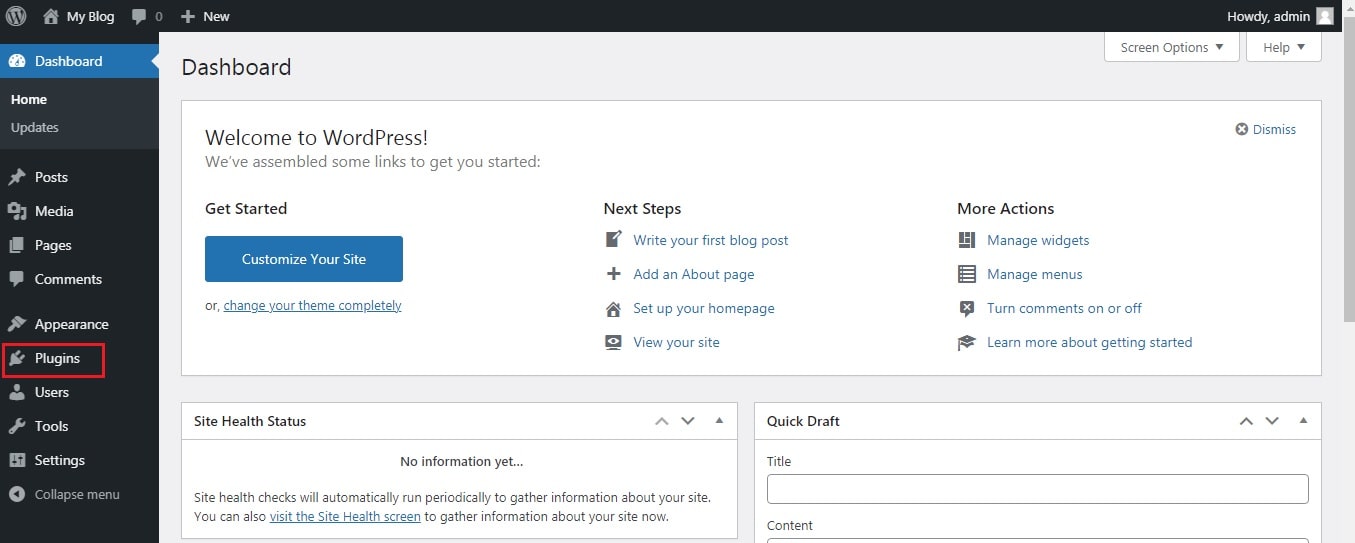
- Click Plugins, then Installed Plugins.
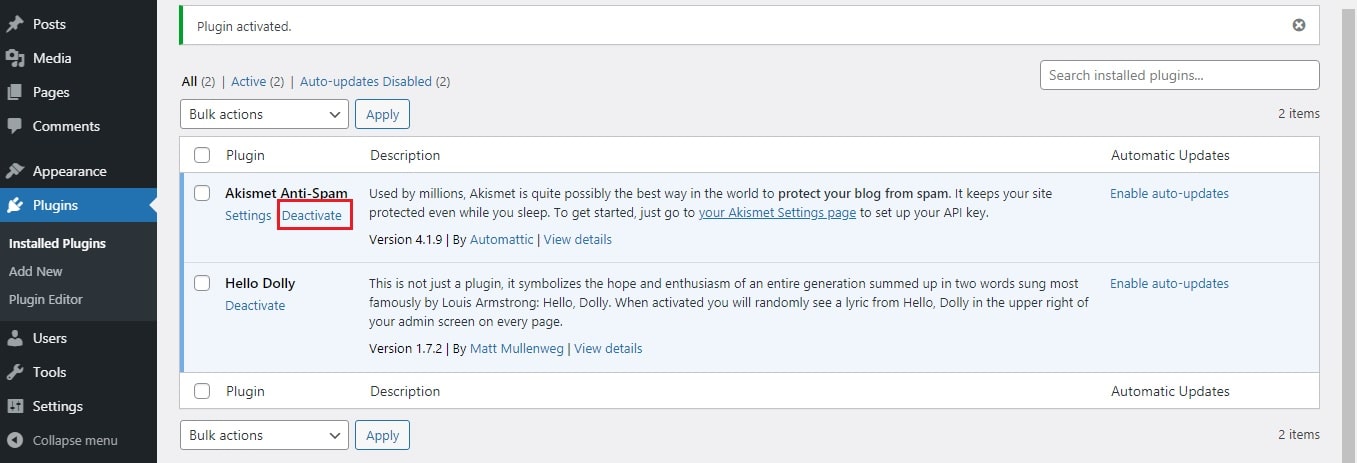
- Find the plugin you want to remove.
- Click Deactivate. This turns it off.
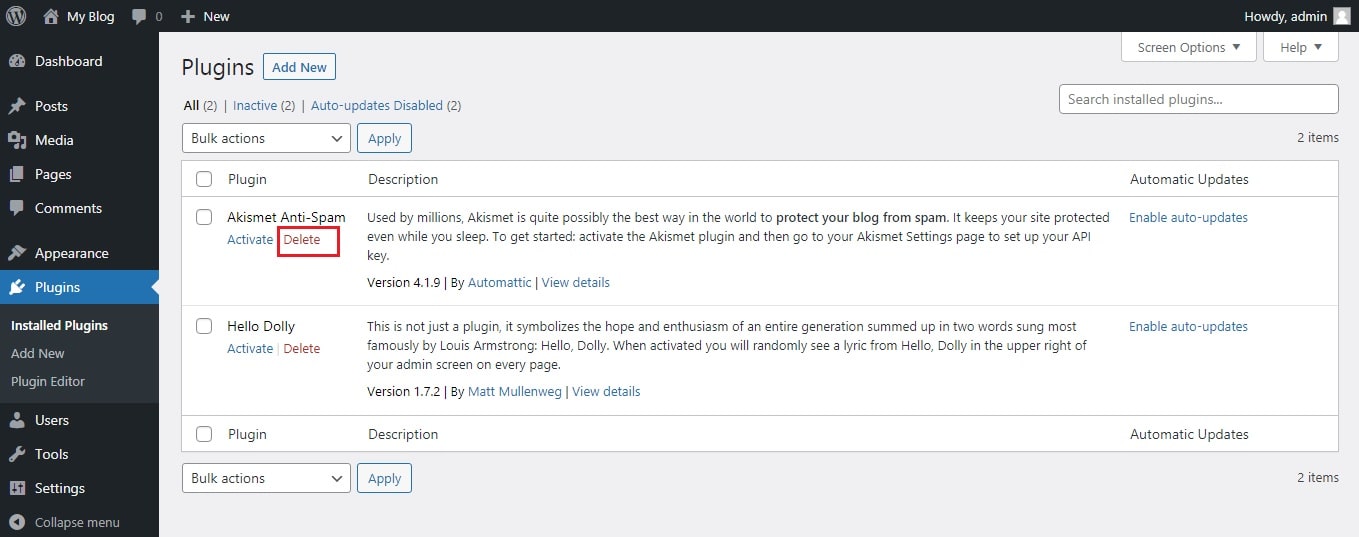
- Click Delete, which now shows under the name.
- Click OK or Yes, Delete These Files to confirm.
WordPress shows a message when the plugin is gone.
Method 2: Use FTP
Use this if you cannot reach the dashboard. For example, a plugin may have broken your login page.
FTP is a way to move files between your computer and your hosting account. You need an FTP program, such as FileZilla. Your FTP host name, user name and password are in your welcome email. You can also ask Hostvento support.
- Open your FTP program.
- Type your host, user name and password.
- Click Quickconnect or the connect button.
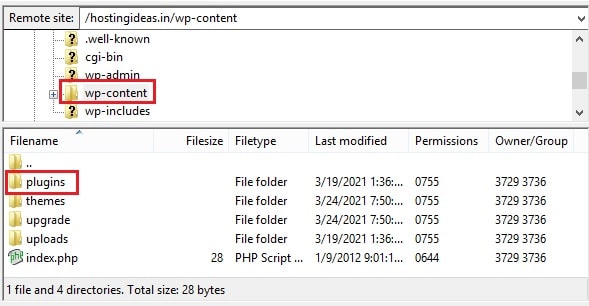
- Open the
public_htmlfolder. Your site may be in a sub-folder. - Open
wp-content, thenplugins. - Find the folder with the plugin name.
- Right-click it and choose Delete.
- Confirm.
WordPress turns off a plugin when its folder disappears.
Check the result
- Open your website in a new tab.
- Click through a few pages.
- Go back to Plugins and see that it is gone.
Tip: If you only want to test, use Deactivate or rename the folder instead of deleting. You can switch the plugin back on later.
Quick recap
- Back up before you delete anything.
- In the dashboard, deactivate first, then delete.
- With FTP, delete the plugin folder inside
wp-content/plugins.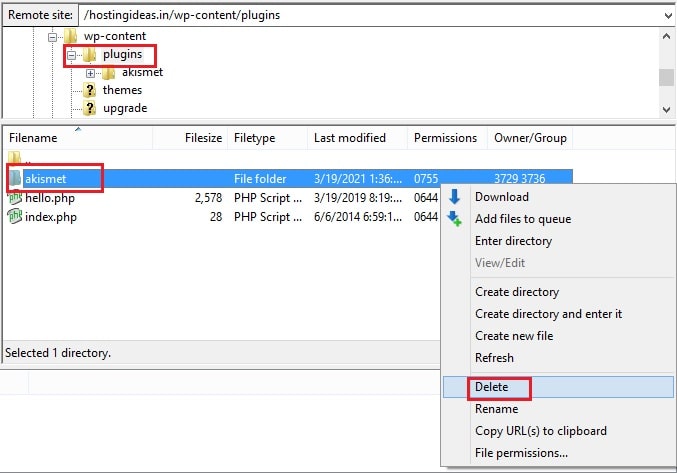
- Check your site afterwards.