

What is a theme?
A theme controls how your WordPress site looks. It sets colours, fonts and layout. Old themes you do not use still sit on your server. They can go out of date and become a risk. It is wise to remove them.
Warning: You cannot delete the theme that is active. Switch to another theme first. Take a backup before you start. A backup is a saved copy you can restore.
Way 1: Use the dashboard
The dashboard is the control room you see after you log in.
- Log in to WordPress.
- Click Appearance, then Themes.
- Activate a different theme if the one you want to delete is active.
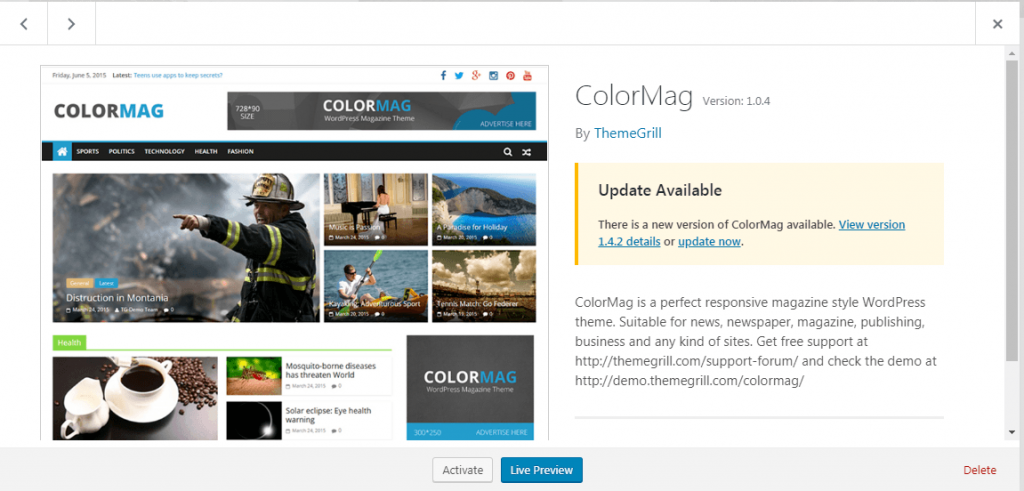
- Click the theme you want to remove.
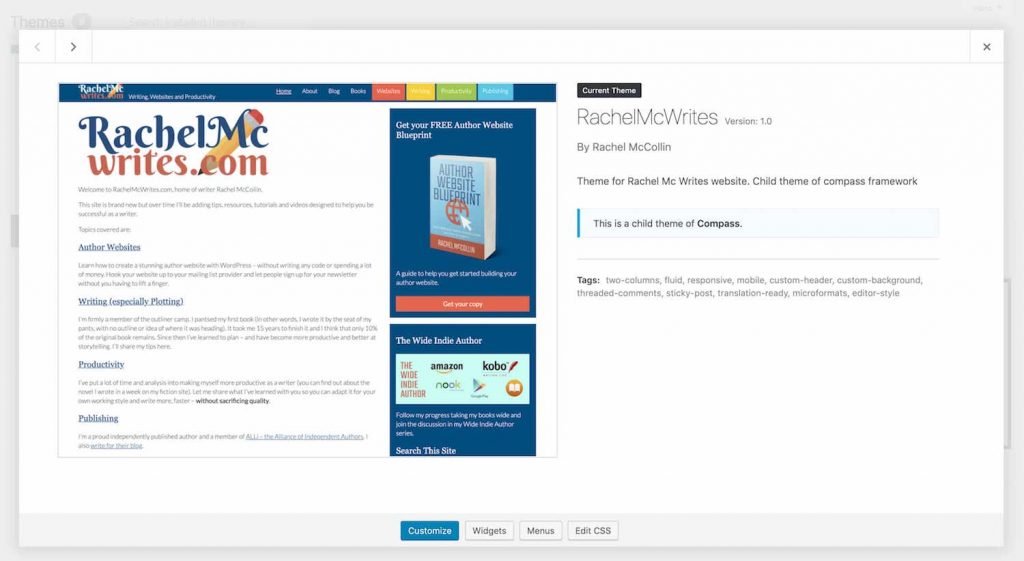
- Click Delete at the bottom right of the pop-up.
- Click OK to confirm.
Way 2: Use the File Manager
The File Manager is a tool in your hosting control panel. It lets you see and manage your site files in the browser. Your welcome email explains how to log in to the control panel.
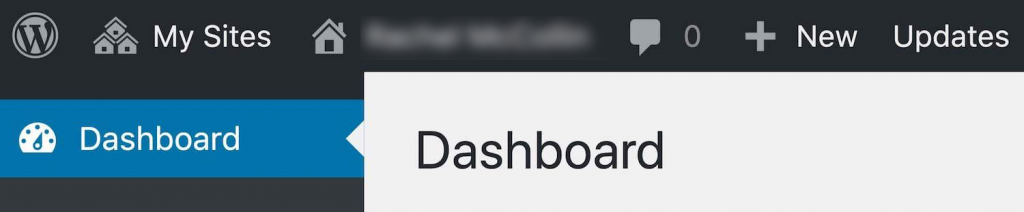
- Log in to your hosting control panel.
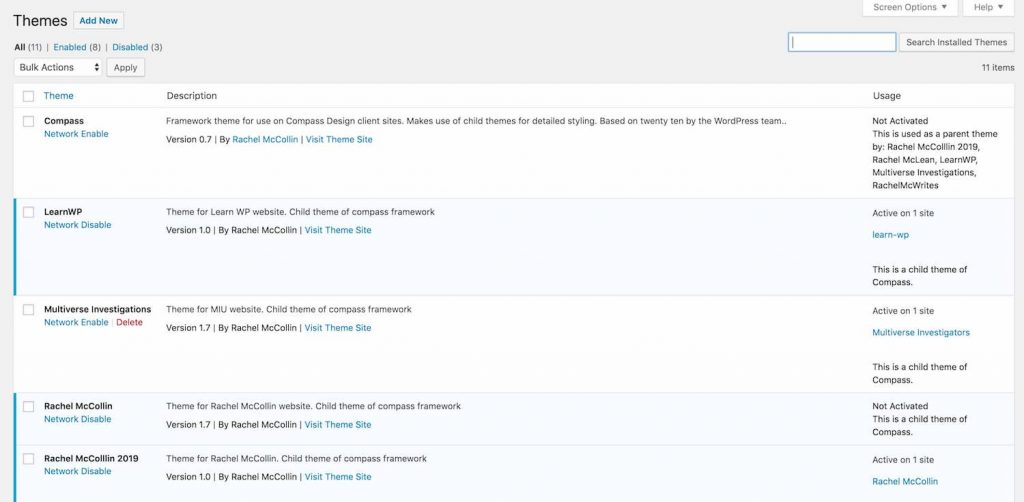
- Open File Manager.
- Open the
public_htmlfolder. Your site may be in a sub-folder. - Open
wp-content, thenthemes. - Right-click the folder of the theme you want to remove.
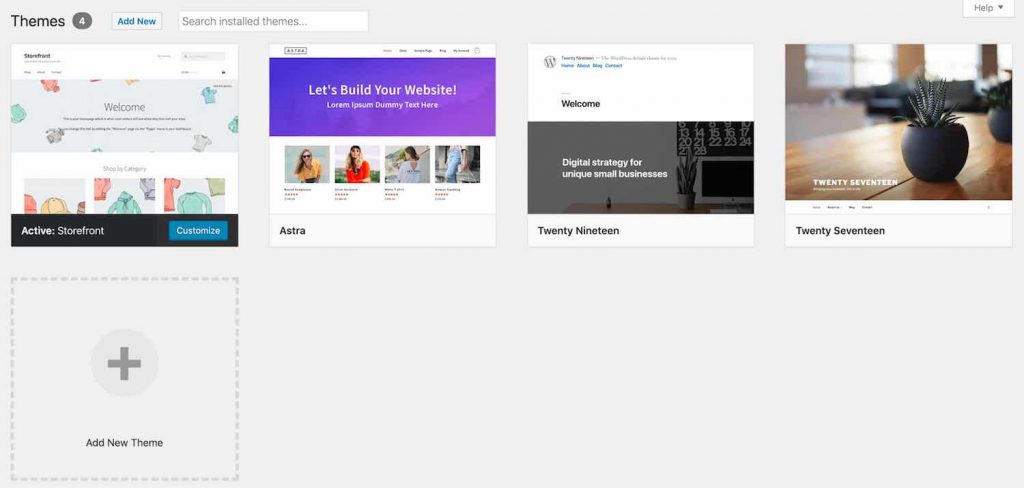

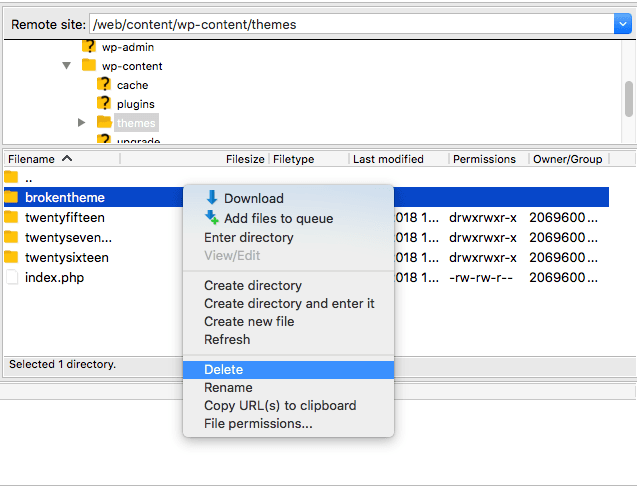
- Choose Delete and confirm.
Way 3: Use FTP
FTP is a way to move files between your computer and your hosting account with a program such as FileZilla. Your FTP details are in your welcome email.
- Open your FTP program and connect.
- Go to
wp-content/themesin your site folder. - Find the folder with the theme name.
- Right-click it and choose Delete.
- Confirm.
After you delete
- Open your site in a new tab.
- Check that the pages still look right.
- Go to Appearance, then Themes to see the new list.
Tip: Keep at least one default WordPress theme installed. It helps you recover if your main theme breaks. If you use a child theme, do not delete its parent theme.
Quick recap
- Back up first.
- Switch to another theme before you delete the active one.
- Delete from the dashboard, the File Manager or FTP.
- Keep one default theme as a safety net.