

What is HTML?
HTML is the language that builds web pages. It uses small labels called tags to say what each piece is. For example, <p> marks a paragraph and <a> marks a link. Think of HTML as the skeleton of a page.
Why does it matter?
The normal editor is like a drawing board. It is easy, but sometimes it cannot do exactly what you want. With HTML you can fix spacing, add a special link, place an embed code or clean up odd formatting. A little HTML knowledge gives you more control.
Edit HTML in one block
- Log in to WordPress and open a post or page.
- Click the block you want to change.
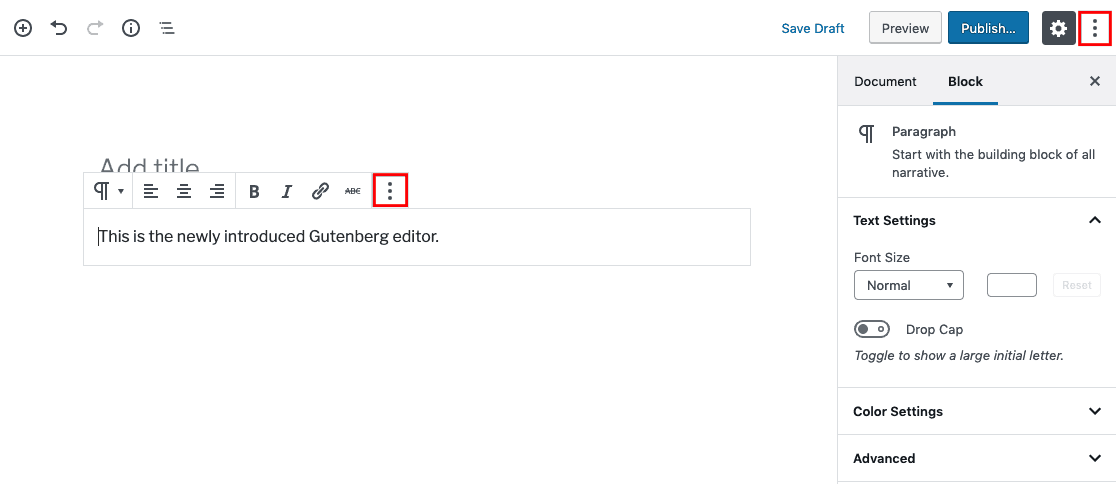
- Click the three dots in the small toolbar above the block.
- Choose Edit as HTML.
- Change the code.
- Click the three dots again and choose Visual editor.
Edit HTML for the whole page
- Open the post or page.
- Click the three dots at the top right of the screen.
- Choose Code editor.
- Edit the code.
- Click the three dots again and choose Visual editor to go back.

- Click Update to save.
In the code editor you may see comments like <!-- wp:paragraph -->. They are markers WordPress uses to know blocks. Leave them as they are.

Add a custom HTML block
- Click the plus button to add a block.
- Search for Custom HTML.
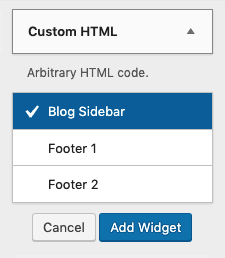
- Click it.
- Paste or write your HTML.
- Use the Preview tab to see the result.
A small example
<p>Visit our <a href="https://example.com">home page</a>.</p>This writes a sentence with a clickable link inside it.
Classic editor
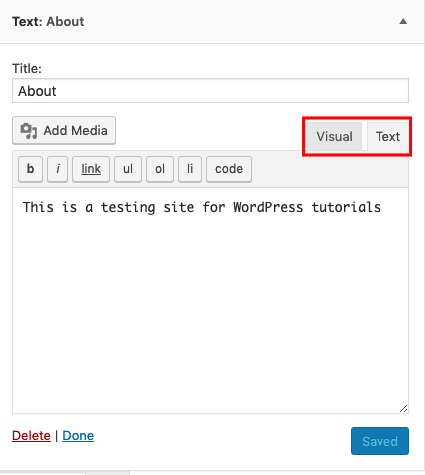
If your site uses the Classic Editor plugin, you will see two tabs, Visual and Text. Click Text to see the HTML.
Quick recap
- HTML is the language that builds pages.
- Use Edit as HTML for one block.
- Use Code editor for the whole page.
- Use a Custom HTML block for pasted code.
- Save a draft first so you can undo mistakes.