

What does the warning mean?
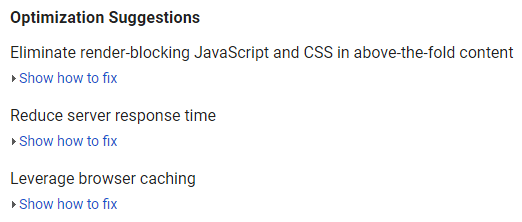
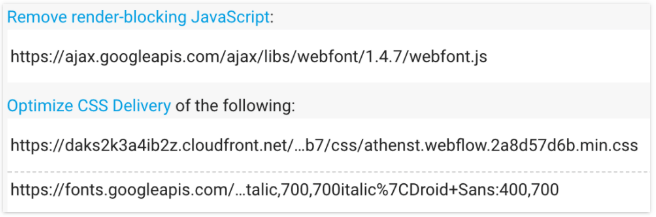
When someone opens your site, the browser reads your page from top to bottom. CSS files tell it how things look. JavaScript files make things move or react. If the browser meets a big file early, it stops and waits for it. Nothing shows until that file is loaded. That file is "render-blocking".
The above-the-fold part is what visitors see first, before they scroll. Making that part appear fast makes your site feel quick.
Step 1: Run a speed test
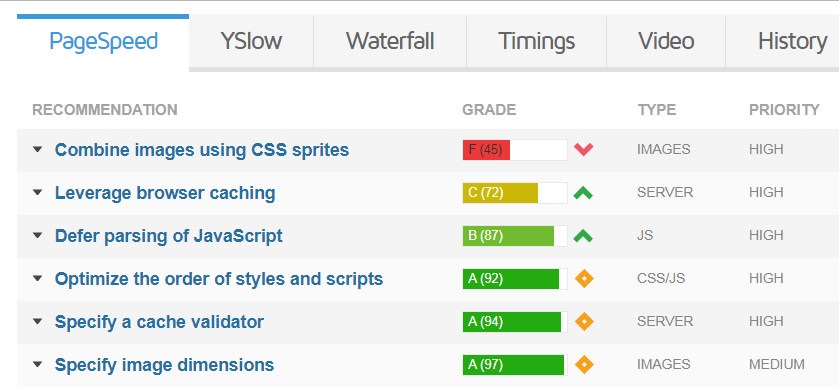
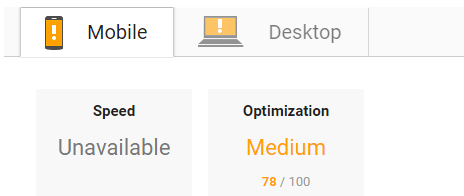
- Open a speed test tool, such as Google PageSpeed Insights.
- Type your site address and run the test.
- Find the warning and note which files it lists.
Step 2: Use a speed plugin
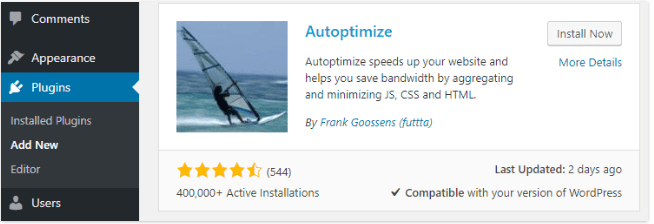
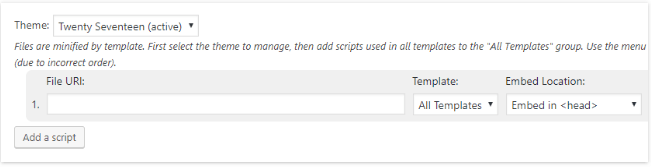
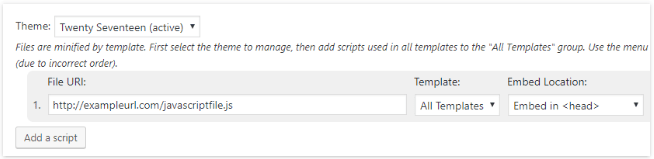
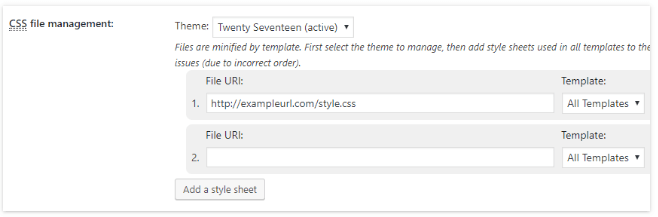
A plugin is an add-on program for WordPress. Several speed plugins have switches for this problem. Examples are WP Rocket, Autoptimize and LiteSpeed Cache. Some are paid. Check which one your plan supports, or ask Hostvento support.

With Autoptimize the steps are:
- Install and activate the plugin.

- Click Settings, then Autoptimize.

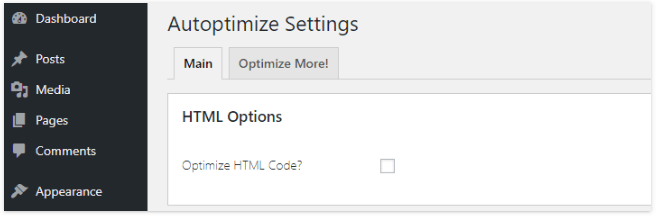
- Tick Optimize JavaScript Code.
- Tick Optimize CSS Code.
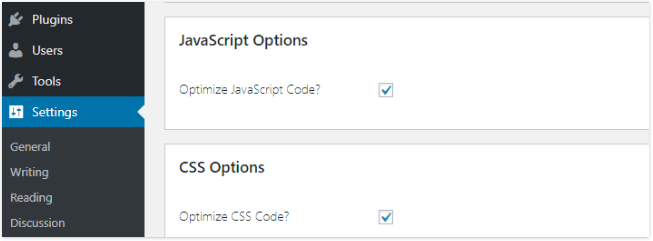
- Tick Inline and Defer CSS if the option is shown.
- Click Save Changes and Empty Cache.

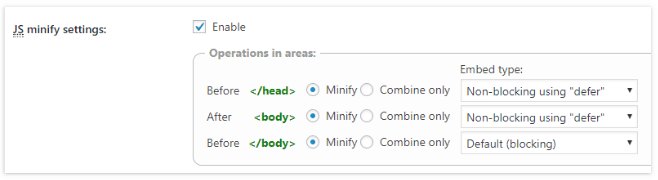
"Defer" means "load this later". The page shows first and the file loads after.
Step 3: Defer JavaScript with code
You can also add a small piece of code to the functions.php file of a child theme. A child theme is a safe layer on top of your theme.
function hv_defer_scripts($tag, $handle) {
    if (is_admin()) {
        return $tag;
    }
    return str_replace(' src', ' defer src', $tag);
}
add_filter('script_loader_tag', 'hv_defer_scripts', 10, 2);
This adds the word defer to script tags so they load after the page appears.
Step 4: Check again
- Clear your plugin cache and your browser cache.
- Open your site and check the menu, sliders and forms.
- Run the speed test again.
Quick recap
- Render-blocking files make visitors wait for the page.
- Deferring means loading a file later.

- A speed plugin is the easiest fix.
- Back up, change one thing at a time and test your site.