

What the debugger is
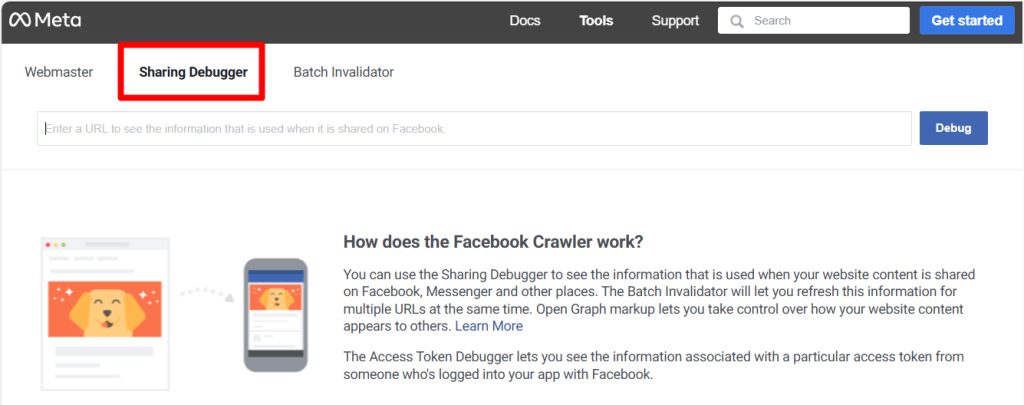
The Facebook Sharing Debugger is a free tool by Meta. It shows how Facebook sees a web page: its title, description and image, and the Open Graph tags behind them. It can also clear what Facebook has saved about your link.
Why the wrong image shows
- Missing or wrong Open Graph tags. Facebook uses
og:image,og:titleandog:description. Without them it guesses. - Old cache. Facebook saved an old version of your page.
- Wrong image size or format. Use at least 1200 x 630 pixels in JPG or PNG.
- Plugin or CDN trouble. A caching plugin may serve an old page. A CDN may serve an old image. An image optimizer may rename files.
- No featured image. Facebook then picks any image on the page, or none. A fallback image in your SEO plugin helps.
Use the debugger
- Copy the URL of your post. Use the public link, not the editor link.
- Paste it into the Sharing Debugger (
developers.facebook.com/tools/debug) and click Debug. - Read the result:
- Link preview shows the image, title and description Facebook will use.
- Open Graph tags listsog:image,og:title,og:urland others. Check that they are right.
- Warnings or errors show problems, such as a missing tag. - Click Scrape Again. This makes Facebook fetch the page again. Repeat it until the preview is right.
- Check the image. Share the link again to confirm that the right image appears.
Fix the cause in WordPress
- Set a featured image for every post.
- Use an SEO plugin (Yoast SEO, Rank Math or All in One SEO) to set the social image.
- Clear the cache of your caching plugin and CDN after you change an image.
- Use an image of at least 1200 x 630 pixels.
Quick recap
- Paste the link into the Sharing Debugger and click Scrape Again.
- Set a featured image and Open Graph tags.
- Clear caches in WordPress and your CDN.