

What is a temporary URL?
A temporary URL is a short-term web address that opens your site straight from the server. You can use it while your domain still points somewhere else. This is handy when you move a site and want to test it first. Think of it as a back door you use before the front door is ready.
Your welcome email or your hosting control panel shows the temporary address format for your plan. If you cannot find it, ask Hostvento support.
Warning: Take a backup before you start. Changing site addresses can make a site unreachable if you make a mistake.
The problem
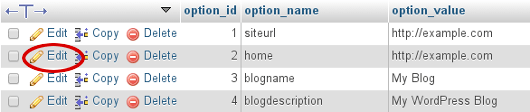
WordPress saves its own address in the database. If you copy a site from olddomain.com and open it by a temporary URL, WordPress may send you back to the old domain. So you tell WordPress to use the temporary URL for now.
Steps
- Copy your site files and database to the new hosting.
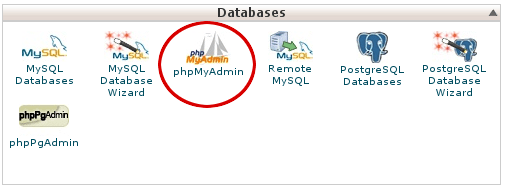
- Open the temporary URL in your browser to check that the site loads.
- Open File Manager in your control panel and find
wp-config.php.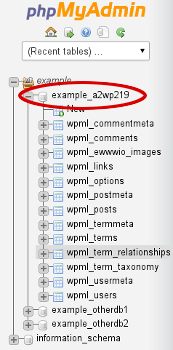
- Edit the file. Add these lines above the "That's all, stop editing" comment.
Replace the text with your real temporary URL. These lines make WordPress use that address.define( 'WP_HOME', 'http://temporary-address-here' ); define( 'WP_SITEURL', 'http://temporary-address-here' );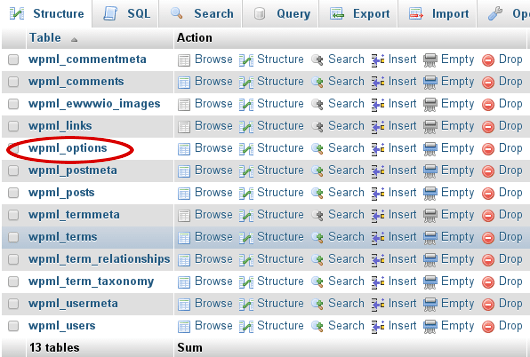
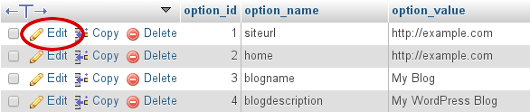
- Save the file.
- Reload the temporary URL and log in at
/wp-admin. - Test your pages, menus and forms.
When you are ready to go live
- Change your domain's nameservers or DNS records to point to your hosting. DNS is the phone book of the internet. It tells browsers where a site lives.
- Wait for the change to spread. This can take several hours.
- Remove the two lines from
wp-config.php. - Go to Settings, then General. Set both addresses to your real domain.
- Click Save Changes.
Common problems
- Pictures or styles are missing. Old links may still point to the old domain. Use a search and replace plugin to fix them.
- Pages show a 404 error. Go to Settings, then Permalinks and click Save Changes.
- The site redirects to the old domain. Check the two lines in
wp-config.php.
Quick recap
- A temporary URL lets you test a site before the domain points to it.
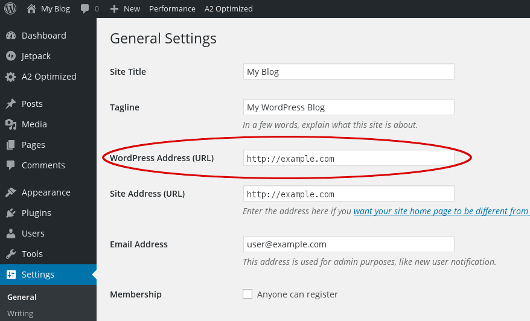
- Set
WP_HOMEandWP_SITEURLto that address inwp-config.php. - When live, remove those lines and set your real domain in the dashboard.