

What is FTP?
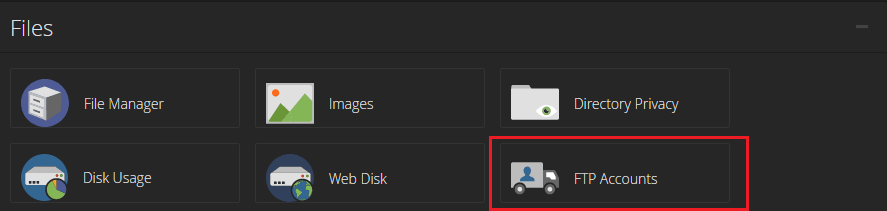
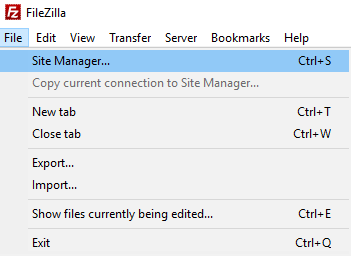
FTP stands for File Transfer Protocol. It is a way to move files between your computer and your hosting account. Think of it as a delivery truck that carries boxes to your website's storage room. You use a small program called an FTP client. FileZilla is a free one.
FTP is handy when the dashboard upload fails, for example with very big files.
Warning: Uploading can overwrite files with the same name. Take a backup of your site first. A backup is a saved copy you can restore.
What you need
- An FTP client, installed on your computer.
- Your FTP host name, user name and password. Look in your welcome email, or ask Hostvento support.
- The file or folder you want to upload, unzipped.
Steps
- Open your FTP client.
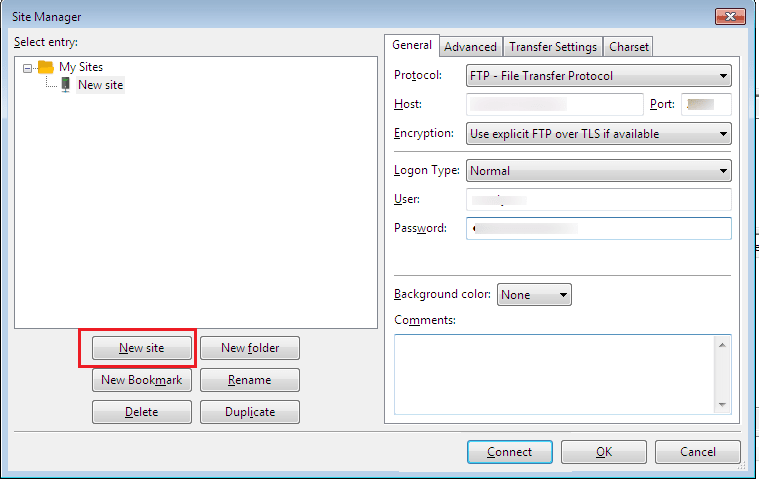
- Type your host name, user name and password in the top boxes.
- Leave the port empty, or use the number given in your welcome email.
- Click Quickconnect.
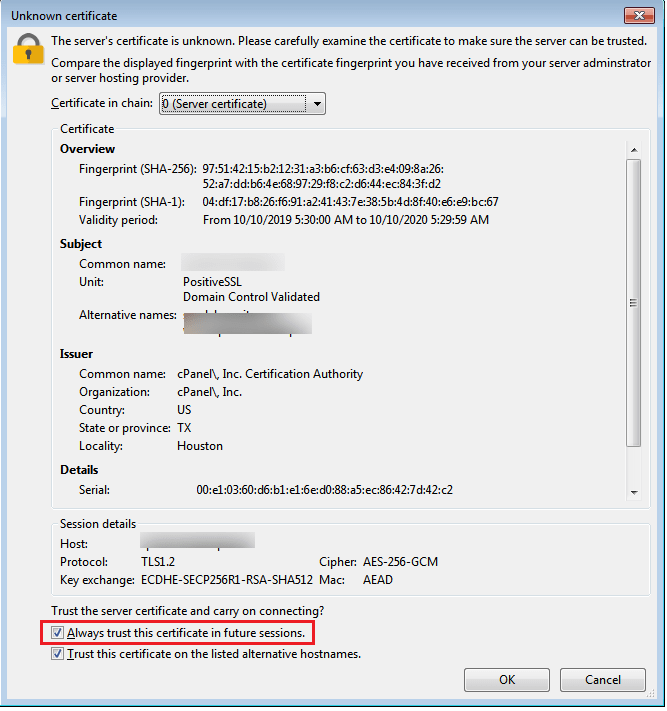
- If a window asks about a certificate, read it and click OK.
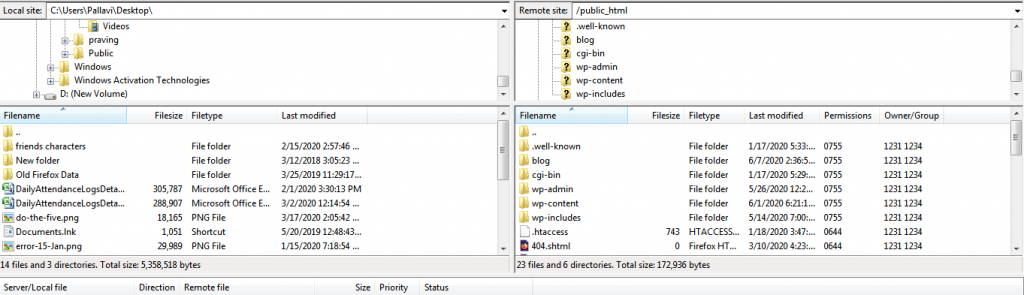
- Look at the right side. It shows your hosting account. The left side shows your computer.
- On the right, open
public_html. If WordPress is in a sub-folder, open that one. - Open
wp-content.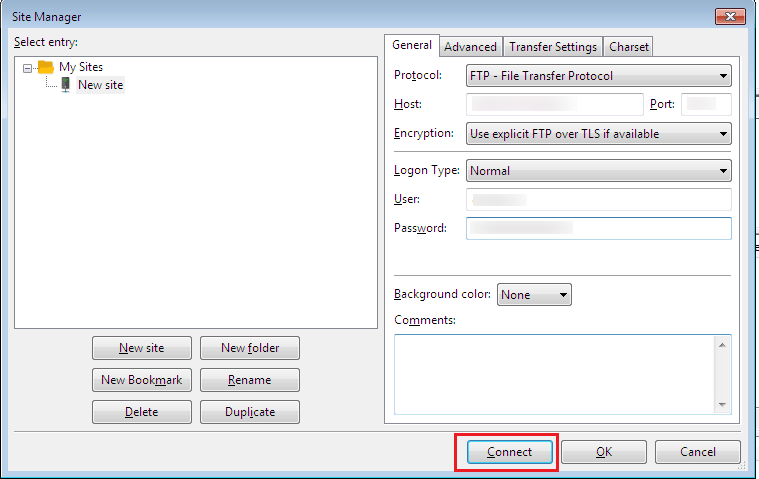
- Choose the right place for your file, using the table below.
- On the left, find the file or folder on your computer.
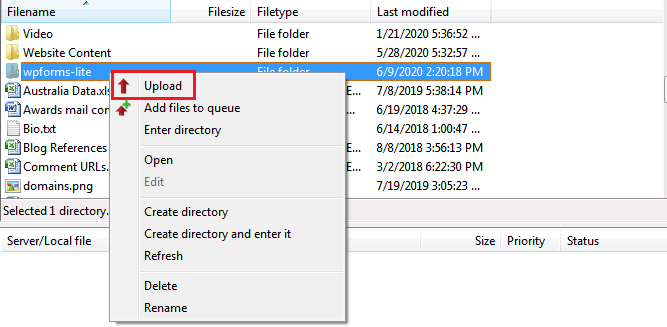
- Drag it to the right side. Or right-click it and choose Upload.
- Wait until the queue at the bottom is empty.
Where do files go?
| What you upload | Folder |
|---|---|
| A theme | wp-content/themes |
| A plugin | wp-content/plugins |
| Pictures and documents | wp-content/uploads |
Upload the unzipped folder, not the ZIP file.
Turn it on in WordPress
- Log in to your WordPress dashboard.
- For a plugin, click Plugins, then Installed Plugins, then Activate.

- For a theme, click Appearance, then Themes, then Activate.
Pictures put in the uploads folder by FTP do not show in the Media library by themselves. Add them there with a media import plugin.
Tip: If your upload fails, check the permissions of the folder. Folders should normally be 755. Also, use SFTP if your host offers it. It is a more secure kind of FTP.
Quick recap
- FTP moves files between your computer and your hosting.
- Connect with host, user name and password.
- Upload themes to
themesand plugins toplugins. - Activate them in the dashboard.
- Back up first.