

What is a 404 error?
A 404 error means the browser asked for a page, and the server could not find it. It is like asking a librarian for a book that is not on the shelf. In WordPress it often happens after a move, a plugin change or a broken link setting. The usual cause is the permalink rules.
A permalink is the web address of a page, like yourdomain.com/about.
Fix 1: Save your permalinks again
This works most of the time.
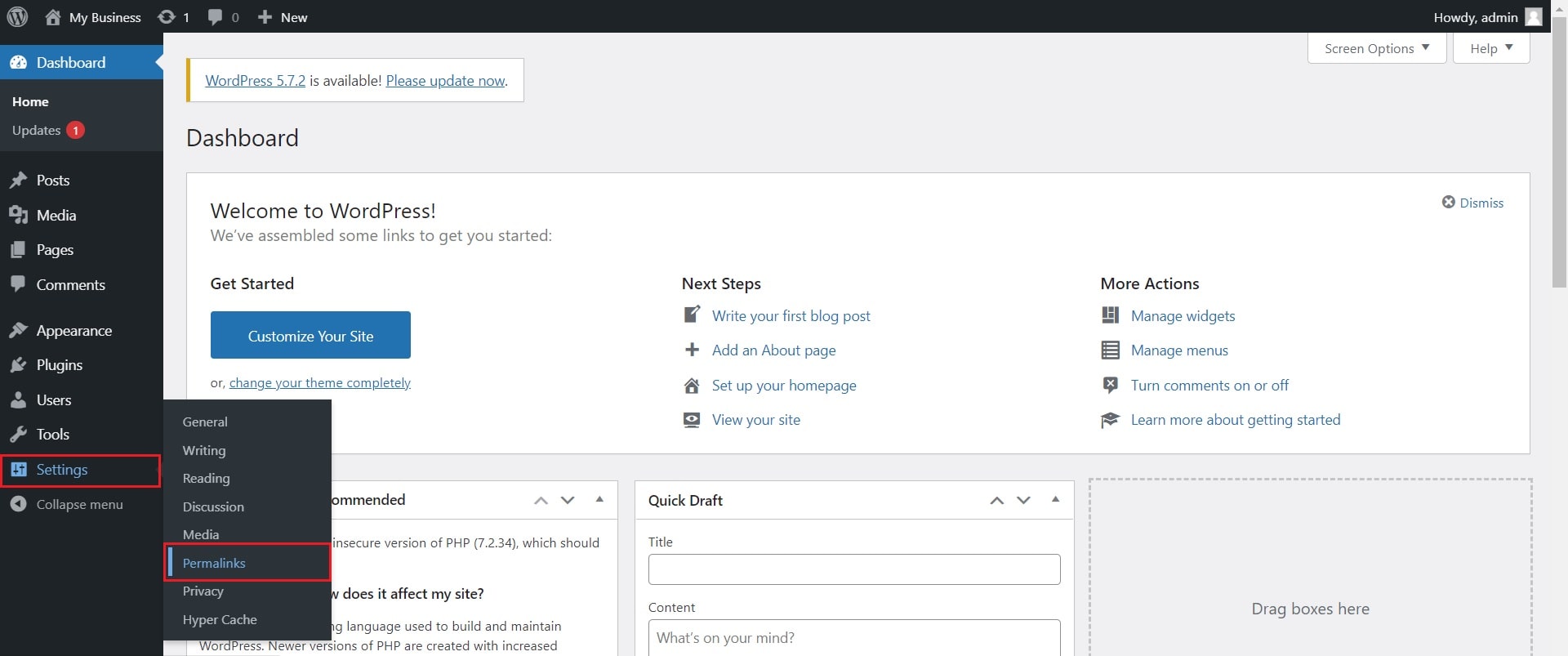
- Log in to your WordPress dashboard.
- Click Settings, then Permalinks.
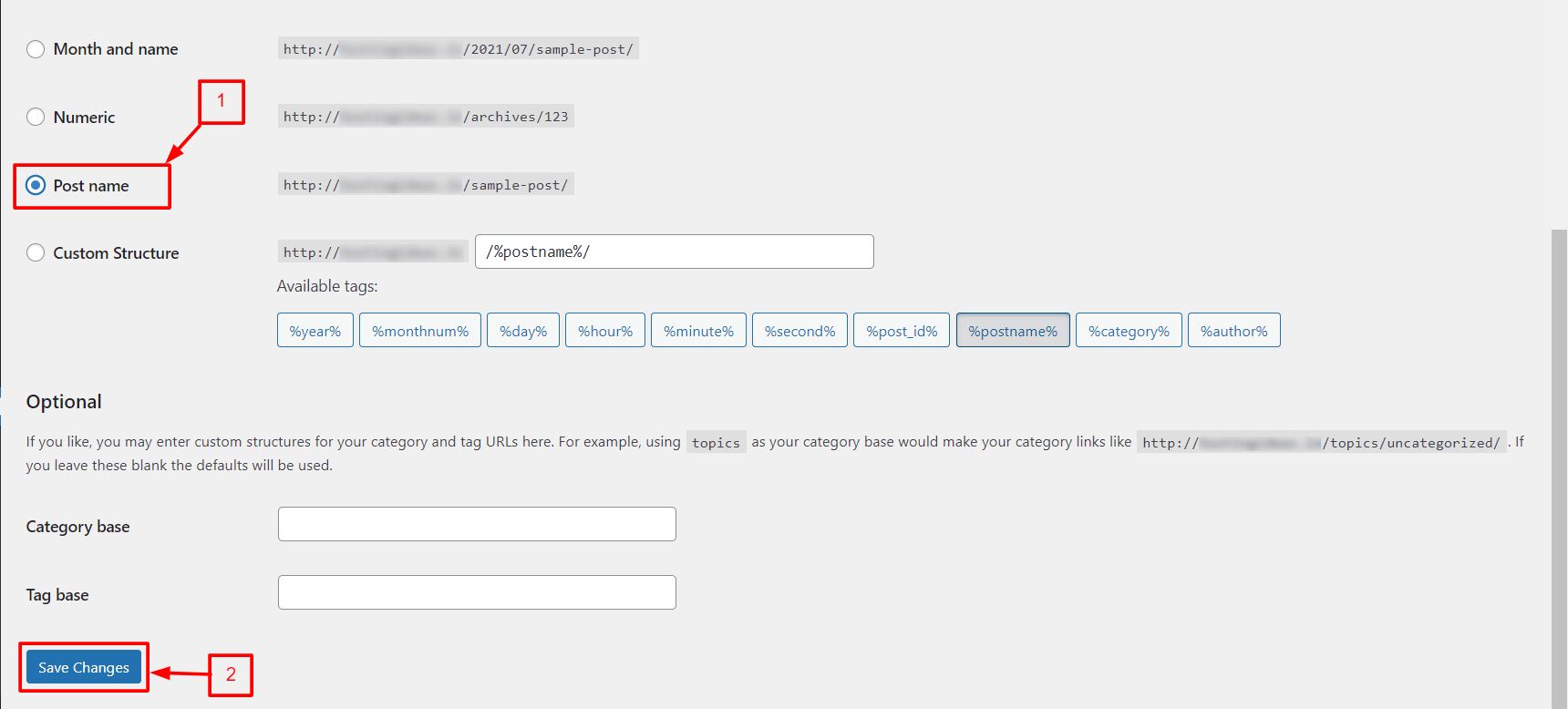
- Do not change anything.
- Click Save Changes.
- Open the page that gave the error.
Fix 2: Reset the .htaccess file
The .htaccess file is a hidden settings file on the Apache web server. WordPress uses it for page addresses. If it is missing or damaged, pages fail.
- Log in to your hosting control panel.
- Open File Manager and go to your WordPress folder, often
public_html. - Turn on Show Hidden Files.
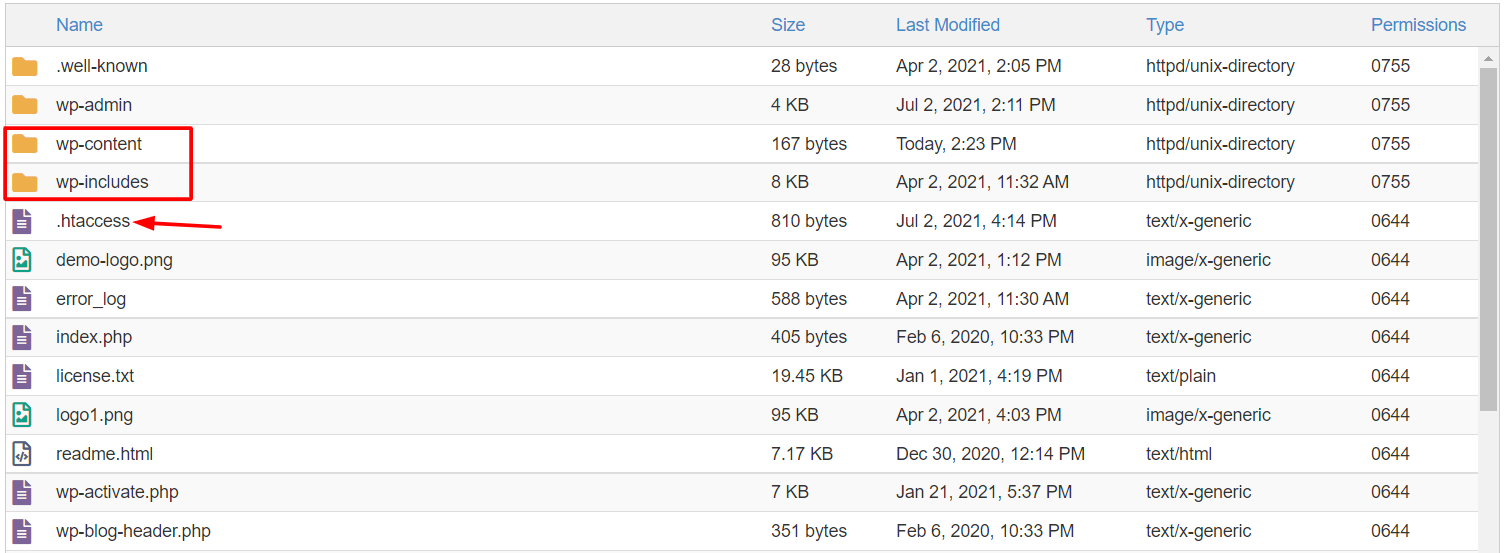
- Rename
.htaccessto.htaccess-old. - Go back to Settings, then Permalinks in WordPress and click Save Changes.
WordPress makes a fresh file. If you cannot make one, create a file named .htaccess and paste this standard block in.

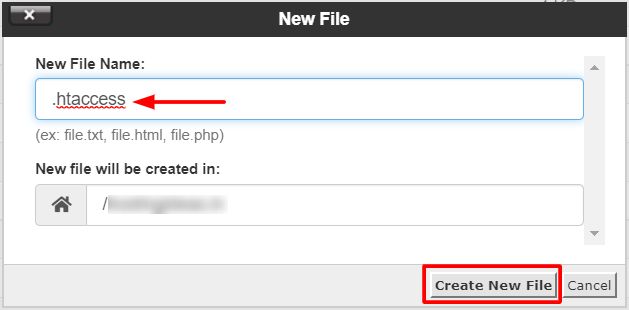
# BEGIN WordPress
<IfModule mod_rewrite.c>
RewriteEngine On
RewriteBase /
RewriteRule ^index\.php$ - [L]
RewriteCond %{REQUEST_FILENAME} !-f
RewriteCond %{REQUEST_FILENAME} !-d
RewriteRule . /index.php [L]
</IfModule>
# END WordPress
This block tells the server to hand every unknown address to WordPress.
Fix 3: Turn off plugins
- In the dashboard, click Plugins, then Installed Plugins.
- Select all plugins and choose Deactivate.
- Check if the page works.
- Turn plugins back on one by one to find the bad one.
Fix 4: Check the page itself
- Click Pages or Posts.
- Check that the item is Published and not in the trash.
- Check the spelling of the web address, called the slug.
Fix 5: Check your site address
Click Settings, then General. Make sure the two address fields are right. If a wrong address locks you out, ask Hostvento support for help at https://secure.hostvento.com/submitticket.php.
Quick recap
- A 404 means the server cannot find the page.
- First, save your permalinks again.
- Next, rebuild the
.htaccessfile. - Then test your plugins.
- Open a support ticket if nothing works.