

Why it happens
- A plugin that conflicts with the theme.
- Code conflicts.
- Wrong edits to theme files.
- A responsive layout that shows a different layout on small screens.
- Wide content (images, tables, widgets) that does not fit next to the sidebar.
Fix it, step by step
Step 1: Quick checks. Clear the cache of your browser, your caching plugin and your CDN. Look at the site on another screen size. On a phone, the sidebar below the content is normal.
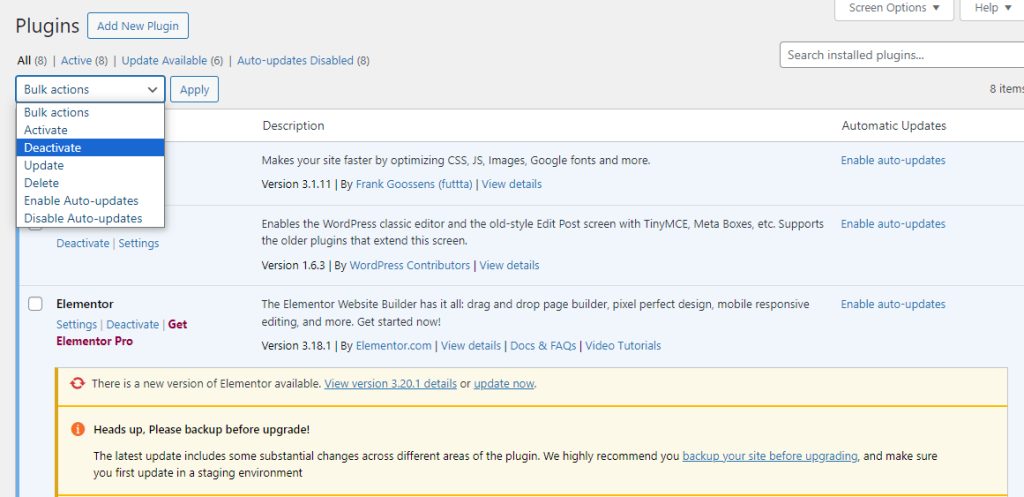
Step 2: Test the plugins. Go to Plugins, turn them all off, and check the layout. Turn them on one by one to find the plugin that breaks it.
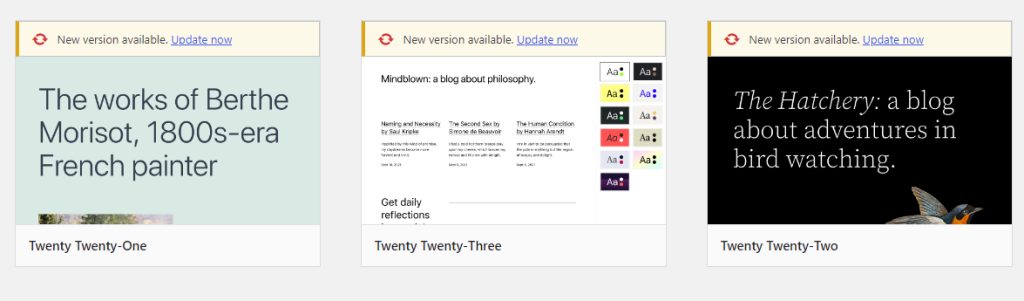
Step 3: Test the theme. Go to Appearance, then Themes, and activate a default theme such as Twenty Twenty-Four. If the sidebar is correct, the problem is in your theme. Switch back.
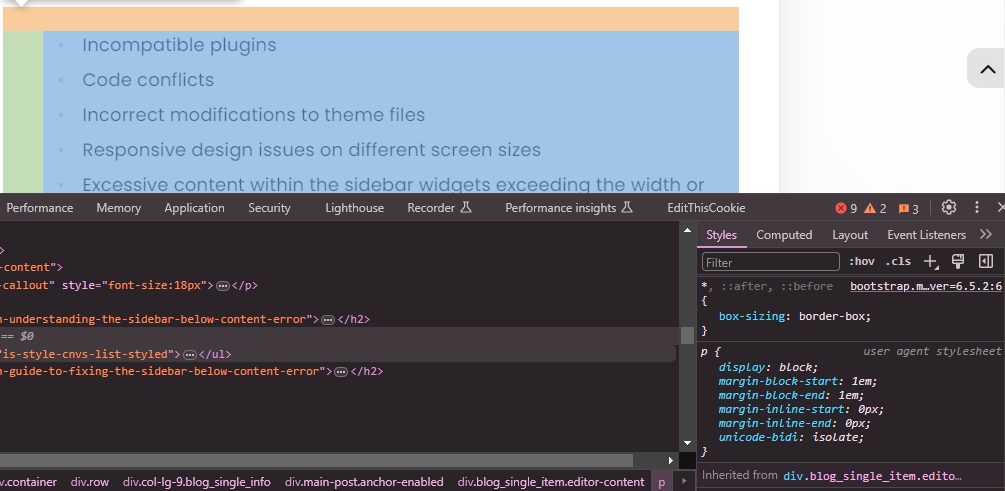
Step 4: Inspect the page. Right-click the page and choose Inspect. Look at the widths of the content and sidebar containers. If their total is wider than the page, they wrap, and the sidebar falls down. Look for content that is too wide, such as a big image or an embedded table.
Step 5: Fix with CSS. Open Appearance, then Customize, then Additional CSS. Use the class names of your theme. Example:
#content {
  float: left;
  width: 70%;
}

#sidebar {
  float: right;
  width: 28%;
}
Use the selectors that your theme really uses.
Step 6: Check the HTML. A missing closing </div> in a post can break the layout. Open the post in the Code editor and check the tags.
Step 7: Check the child theme. If you use a child theme, compare its files with the parent. A wrong template file can cause the problem.
Step 8: Review the content. Make sure the images fit, and tables and embeds are not wider than the content area.
Quick recap
- Test plugins and the theme first.
- Use Inspect to find the container that is too wide.
- Add CSS widths for the content and the sidebar.