

What does the error mean?
When you upload a picture, theme or plugin, the server checks its size. PHP is the language WordPress runs on. It has a setting named upload_max_filesize. This is the biggest file you may upload. If your file is bigger, you see the error. It is like a lift with a weight limit.
A second setting, post_max_size, limits the total data sent in one go. It should be at least as big as the upload limit.
Method 1: Use the control panel
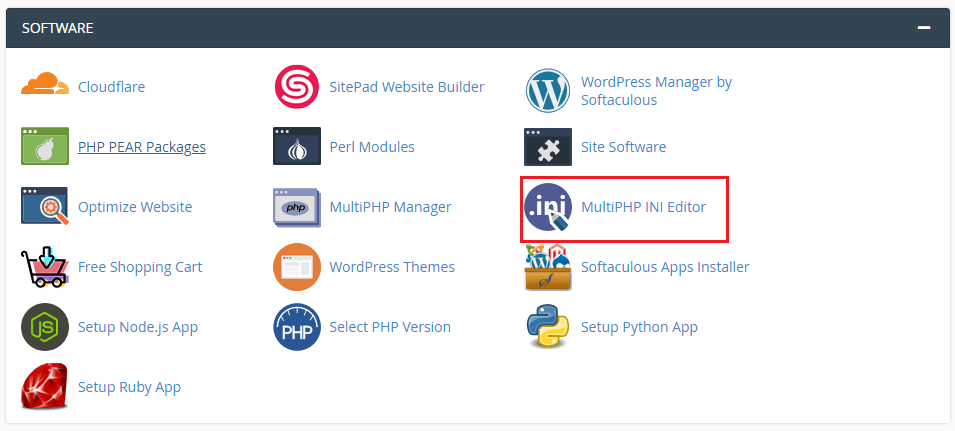
Your control panel may have a PHP settings tool. Its name differs by panel, for example MultiPHP INI Editor or Select PHP Version.
- Log in to your hosting control panel.
- Look for the PHP settings tool.
- Find
upload_max_filesize.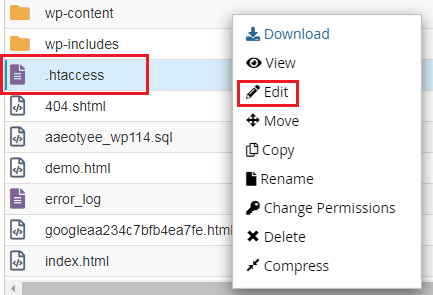
- Change it to a bigger value, such as
64M. The M stands for megabytes. - Find
post_max_sizeand set it to64Mor more. - Click Save.
Method 2: Edit .user.ini
A .user.ini file holds PHP settings for your folder.
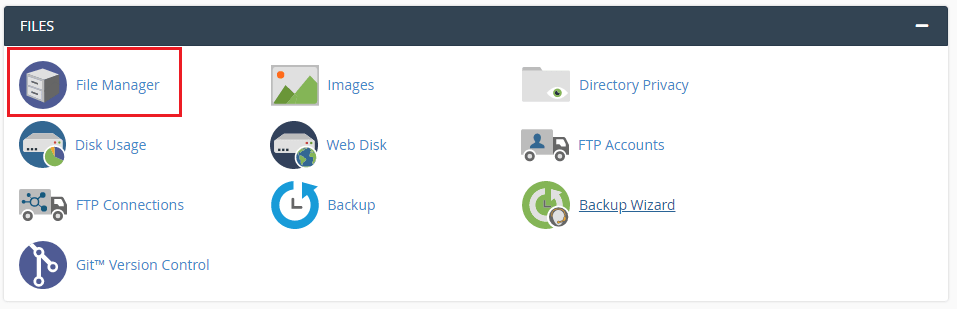
- Open File Manager in your control panel.
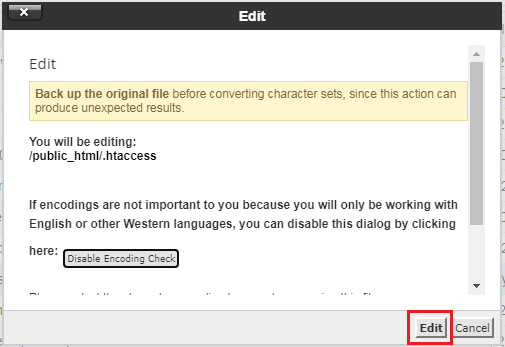
- Go to the folder where WordPress is installed, often
public_html. - Create a file named
.user.ini, or open it if it exists.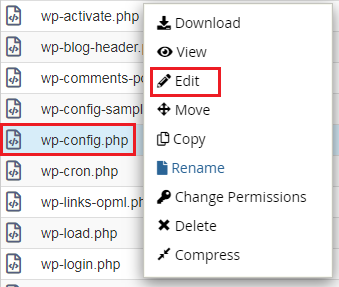
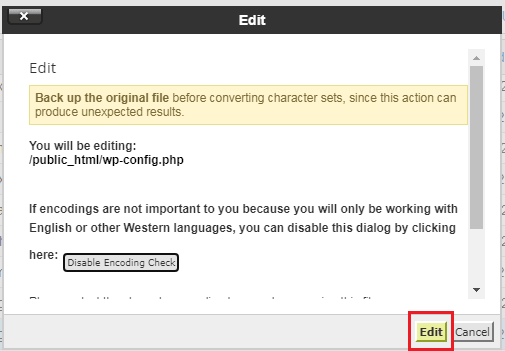
- Add the lines below.
- Save the file. It may take a few minutes to take effect.
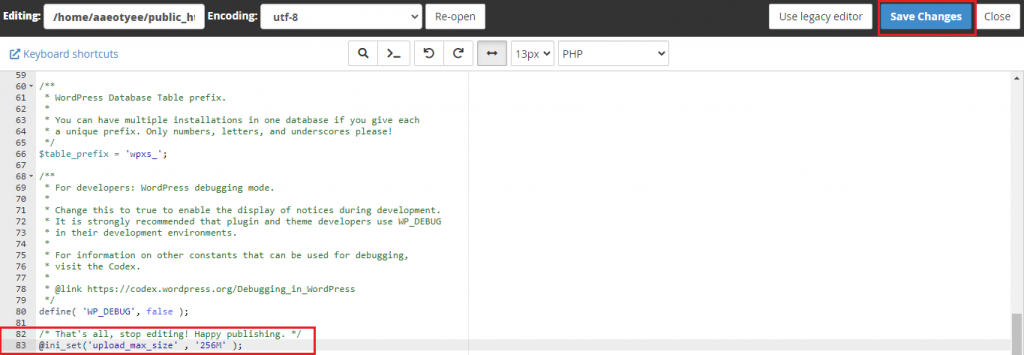
upload_max_filesize = 64M
post_max_size = 64M
max_execution_time = 300
These lines raise the file size limits and give the upload more time to finish.
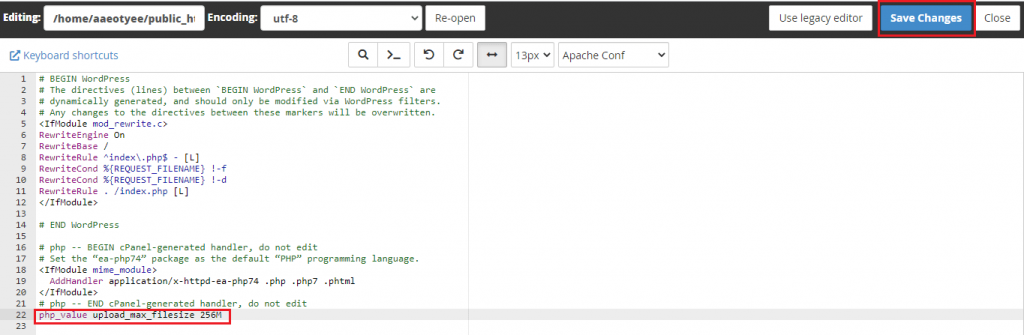
Method 3: Edit .htaccess
This works on servers that run PHP as an Apache module. If it gives a 500 error, remove the lines again.
php_value upload_max_filesize 64M
php_value post_max_size 64M
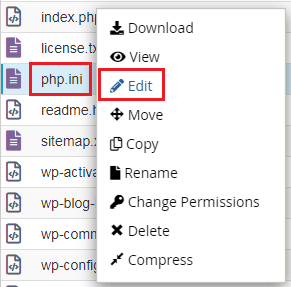
Add these lines at the bottom of the .htaccess file. Download a copy of the file first.
Method 4: Upload by FTP
FTP moves files between your computer and your hosting account. If you only need to add a big theme or plugin, unzip it on your computer. Upload the folder to wp-content/themes or wp-content/plugins by FTP. Your FTP details are in your welcome email.
Check the new limit
- In WordPress, click Media, then Add New.
- Look under the upload box. It shows "Maximum upload file size".
Quick recap
- The error means your file is bigger than the PHP limit.
- Raise
upload_max_filesizeandpost_max_size.
- Use the control panel,
.user.inior.htaccess. - Use FTP for big themes and plugins.
- Ask support if your plan caps the limit.