

What is a 405 error?
Your browser talks to a server using methods. Two common ones are GET, which asks for a page, and POST, which sends data like a form. A 405 error means the server refuses the method you used. It is like pushing a door that says "pull".
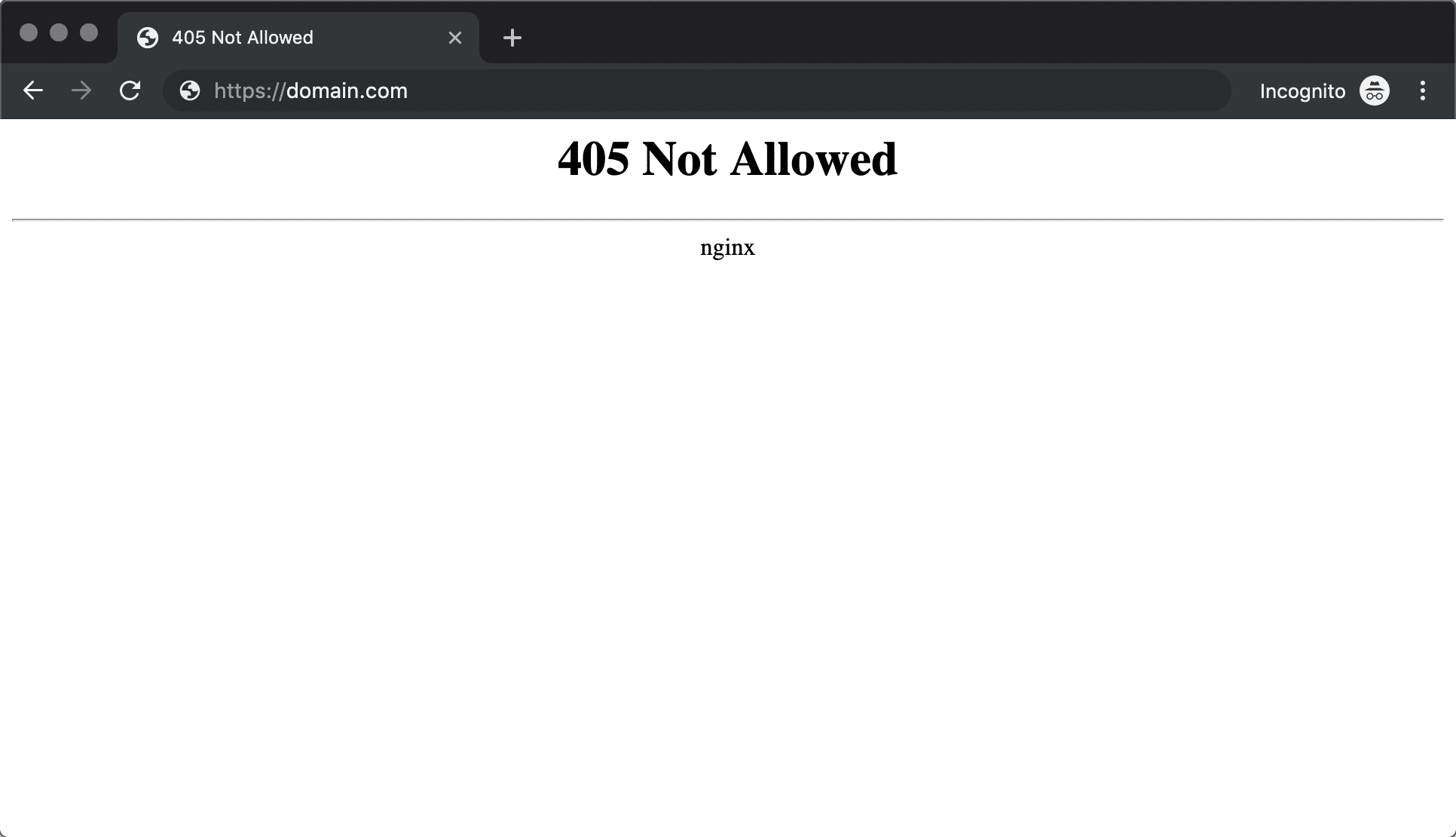
Common causes are a security rule that blocks POST, a broken plugin, a wrong .htaccess file, or a wrong web address.
Step 1: Check the address
- Look at the address in your browser.
- Check that it uses
https://and the same version of your domain (with or withoutwww) as your site settings.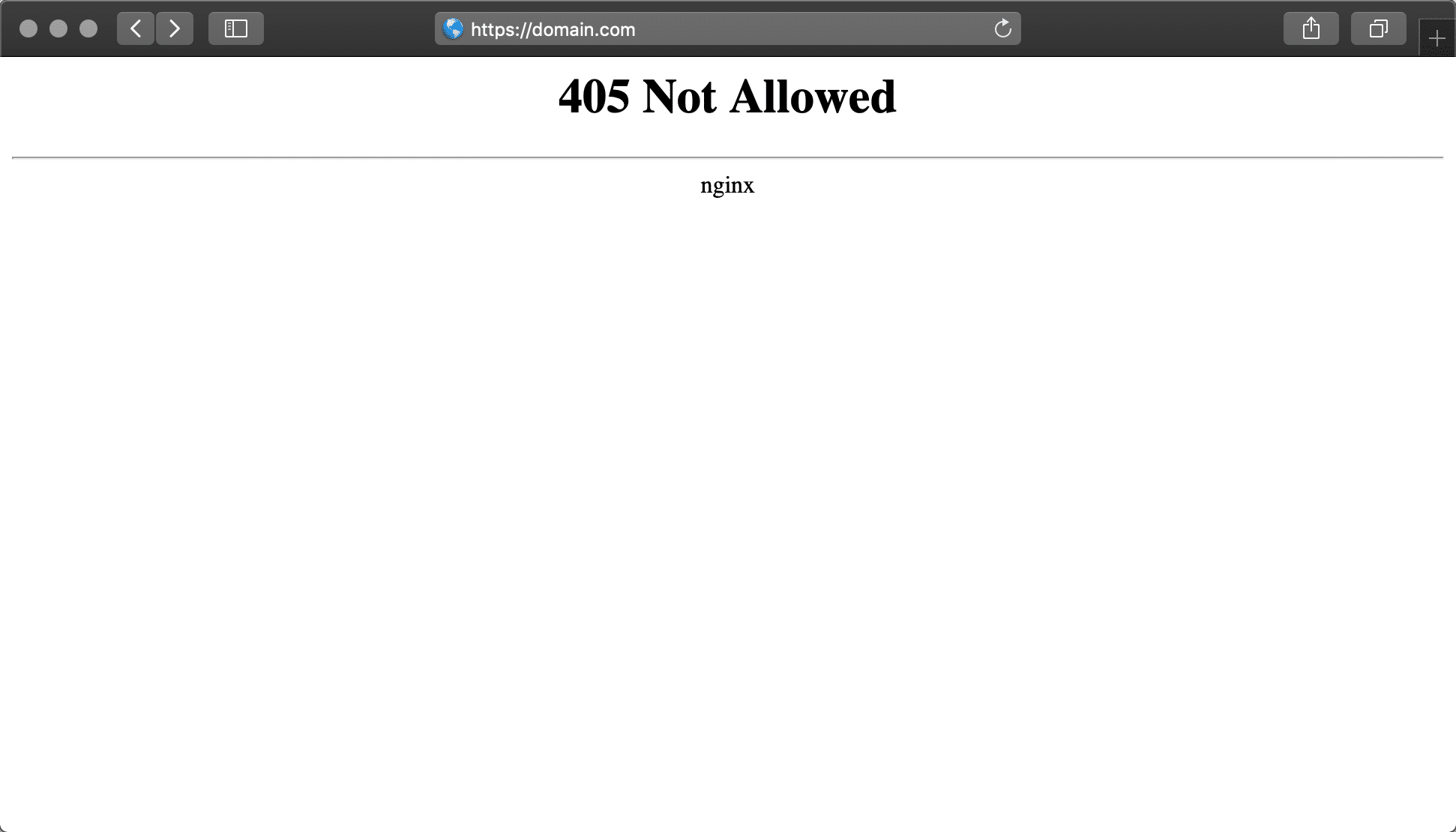
- Click Settings, then General in WordPress and compare the two address fields.
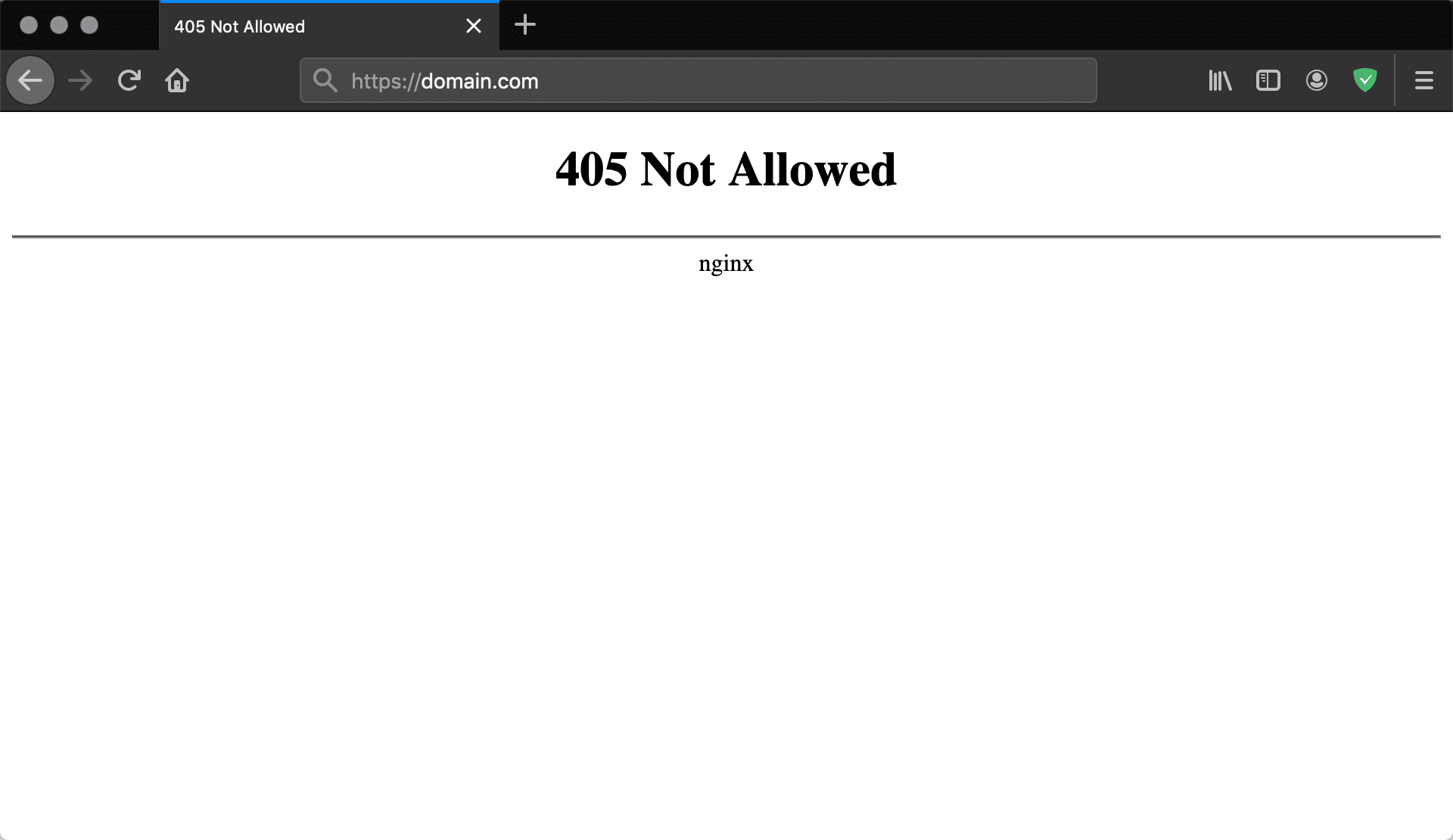
A form that sends data to a different address can be refused.
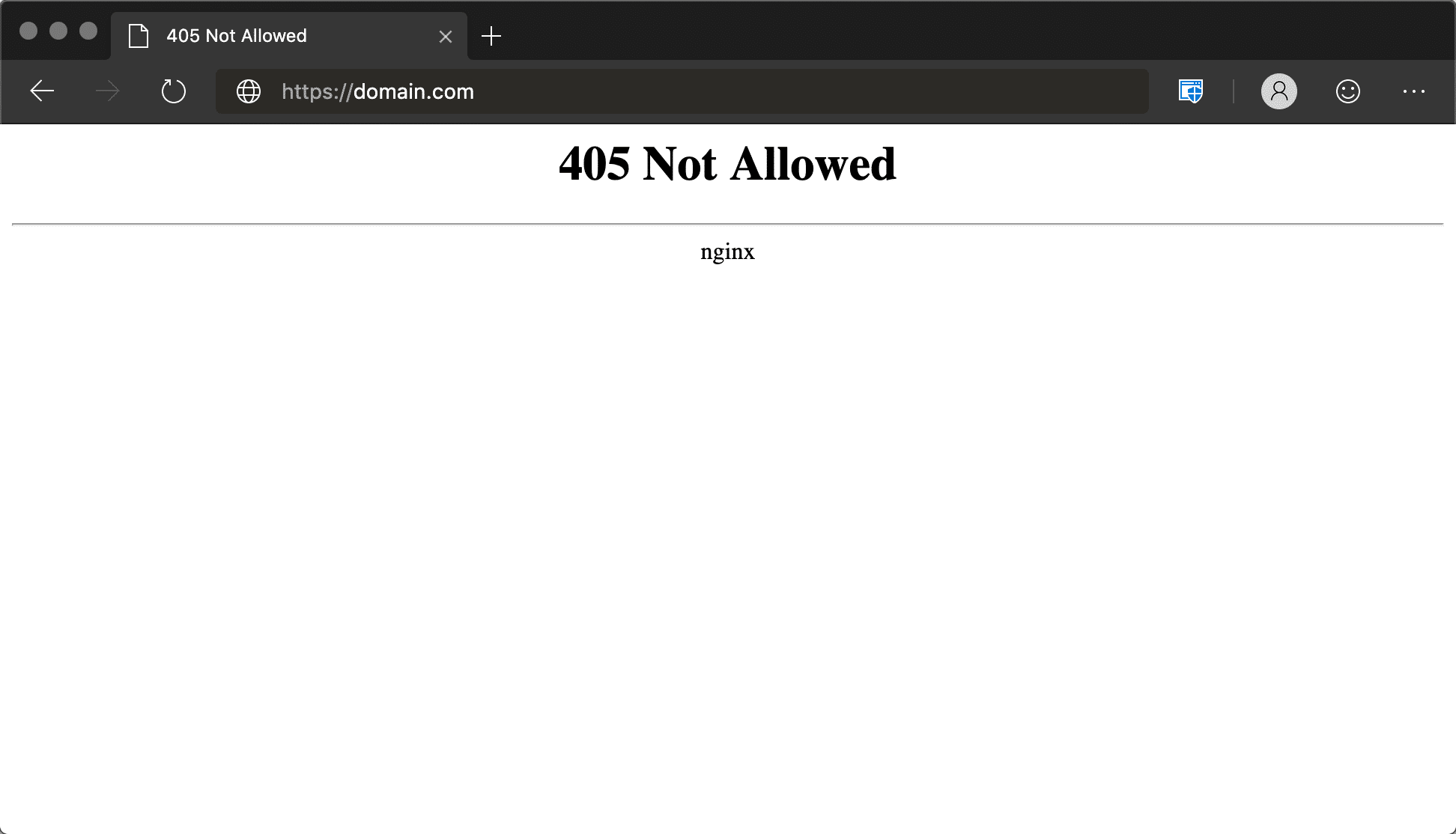
Step 2: Turn off plugins
- Click Plugins, then Installed Plugins.
- Select all, and choose Deactivate.
- Try the action again.
- Turn plugins on one at a time to find the one that causes the error.
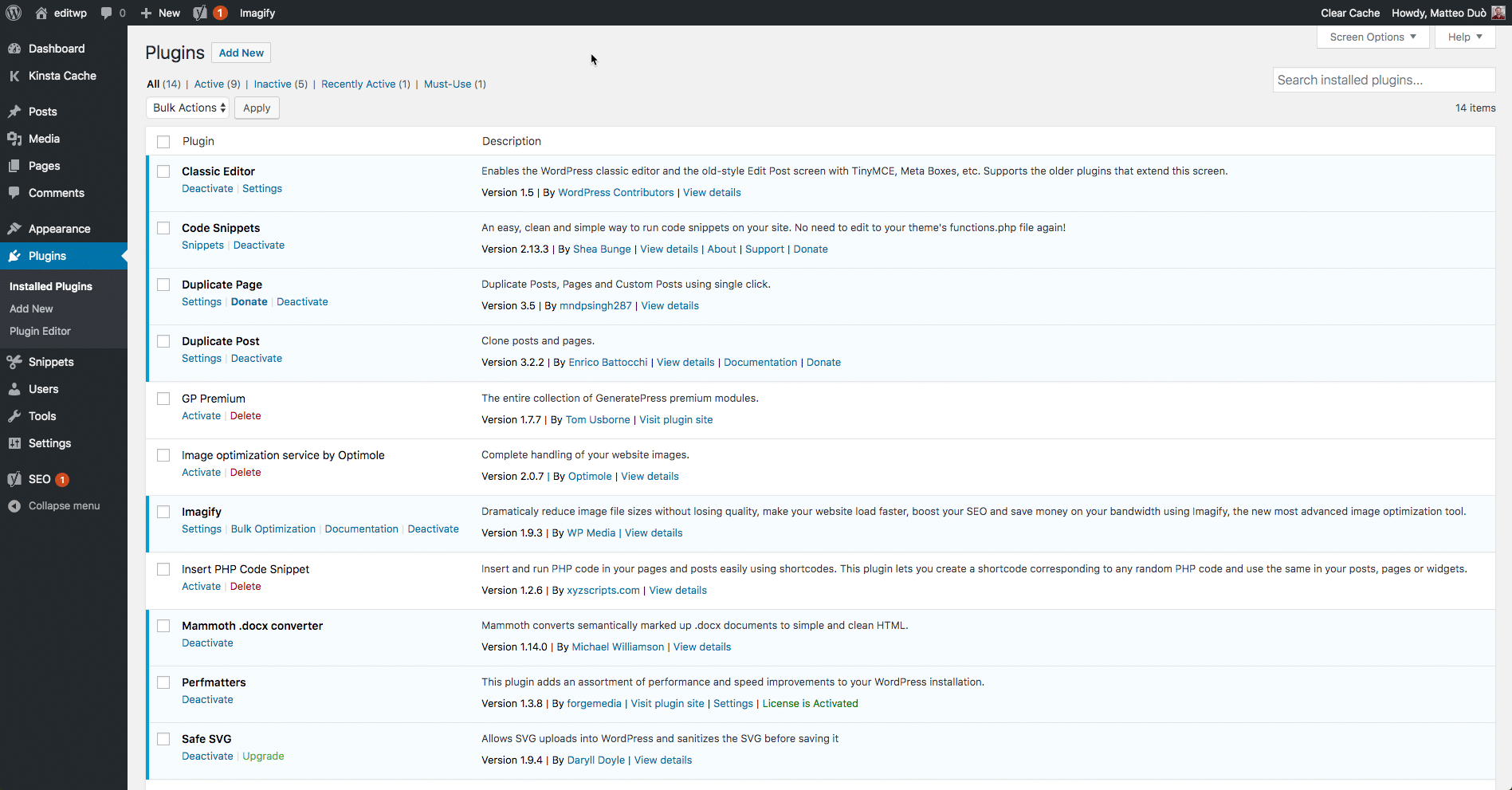

Pay special attention to security and form plugins.
Step 3: Reset .htaccess
The .htaccess file is a hidden settings file that controls how the server handles requests.
- Log in to your hosting control panel and open File Manager.
- Open your WordPress folder, often
public_html. - Turn on Show Hidden Files.
- Rename
.htaccessto.htaccess-old. - In WordPress, click Settings, then Permalinks, then Save Changes.
WordPress writes a fresh file.
Step 4: Check the theme
- Click Appearance, then Themes.
- Activate a default WordPress theme.
- Try your action again.
Step 5: Check the security firewall
A firewall is a guard that blocks bad traffic. Sometimes it blocks good requests by mistake. Look in your security plugin's logs or settings for a blocked request. If your server has a firewall rule, you cannot see it from WordPress.
Step 6: Ask support
Open a ticket at https://secure.hostvento.com/submitticket.php. Include the page address, what you clicked and the time of the error, so the team can check the server logs.
Quick recap
- A 405 means the server refuses the request method.
- Check the site address settings.
- Test plugins and the theme.
- Rebuild the
.htaccessfile. - Ask support to check the firewall and logs.