

What it looks like
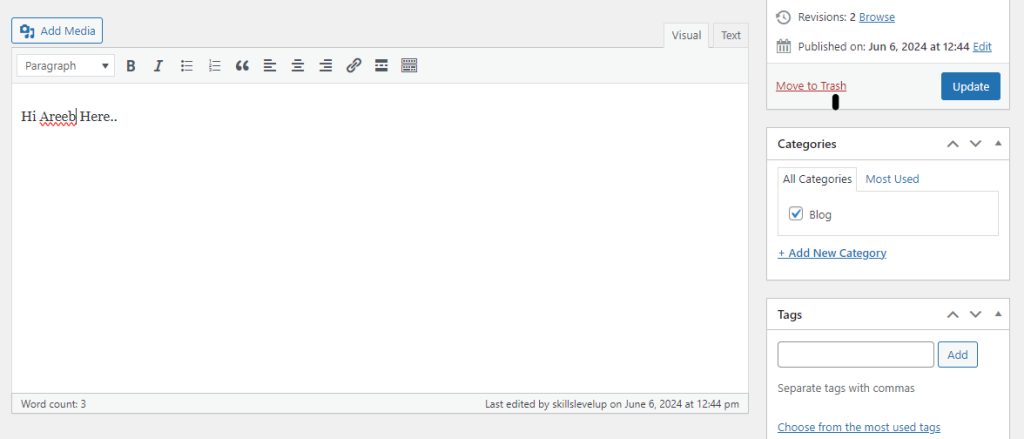
In the classic editor, the Visual tab shows white text that you cannot read, or the formatting buttons are missing.
Common causes:
- A plugin that does not work with your WordPress version.
- Changes in the theme.
- Browser extensions that disturb the editor.
- A JavaScript conflict between parts of your site.
Troubleshooting steps
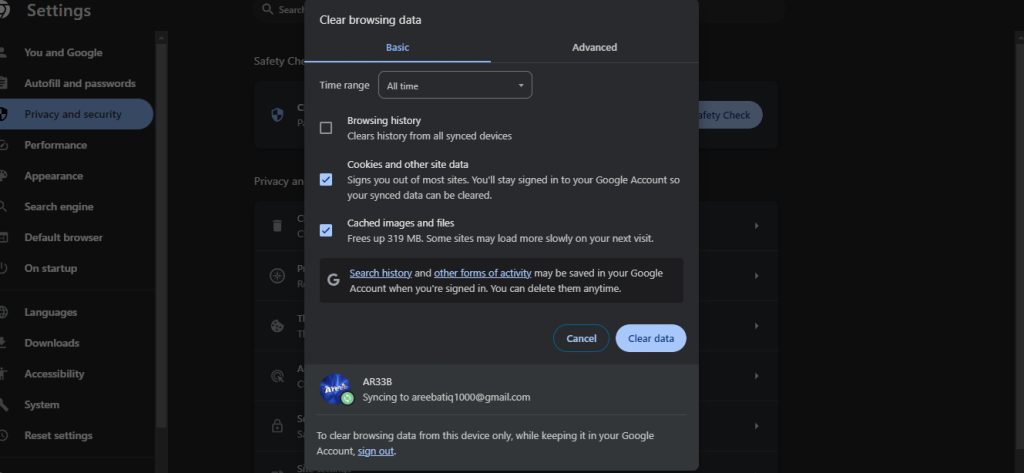
1. Clear the browser cache. Press Ctrl + Shift + Delete and clear cached files. Then reload with Ctrl + F5.
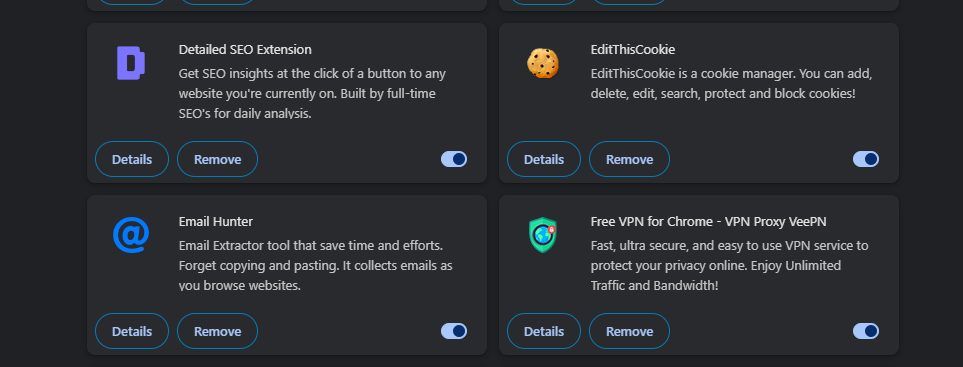
2. Turn off browser extensions. Use a private window, or turn the extensions off.
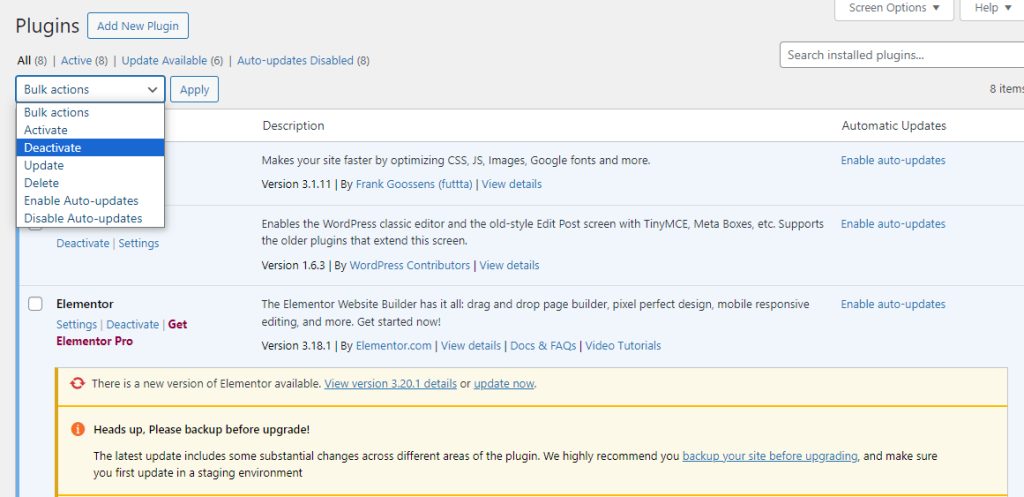
3. Deactivate plugins. Go to Plugins and deactivate them all. Activate them one at a time until the problem returns.
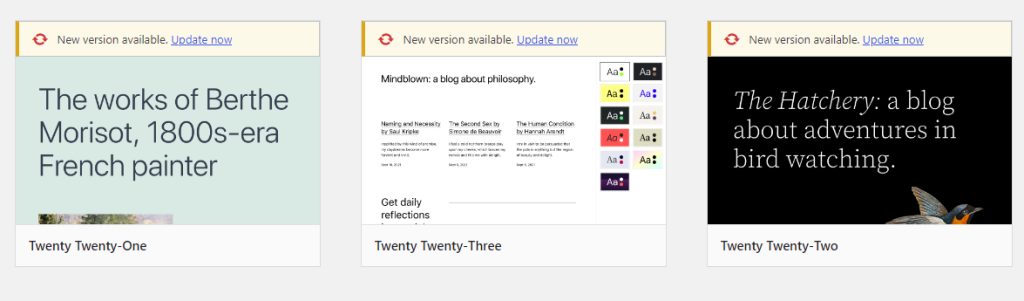
4. Switch to a default theme. Go to Appearance, then Themes, and activate a default theme such as Twenty Twenty-Four.
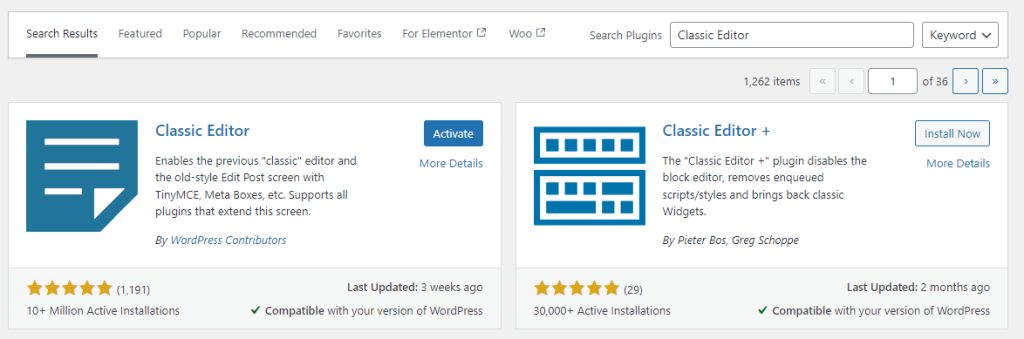
5. Reinstall the editor. Install the Classic Editor plugin, or update WordPress to put back the files of the editor (Dashboard, then Updates, then Re-install Now).
6. Look for JavaScript errors. Press F12, open the Console tab and reload. Red errors point to the file that breaks the editor.

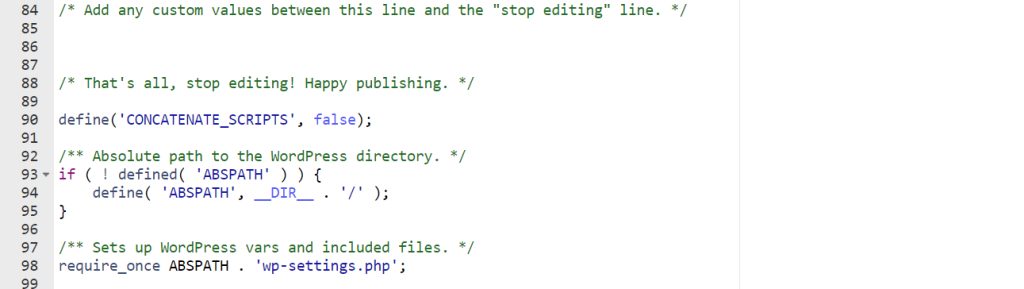
**7. Change wp-config.php.** Open the file and add this line above /* That's all, stop editing! */:
define('CONCATENATE_SCRIPTS', false);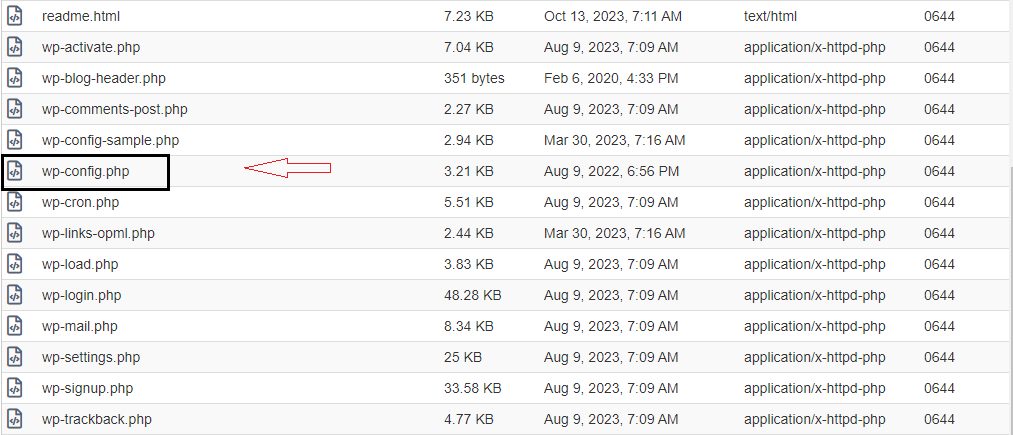
To see PHP errors, turn on debugging while you test:
define('WP_DEBUG', true);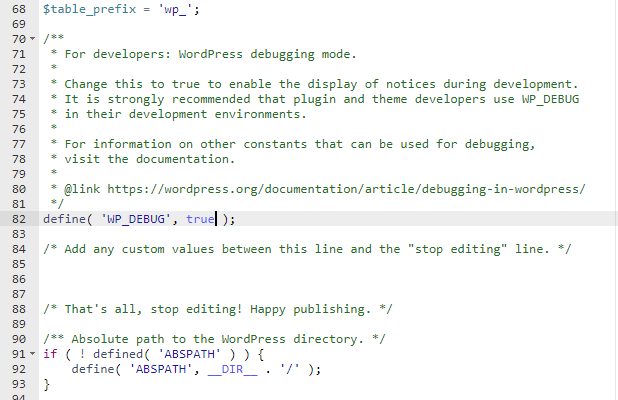
Turn debug off again when you are done.
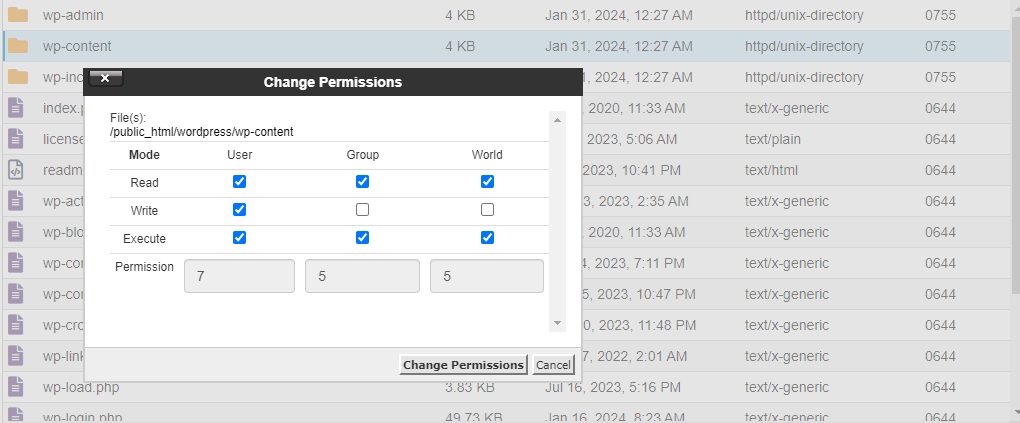
8. Check file permissions
- Files: 644 (or 640)
- Folders: 755 (or 750)
Good to know
- If you edit theme files, use a child theme.
- Make a backup before any larger change.
Quick recap
- Clear the cache, test without extensions, plugins and the theme.
- Add
CONCATENATE_SCRIPTSfalse towp-config.php. - Check the browser console and the file permissions.