

Why it happens
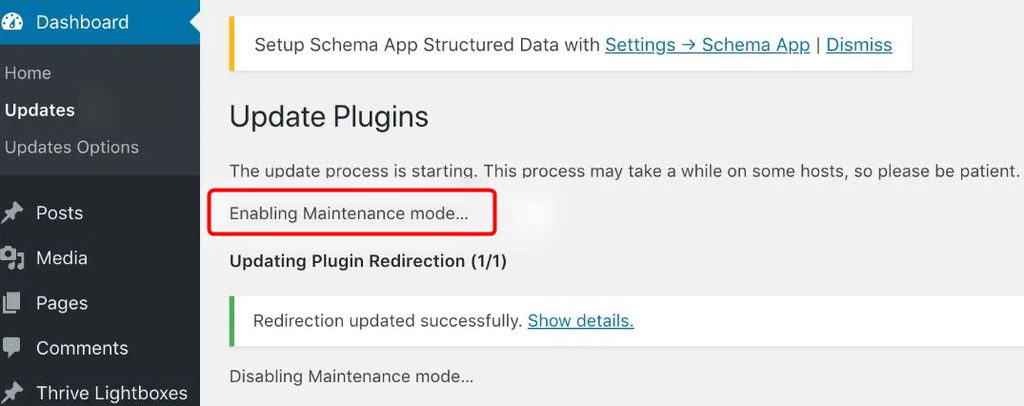
During an update of the core, a plugin or a theme, WordPress puts the site in maintenance mode so visitors do not see broken pages. For that it creates a temporary file named .maintenance in the root folder. After the update, WordPress deletes it.
If the update is interrupted, the file stays. Typical reasons are low server memory, a slow server, a closed browser tab, or a plugin or theme conflict. The site then keeps showing the message.
Fix it with FTP or File Manager
- Connect to your site with an FTP client, or open the File Manager of your hosting panel.
- Go to the main folder of WordPress, usually
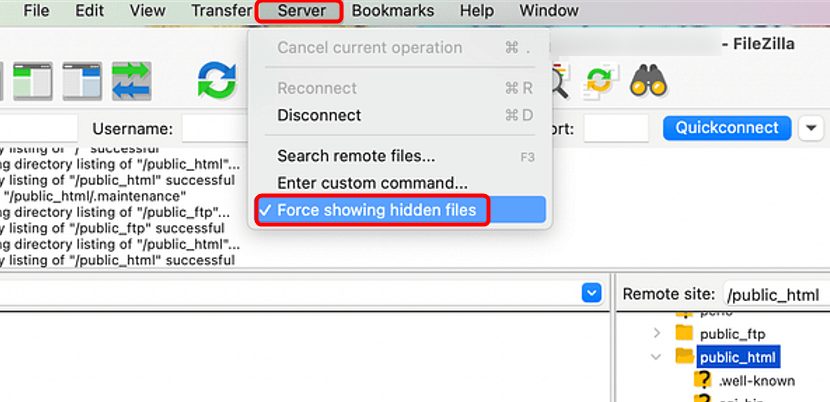
public_html. It is the folder that holdswp-config.php. - Files that start with a dot are hidden. Turn on Show hidden files.
- Right-click
.maintenanceand choose Delete.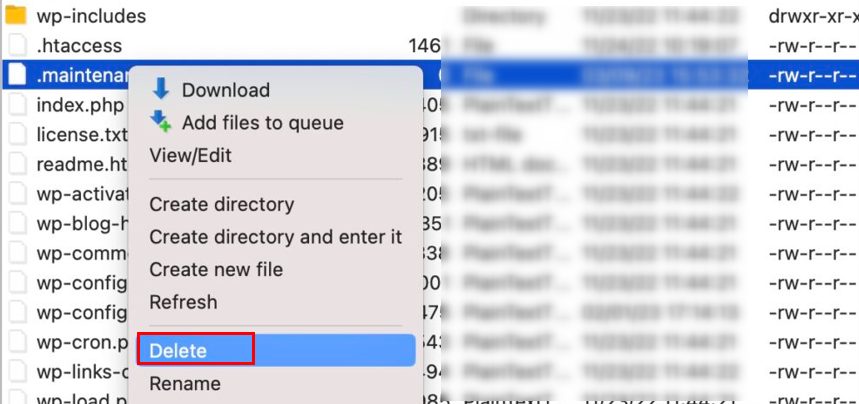
- Clear the cache of your browser, your caching plugin and your server. Reload the site.
Fix it in cPanel
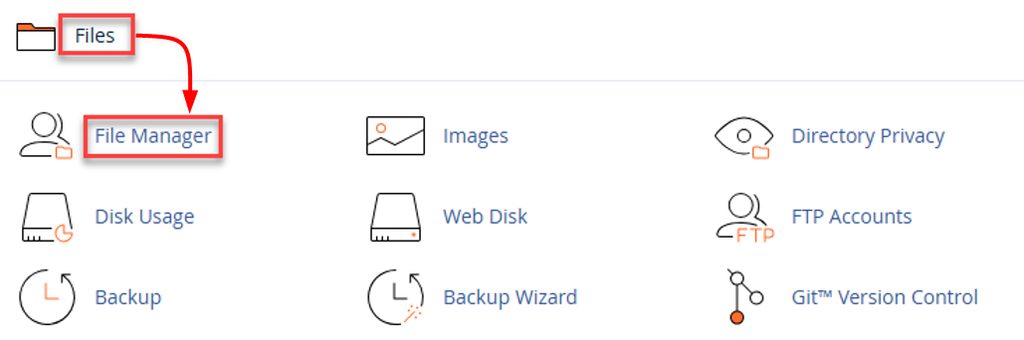
- Log in to cPanel and open File Manager in the Files section.
- Open the folder of WordPress, usually
public_html.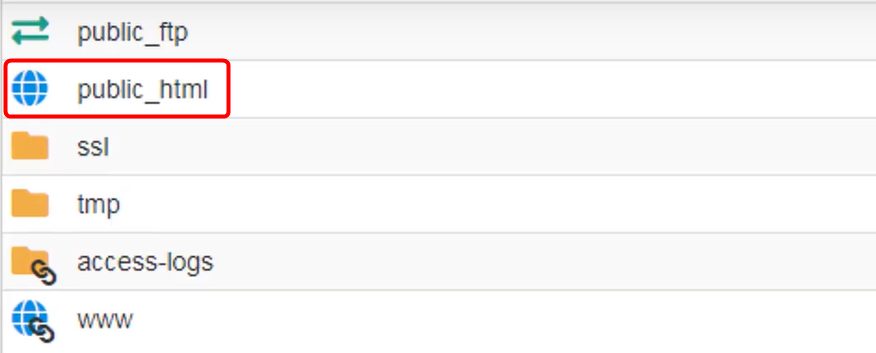
- Click Settings in the top right corner, tick Show Hidden Files (dotfiles) and click Save.
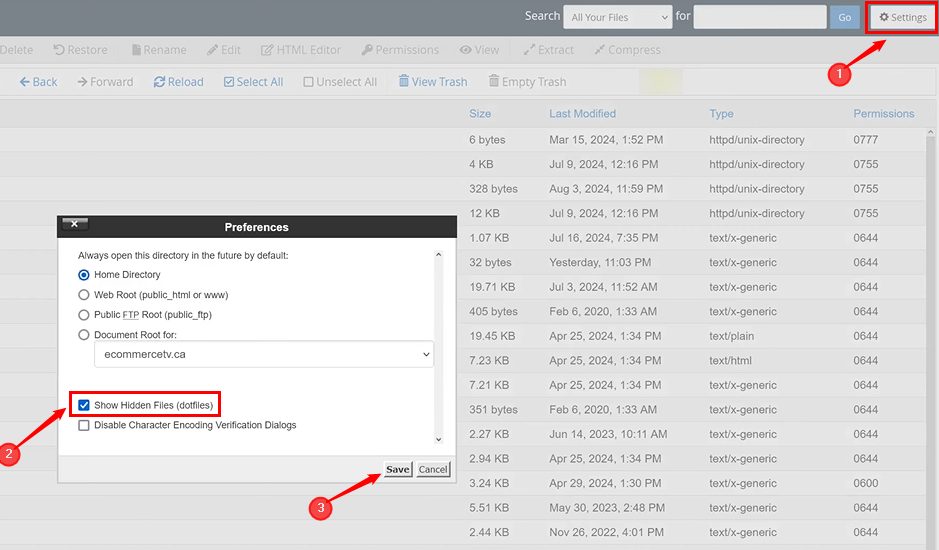
- Find
.maintenance, right-click it and choose Delete.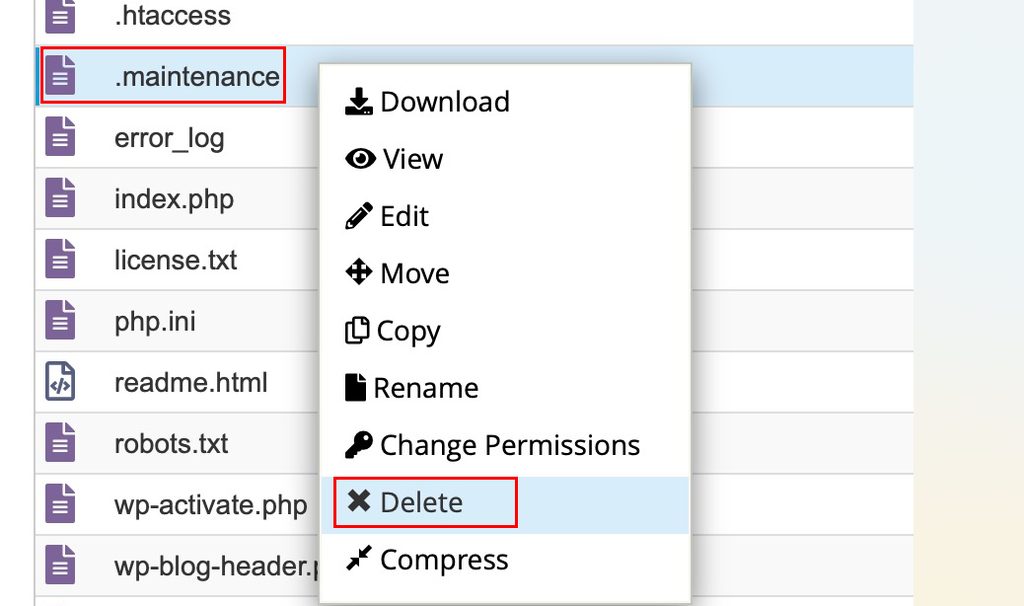
- Open the site. It should be live again.
If the problem stays
The update may have failed half way.
- Update the plugin or theme again by hand, or deactivate it via FTP by renaming its folder.
- Check that
wp-content/upgradeis empty. Delete leftovers there. - Restore a recent backup if the site is still broken.
How to avoid it
- Do not close the browser or leave the page while an update runs.
- Update plugins and themes one at a time and not all together.
- Make a backup before updates.
- Use a host with enough memory and a stable connection.
Quick recap
- A leftover
.maintenancefile keeps the site in maintenance mode. - Delete it in the root folder of WordPress (show hidden files first).
- Clear the caches and avoid interrupting updates.