

Why hide author names
- Blogs with many guest writers may not want a name on each post.
- Some writers prefer to stay anonymous.
- Content that comes from many sources may look better without a name.
Method 1: Use a plugin
Free plugins such as Hide/Remove Metadata or WP Meta and Date Remover can remove the author name and date in a few clicks.
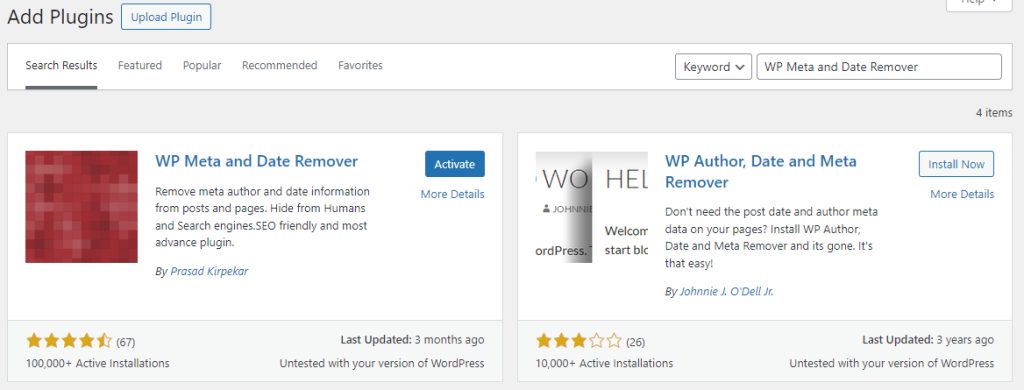
- Go to Plugins, then Add New. Search for the plugin, install it and activate it.
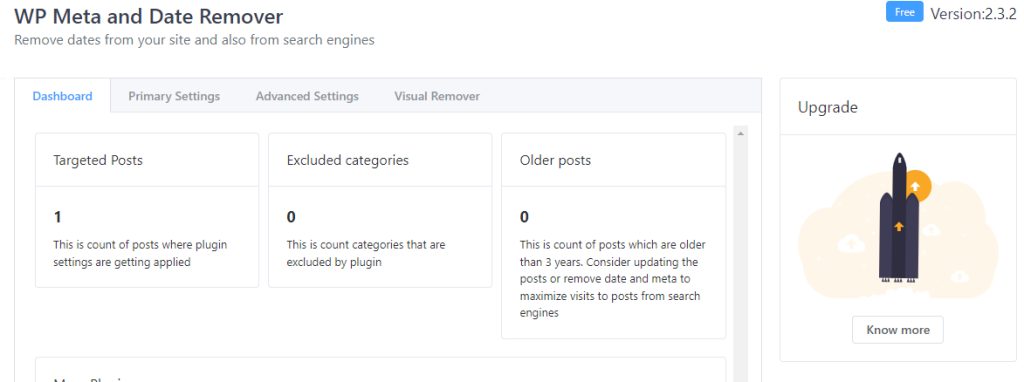
- Open the settings of the plugin and choose to hide the author name (and the date, if you want).
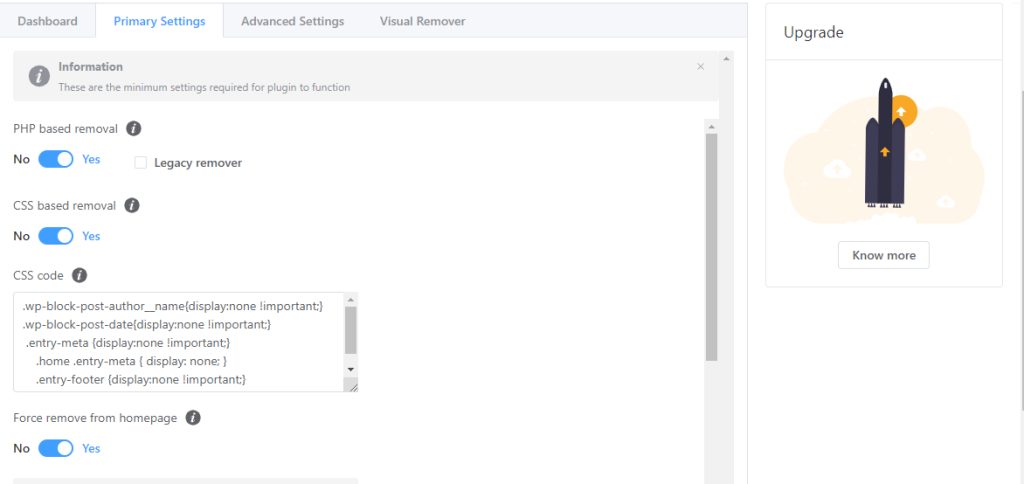
- Save and check a post.
Method 2: Use CSS
- Open a post on your site. Right-click the author name and choose Inspect.
- Find the HTML element for the name and note its class (for example
.author-nameor.entry-author). - Go to Appearance, then Customize, then Additional CSS. Add a rule that hides it, with your class name:
.author-name {
  display: none;
}- Click Publish.
CSS only hides the name on the screen. The name is still in the page code.
Method 3: Use the theme settings
Many themes have an option to show or hide the post meta. Look under Appearance, then Customize for a setting such as Post meta, Blog or Single post. Block themes let you remove the Post Author block in the Site Editor (Appearance, then Editor, then Templates, then Single).
Things to think about
- Removing the author name can make content look less open. Readers like to know who wrote a text.
- Search engines may see author information as a sign of trust.
- Make sure you may remove a name if you use content of guest authors.
Other ideas
- A single profile. Use a team account, such as "Editorial Team", for all posts.
- Show names only on some posts. Use CSS that targets one category, or a plugin that lets you choose per post.
Quick recap
- A plugin is the easiest way.
- CSS hides the name on screen.
- Check your theme options first, they may do it already.