

What is a blogroll?
A blogroll is like a list of friends' addresses. Each item is a link to another website. Visitors click a link and go to that site.
Old WordPress had a built-in Links menu. Today it is hidden. You can bring it back with a free plugin. A plugin is an add-on that gives your site a new feature.
Steps
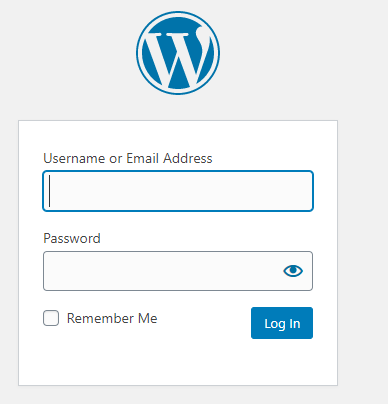
- Log in to your WordPress dashboard. This is your site's admin area.
- Go to Plugins and click Add New.
- Type Link Manager in the search box.
- Find the plugin named Link Manager and click Install Now.
- Click Activate.
- A new menu called Links now appears on the left side.
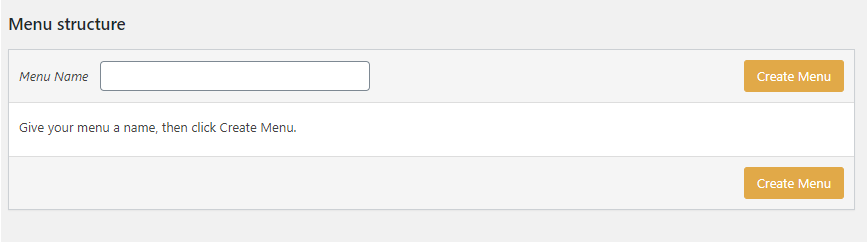
- Click Links, then Add New.
- Type the site name in the Name box.
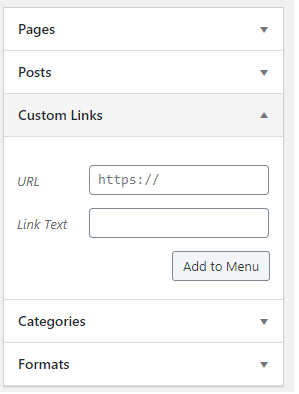
- Type the full address in the Web Address box. Start it with
https://. - Click Add Link.
- Repeat for each site you want to list.
Show the list on your site
A widget is a small box that you place in a side area of your site. You will use one to show the links.
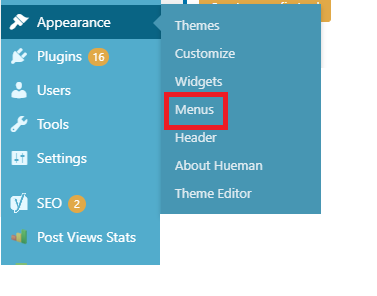
- Go to Appearance and then Widgets.

- Click the plus sign in the area where you want the list, such as the sidebar.
- Search for Links.
- Add the Links widget.
- Click Update and visit your site to check it.
If your theme uses the Site Editor, go to Appearance and Editor instead. Then add the block there.
Tip: Only link to sites you trust. A link to a bad site can hurt your own site.
Quick recap
- A blogroll is a list of links to other sites.
- Install and activate the Link Manager plugin.
- Add links under Links and Add New.

- Show the list with the Links widget.