

What is this about?
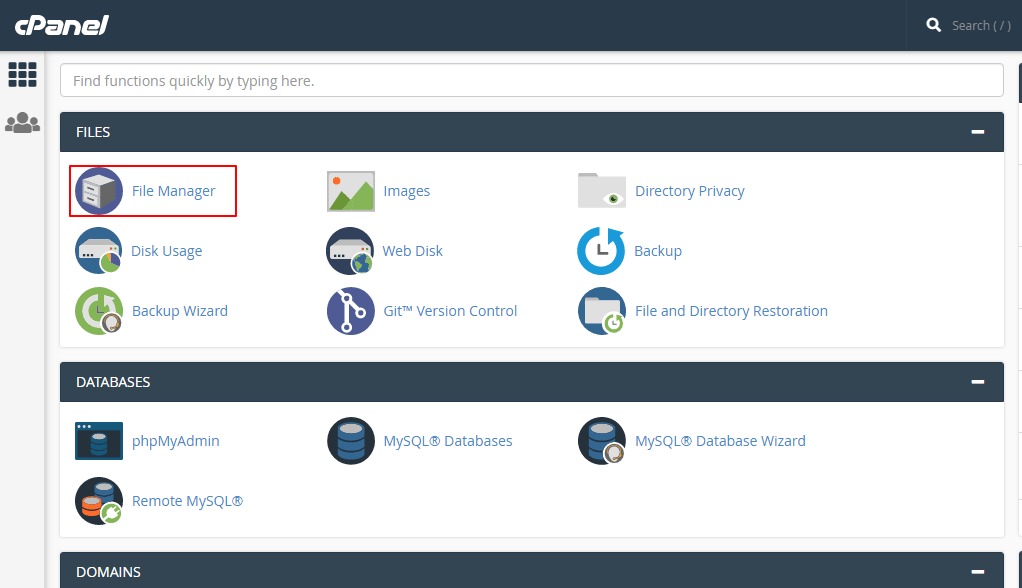
A URL is a web address, like https://example.com. WordPress stores its address in a database. A database is a filing cabinet for your site's data. phpMyAdmin is a tool that lets you open it. You reach it from cPanel, the control panel for your hosting.
You may need this after moving a site, adding SSL, or changing your domain name. Use it if the normal settings page does not load.
Warning: a wrong address can lock you out of your site. Take a backup of the database first. In phpMyAdmin, click Export and then Go.
Steps
- Log in to your client area at https://secure.hostvento.com/clientarea.php.
- Open cPanel for your hosting service.
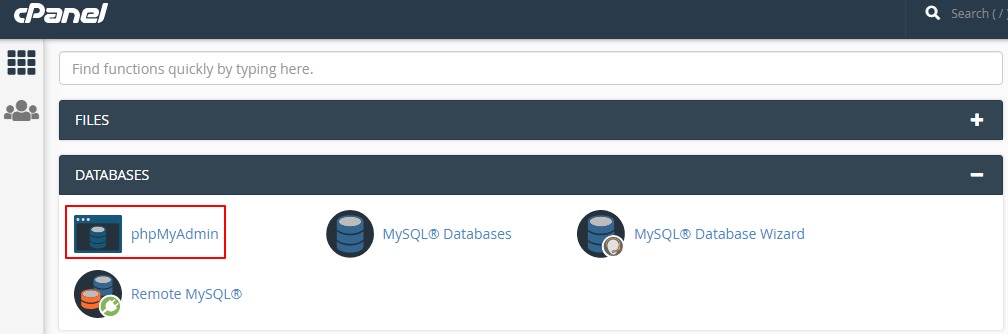
- In the Databases section, click phpMyAdmin.
- On the left, click your WordPress database. Not sure which one? Look for
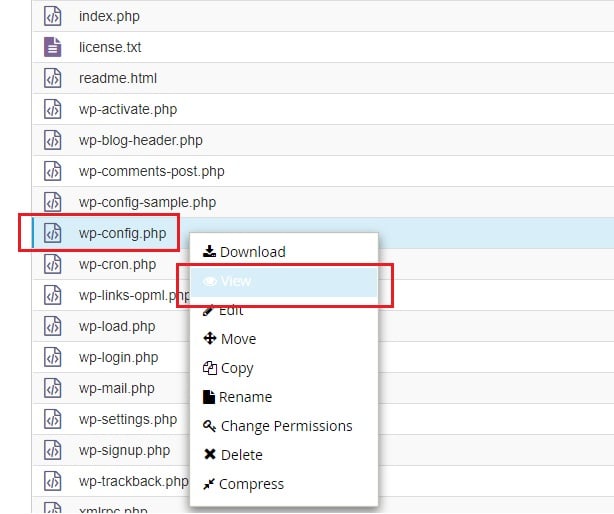
DB_NAMEin yourwp-config.phpfile.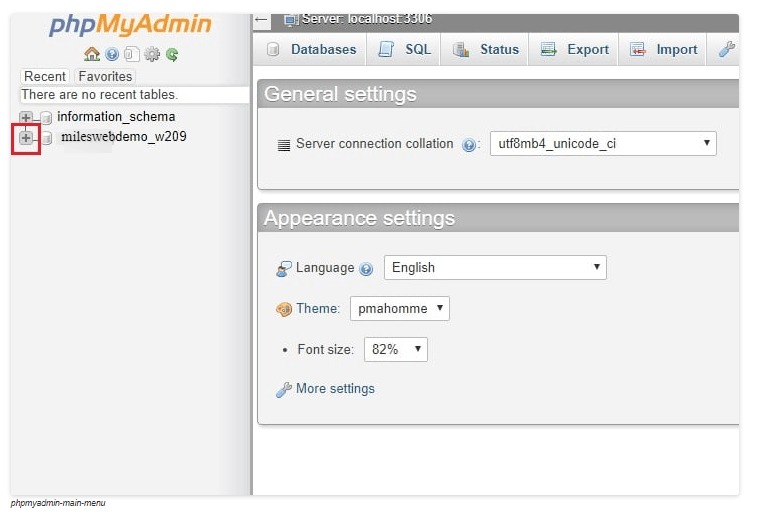
- Click the table named
wp_options. Your prefix may be different fromwp_. - Find the row where
option_nameissiteurl. Rows are shown across several pages, so use the search box if needed. - Click Edit on that row.
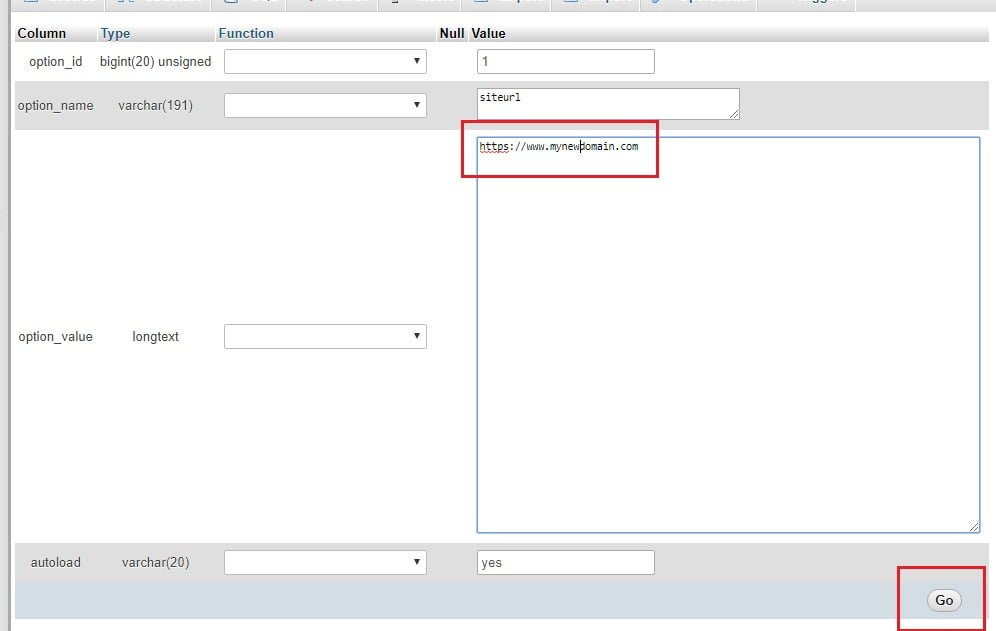
- In
option_value, type the new address. Includehttps://and leave off the last slash. - Click Go.
- Do the same for the row where
option_nameishome.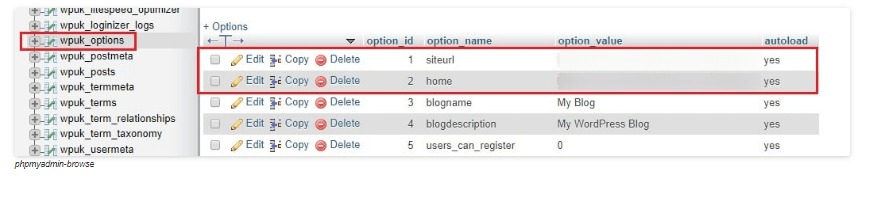
- Open your new address in the browser and test.
Another way: wp-config.php
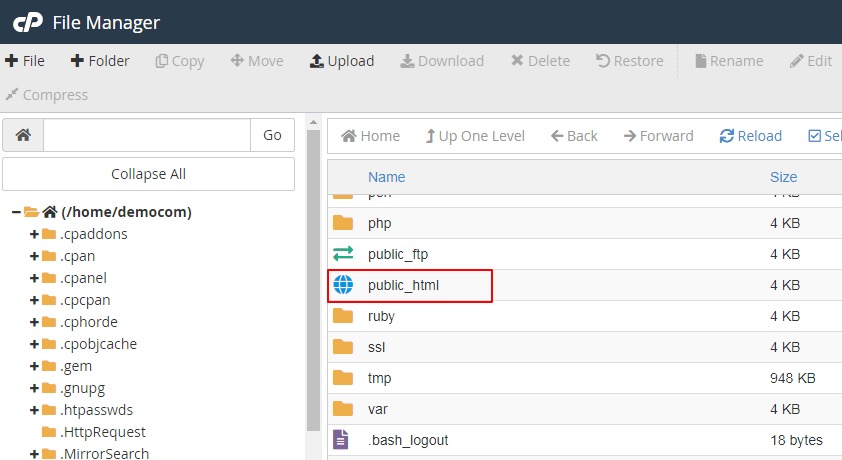
You can also add two lines to the wp-config.php file. Use File Manager in cPanel. Add them above the line that says to stop editing:
define( 'WP_HOME', 'https://example.com' );
define( 'WP_SITEURL', 'https://example.com' );
These lines override the database values. Replace example.com with your own domain.
Tip: Links inside old posts may still point to the old address. A search-and-replace plugin can fix those. The domain must also point to your hosting first. Ask Hostvento support if you need help.
Quick recap
- Back up the database first.
- Edit
siteurlandhomein thewp_optionstable. - Use the full address with
https://. - Test your site afterwards.