

Two addresses, two jobs
A URL is a web address, such as https://example.com. WordPress keeps two of them.
- WordPress Address (URL) is where the WordPress files live.
- Site Address (URL) is the address visitors type to see your site.
On most sites these two are the same. You may change them after moving to a new domain, or when moving to https. The https version is the secure one, with a padlock in the browser.
Warning: a wrong address can lock you out. Take a full backup of your files and database first. Make sure the new domain already points to your hosting. If it does not, your site will not open.
Steps
- Log in to your WordPress dashboard.
- Click Settings on the left.
- Click General.
- Find WordPress Address (URL).
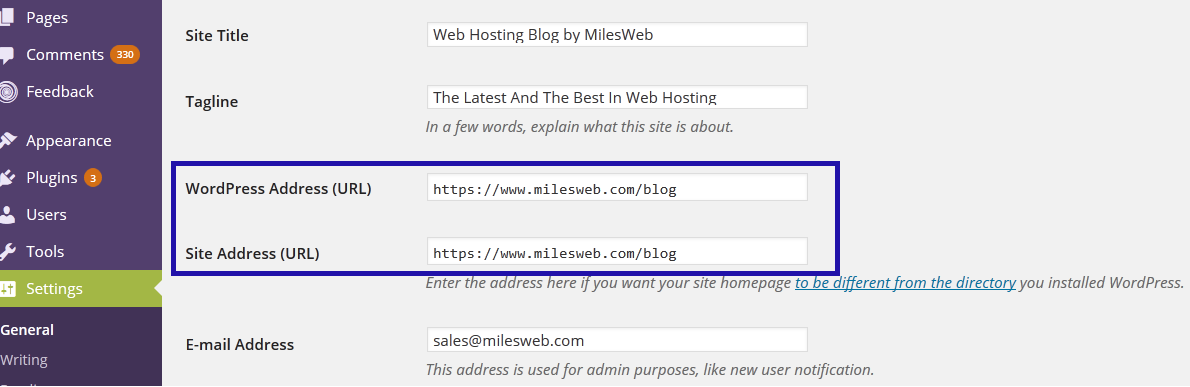
- Type the new address. Include
https://. Do not add a slash at the end. - Find Site Address (URL) and type the same address.
- Scroll down and click Save Changes.
- WordPress logs you out. Log in again at the new address.
If the boxes are grey
The address may be fixed in the wp-config.php file. This file holds your site's main settings. Open it with File Manager in cPanel. Look for lines like these:
define( 'WP_HOME', 'https://example.com' );
define( 'WP_SITEURL', 'https://example.com' );
Change the address in those lines, or remove them. Then save the file. Remember to keep a copy of the original first.
After the change
- Visit your new address and click around.
- Go to Settings and then Permalinks. Click Save Changes to refresh the links.
- Check that images load. Old posts may still point to the old address. A search-and-replace plugin can fix them.
Tip: If you are locked out, use the phpMyAdmin method to fix the address in the database. Or open a ticket with Hostvento support at https://secure.hostvento.com/submitticket.php.
Quick recap
- Back up before you start.
- Change both addresses under Settings and General.
- Save the Permalinks page afterwards.
- Check old posts for links to the old address.