

What is Elementor cache?
Elementor is a popular page builder plugin for WordPress. It lets you design pages by dragging pieces around. A plugin is an add-on that gives your site a new feature.
Elementor saves its styles in small files. This saving is called a cache. A cache is like a notepad that remembers things so work goes faster. Sometimes the notepad is out of date. Then you see old colors, fonts or layouts. Clearing the cache forces Elementor to make fresh files.
Steps
- Log in to your WordPress dashboard.
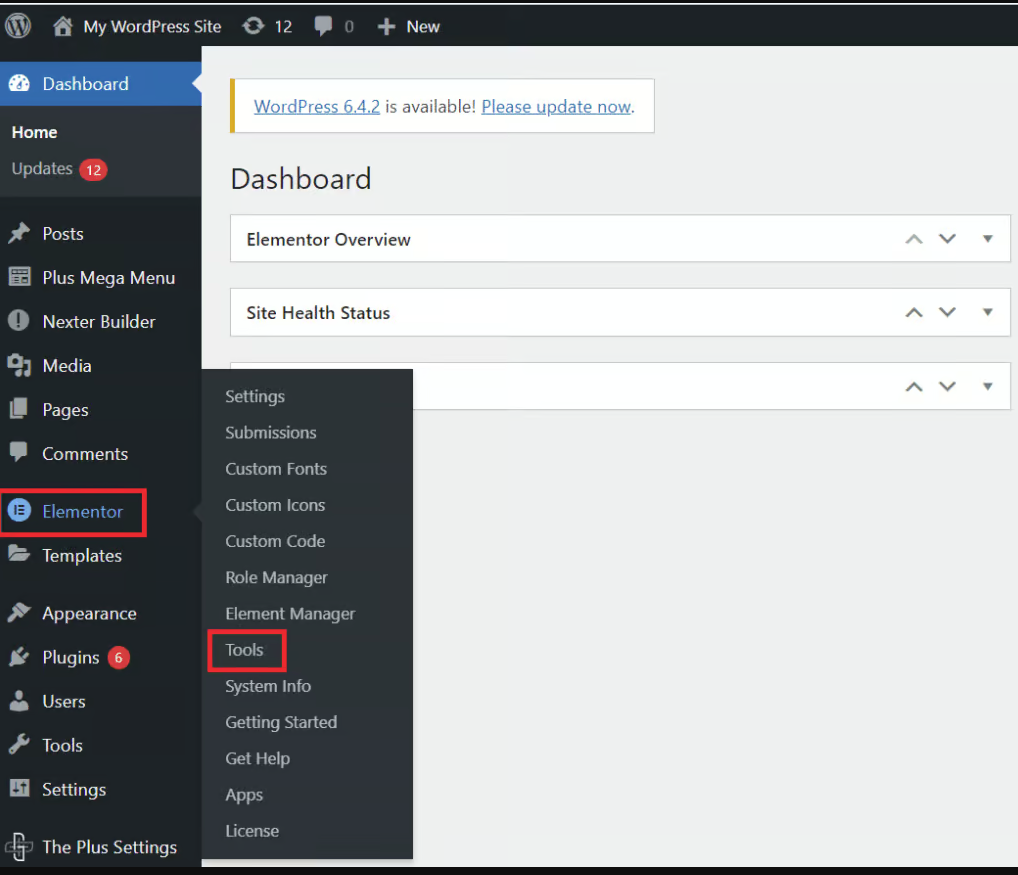
- On the left, click Elementor.
- Click Tools.
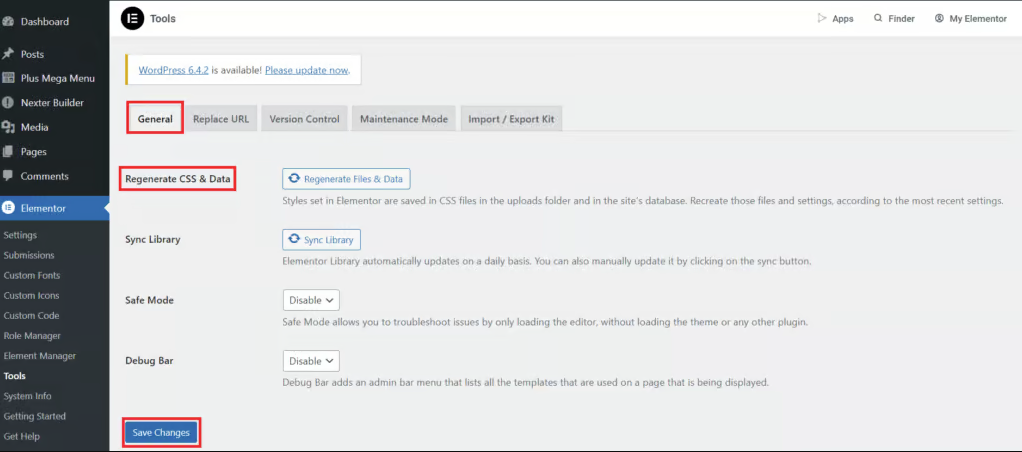
- Stay on the General tab.
- Find Regenerate CSS & Data.
- Click Regenerate Files.
- Wait for the message that says it is done.
- Click Sync Library too, if you use Elementor templates.
CSS is the code that controls how a page looks, like its colors and sizes. Regenerating makes new copies.
Clear other caches too
Other layers can keep old pages. Clear them in this order.
- If you use a cache plugin, such as a page cache or speed plugin, open its menu and click its Clear cache or Purge all button.
- If you use a CDN such as Cloudflare, purge its cache from its own dashboard. A CDN is a network that keeps copies of your site around the world.
- Clear your browser cache. Or open your site in a private window to test.
Your hosting plan may include server-level caching as well. Ask Hostvento support if it is on your plan and how to clear it.
Tip: If a page still looks wrong, open Elementor, Settings, then Advanced. Try changing the CSS Print Method to Internal Embedding. Save and test again.
Quick recap
- Go to Elementor, Tools, and click Regenerate Files.
- Clear any cache plugin, CDN and browser cache.
- Test the page in a private window.