

What is a table?
A table lays out information in rows and columns, like a school timetable. Tables are great for prices, lists, schedules and comparisons.
WordPress has a Table block. A block is one piece of content in the editor, such as text or a picture.
Steps
- Log in to your WordPress dashboard.
- Open a post or page. Go to Posts or Pages and click Add New, or edit an existing one.
- Click the plus sign where you want the table.

- Type Table in the search box.
- Click the Table block.
- Type how many Columns you want. Columns go up and down.
- Type how many Rows. Rows go across.
- Click Create Table.
- Click inside a cell and type your text. Use the Tab key to move to the next cell.
- Click Publish or Update.
Edit the table
- Click inside the table.
- Click the Edit table icon in the toolbar above it.
- Choose to insert or delete a row or column.
In the settings panel on the right, you can turn on options such as:
- Header section to give the first row a title style.
- Footer section for a closing row.
- Fixed width table cells to make all cells the same width.
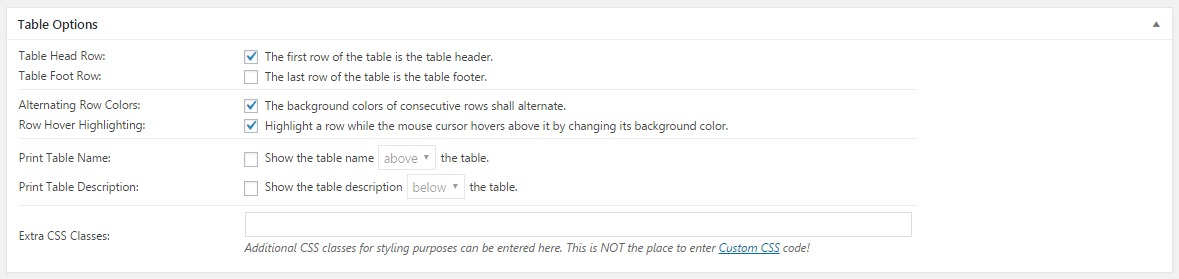
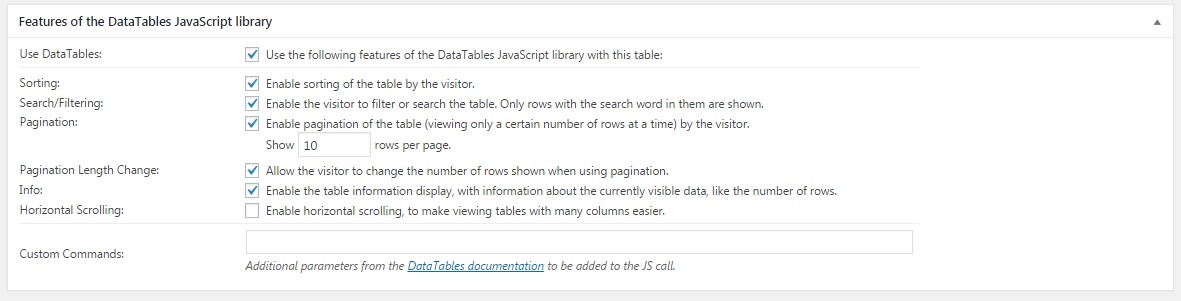
Under Styles you can choose a striped look, where every other row has a different shade.
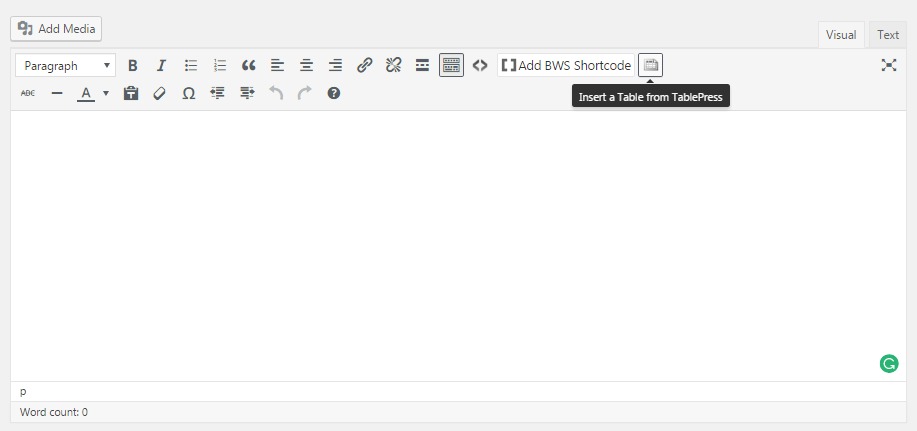
If you use the Classic editor
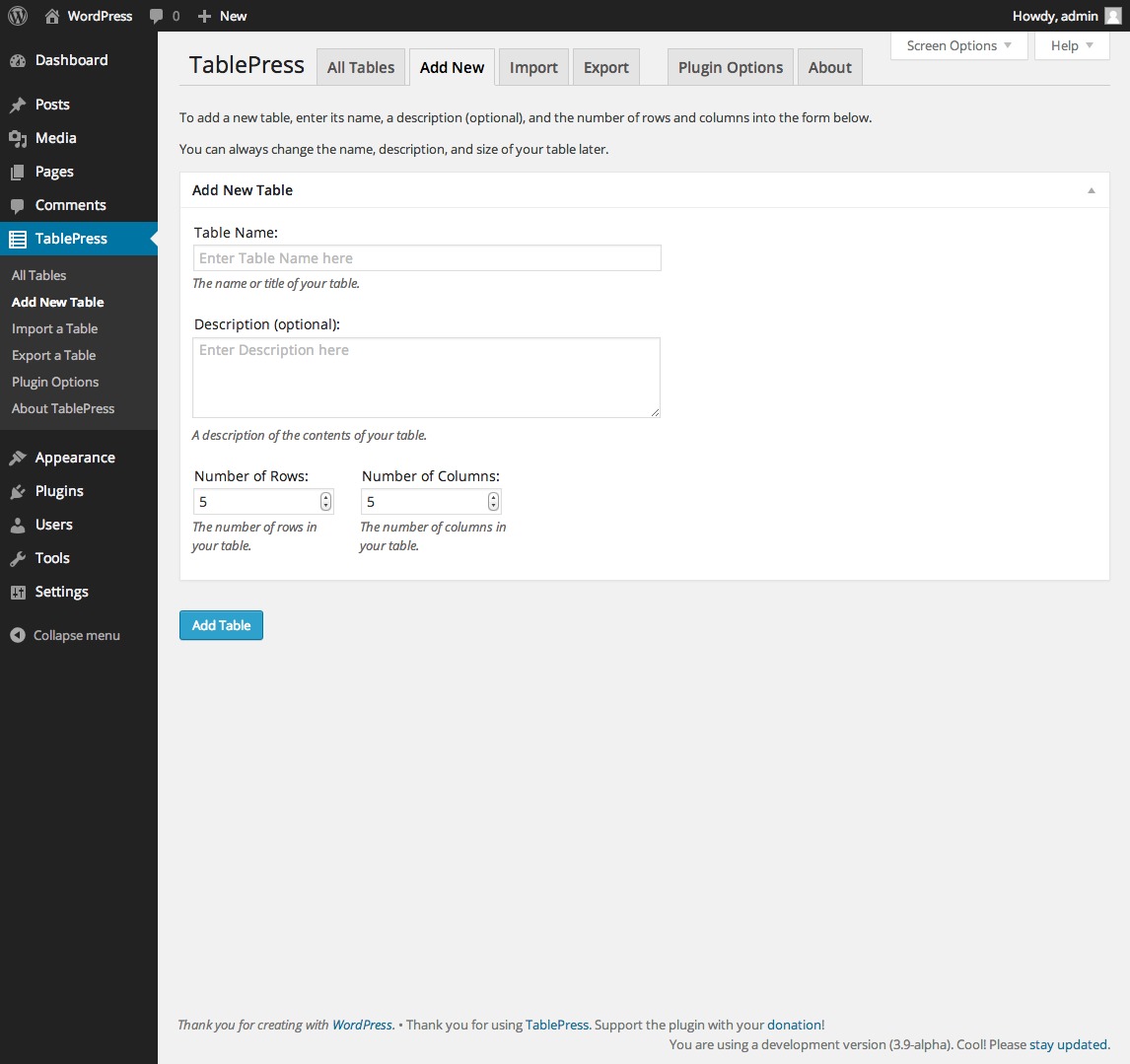
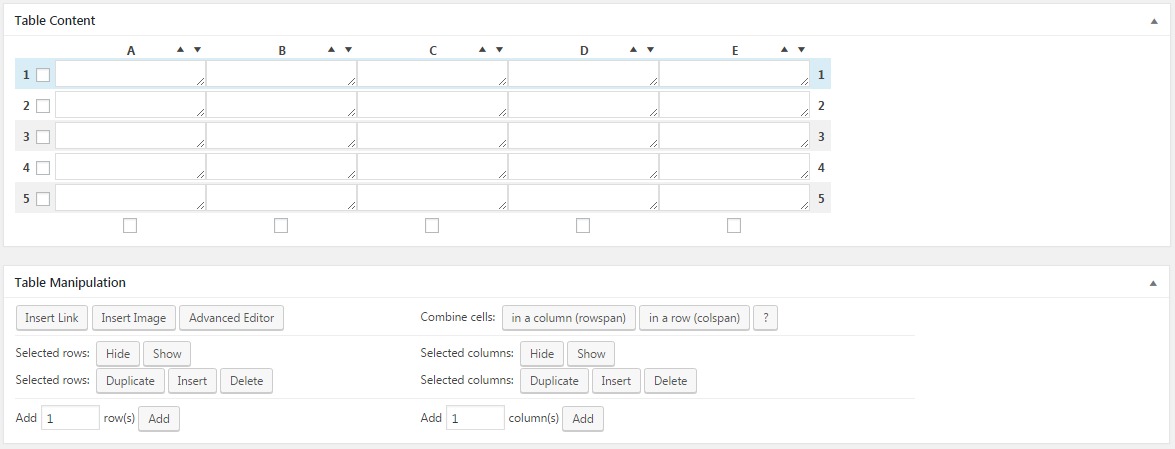
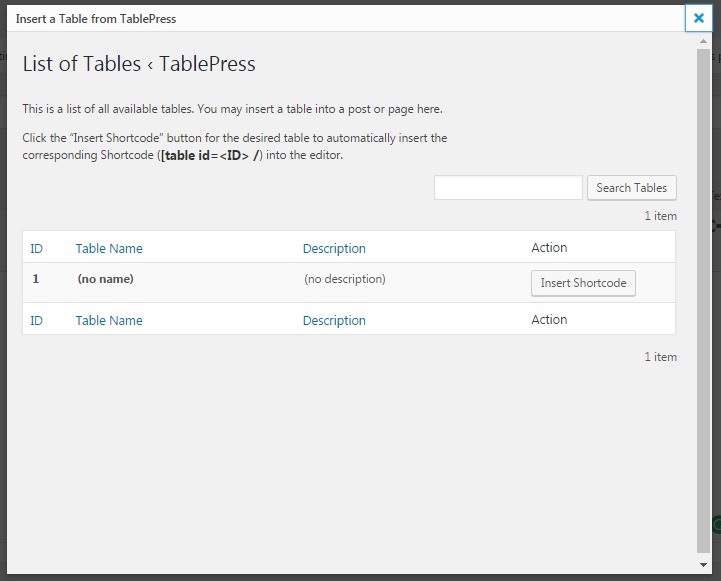
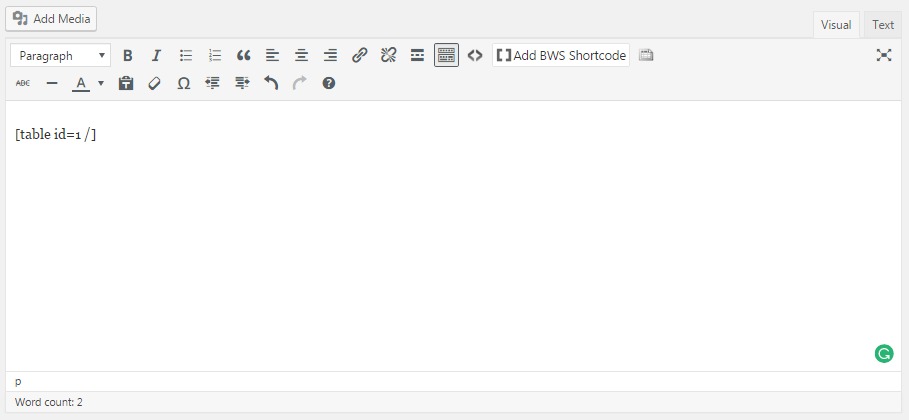
The Classic editor has no table button. Install a table plugin. A plugin is an add-on that gives your site a new feature. Go to Plugins and Add New, then search for "table". Follow the plugin's own screens to build a table and paste its short code. A short code is a small tag in square brackets that shows the table.
Tip: Keep tables small so they fit on a phone. Check how the table looks on mobile with the Preview button.
Quick recap
- Add the Table block with the plus sign.
- Set the rows and columns and click Create Table.
- Type in cells and use the toolbar to add or remove rows.
- Classic editor users need a table plugin.