

What is a profile?
Your profile is the page with your own details. It holds your name, your email address, your password and a short bio. A bio is a few lines about you. Your name and bio may show at the end of your posts.
Open your profile
- Log in to your WordPress dashboard.
- Click Users on the left.
- Click Profile.
You can also move your mouse over your name at the top right. Then click Edit Profile.
What you can change
Personal options
- Visual Editor turns the writing editor on or off.
- Admin Color Scheme changes the colors of your dashboard.
- Keyboard Shortcuts lets you use keys for quick actions.
- Toolbar shows or hides the black bar at the top of your site.
- Language sets your dashboard language.
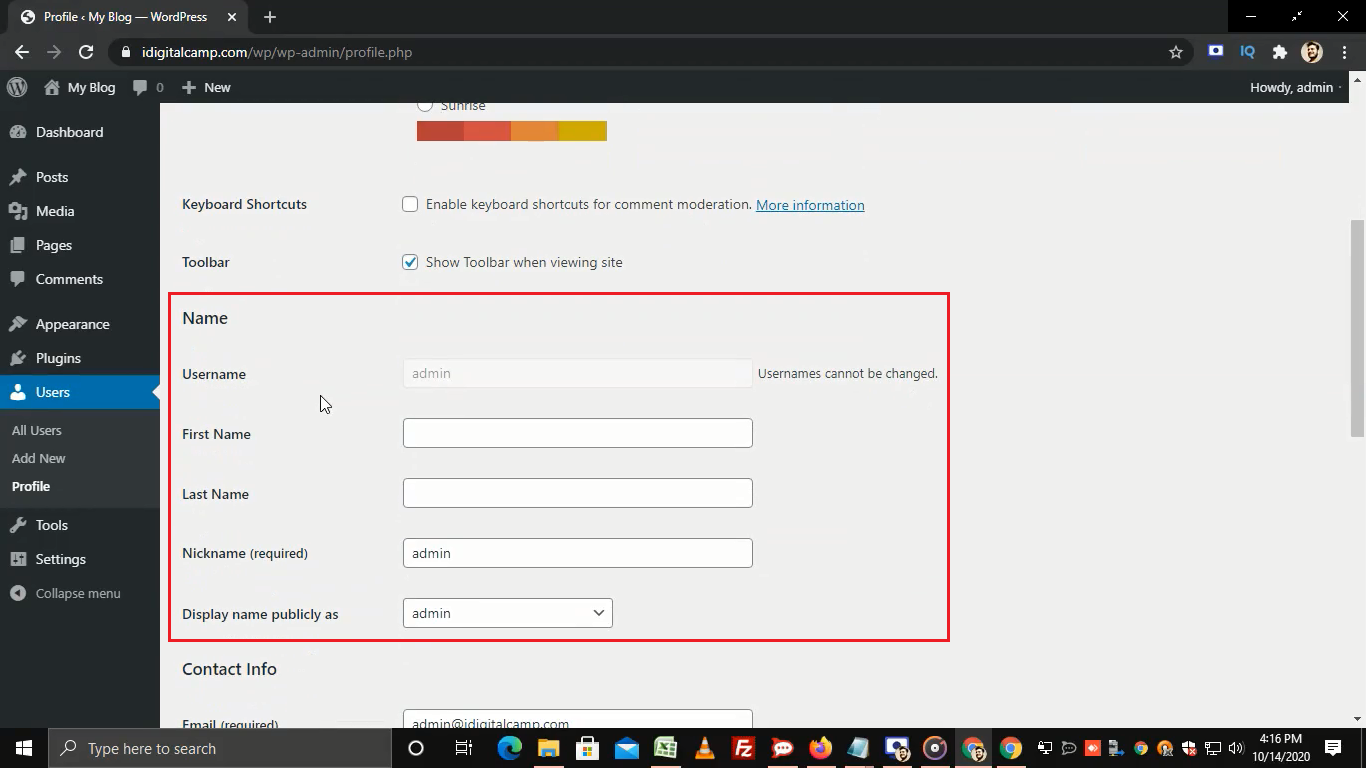
Name
- Type your First Name and Last Name.
- Type a Nickname.
- Choose Display name publicly as. This is the name visitors see. Pick the nickname if you want to keep your real name private.
You cannot change your username. If you need a new one, create a new user.
Contact info
Type your Email. WordPress sends password reset notes here, so keep it current. You can also add your website address.
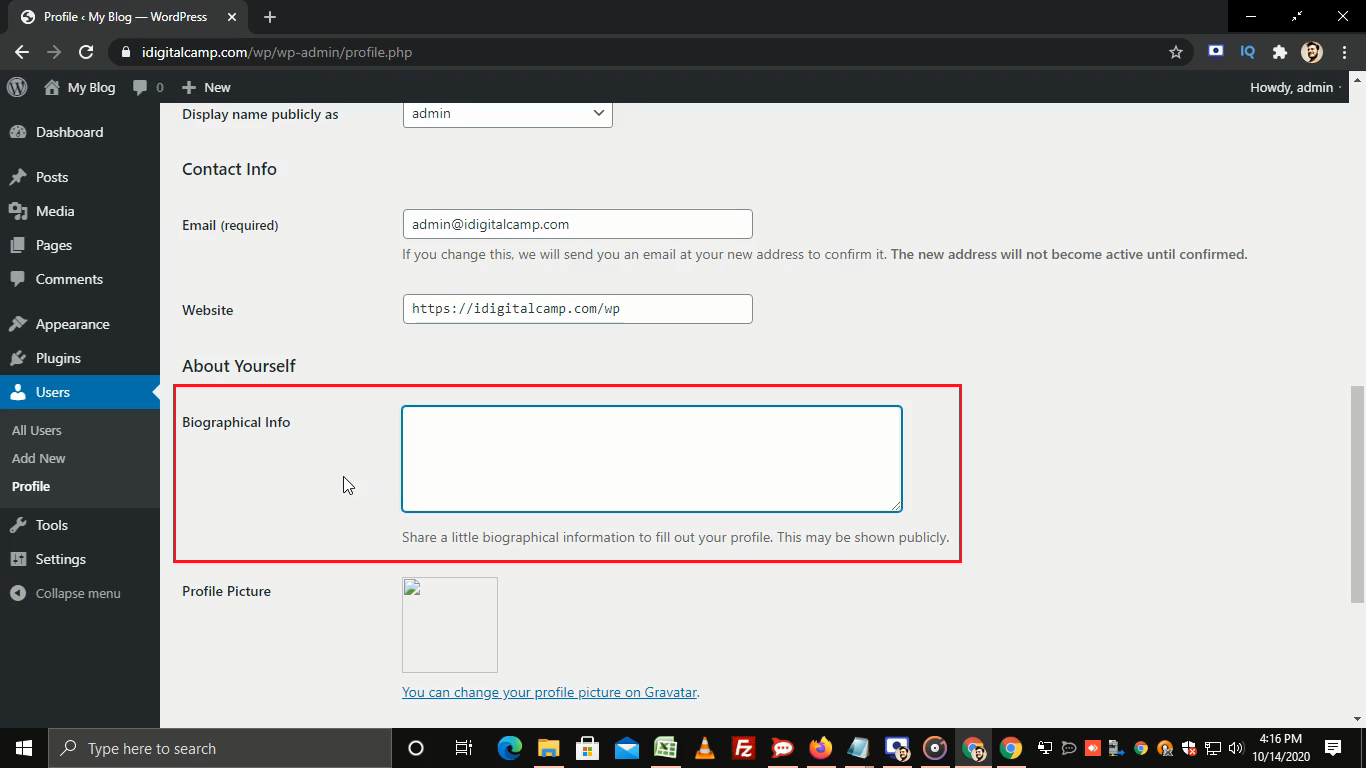
About yourself
Write your short bio in Biographical Info. Add a profile picture on the Gravatar site. Gravatar is a free service that links a picture to your email address. WordPress uses it for your picture.
Account management
Click Set New Password to change your password. Pick a long, strong one.
Save
- Scroll to the bottom.
- Click Update Profile.
Tip: If you change your email, WordPress may send a message to confirm it. Click the link in that message to finish the change.
Quick recap
- Open Users and then Profile.
- Change your name, email, bio and password.
- Choose the public display name.
- Click Update Profile to save.