

Why do images break after a move?
When you add a picture to a post, WordPress saves its full web address. A web address is also called a URL. It looks like http://oldsite.com/wp-content/uploads/photo.jpg.
After you move the site to a new domain, those saved addresses still point to the old place. The pictures are not found, so you see broken boxes. The fix is to find the old address and swap it for the new one.
Warning: You will change data in your database. A database is where WordPress keeps your posts and settings. Take a full backup first.
Step 1: Check the basics
- Log in to your WordPress dashboard.
- Go to Settings, then General.
- Check that WordPress Address (URL) and Site Address (URL) show your new domain.
- Fix them if needed and click Save Changes.
- Check that the
wp-content/uploadsfolder was copied to the new place and has your pictures.
Step 2: Use a search and replace plugin
This is the easiest and safest way for beginners.
- Go to Plugins, then Add New.
- Search for a plugin made for search and replace in the database, such as Better Search Replace.
- Click Install Now, then Activate.
- Go to Tools, then find the plugin's page.
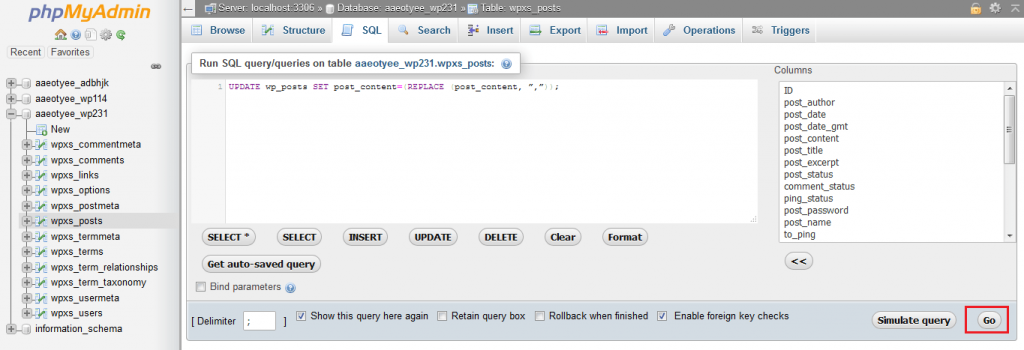
- In "Search for", type your old address, for example
http://oldsite.com. - In "Replace with", type your new address, for example
https://newsite.com. - Select all the tables in the list.
- Tick the dry run option first. This only shows what would change.
- If the result looks right, untick dry run and run it again.
Step 3: Clear caches
A cache is a saved copy of your pages, kept to make them load faster. Old copies may still show old links.
- Clear the cache in any caching plugin you use.
- Clear your browser cache, or open the site in a private window.
Step 4: Check for http and https
If your new site uses https (the secure version), make sure your replace used https too. Mixed addresses can make images fail to load.
Tip: If images are still missing, the files may not have been copied. Compare the uploads folder on the old and new site. Hostvento support can help through a ticket at https://secure.hostvento.com/submitticket.php.
Quick recap
- Images break because old addresses are saved in the database.
- Check Settings, then General, for the right site address.
- Use a search and replace plugin to swap old URLs for new ones.
- Do a dry run, and always back up first.
- Clear all caches at the end.