

What is a theme?
A theme is a ready-made design for your WordPress site. It sets colors, fonts and layout. Think of it as the clothes your website wears. You can change the theme without losing your posts.
Warning: Changing themes can change how your site looks and works. Take a backup first.
Way 1: Search from the dashboard
This is the easiest way. It uses free themes from the official WordPress library.
- Log in to your WordPress dashboard.
- Go to Appearance, then Themes.
- Click Add New Theme.
- Browse the list, or type a name in the search box.
- Hover over a theme and click Preview to see how it looks.
- Click Install.
- When it finishes, click Activate.
Way 2: Upload a ZIP file
Use this when you bought a theme or downloaded one from another site. You will have a ZIP file. A ZIP file is a folder squeezed into one file.
- Go to Appearance, then Themes.
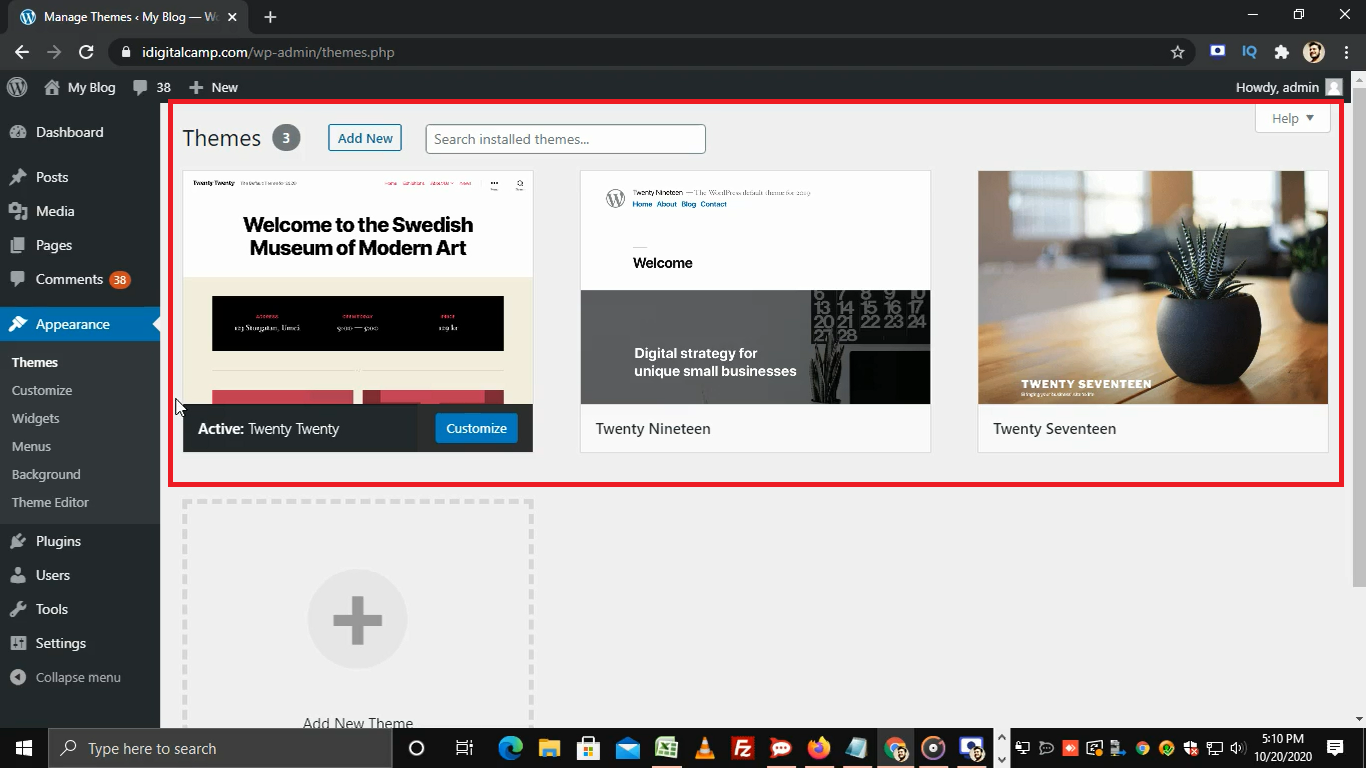
- Click Add New Theme, then Upload Theme.
- Click Choose File and select the theme ZIP file.
- Click Install Now.
- Click Activate.
Some download packages hold extra files, such as help documents. The real theme ZIP is often inside. Unzip the package on your computer and look for it.
Way 3: Upload with File Manager
Use this if the upload fails, for example when the file is too big.
- Log in to your hosting control panel and open File Manager.
- Go to
public_html/wp-content/themes. If WordPress is in a subfolder, go inside that folder first. - Click Upload and add the theme ZIP file.
- Right-click the ZIP file and choose Extract.
- Go back to the WordPress dashboard, open Appearance, then Themes.
- Find the new theme and click Activate.
After you activate
- Click Appearance, then Customize to change colors, logo and menus.
- Open your site in a new tab and check it.
Tip: Delete themes you do not use, but keep one default theme as a spare. Only use themes from sources you trust. Need help? Open a ticket at https://secure.hostvento.com/submitticket.php.
Quick recap
- A theme controls the look of your site.
- Install from Appearance, then Themes, then Add New Theme.
- You can search, upload a ZIP, or use File Manager.
- Click Activate to turn it on.
- Back up first.