

What is happening here?
cPanel is the control panel for your hosting. Softaculous is a tool inside cPanel that installs apps such as WordPress and lists them for you. It can also change the admin password for a site it installed.
This only works if the site was installed with Softaculous. Ask Hostvento support if Softaculous is on your plan.
Tip: Try the "Lost your password?" link on the WordPress login page first. It sends a reset email. Use the steps below if that email never arrives.
Steps
- Log in to your client area at https://secure.hostvento.com/clientarea.php.
- Open your hosting service and sign in to cPanel. Your welcome email also has the details.
- Find the Softaculous Apps Installer section, or search for "Softaculous".
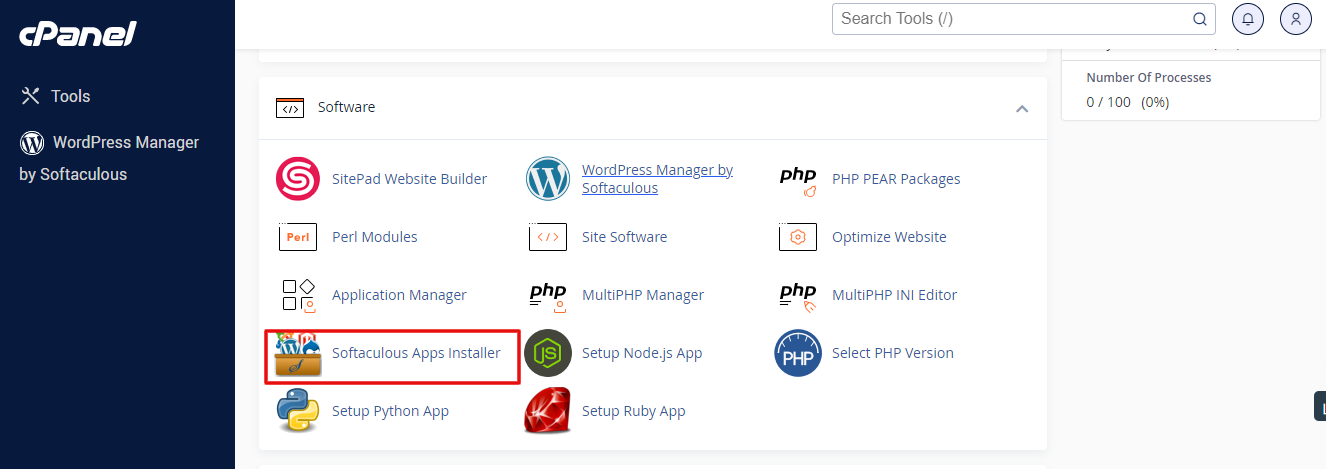
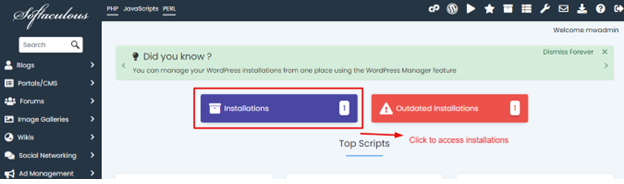
- Click Softaculous to open it.
- Look for the menu with the icon showing all installations. Click All Installations.
- Find your WordPress site in the list.
- Click the pencil icon on that row. This opens the edit page.
- Scroll down to the admin account area. You may see a field for Admin Username and one for Admin Password.
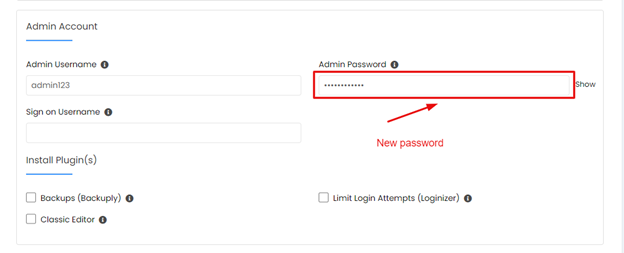
- Type a new, strong password. A strong password is long and mixes letters, numbers and symbols.
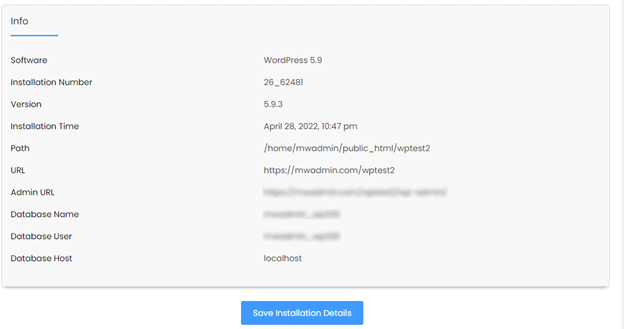
- Scroll to the bottom and click Save Installation Details.
- Go to
yourdomain.com/wp-adminand log in with the new password.
Button names may differ slightly between versions. Look for the edit option on your site's row.
If the password field is not shown
Some versions of Softaculous do not show the admin password. Then you can use phpMyAdmin. This is a tool in cPanel that lets you see and edit your database. A database is where WordPress keeps users and posts.
- Take a backup of your database first.
- In cPanel, open phpMyAdmin.
- Click your WordPress database on the left.
- Open the table ending in
_users. - Click Edit on your user row.
- In the
user_passrow, set the Function to MD5. - Type the new password in the Value box.
- Click Go to save.
WordPress will upgrade the password format the next time you log in.
Warning: Changing the wrong row can lock all users out. Be careful. If you are not sure, open a ticket at https://secure.hostvento.com/submitticket.php.
Quick recap
- Open cPanel, then Softaculous, then All Installations.
- Click the pencil icon next to your site.
- Enter a new strong admin password and save.
- Use phpMyAdmin only as a back-up plan, and back up first.