

Why update?
WordPress releases updates often. They fix bugs, add features and close security holes. Hackers look for old, unpatched sites. An updated site is much harder to attack.
You can update three things: WordPress itself (the core), plugins, and themes. A plugin is an add-on with extra features. A theme controls how your site looks.
Warning: An update can sometimes break a site. Always take a full backup of files and database first.
Step 1: Make a backup
- Log in to your client area at https://secure.hostvento.com/clientarea.php and open your hosting control panel.
- Use the backup tool in your panel, or a backup plugin in WordPress.
- Download the backup to your computer.
Ask Hostvento support what backup tools are on your plan.
Step 2: Update plugins and themes first
- Log in to the WordPress dashboard.
- Click Dashboard, then Updates.
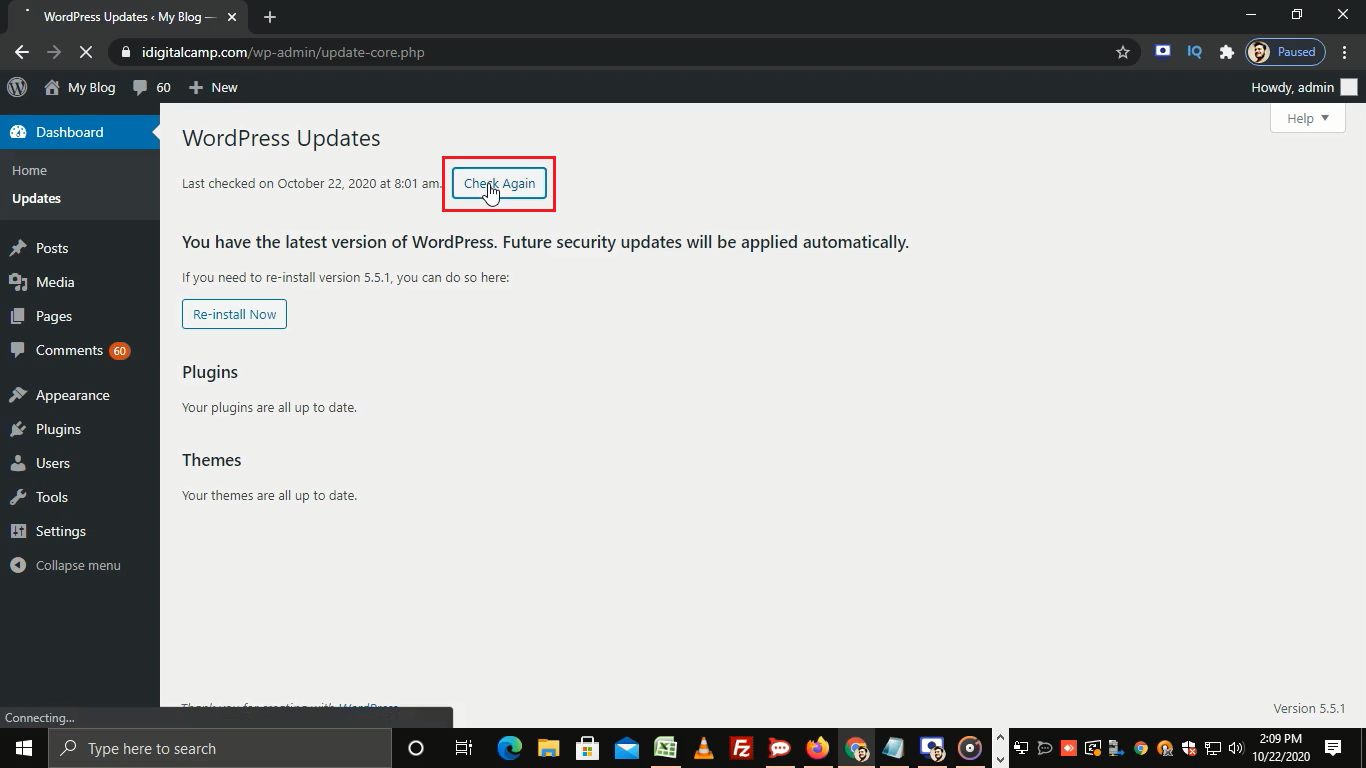
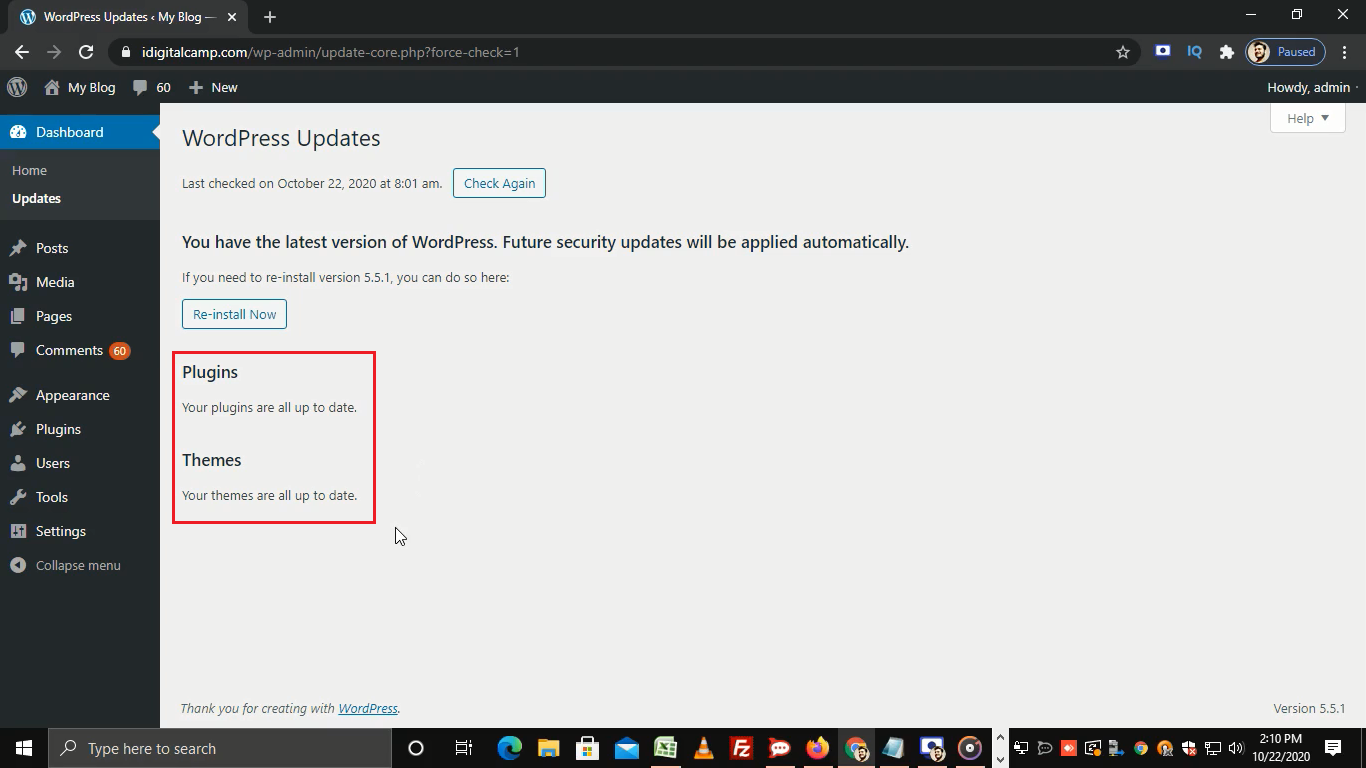
- Tick the plugins that have updates.
- Click Update Plugins.
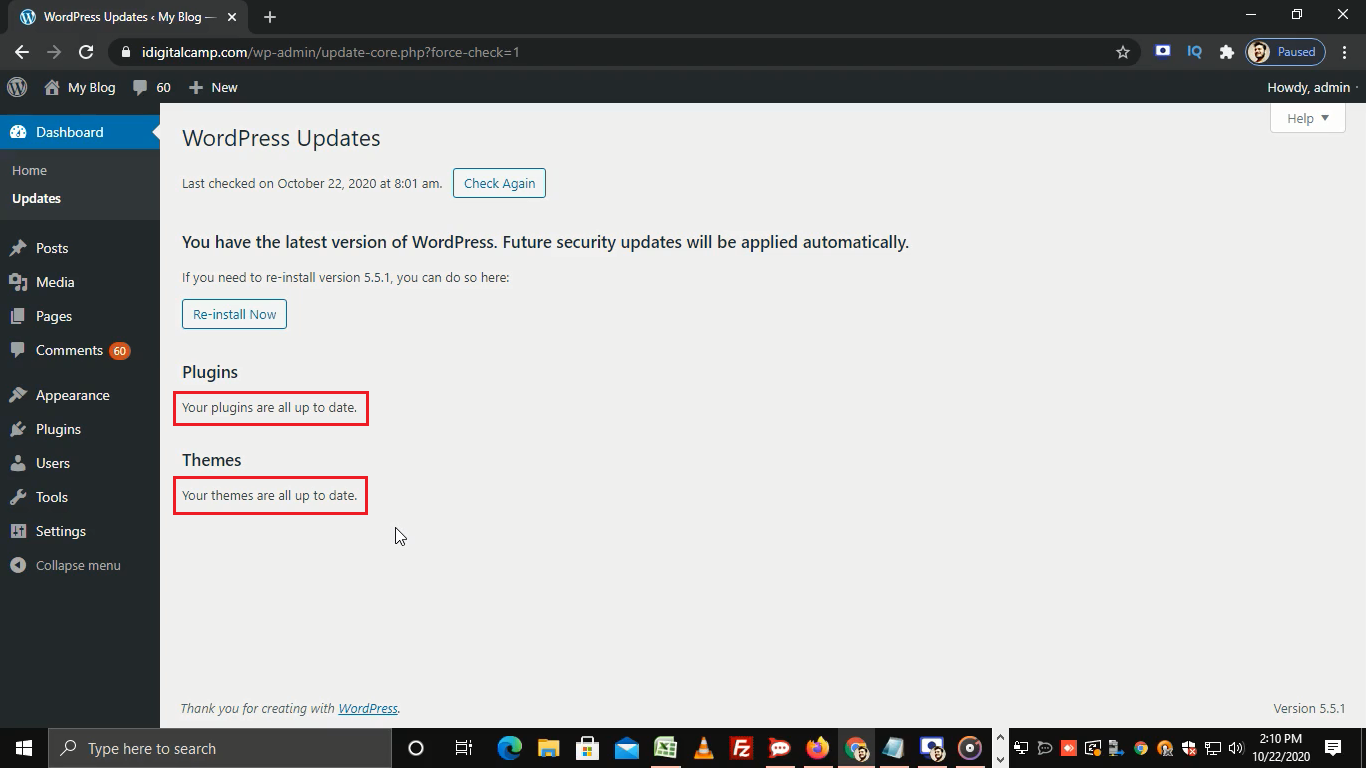
- Do the same for themes.
Step 3: Update WordPress core
- On the same Updates page, look at the top.
- If a new version is ready, click Update to version (the exact number shows on screen).
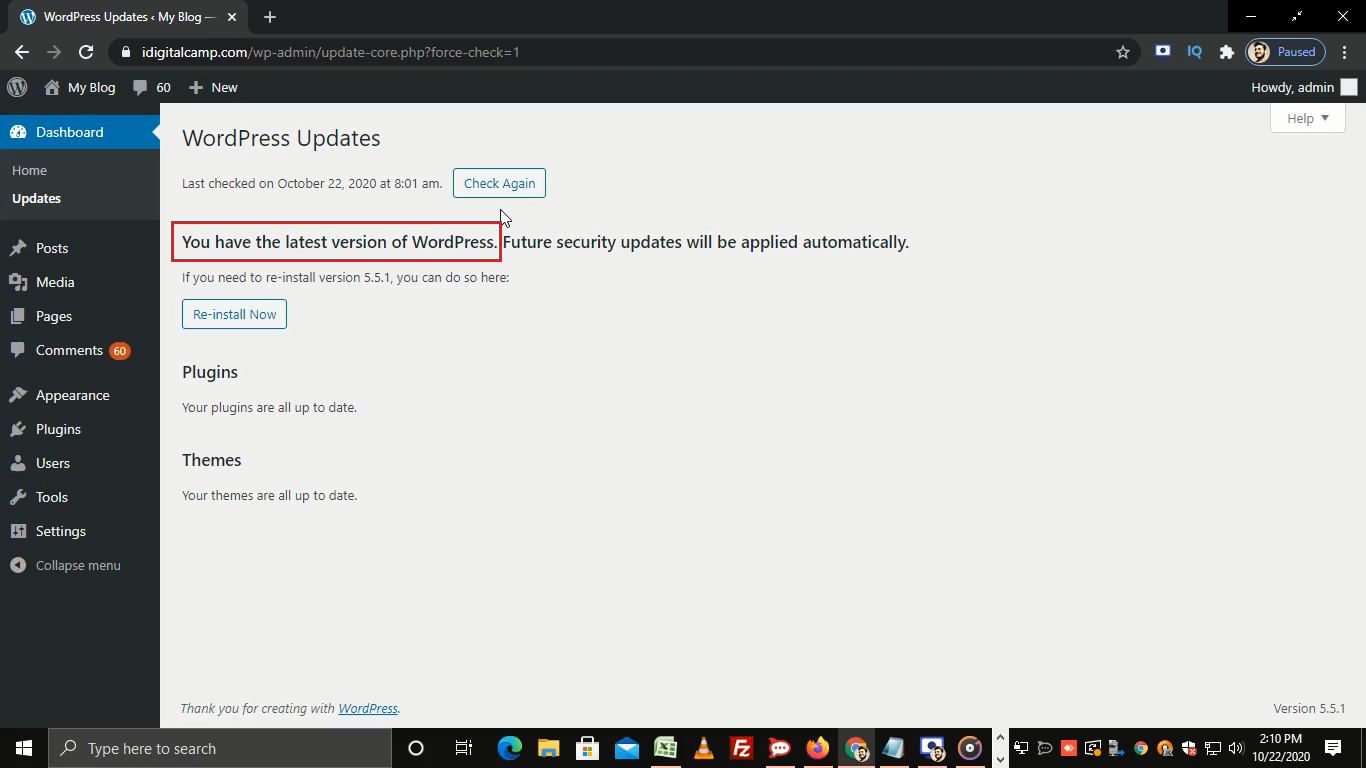
- Wait. Do not close the page.
- WordPress may show a "database update" screen. Click the button to continue.
Minor updates, like security fixes, often install by themselves.
Step 4: Check your site
- Open your home page.
- Click a few pages and posts.
- Test forms and your shop if you have one.
- Clear any cache plugin.
Update with the auto-installer
If you installed WordPress with an auto-installer like Softaculous, it may show an update button in its list of installations. Ask Hostvento support if it is on your plan.
If something breaks
- Deactivate your plugins. Then turn them on one by one.
- Switch to a default theme to test.
- If needed, restore the backup you made.
- Open a ticket at https://secure.hostvento.com/submitticket.php.
Tip: Check for updates at least once a week. Delete plugins and themes you do not use. They can get old and unsafe.
Quick recap
- Updates fix bugs and keep hackers out.
- Back up first.
- Update plugins and themes, then WordPress core.
- Test your site after each update.