

What is WordPress Toolkit?
Plesk is a control panel. A control panel is a web page where you manage your hosting. WordPress Toolkit is a tool inside Plesk. It lets you manage all your WordPress sites from one screen. You can install, update, clone and secure them.
It is a third-party tool. Ask Hostvento support whether Plesk and WordPress Toolkit are on your plan. Menu names may vary between versions.
Open the toolkit
- Log in to your client area at https://secure.hostvento.com/clientarea.php and open your hosting service. Your welcome email also has the Plesk login.
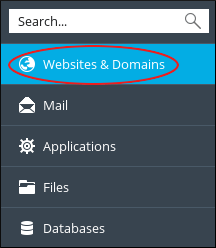
- Sign in to Plesk.
- Click WordPress in the left menu.

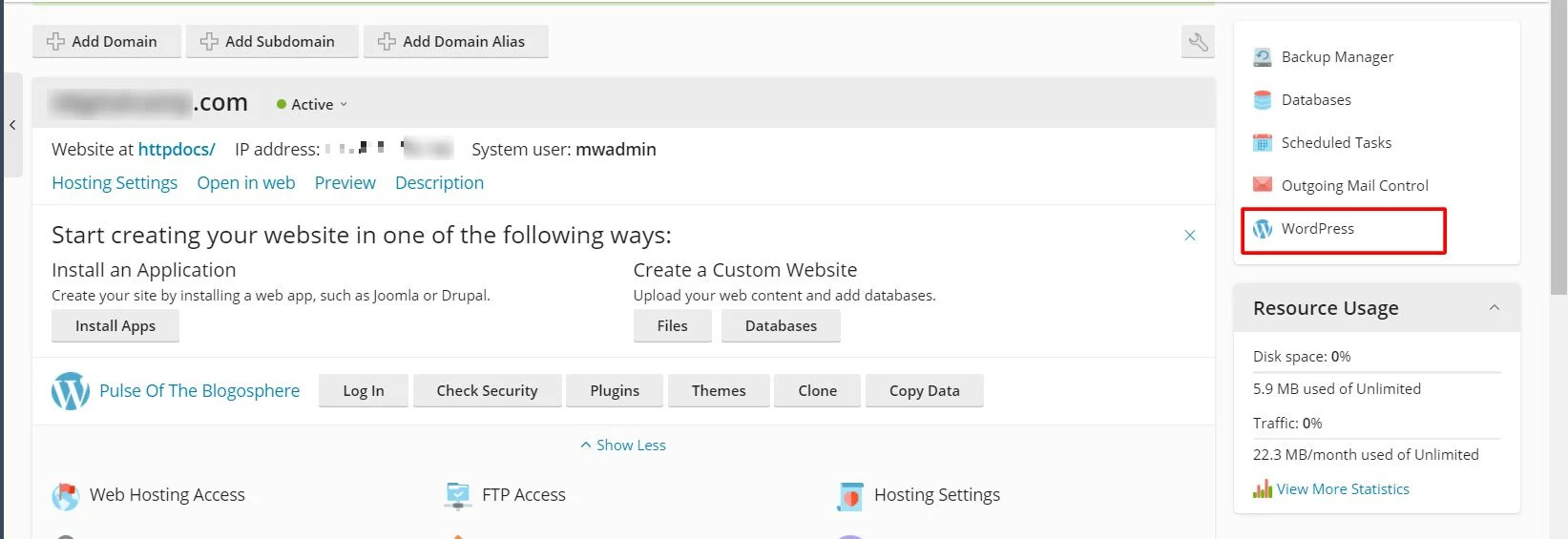
You will see a card for each WordPress site.
Install a new WordPress site
- In the WordPress page, click Install.
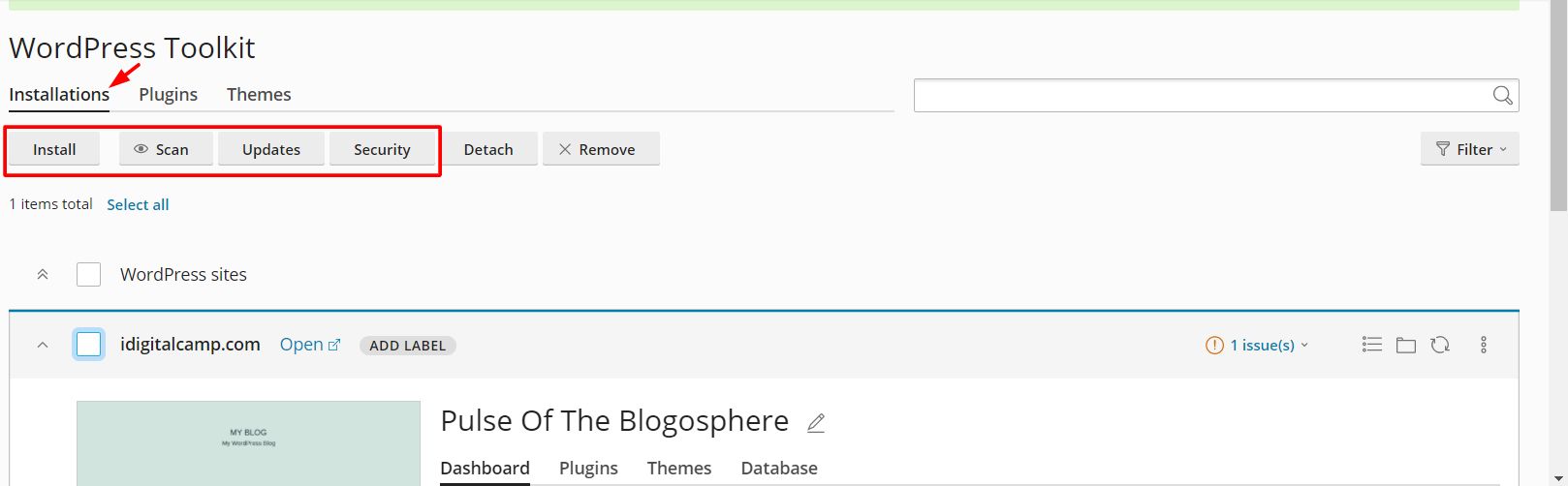
- Pick the domain, and the folder if needed.
- Choose a site title, an admin username and a strong password.
- Click Install and wait for it to finish.
Log in to a site without a password
- On the site's card, click the Log in button.
- Plesk opens the WordPress dashboard for you.
Update WordPress, plugins and themes
- Open a site's card.
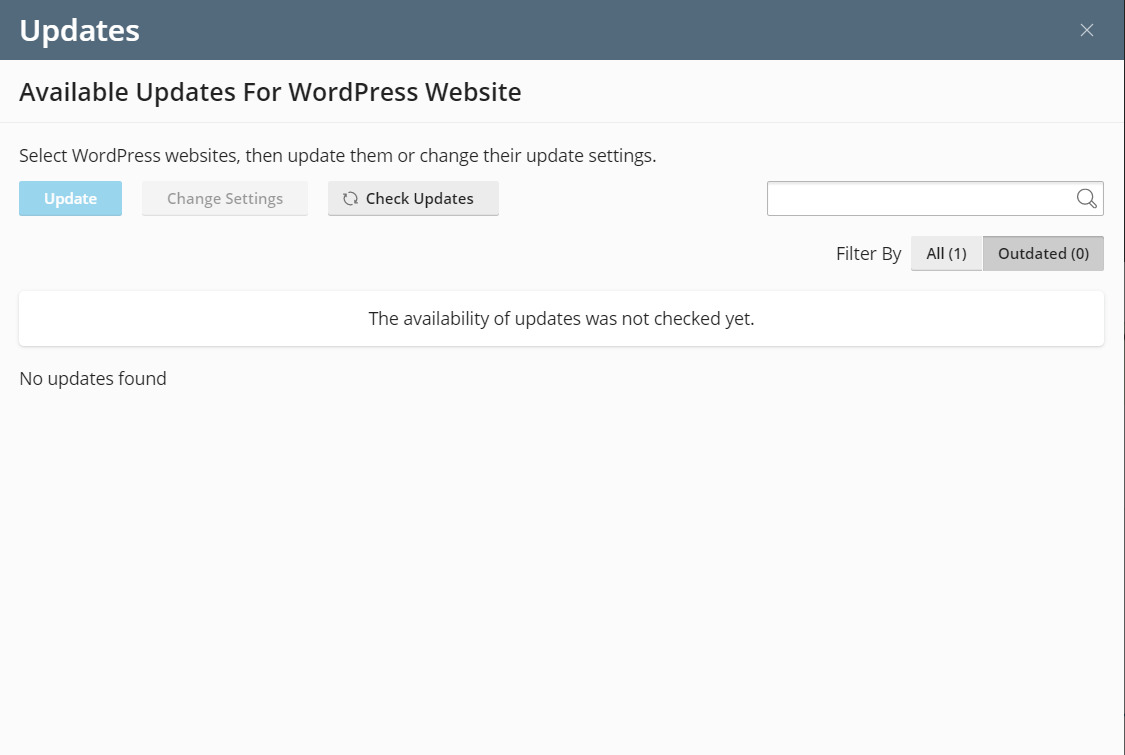
- Click the Updates tab.
- Choose what to update: WordPress, plugins or themes.
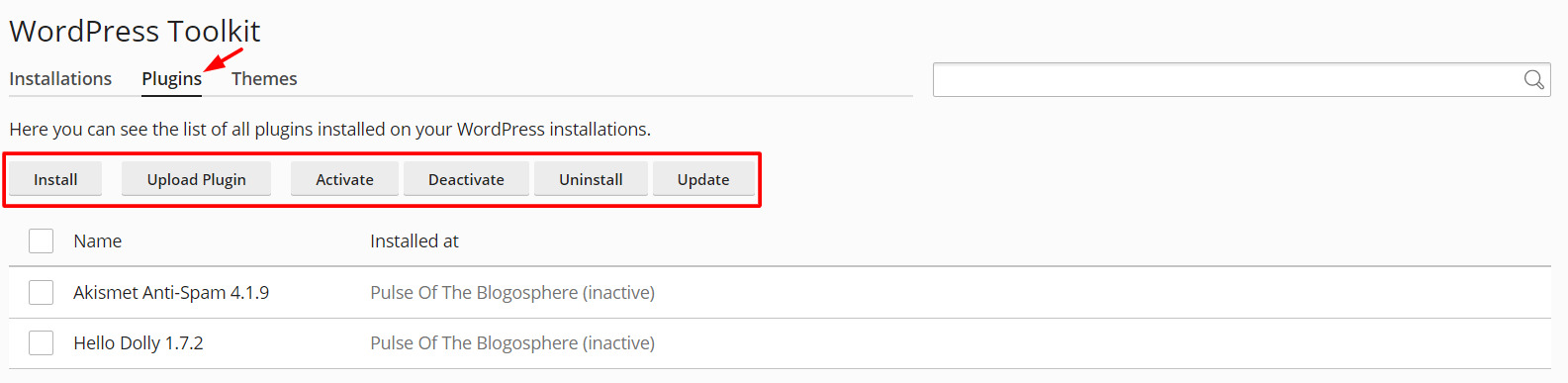
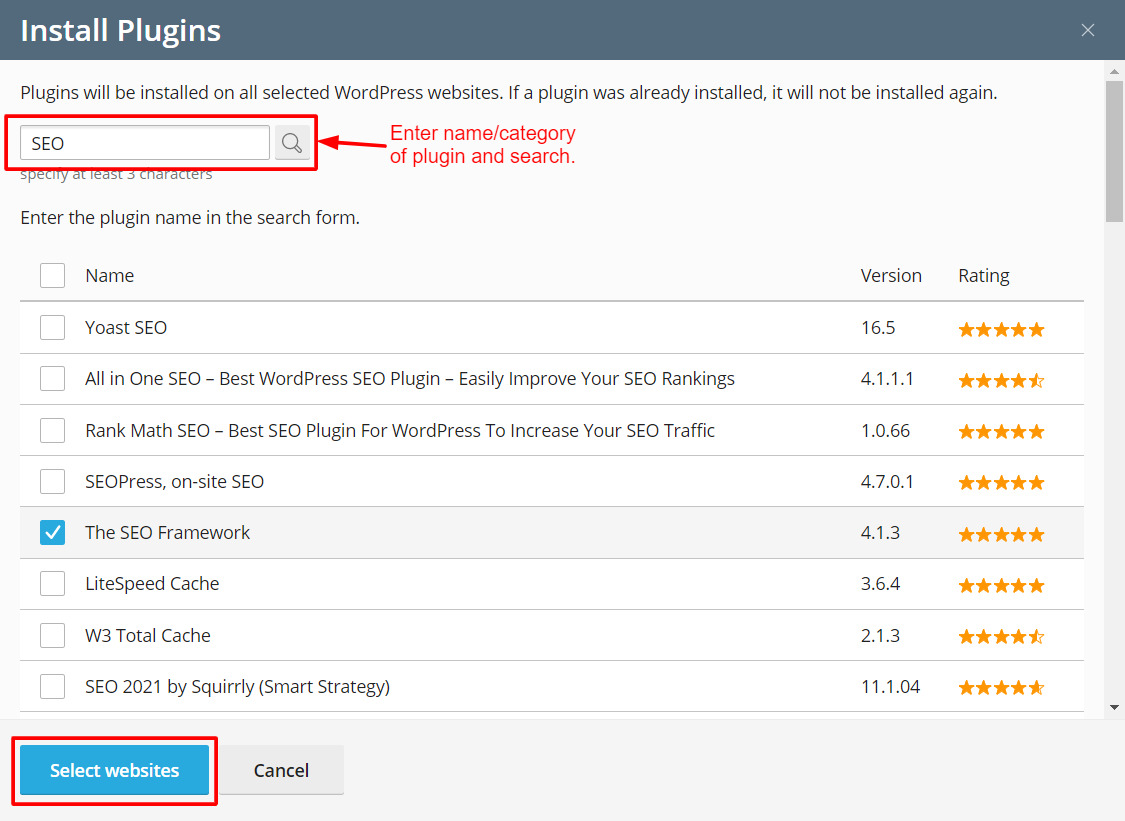
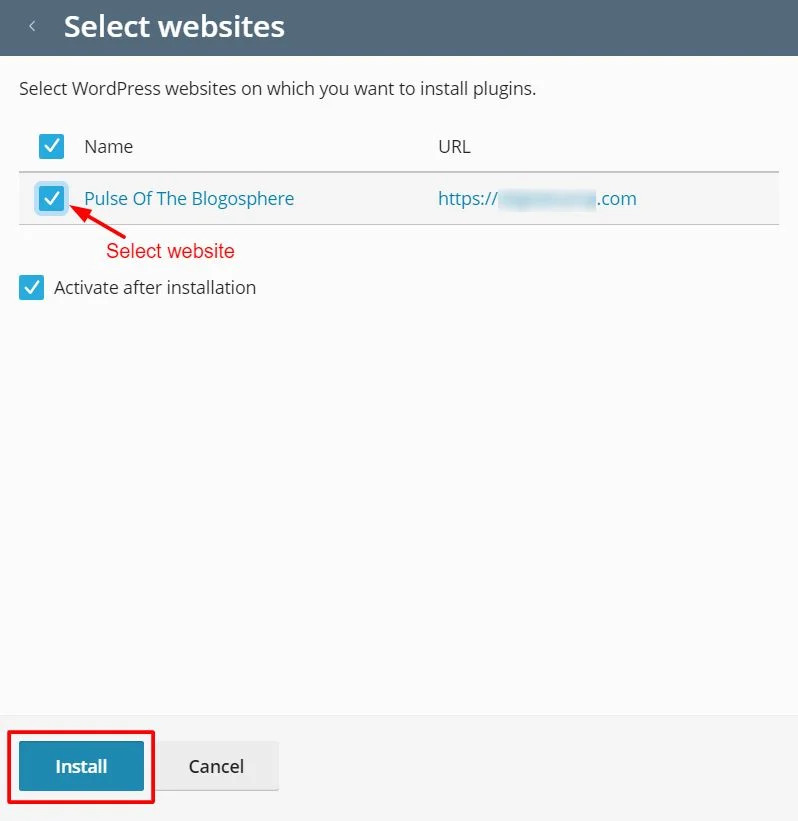
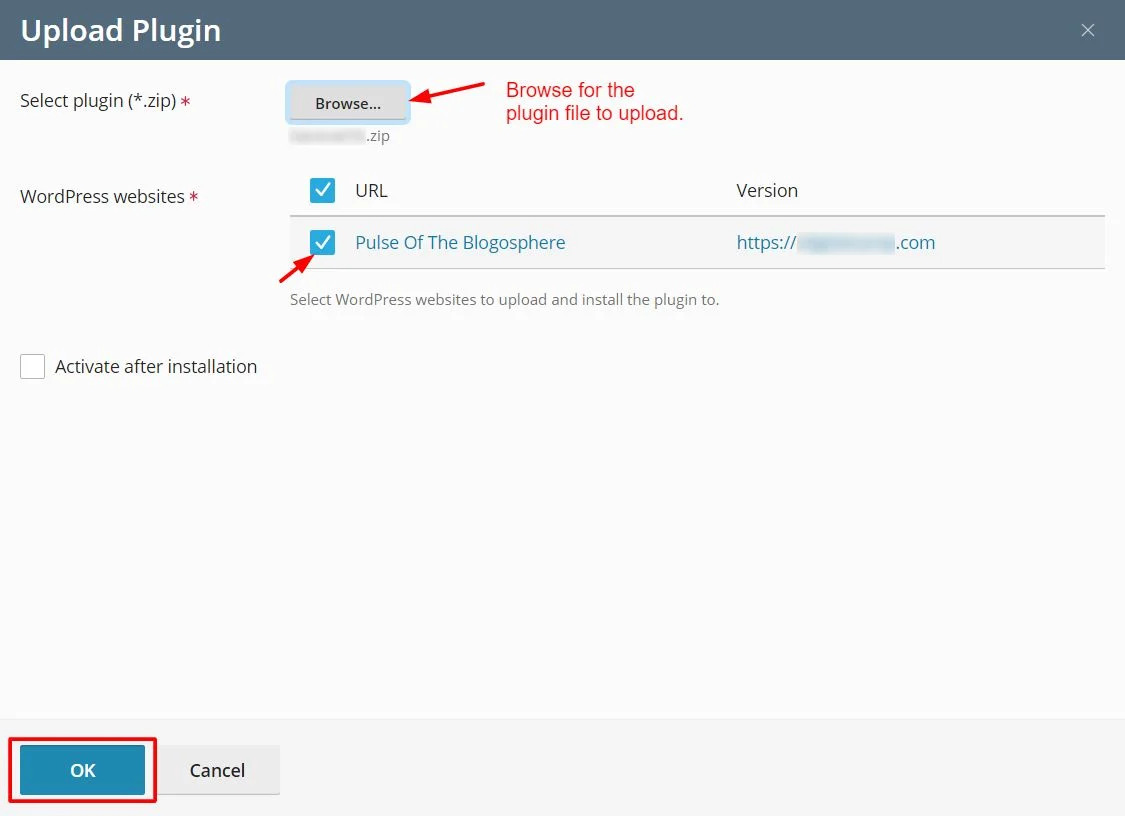
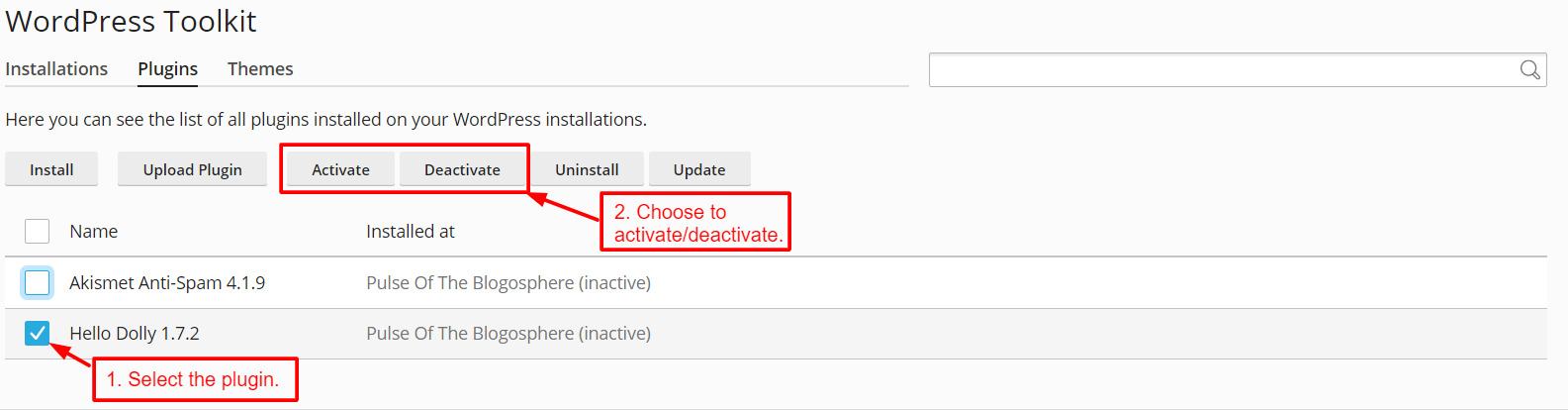
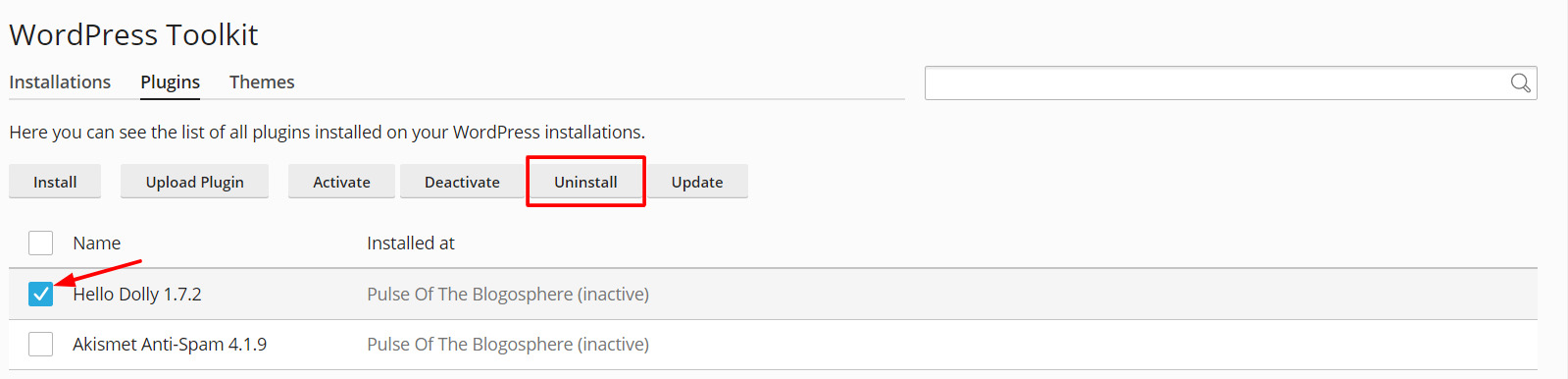
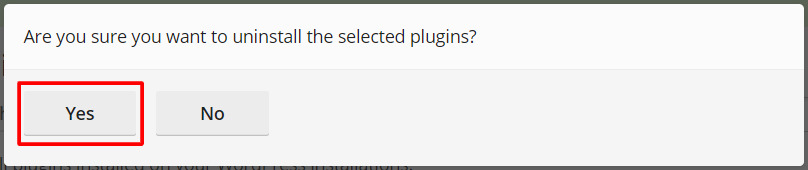
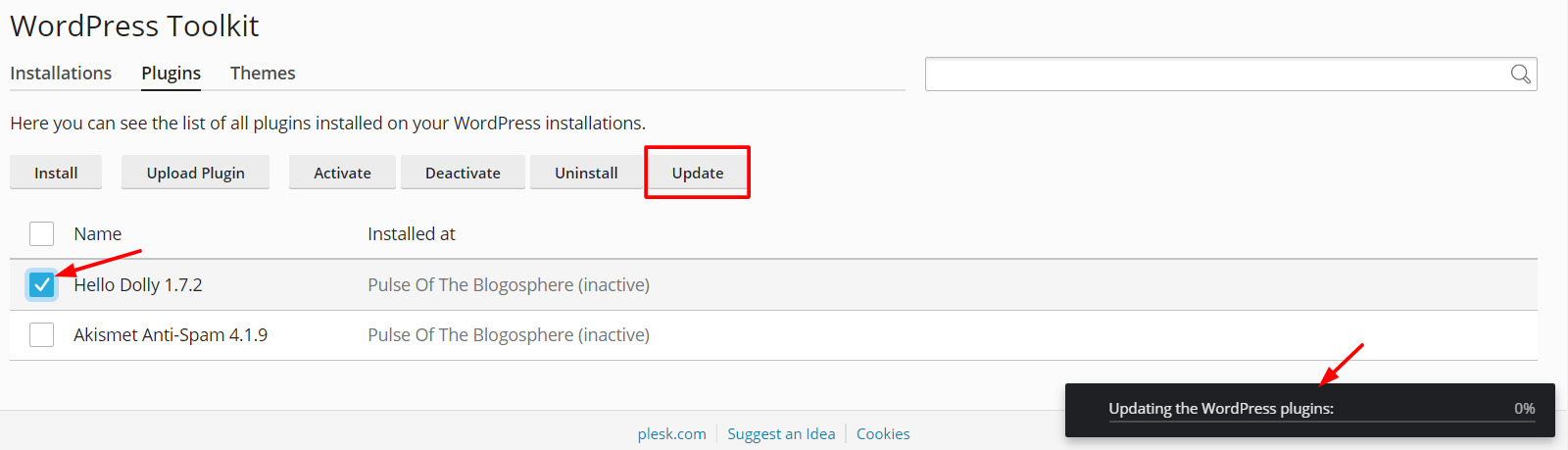

- Click Update.
Warning: Take a backup before you update. Updates can sometimes break a site.
Run the security check
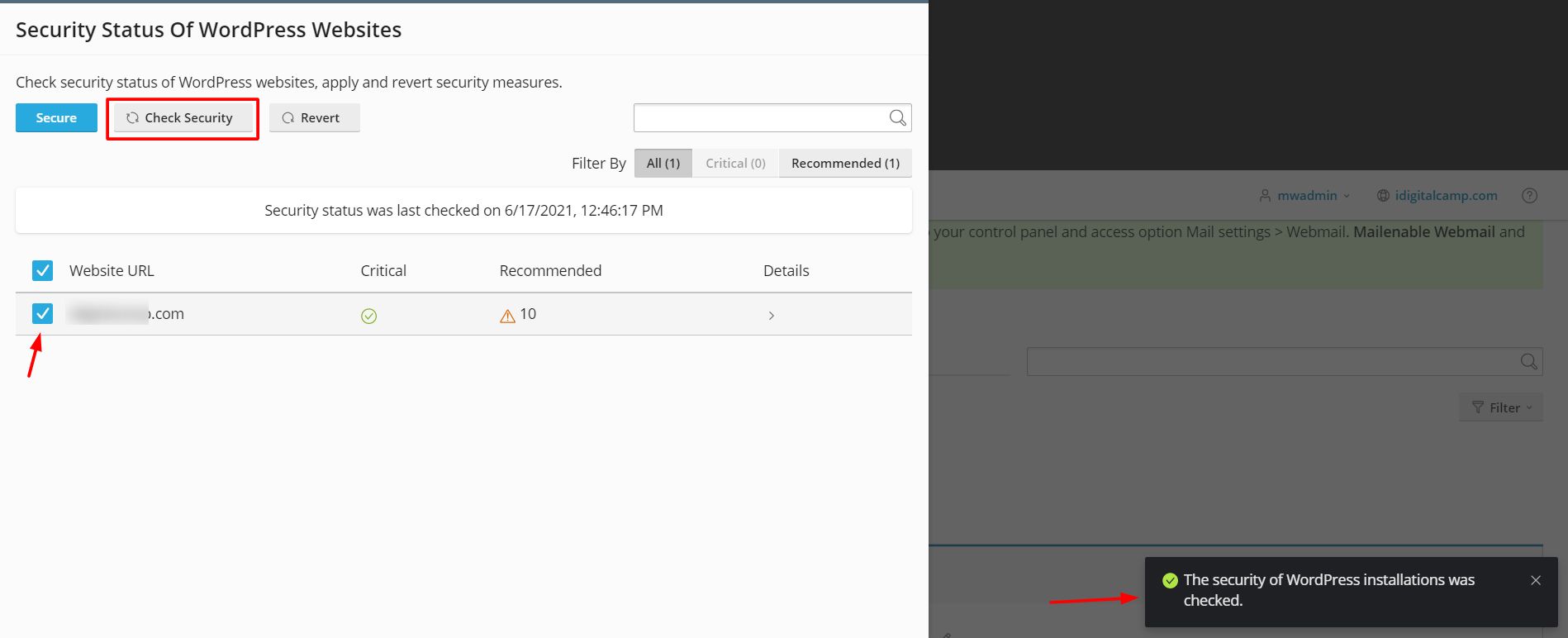
- Click Check Security for the site, or open the Security area.
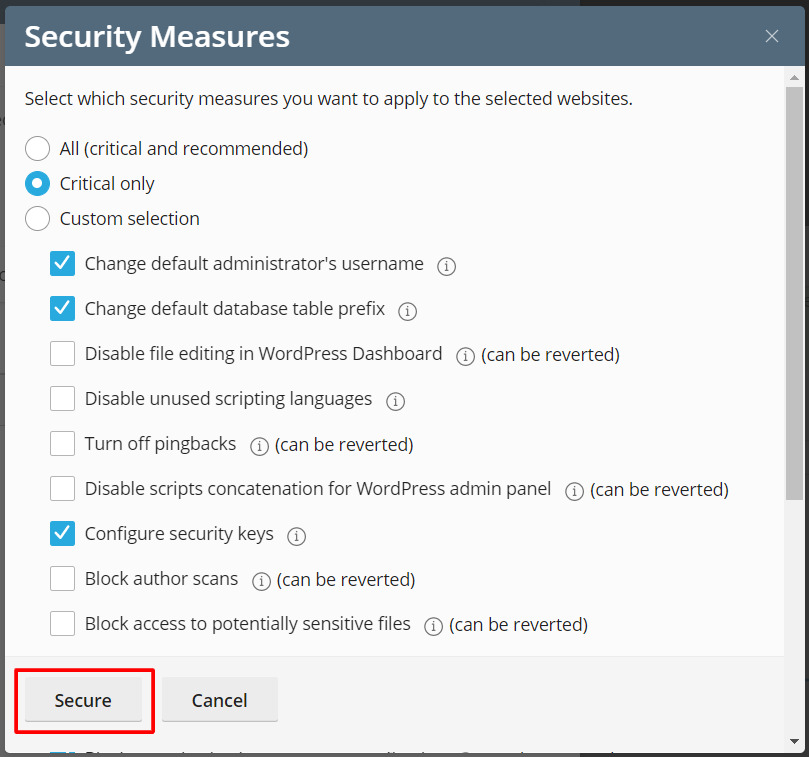
- Review the list of suggested fixes.
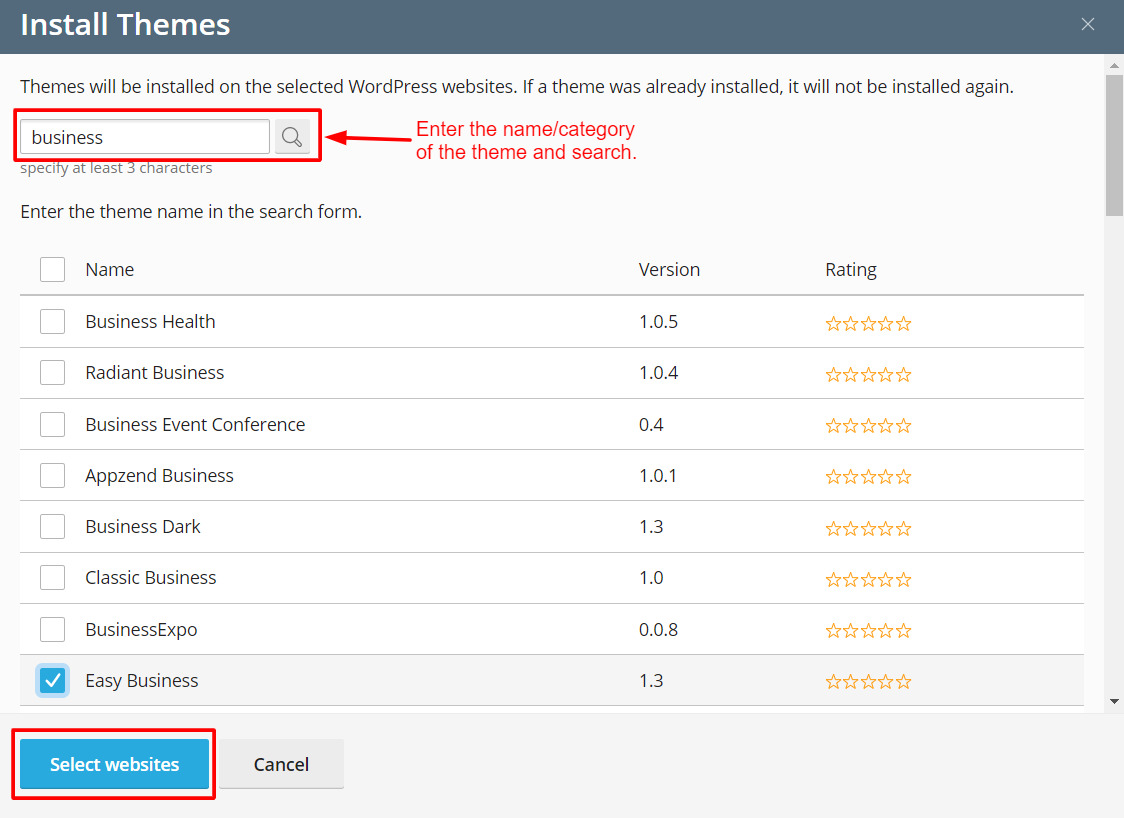
- Click Secure to apply the ones you want.
Some fixes change settings in your files. Apply them with care, then test your site.
Clone a site for testing
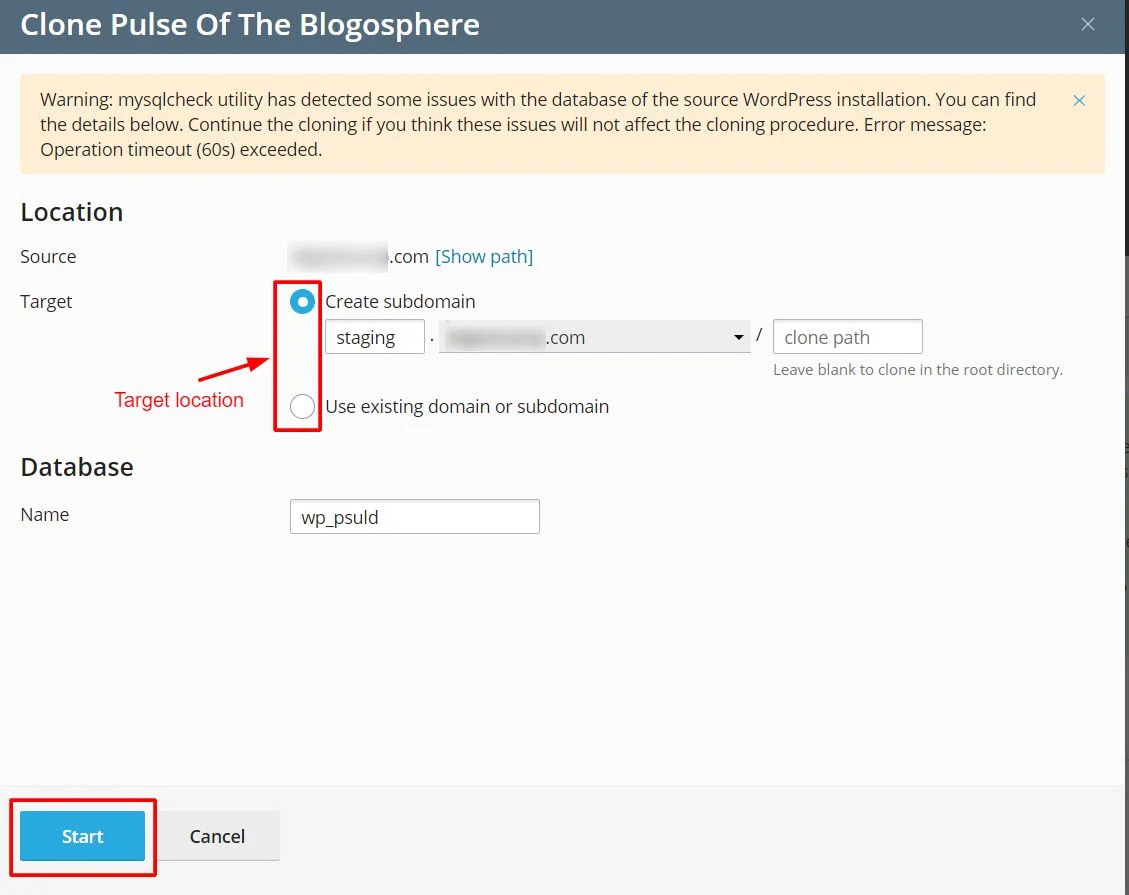
A clone is an exact copy of your site. Use it to test changes safely.
- Click Clone on the site card.
- Choose a target domain or subdomain.
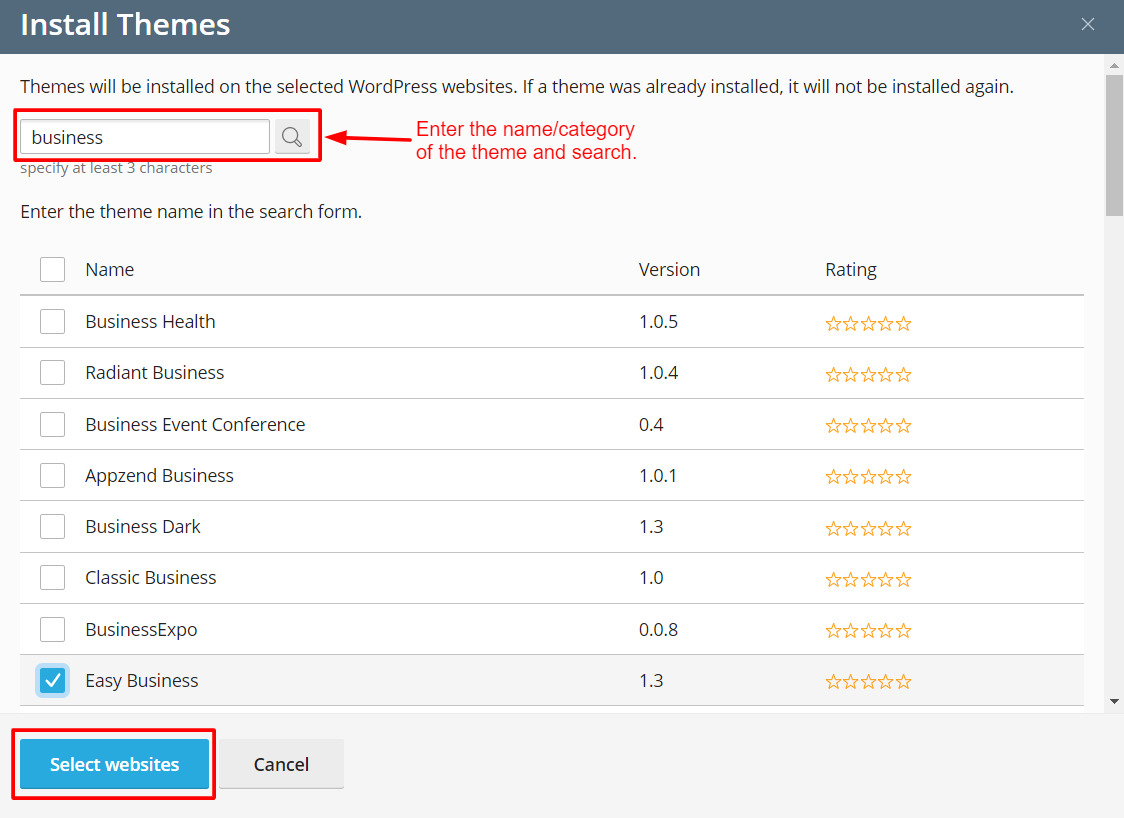
- Click Start.
Turn on automatic updates
- Open the site's card and go to Autoupdate Settings.
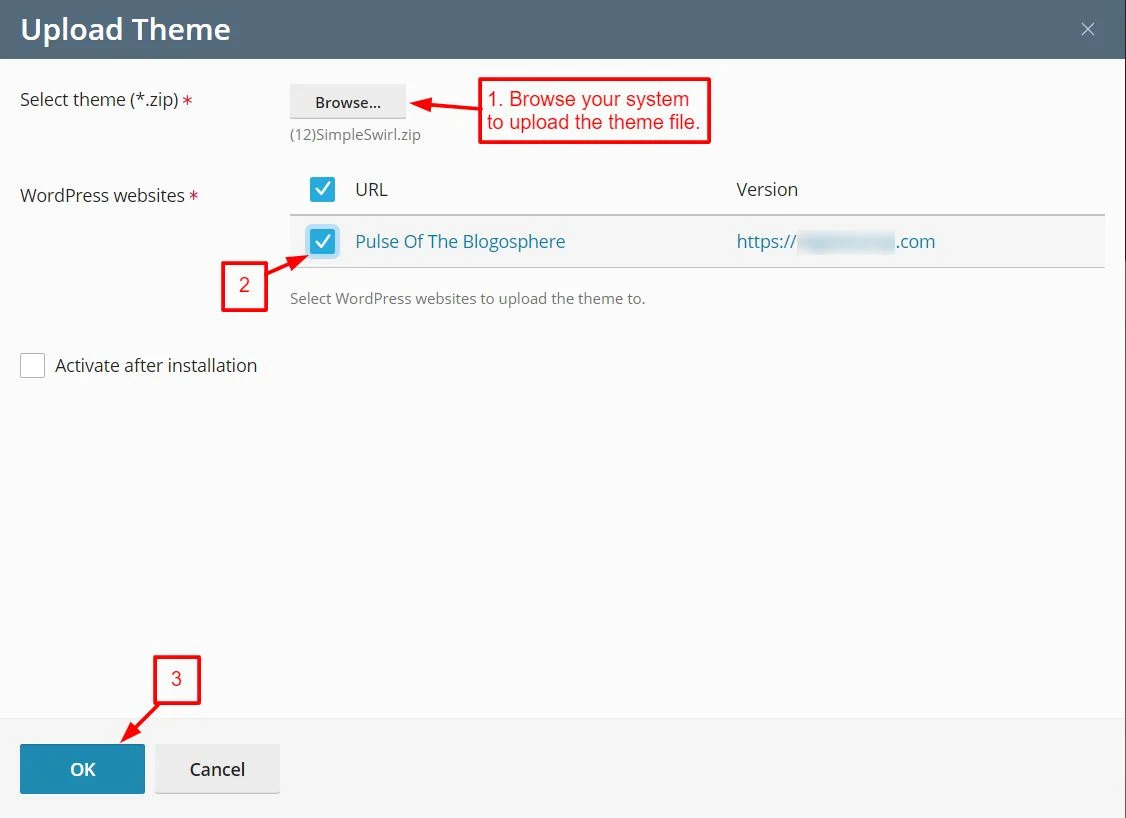
- Pick the update level for core, plugins and themes.
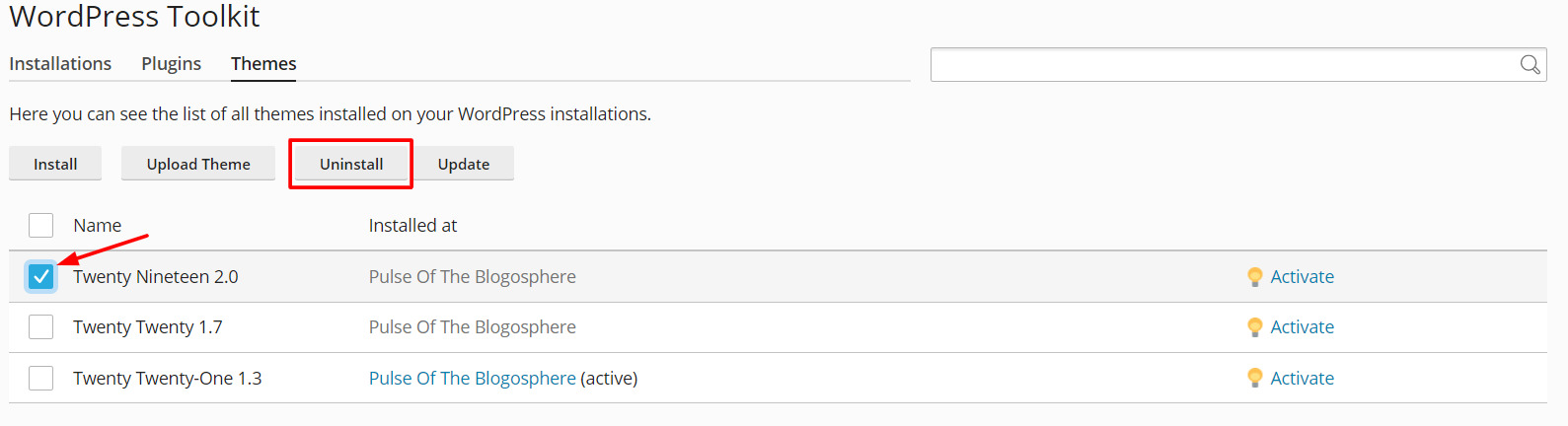
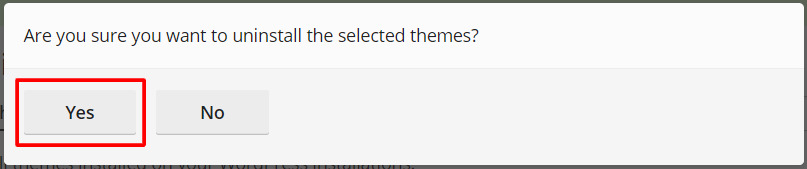
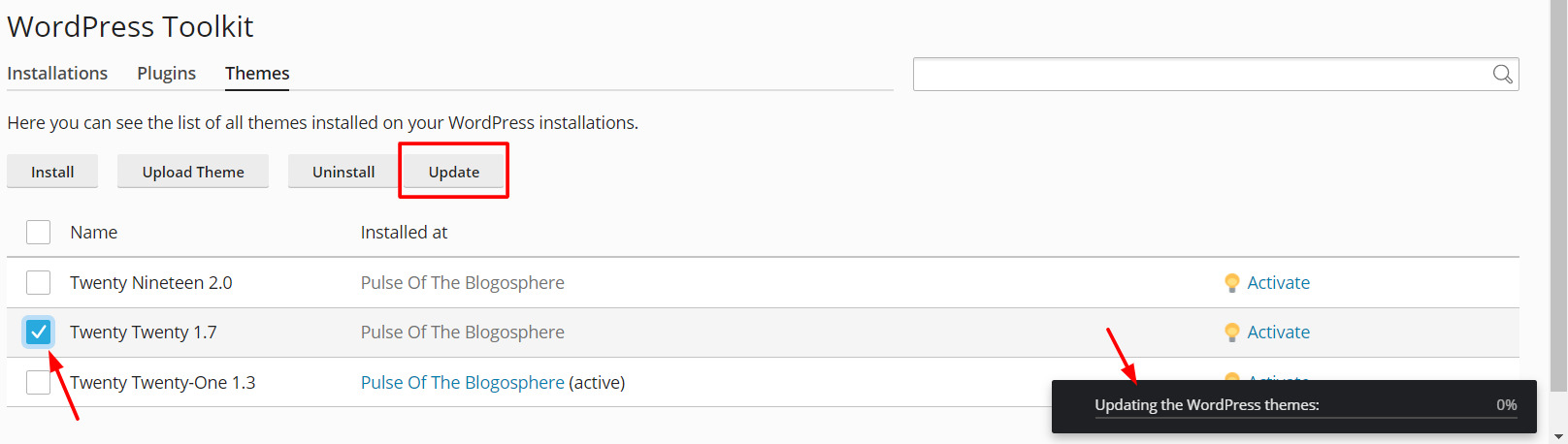
- Click OK.
Other useful tools
- Maintenance mode shows a "back soon" page to visitors.
- Search engine indexing can be switched on or off.
- Debugging turns on WordPress error messages.
Tip: Need a feature that is missing? Open a ticket at https://secure.hostvento.com/submitticket.php.
Quick recap
- WordPress Toolkit manages WordPress sites inside Plesk.
- Open it from WordPress in the left menu.
- Use it to install, log in, update, secure and clone.
- Back up before you update.