

What is WP Toolkit?
WP Toolkit is a management tool for WordPress. It lives inside some control panels, such as cPanel and Plesk. A control panel is the web page where you manage your hosting. WP Toolkit gives you buttons to update, scan and secure sites. You do not need to log in to WordPress each time.
It is a third-party tool. Ask Hostvento support if it is on your plan. Screens can look a little different between versions.
Open WP Toolkit
- Log in to your client area at https://secure.hostvento.com/clientarea.php and open your hosting service.
- Sign in to your control panel.
- Find WP Toolkit, or WordPress in Plesk. Click it.
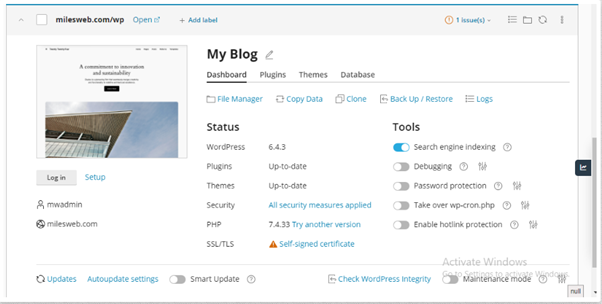
You will see a card for each site. It shows a preview, the WordPress version and any warnings.
Warning: Take a backup before you update or change security settings.
Update your site
- Click your site's card to open it.
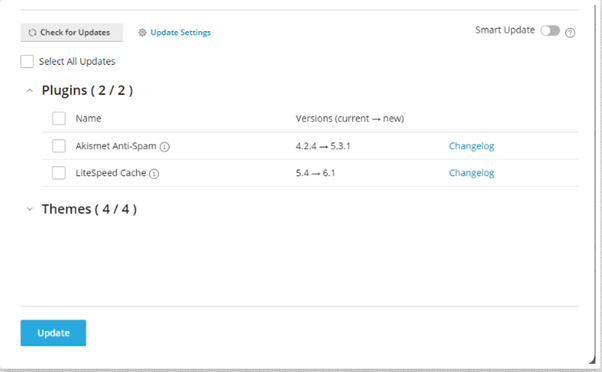
- Click the Updates tab.
- You will see lists for WordPress, plugins and themes.
- Tick what you want to update. A plugin is an add-on with extra features. A theme is the design of your site.
- Click Update Selected or the update button shown.
- Wait for the green success message.
- Open your site and check that it works.
Check security
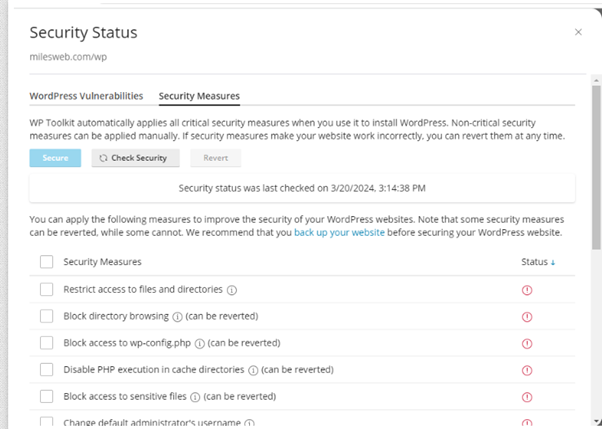
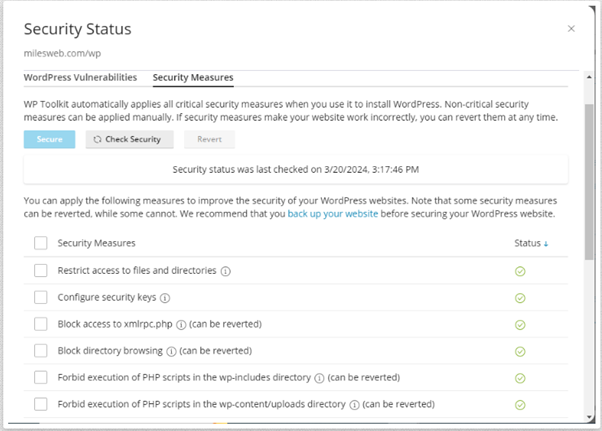
- On the card, find the Security area. It may say "Check Security".
- Click it. WP Toolkit scans your site.
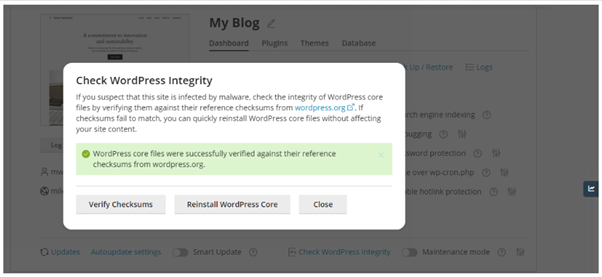
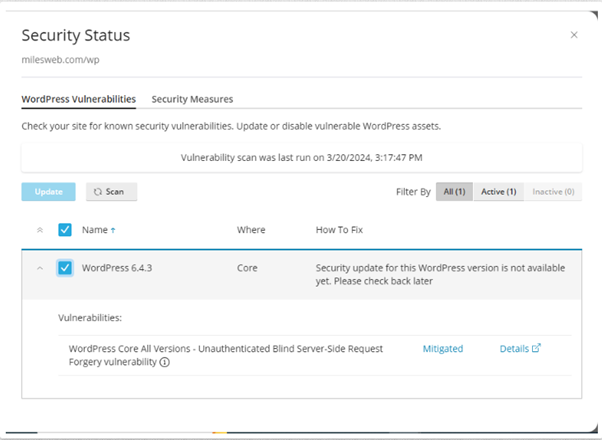
- Read the list. Each item is a possible weakness, for example file permissions or an old version.
- Tick the fixes you want to use.
- Click Secure.
- Open your site and test it again.
If a fix breaks something, WP Toolkit lets you undo it. Look for a revert option.
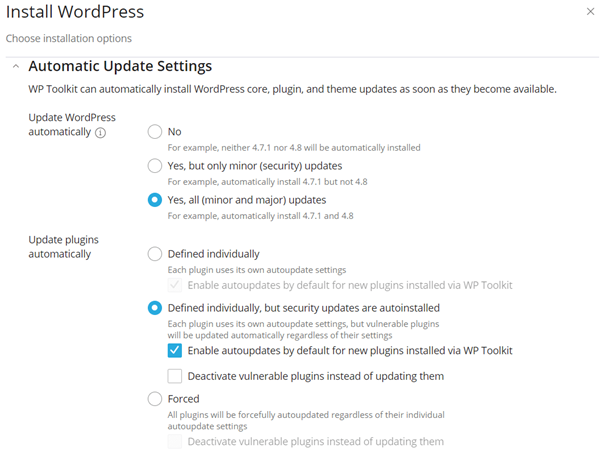
Turn on automatic updates
- Open the site's settings in WP Toolkit.
- Find Autoupdate Settings.
- Choose how often and what to update.
- Click OK.
Good habits
- Delete plugins and themes you do not use.
- Use strong passwords.
- Back up before big changes.
- Test changes on a clone first. A clone is an exact copy of your site.
Tip: If an update causes problems, restore your backup. Then open a ticket at https://secure.hostvento.com/submitticket.php for help.
Quick recap
- WP Toolkit manages many WordPress sites from one screen.
- Use the Updates tab for core, plugins and themes.
- Use the security check and click Secure to apply fixes.
- Back up first, and test after changes.