

Why offload media to S3 and a CDN
- The media library no longer fills your server disk.
- Files load faster from Amazon's network and from a CDN near the visitor.
- Your server has less work, so the site handles more traffic.
- Storage scales without limit.
Step 1: Create an Amazon S3 bucket
- Log in to the AWS console and open S3.
- Click Create bucket.
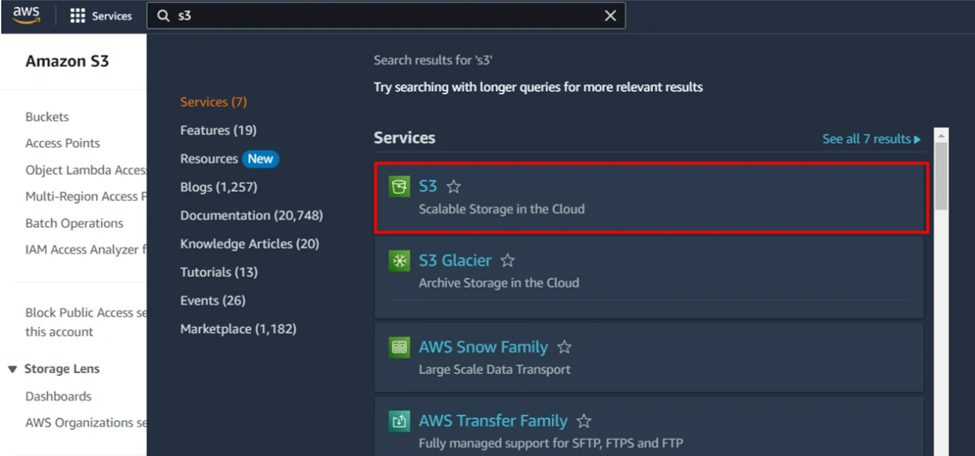
- Choose a unique name and a region near your visitors.
- Set the Object Ownership to ACLs disabled (recommended) and decide about public access. The plugin guide tells you whether to block public access when you use a CDN or bucket policy.
- Click Create bucket.
Step 2: Create an IAM user with S3 access
- Open IAM > Users > Create user.
- Give it a name such as
wp-offload-media. Do not give it console access. - Attach a policy that allows only your bucket (the least rights). The WP Offload Media documentation has a sample policy with the actions
s3:GetObject,s3:PutObject,s3:DeleteObject,s3:ListBucketands3:GetBucketLocation.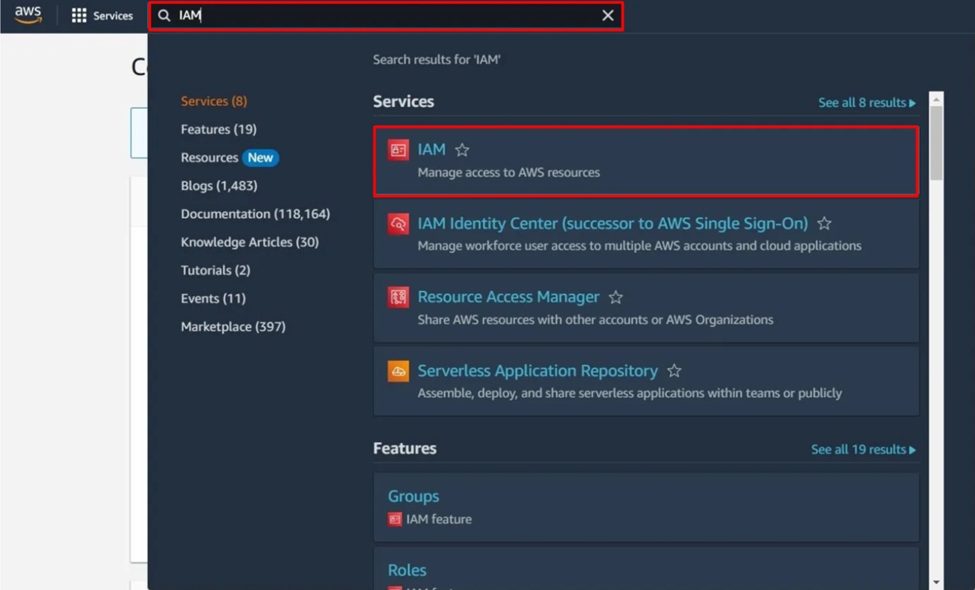
- Open the user, go to Security credentials and click Create access key. Copy the access key ID and the secret access key. You see the secret only once.
wp-config.php, not in the database.Step 3: Install WP Offload Media Lite
In WordPress go to Plugins > Add New, search for WP Offload Media Lite, then install and activate it.

Step 4: Connect the plugin to S3
Add the keys to wp-config.php (above the line "That's all, stop editing"):
define( 'AS3CF_SETTINGS', serialize( array(
    'provider' => 'aws',
    'access-key-id' => 'YOUR_ACCESS_KEY_ID',
    'secret-access-key' => 'YOUR_SECRET_ACCESS_KEY',
) ) );
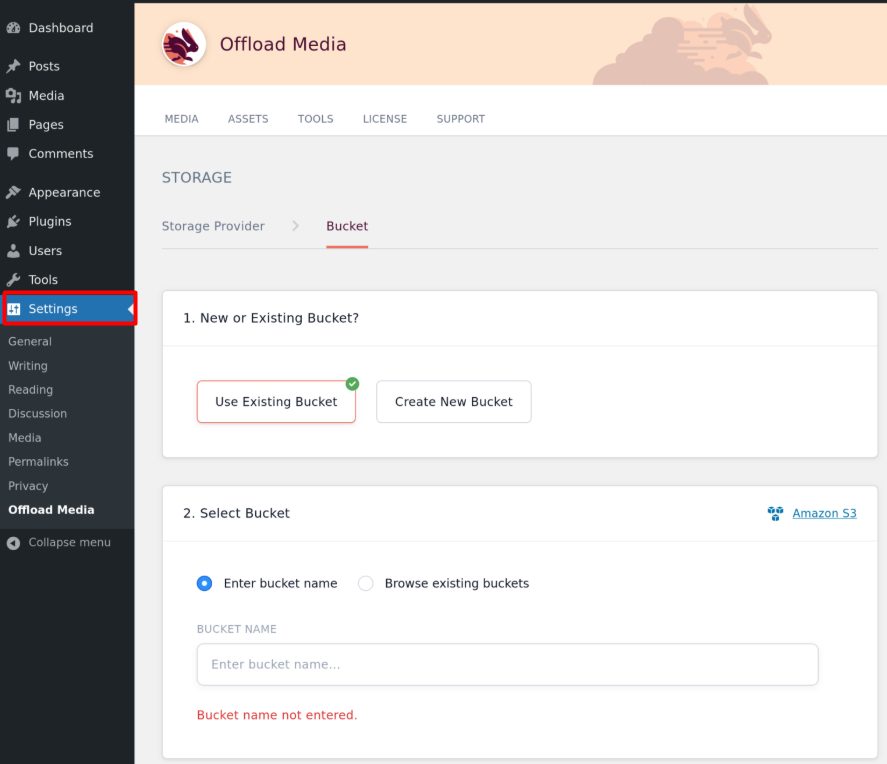
Then open Settings > Offload Media, choose your bucket and save.
Step 5: Offload the existing media
Open the plugin settings and click Offload Existing Media. The old files are copied to S3. Check some files before you remove the local copies.
Step 6: Use a CDN
Create a CDN distribution (such as Amazon CloudFront) with your bucket as the origin. Then in the plugin settings, turn on the CDN option and enter the CDN domain, for example cdn.example.com. The media URLs now come from the CDN.
Step 7: Test
Upload a new image in Media > Add New. Open the image URL. It should come from the S3 or CDN domain. Check a page of your site for broken images.
Tips
- Keep the bucket private when you can, and give access through CloudFront.
- Set cache headers (
Cache-Control) on the files. - Back up your media before you delete local copies.
Quick recap
- Create a bucket and an IAM user, connect WP Offload Media, offload the library and add a CDN.