

What is Redis?
Redis is a very fast memory store. WordPress asks the database many questions to build one page. Redis remembers the answers, so WordPress does not have to ask again. It is like keeping a cheat sheet next to you instead of walking to the library each time. This is called object caching.
Redis must be installed on the server. Not every plan has it. Ask Hostvento support whether Redis is on your plan and what host or socket details you should use.
Option 1: You have a VPS or dedicated server (root access)
This option needs root access. Commands below are for Ubuntu or Debian. Other systems use different package names.
- Install Redis.
This installs the Redis service.sudo apt install redis-server -y - Check that it runs.
It should answerredis-cli pingPONG. - Install the PHP Redis extension.
This lets PHP talk to Redis. Restart your web server afterwards. Use the service name your server uses.sudo apt install php-redis -y sudo systemctl restart apache2
Connect WordPress
- Log in to your WordPress dashboard.
- Go to Plugins, then Add New Plugin.
- Search for Redis Object Cache.
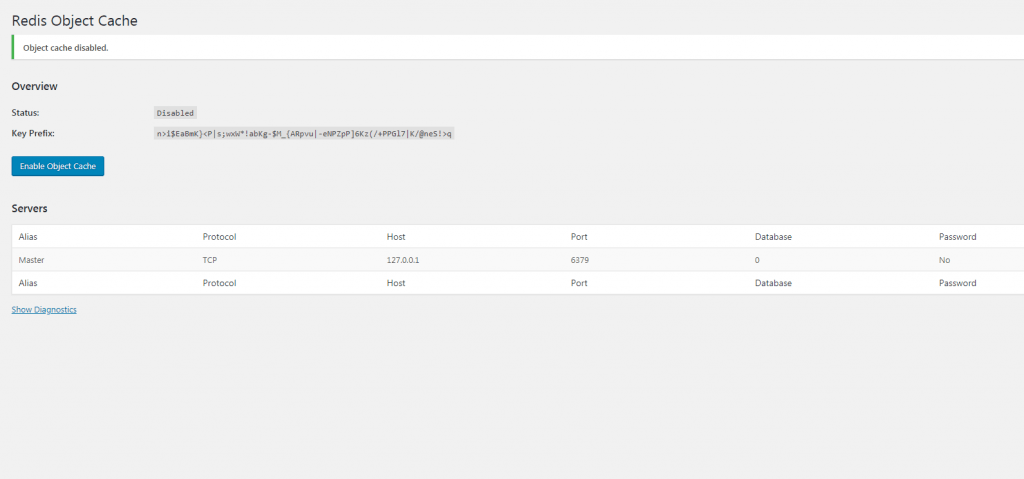
- Click Install Now, then Activate.
- Open your file manager and edit
wp-config.php. Add these lines above the "That's all, stop editing" comment.
These lines tell WordPress where Redis lives. On shared hosting you may need a socket path or other details instead. Ask support.define( 'WP_REDIS_HOST', '127.0.0.1' ); define( 'WP_REDIS_PORT', 6379 ); - Go to Settings, then Redis.
- Click Enable Object Cache.
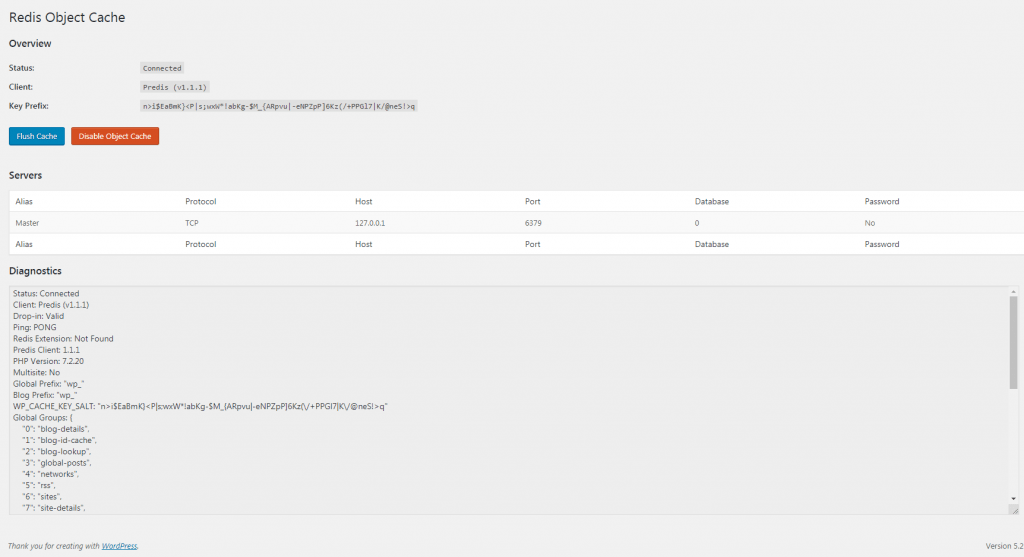
- Check that the status says Connected.
Tip: Back up
wp-config.php before you edit it. A typing mistake can take your site offline.If it does not connect
- Check the host and port values.
- Make sure Redis is running.
- Make sure the PHP Redis extension is on.
- Click Flush Cache on the Redis settings page after big changes.
Quick recap
- Redis stores database answers in memory to speed up WordPress.
- Install Redis and the PHP extension, or ask support if your plan offers it.
- Add the Redis Object Cache plugin and set the host in
wp-config.php. - Enable the cache and check that it says Connected.