Flash Sale:75% Off Hosting + Free DomainEnds in13h47m14sView Plans
Hostvento logoHostvento

What to do when your WordPress site is hacked

This guide gives you calm, clear steps to find the problem, clean your site and keep it safe.

WordPress2 min read17 steps30 screenshots

What does "hacked" mean?

A hacked site is one where a stranger has broken in. They may add spam links, send visitors to bad sites, or lock you out. It is scary, but you can fix it. Work step by step.

Signs of a hack

  • Your site shows strange pages or ads you did not add.
  • Visitors are sent to other websites.
  • Google warns that your site is unsafe.
  • You cannot log in, or new admin users appear.
  • Your hosting is suddenly slow, or you get a security notice.

Steps

  1. Stay calm. Do not delete everything yet.
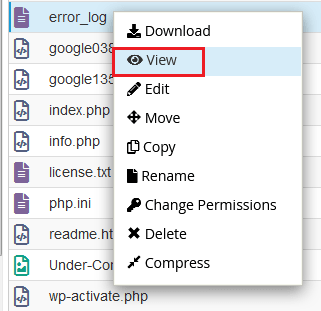
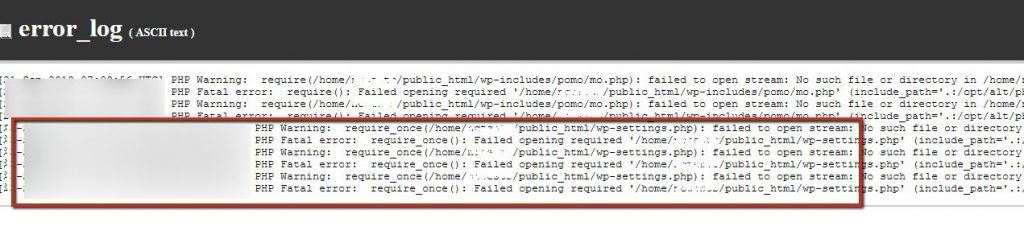
  2. Contact Hostvento support by opening a ticket. Tell them what you see. They can help you check the server.

    Screenshot: Contact Hostvento support by opening a ticket . Tell them what you see. They can help you
    Screenshot: Contact Hostvento support by opening a ticket . Tell them what you see. They can help you
    Screenshot: Contact Hostvento support by opening a ticket . Tell them what you see. They can help you
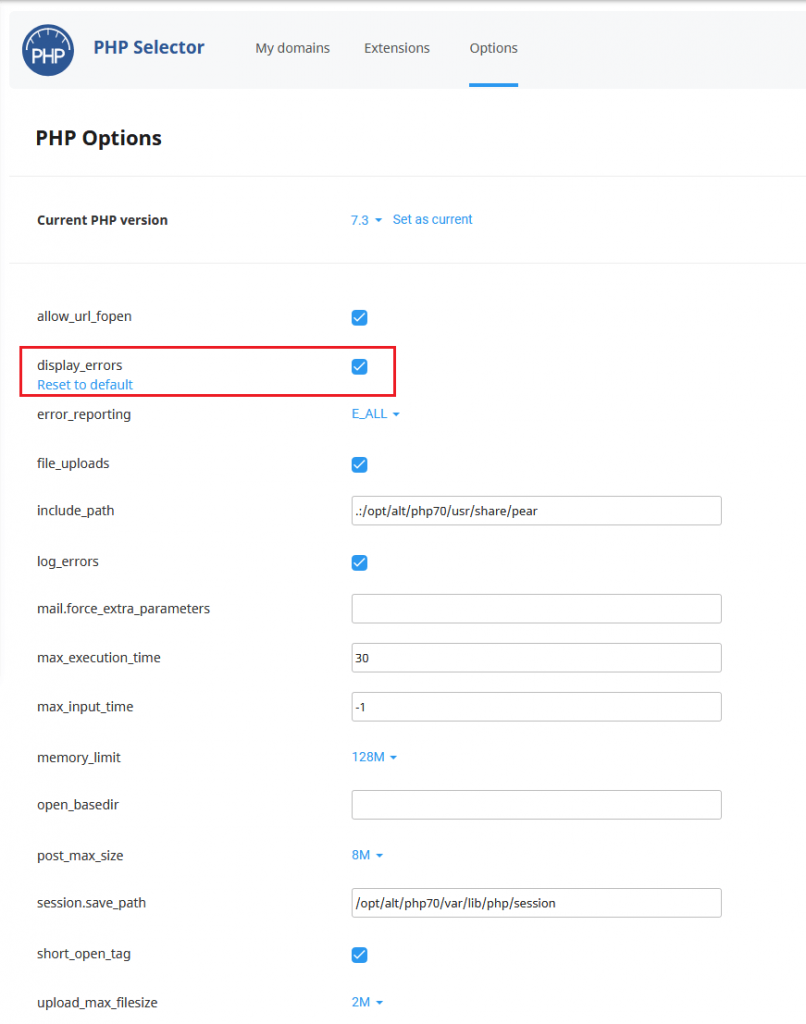
  3. Change passwords for your hosting account, cPanel, FTP, email and the database. Use long, unique passwords.
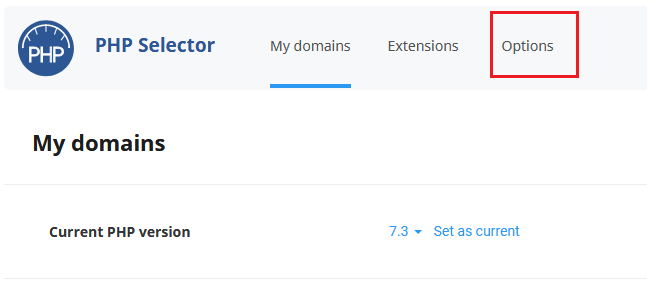
    Screenshot: Change passwords for your hosting account, cPanel, FTP, email and the database. Use long,
    Screenshot: Change passwords for your hosting account, cPanel, FTP, email and the database. Use long,
    Screenshot: Change passwords for your hosting account, cPanel, FTP, email and the database. Use long,
  4. Take a backup of the current state. It is infected, but you may need it for proof or to rescue content.
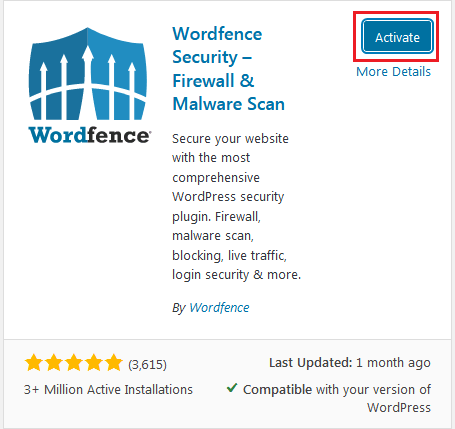
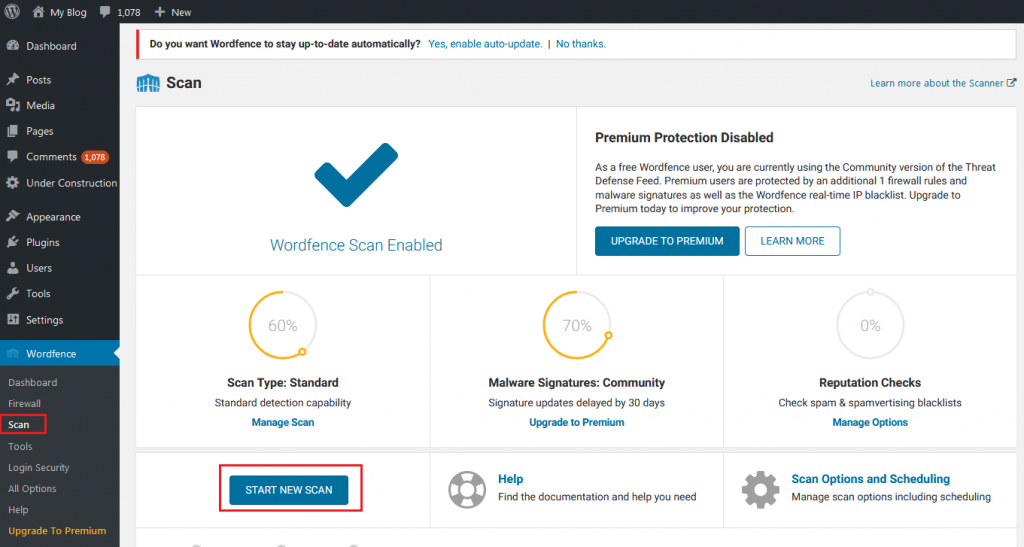
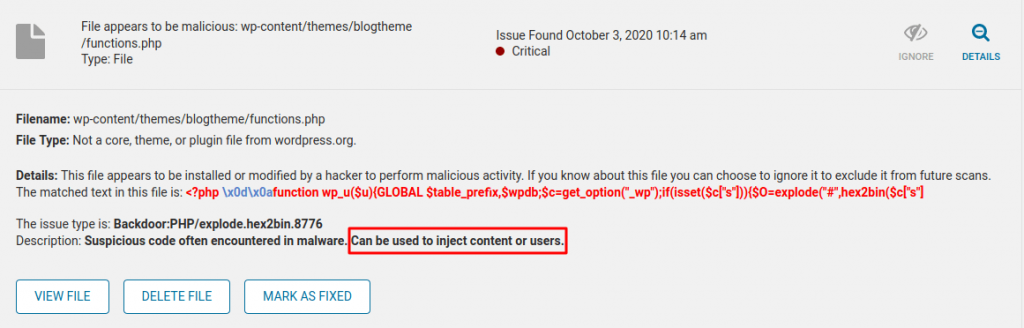
  5. Scan your site. Use a security plugin or a malware scanner in your hosting control panel if you have one.
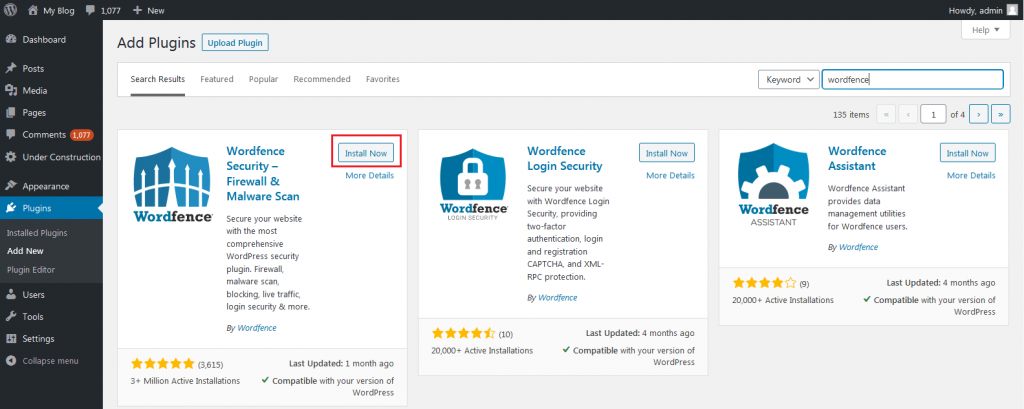
    Screenshot: Scan your site. Use a security plugin or a malware scanner in your hosting control panel i
    Screenshot: Scan your site. Use a security plugin or a malware scanner in your hosting control panel i
    Screenshot: Scan your site. Use a security plugin or a malware scanner in your hosting control panel i
    Screenshot: Scan your site. Use a security plugin or a malware scanner in your hosting control panel i
    Screenshot: Scan your site. Use a security plugin or a malware scanner in your hosting control panel i
  6. Log in to WordPress. Go to Users and delete any admin you do not know. Change passwords for all real users.
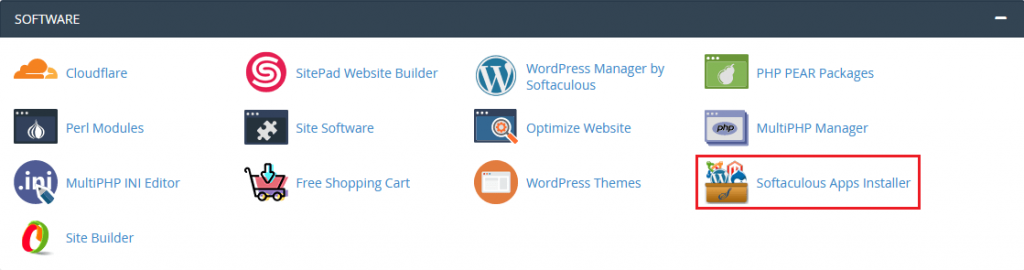
    Screenshot: Log in to WordPress. Go to Users and delete any admin you do not know. Change passwords fo
  7. Go to Plugins and Themes. Delete anything you do not use or do not recognise.
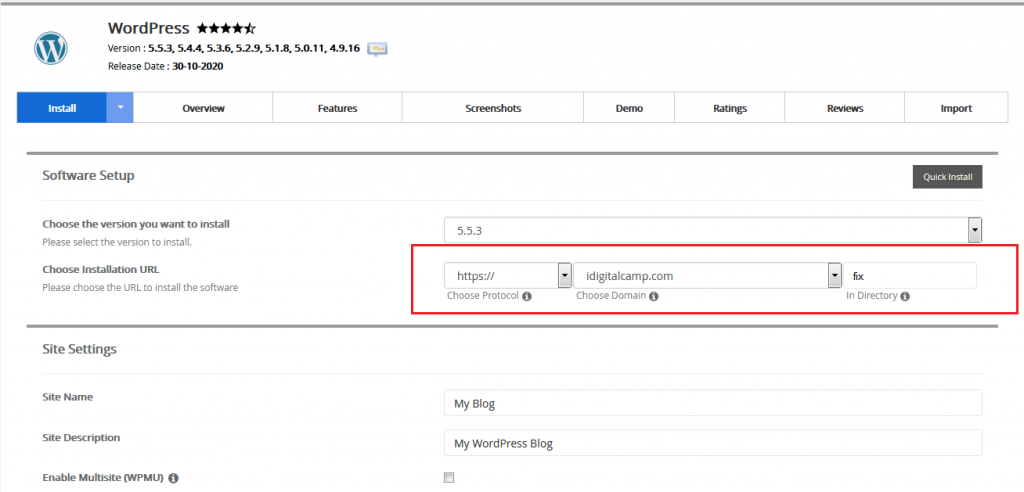
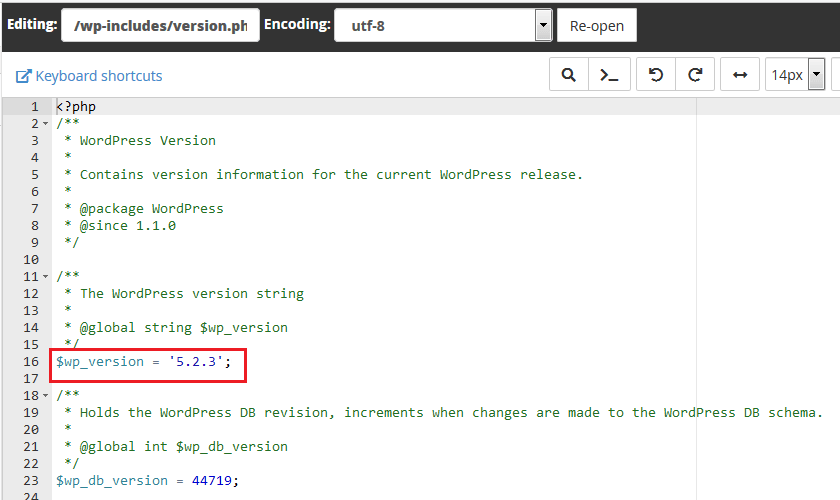
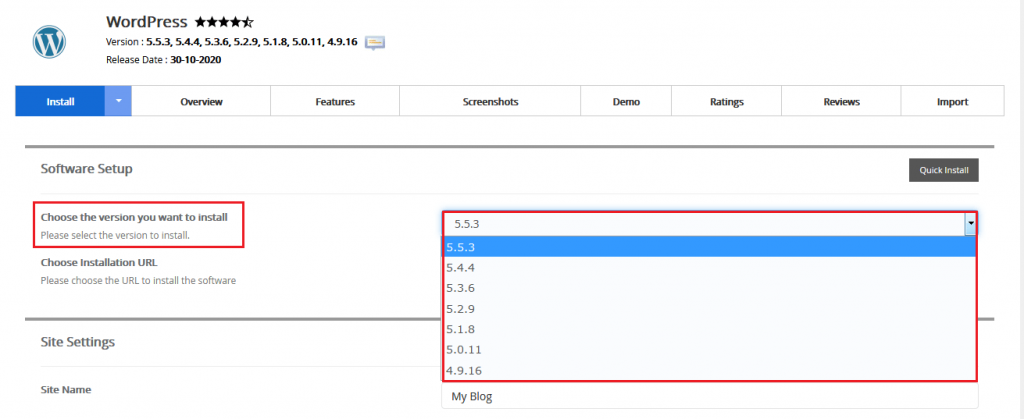
  8. Reinstall clean copies of WordPress core. Go to Dashboard, Updates and click Re-install version.
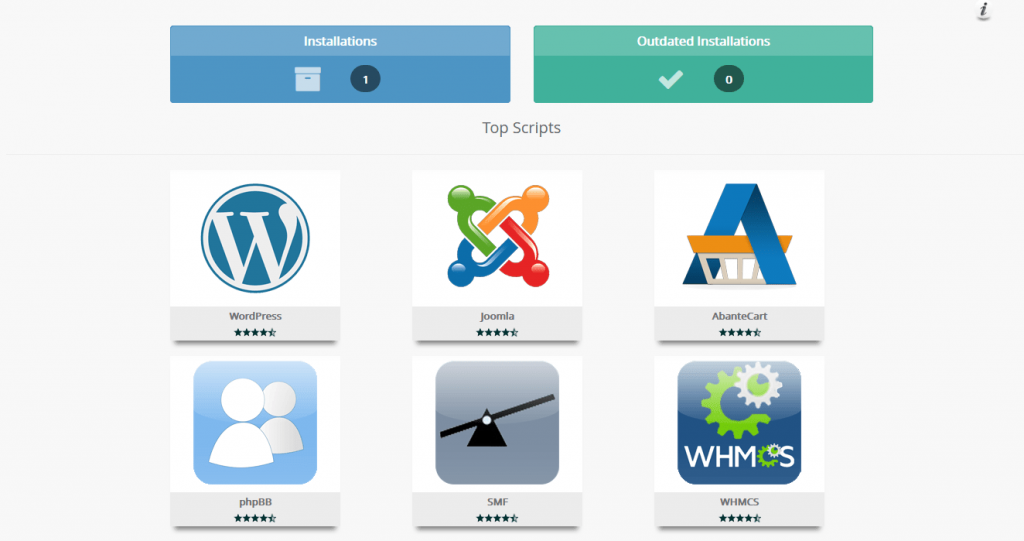
    Screenshot: Reinstall clean copies of WordPress core. Go to Dashboard , Updates and click Re-install v
    Screenshot: Reinstall clean copies of WordPress core. Go to Dashboard , Updates and click Re-install v
    Screenshot: Reinstall clean copies of WordPress core. Go to Dashboard , Updates and click Re-install v
    Screenshot: Reinstall clean copies of WordPress core. Go to Dashboard , Updates and click Re-install v
  9. Reinstall each plugin and theme from a trusted source. Do not copy the old files.
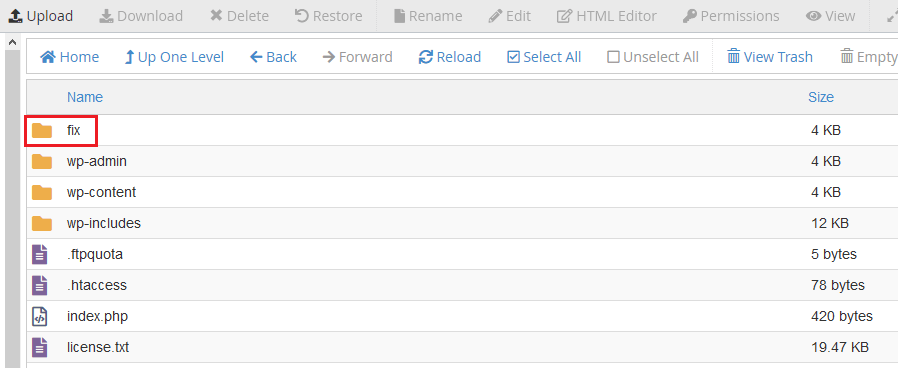
    Screenshot: Reinstall each plugin and theme from a trusted source. Do not copy the old files.
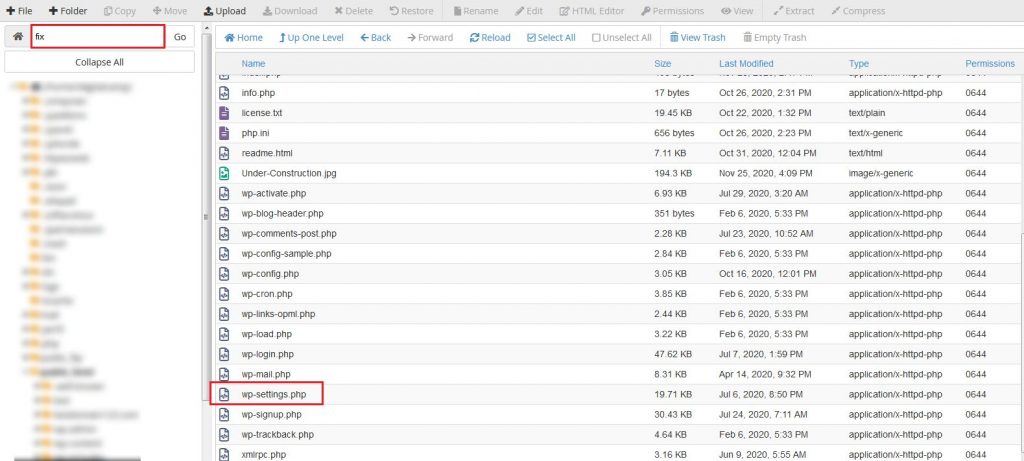
    Screenshot: Reinstall each plugin and theme from a trusted source. Do not copy the old files.
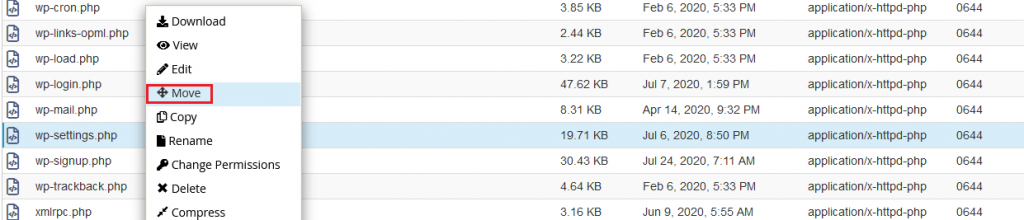
    Screenshot: Reinstall each plugin and theme from a trusted source. Do not copy the old files.
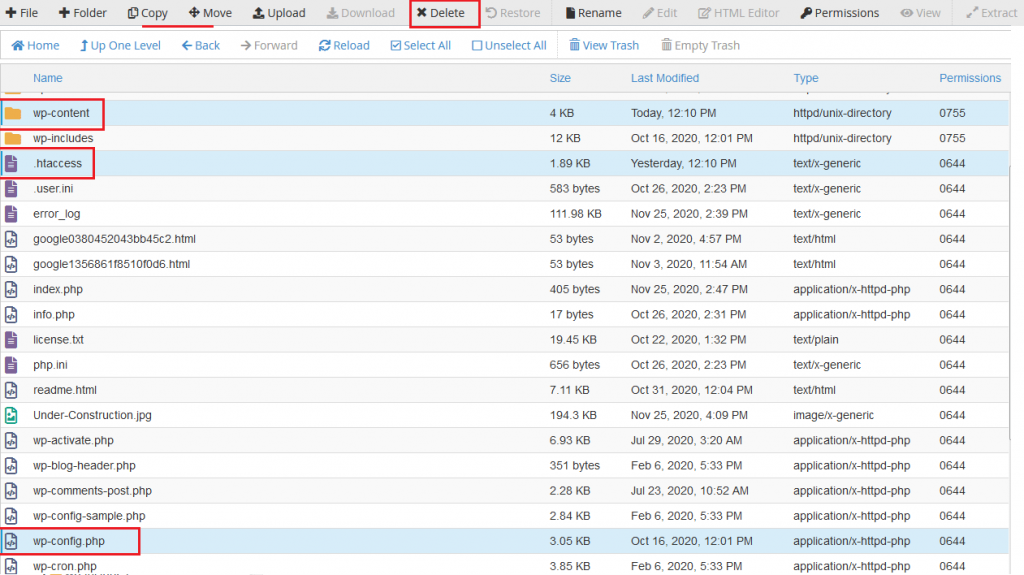
  10. Check wp-config.php and .htaccess for lines you did not add.
    Screenshot: Check wp-config.php and .htaccess for lines you did not add.
    Screenshot: Check wp-config.php and .htaccess for lines you did not add.
    Screenshot: Check wp-config.php and .htaccess for lines you did not add.
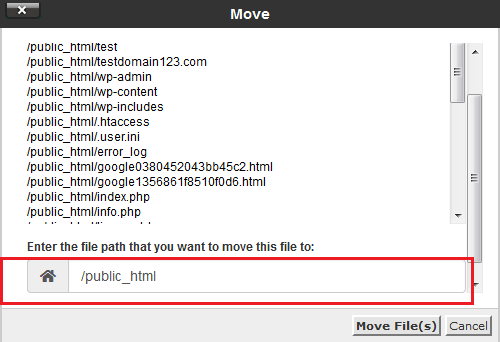
  11. Look in wp-content/uploads for .php files. Pictures should not contain PHP files. Remove them.
  12. Change the secret keys in wp-config.php. WordPress has an official key generator that gives you new ones. This logs everyone out.
Tip: If you have a clean backup from before the hack, restoring it is often the quickest fix. Update everything and change all passwords right after.

After the clean-up

  1. If Google flagged your site, request a review in Google Search Console.
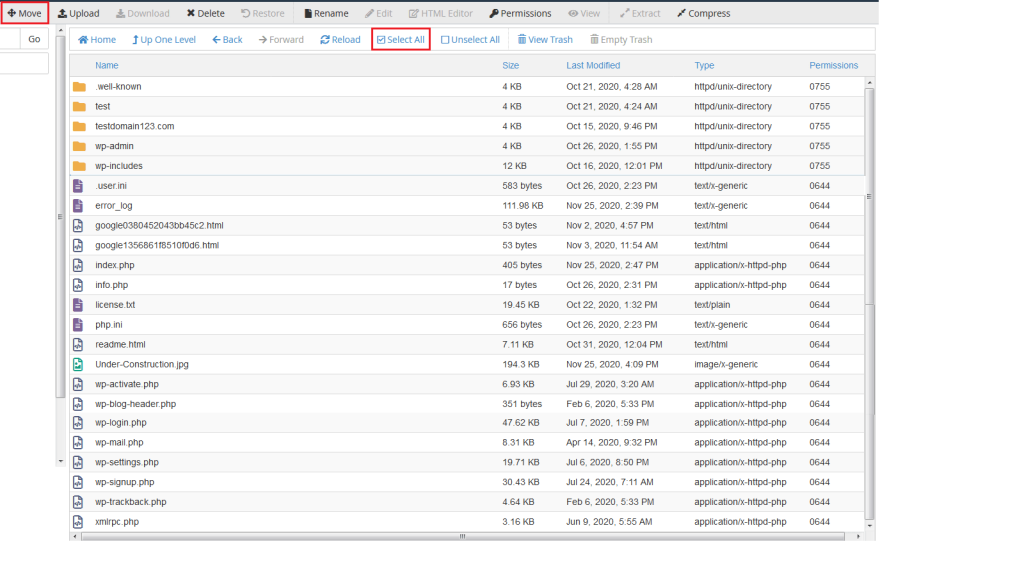
    Screenshot: If Google flagged your site, request a review in Google Search Console.
  2. Turn on automatic backups.
    Screenshot: Turn on automatic backups.
  3. Keep WordPress, themes and plugins updated.
  4. Add two-step login.
  5. Use only trusted themes and plugins. Avoid pirated copies.
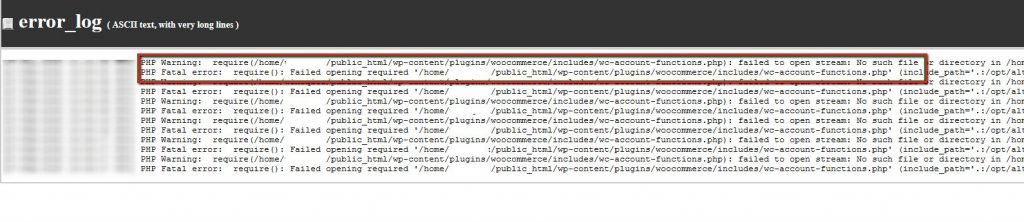
    Screenshot: Use only trusted themes and plugins. Avoid pirated copies.

Quick recap

  • Contact support, then change every password.
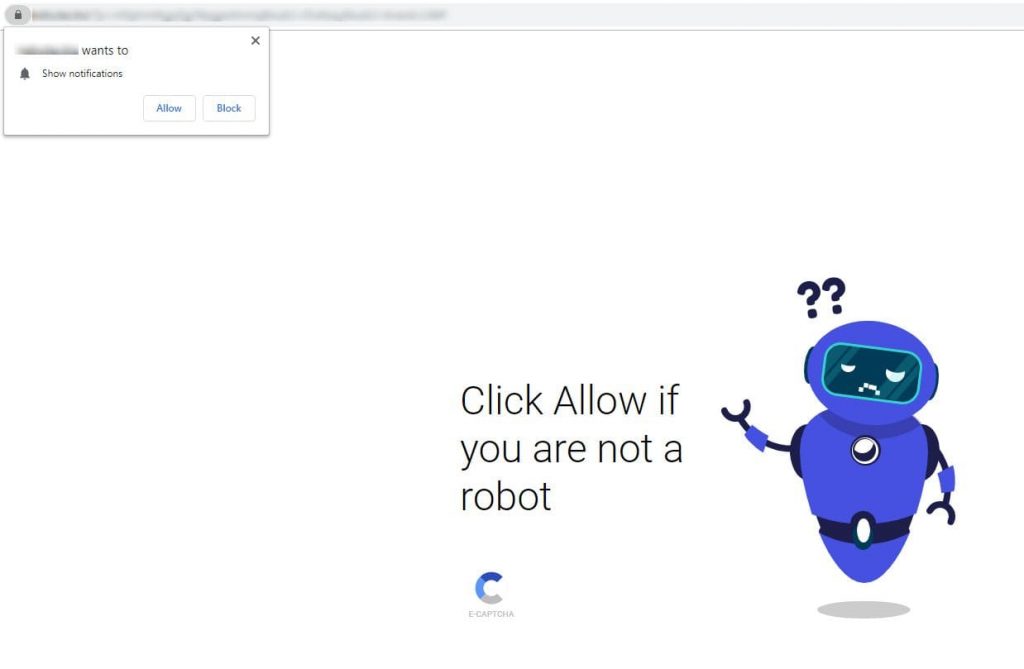
    Screenshot: Contact support, then change every password.
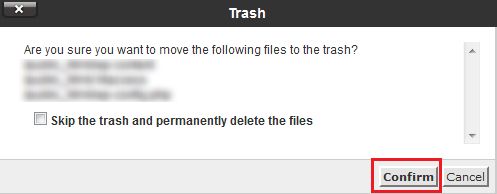
  • Remove unknown users, plugins and files.

    Screenshot: Remove unknown users, plugins and files.

    Screenshot: Remove unknown users, plugins and files.
  • Reinstall clean copies of core, plugins and themes.

    Screenshot: Reinstall clean copies of core, plugins and themes.
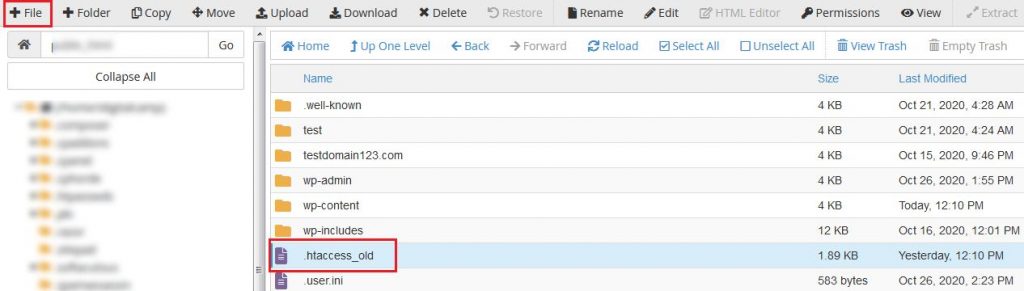
    Screenshot: Reinstall clean copies of core, plugins and themes.
  • Prevent a repeat with backups, updates and strong logins.