

Why organize media files
- You find files faster.
- Content creation is quicker.
- Clear file names and categories help SEO.
- The library stays tidy as it grows.
- It is easier to maintain and move the site later.
The default media library
WordPress stores uploads in folders by year and month (wp-content/uploads/2025/06). In Media > Library the files appear in one long list, which is hard to manage when you have thousands of files.
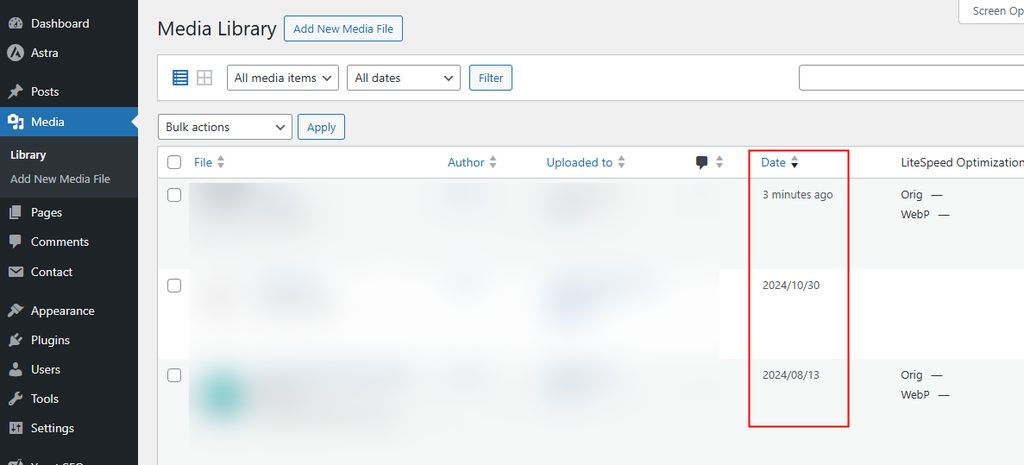
Organize with a plugin
Step 1: Install a folder plugin
- Go to Plugins > Add New.
- Search for
FileBird(other options: Real Media Library, Media Library Folders).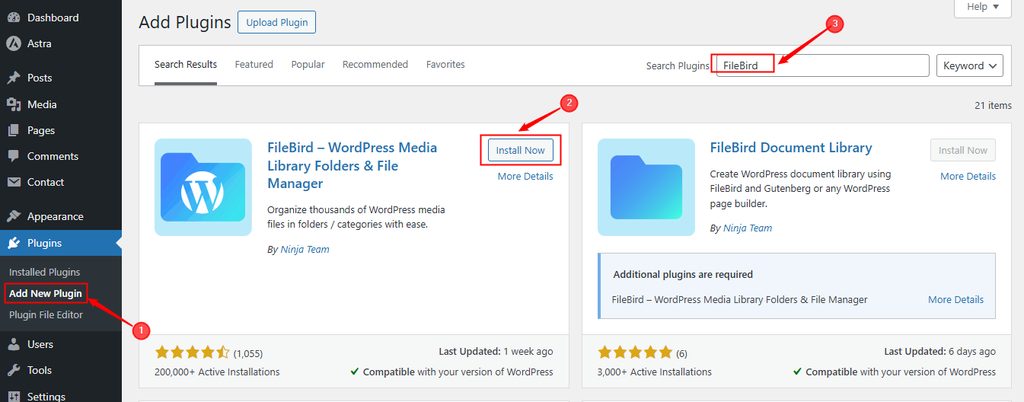
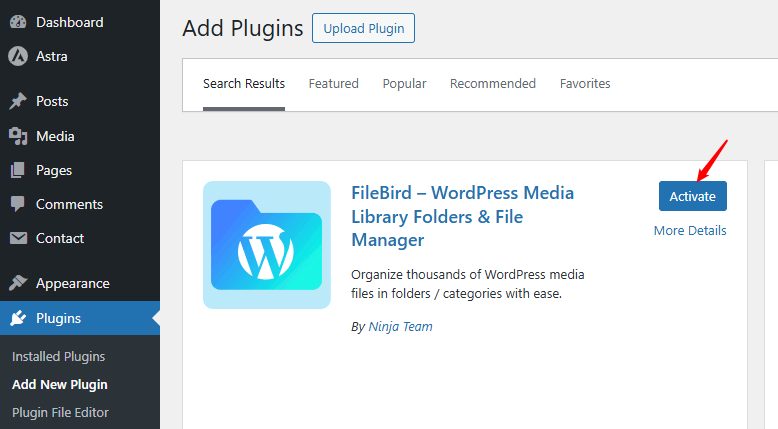
Step 2: Activate it
Click Activate.
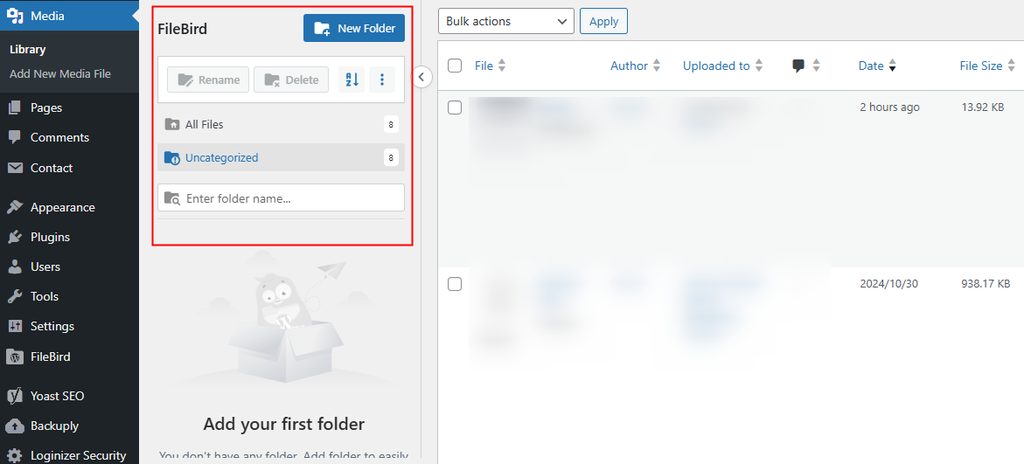
Open Media > Library. A folder panel appears on the left.
Step 3: Create folders and move files
- Click New Folder and name it, for example
Blog imagesorLogos.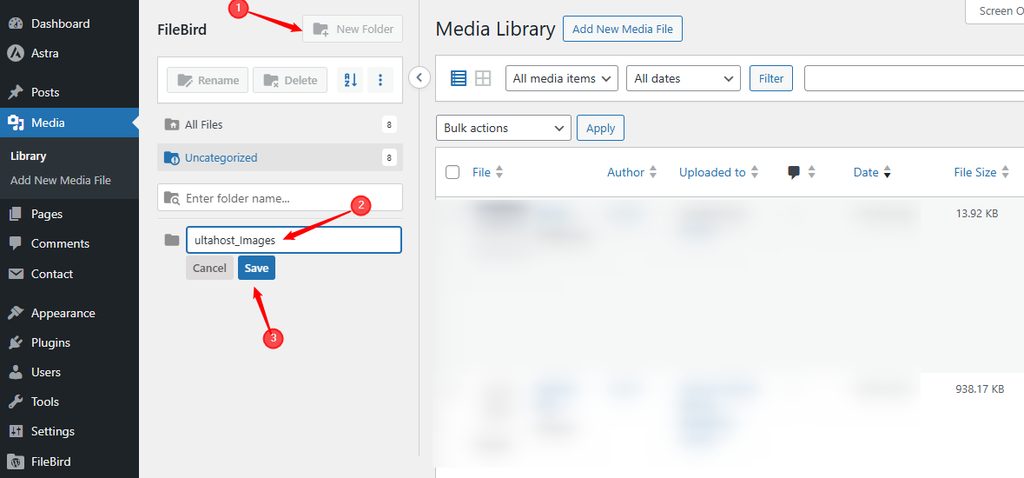
- Drag files from the library into the folders.
- Create sub-folders for more detail.
Step 4: Filter by folder
Click a folder to see only its files. This also works when you add an image to a post: the media window shows the same folders.
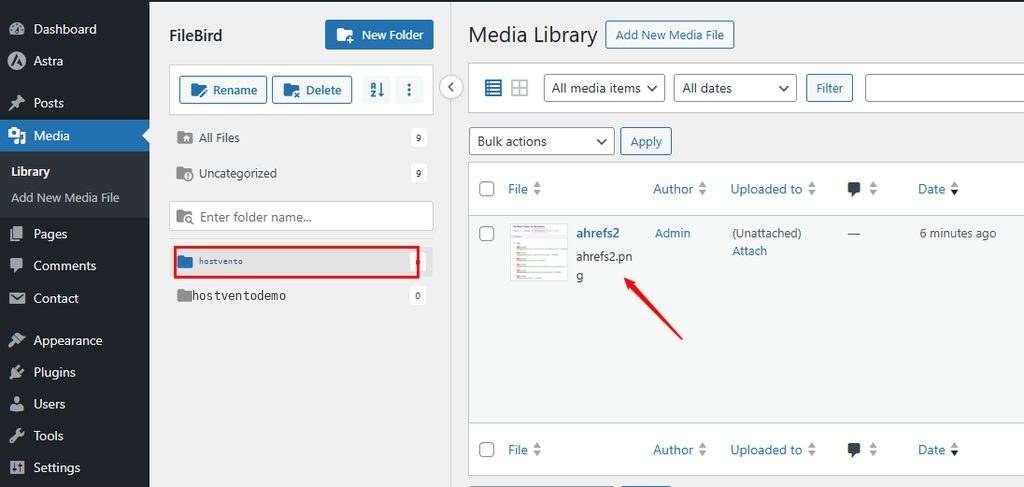
Note: Folders in these plugins are virtual. The files stay at the same URL, so your links do not break.
Good habits
- Use clear file names, such as
red-running-shoes.jpg, before you upload. - Add alt text to images.
- Resize and compress images before upload.
- Delete unused files from time to time.
- Use the same folder names for the whole team.
Quick recap
- Install a folder plugin, create folders and drag files into them.