

What are HTTP and HTTPS?
HTTP is the way browsers and websites talk. HTTPS is the same thing, but scrambled so others cannot read it. You see a padlock in the browser bar. To use HTTPS, you need an SSL certificate. This is a small file that proves your site is real. Check your cPanel or ask Hostvento support to get one installed.
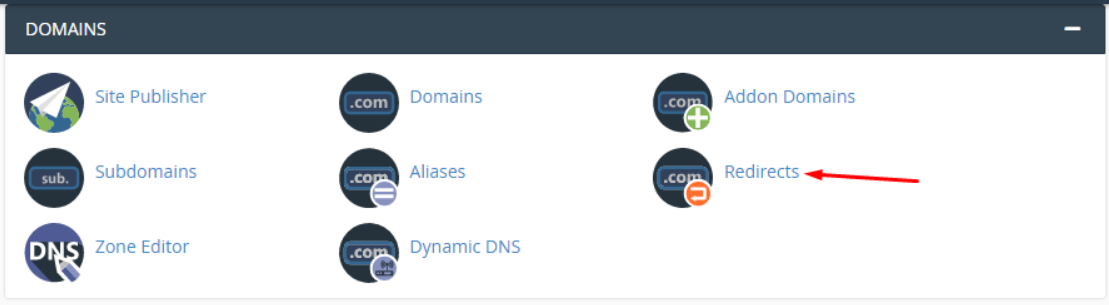
A redirect sends visitors from one address to another automatically. Here it sends http:// visitors to https://.
Take a backup of your site before changing anything.
Step 1: check that SSL works
- Type
https://yourdomain.comin your browser. - If you see a padlock, SSL is working. If you see a warning, fix SSL first.
Step 2: change the WordPress addresses
- Log in to the WordPress dashboard.
- Go to Settings, then General.
- Change both WordPress Address (URL) and Site Address (URL) to start with
https://.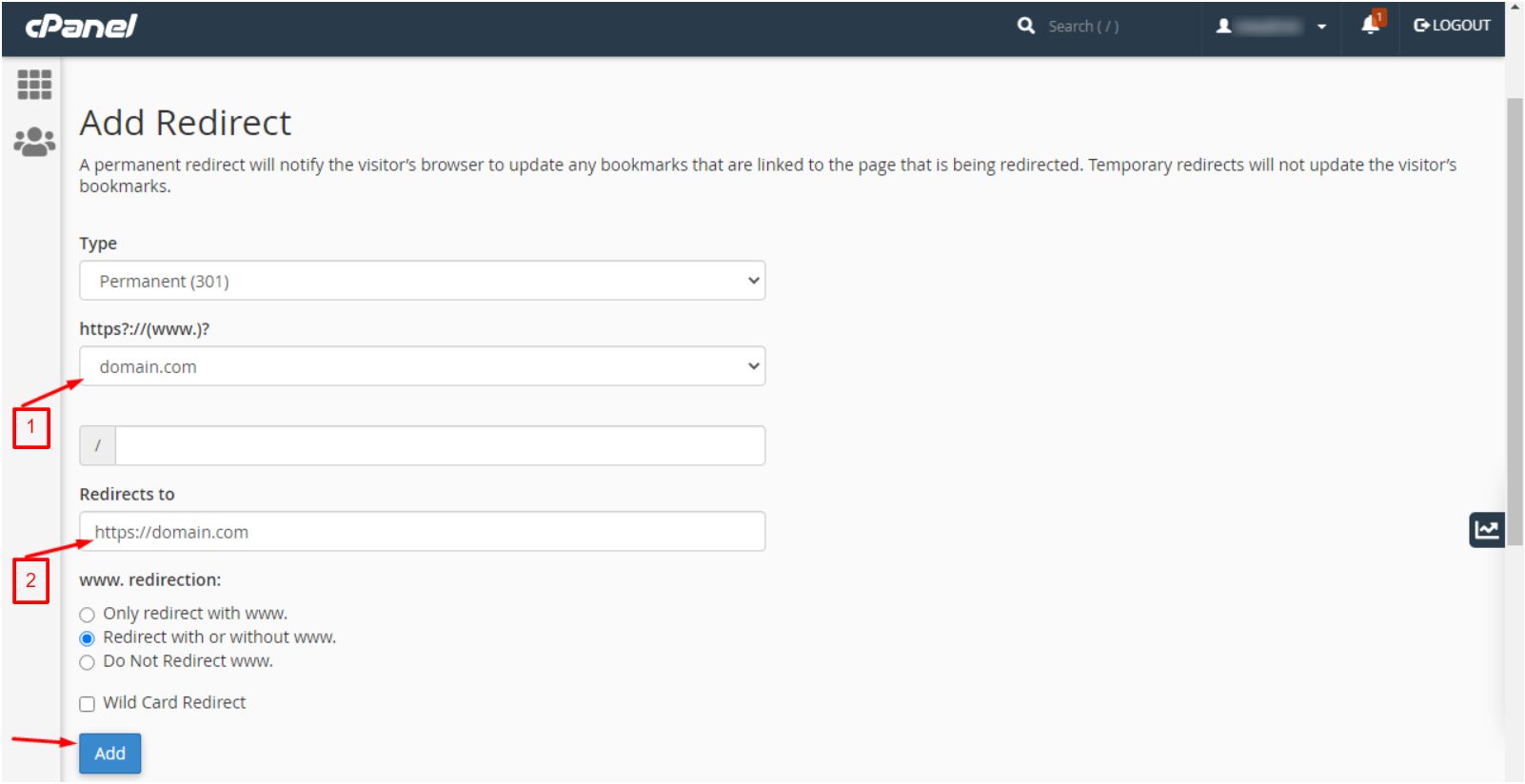

- Click Save Changes. You may need to log in again.
Step 3: add the redirect in .htaccess
The .htaccess file holds rules for your site.
- Log in to cPanel and open File Manager.
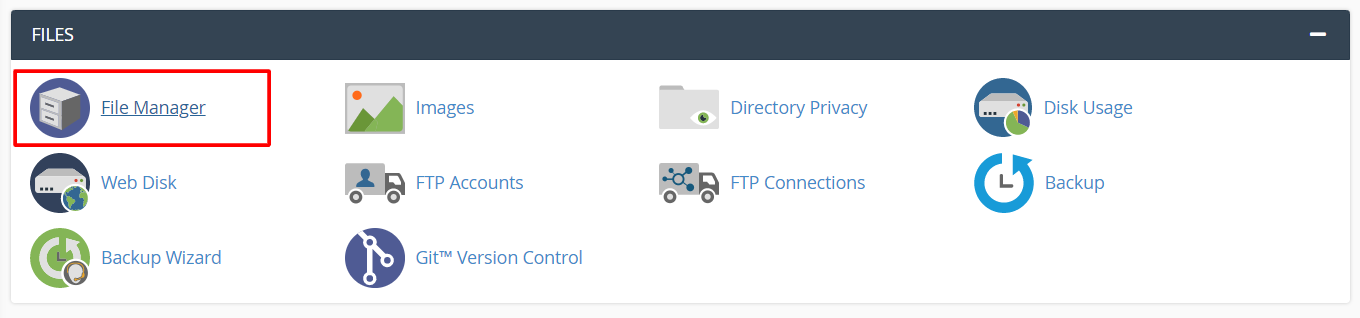
- Go to the folder of your site, often
public_html. - Click Settings and tick Show Hidden Files.
- Right-click
.htaccessand choose Edit.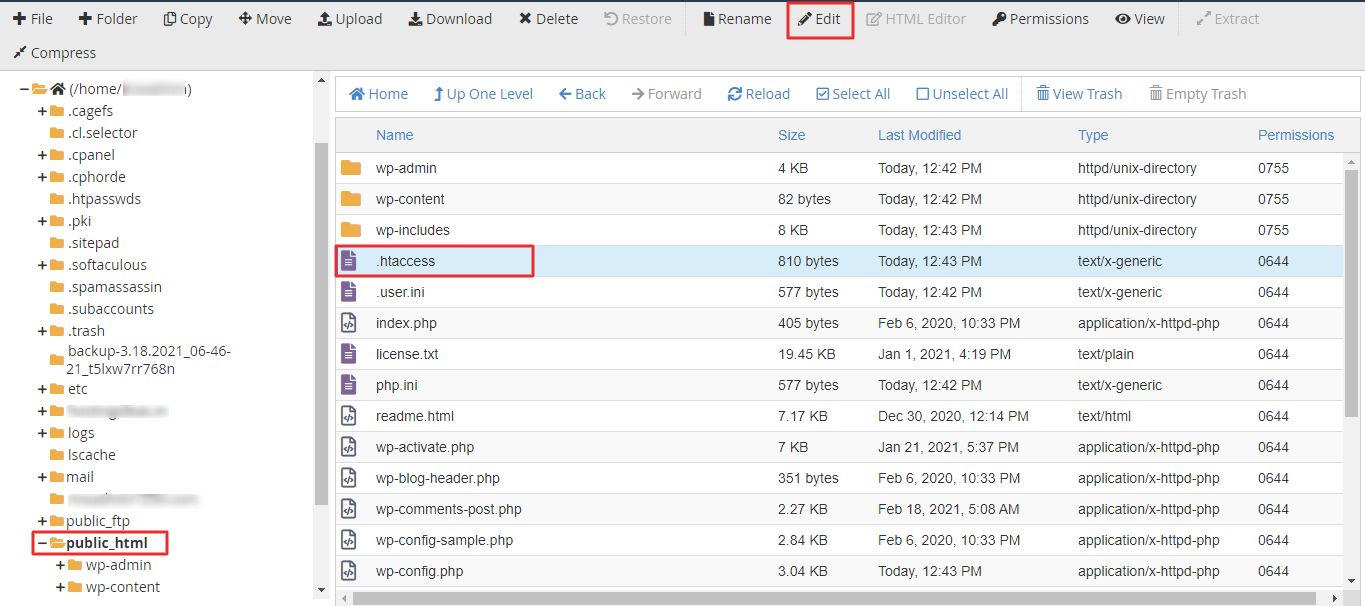
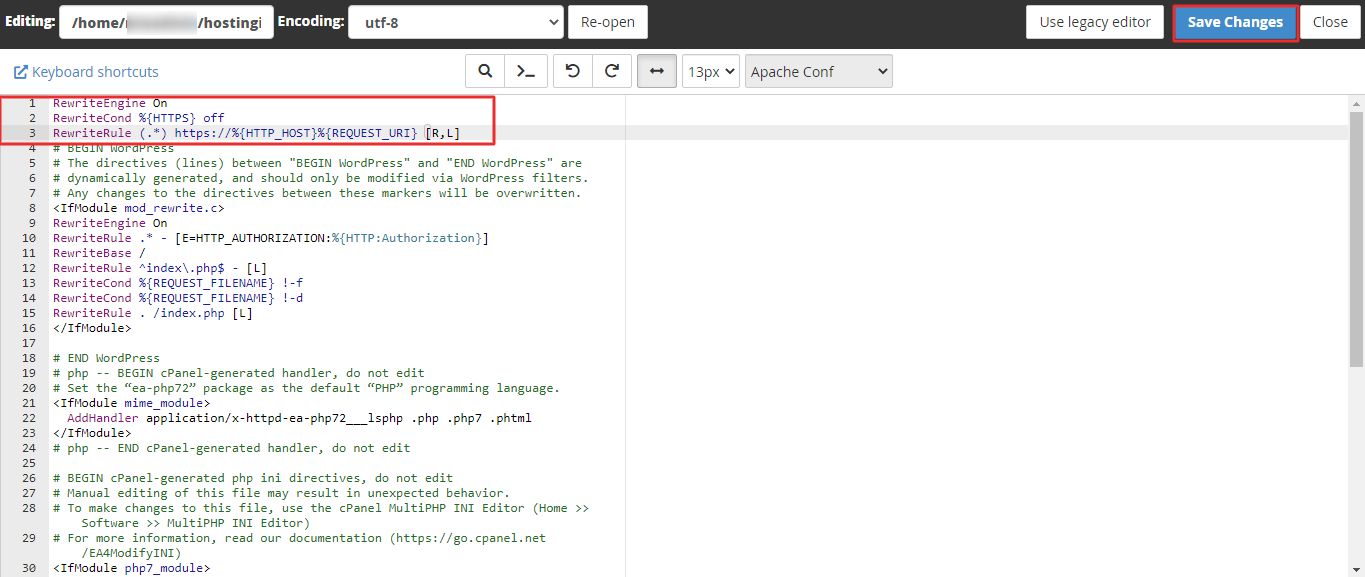
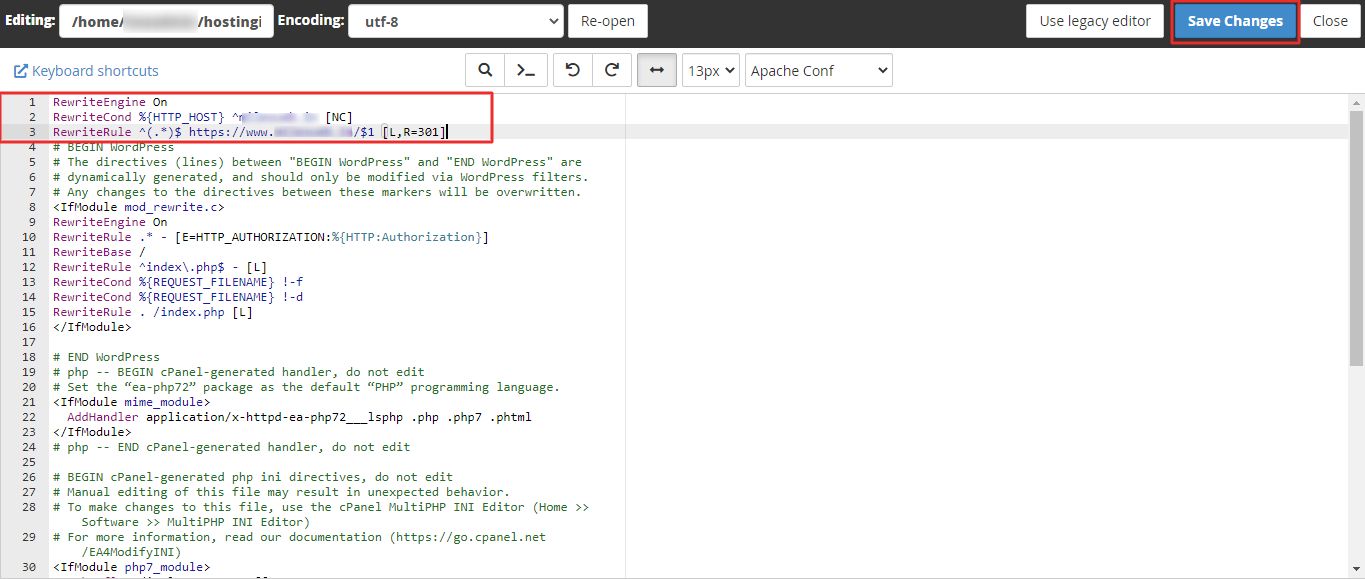
- Add these lines at the very top.
RewriteEngine On
RewriteCond %{HTTPS} off
RewriteRule ^(.*)$ https://%{HTTP_HOST}/$1 [L,R=301]
These lines check if the visit is not secure. If so, they send it to the HTTPS address for good.
- Click Save Changes.
- Visit the
http://address. It should switch tohttps://.
Step 4: fix mixed content
Mixed content means a secure page loads a picture over plain HTTP. This removes the padlock. A plugin such as Really Simple SSL can fix it. Search for it under Plugins, then Add New.
https://.Quick recap
- Install and test SSL first.
- Change both addresses to
https://in WordPress. - Add the redirect rules to
.htaccess. - Fix mixed content if the padlock is missing.