

What is the admin password?
The admin password is the secret word that lets you log in to the WordPress dashboard. The dashboard is the private control room of your website. You use it to add pages and change settings.
Method 1: Use the "Lost your password?" link
This is the easiest way. WordPress sends a reset link to your email address.
- Open your login page. It is usually your website address followed by
/wp-admin. - Click Lost your password? under the login box.
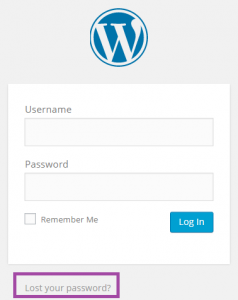
- Type your username or your email address.
- Click Get New Password.
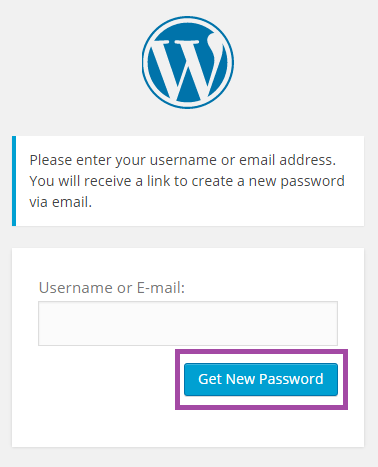
- Open your email and click the reset link.
- Type a new strong password and save it.
If no email arrives, check your spam folder. Your site may also have trouble sending email.
Method 2: Use phpMyAdmin
phpMyAdmin is a tool that lets you look inside your website's database. A database is like a big digital notebook where WordPress keeps your posts, users and settings. Use this method if the email does not arrive.
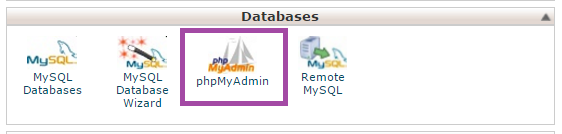
- Log in to your hosting control panel and open phpMyAdmin.
- Click your WordPress database on the left side.
- Open the table that ends with
_users. The start of the name may differ, for examplewp_users.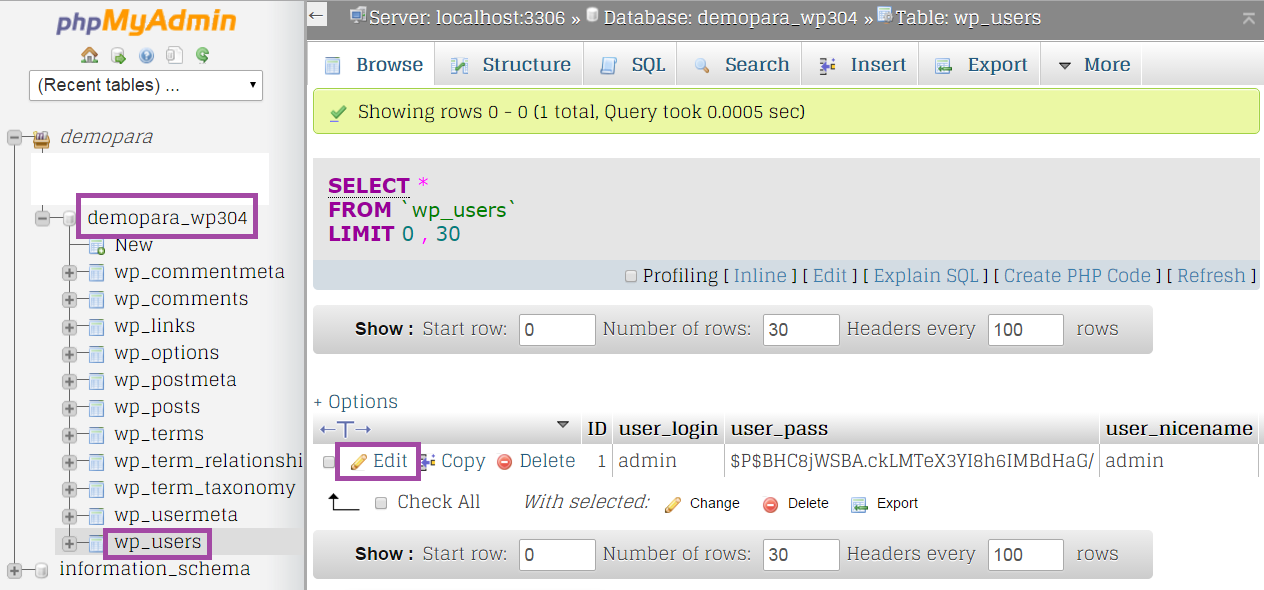
- Find your user and click Edit.
- In the
user_passrow, set the Function toMD5. - Type your new password in the Value box.
- Click Go to save.
- Log in with the new password. WordPress will store it in a stronger form.
Method 3: Use WP-CLI
WP-CLI is a tool where you type commands to manage WordPress. You need SSH access for it. SSH is a safe way to type commands on your server. Run this command in your WordPress folder:
wp user update admin --user_pass=YourNewPasswordThis sets a new password for the user named admin. Change the name and password to your own.
If you still cannot get in, open a support ticket and Hostvento support can help.
Quick recap
- Try the Lost your password? link first.
- If email fails, edit the user in phpMyAdmin after a backup.
- With SSH, use the WP-CLI
wp user updatecommand. - Pick a strong, new password.