

What are widgets
Widgets are small blocks of content or features that you place in the widget areas of your theme. Common areas are:
- Sidebars.
- Footers.
- Headers.
- Homepage sections.
- Custom widget areas, if the theme supports them.
Typical widgets:
- Recent posts.
- Search box.
- Social media feeds.
- Calendar.
- Custom menus.
- Contact forms.
- Advertisements.
- Custom HTML or shortcodes.
Open the widgets screen
Method 1: The Widgets page
Go to Appearance > Widgets in the dashboard.
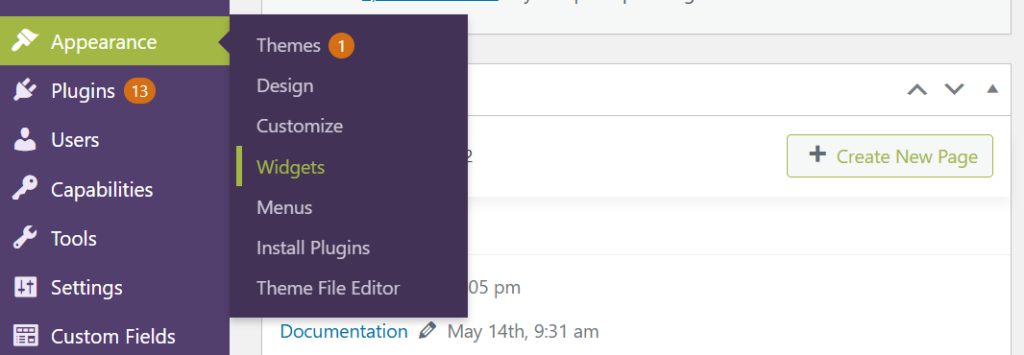
Method 2: The Customizer
Go to Appearance > Customize > Widgets. You see a live preview of your site while you edit.
If your site uses a block theme (Full Site Editing), widgets are replaced by blocks. Use Appearance > Editor and edit the template parts, such as the footer or sidebar.
Types of widgets
- Built-in widgets such as Recent Posts, Categories, Search, Archives and Custom HTML.
- WooCommerce adds widgets for product categories, filters and the cart.
- Elementor and SiteOrigin add larger widget libraries.
- Jetpack adds widgets for social media, contact forms and more.
Add a widget
- Open Appearance > Widgets.
- Choose a widget area, such as Sidebar or Footer.
- Click the + (Add block) button and search for the widget or block.
- Click it to add it, and set its options, for example the title and the number of posts.
- Click Update.
On the older (classic) screen, drag a widget from the left list into a widget area, set its options and click Save.
Change the order and remove widgets
- Drag a widget up or down to change its position.
- To remove a widget, open its options and choose Delete (or move it to the Inactive Widgets area to keep its settings).
Create your own widget area
If your theme has no area where you need one, add it in a child theme's functions.php:
function my_custom_widget_area() {
    register_sidebar( array(
        'name'          => 'Custom Area',
        'id'            => 'custom-area',
        'before_widget' => '<div class="widget %2$s">',
        'after_widget'  => '</div>',
        'before_title'  => '<h3 class="widget-title">',
        'after_title'   => '</h3>',
    ) );
}
add_action( 'widgets_init', 'my_custom_widget_area' );
Show it in a template file with:
<?php dynamic_sidebar( 'custom-area' ); ?>Tips
- Keep widgets few. Too many slow down the page and distract visitors.
- Put the most important widgets at the top.
- Check the result on a phone.
- Back up the site before editing theme files.
Quick recap
- Appearance > Widgets, pick an area, add a block, then update.