

Why would you need this?
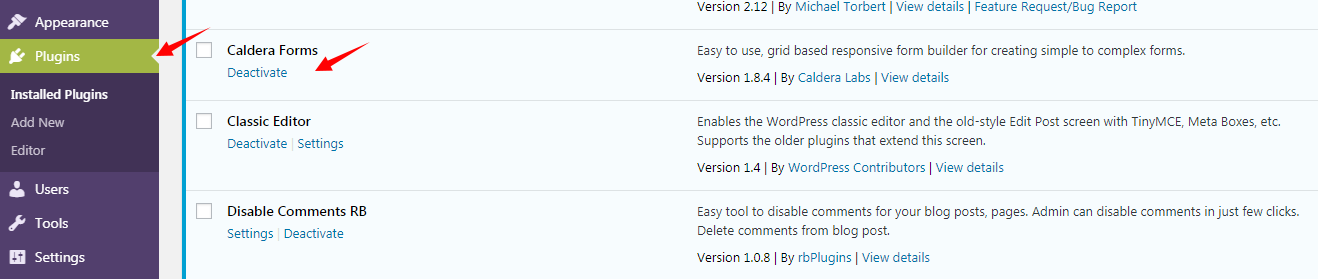
A plugin is an add-on that gives WordPress a new feature. Sometimes a plugin breaks the site. You may see a white screen or an error. Then you cannot reach the wp-admin area (the dashboard) to turn the plugin off. You must do it from outside.
Method 1: File Manager
File Manager is a tool in your hosting control panel. It shows the files on your server like a folder on your computer.

- Log in to your hosting control panel from the client area.
- Open File Manager.
- Go to your WordPress folder, then
wp-content.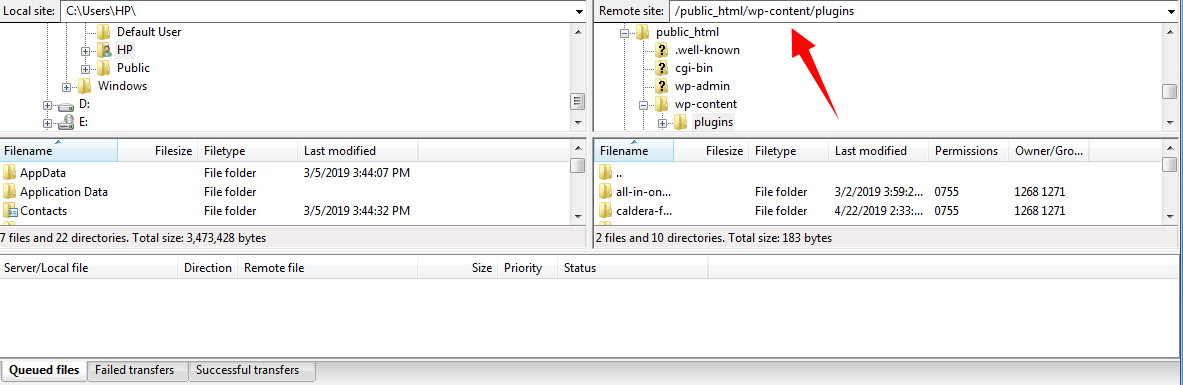
- Right-click the
pluginsfolder and choose Rename.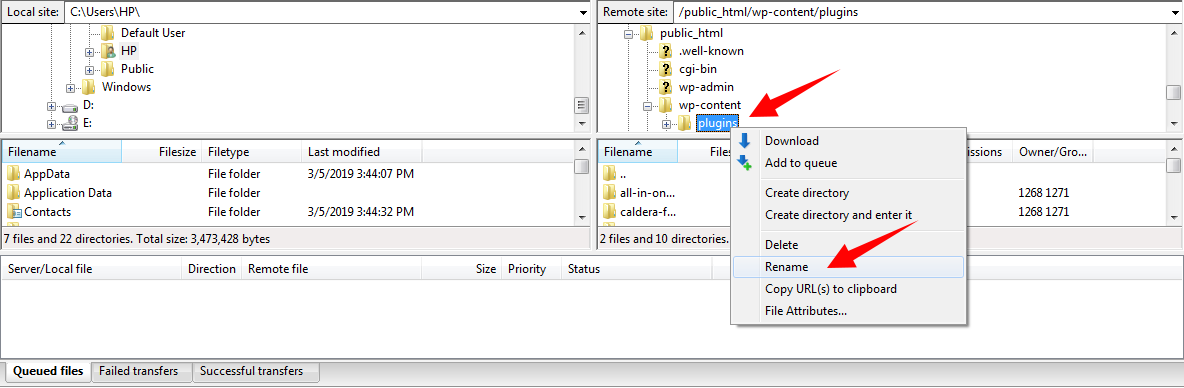
- Rename it to
plugins_off. - Reload your site and try the login page.
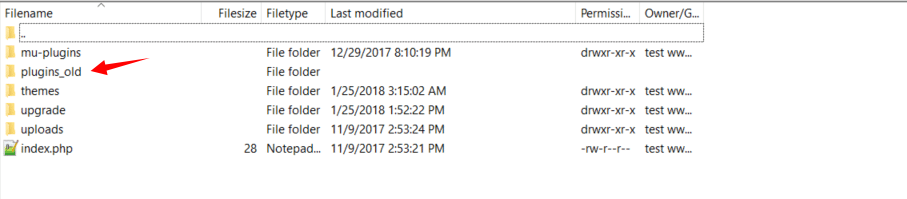
WordPress cannot find the plugins, so it turns them all off. If the site works, one plugin is the cause. Next:
- Rename
plugins_offback toplugins.
- Log in to the dashboard. The plugins will show as inactive.
- Go to Plugins and turn them on one by one. Reload the site after each one.
- When the problem returns, you have found the bad plugin. Leave it off or delete it.
Method 2: Rename a single plugin
If you know which plugin is bad, open wp-content/plugins. Rename only that plugin's folder, for example from bad-plugin to bad-plugin_off. This turns off just that one.
Method 3: phpMyAdmin
phpMyAdmin lets you edit your database, the place where WordPress keeps its settings.
- Open phpMyAdmin in your control panel.
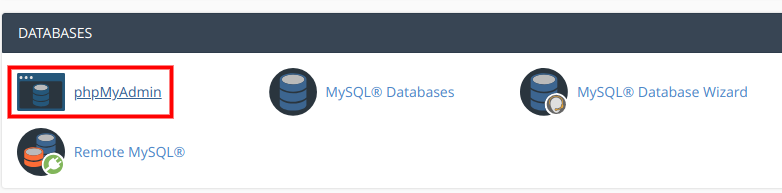
- Click your WordPress database.
- Open the table ending in
_options.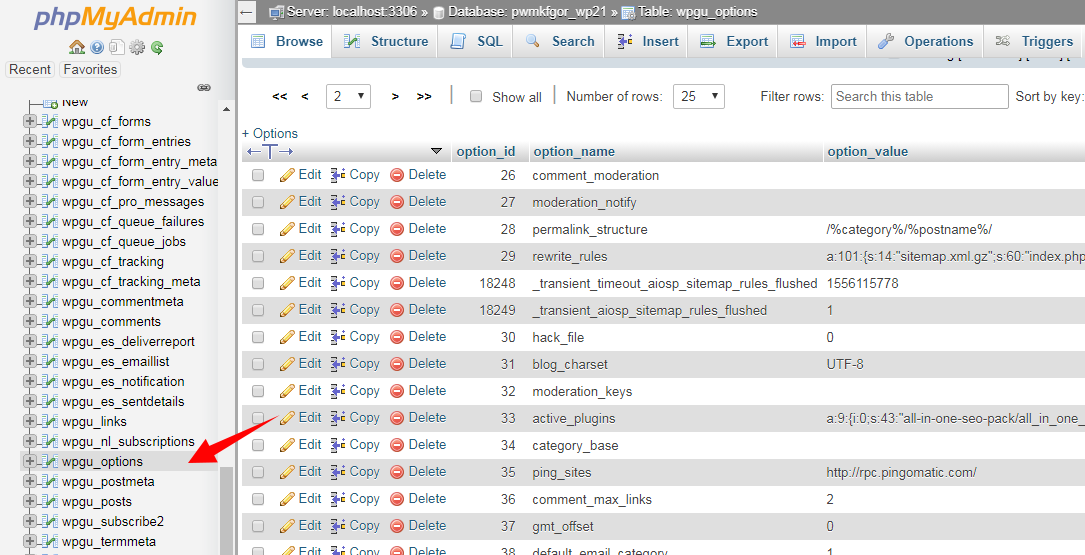
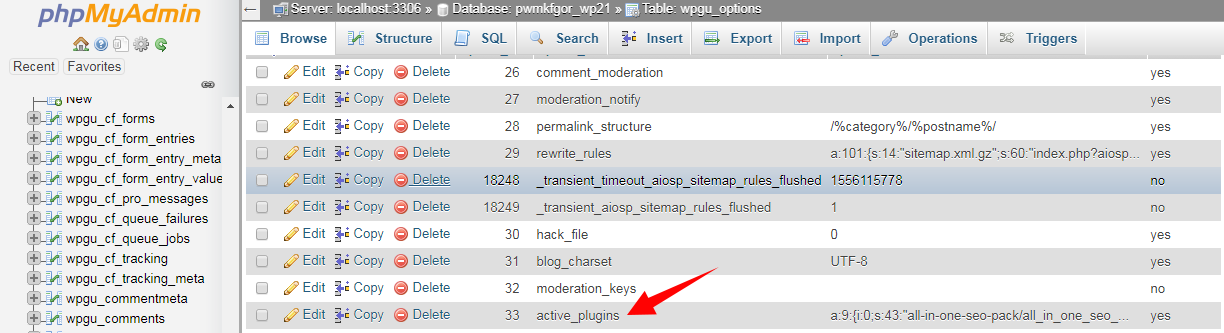
- Search for the row where
option_nameisactive_plugins.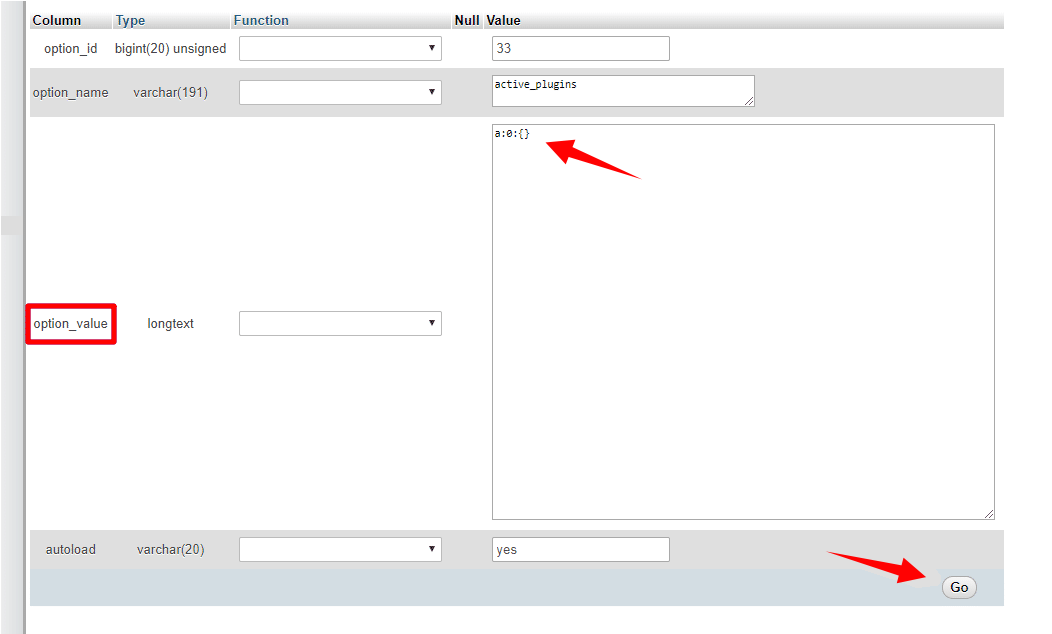
- Click Edit.
- Clear the value in
option_valueand save. Or replace it witha:0:{}.
This tells WordPress that no plugins are active.

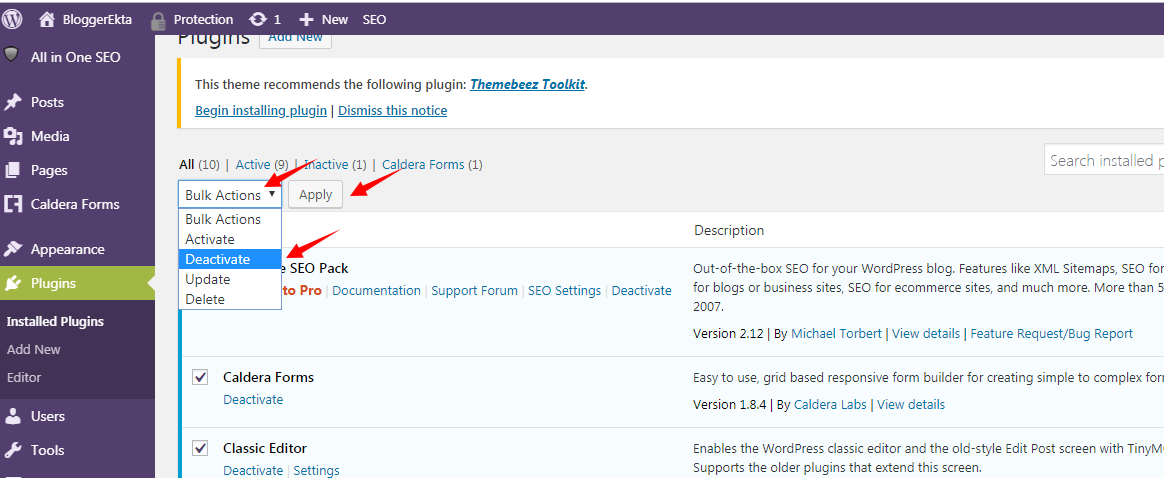
Method 4: WP-CLI
If you have SSH access, run this in your WordPress folder:

wp plugin deactivate --allThis turns off all plugins at once.
Quick recap
- Rename the
pluginsfolder to turn off all plugins.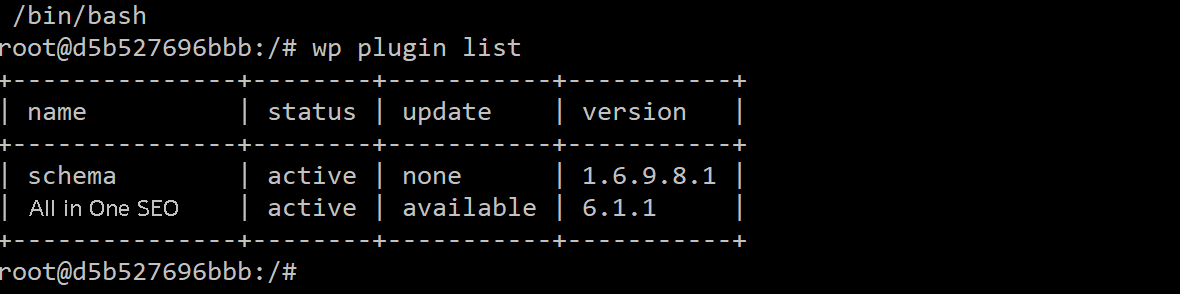


- Rename it back and turn plugins on one at a time.


- phpMyAdmin and WP-CLI also work.
- Always back up first.