

What is HTTPS?
HTTPS is the safe version of a web address. It hides what visitors send to your site, like passwords. An SSL certificate is the small file on your server that makes this possible. You see a padlock in the browser when it works.
Even with a certificate, your posts and images may still use the old http:// address. This causes "mixed content" warnings, where some parts of the page are not secure. The old addresses live in your database. A database is the place where WordPress stores all of its content.
Before you start, make sure your SSL certificate is installed. Ask Hostvento support if you are not sure.
Step 1: Change the main addresses
- Log in to your WordPress dashboard.
- Go to Settings and then General.
- Change WordPress Address (URL) to the https version.
- Change Site Address (URL) to the https version.
- Click Save Changes. You may be asked to log in again.
Step 2: Use a search and replace plugin
A plugin is an add-on for WordPress. Better Search Replace finds text in your database and swaps it for new text.
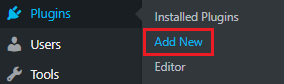
- Go to Plugins and then Add New.
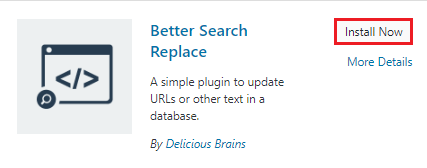
- Search for Better Search Replace.
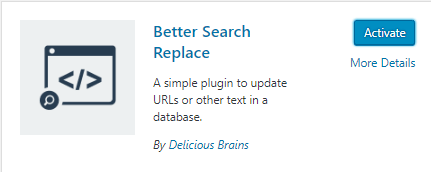
- Click Install Now and then Activate.
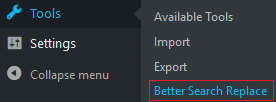
- Go to Tools and then Better Search Replace.
- In Search for, type
http://yourdomain.com. - In Replace with, type
https://yourdomain.com. - Select all the tables in the list.
- Keep Run as dry run? ticked and click Run Search/Replace.
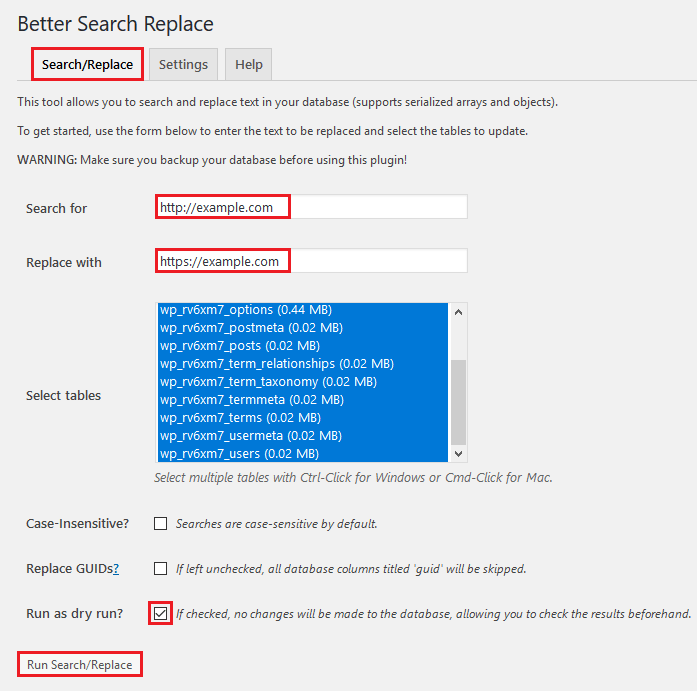
- Read the result. It shows how many changes would be made.
- If it looks right, untick the dry run box and run it again.
Use your own domain name in place of yourdomain.com.
Step 3: Clear the cache and test
- Clear your cache plugin and your browser cache. A cache is a saved copy of pages for faster loading.
- Open your site and look for the padlock.
- Click through a few pages and posts.
Step 4: Redirect old addresses
Visitors who use the old http address should be sent to https. Many SSL or security plugins have a switch for this. Or ask Hostvento support for help.
Quick recap
- Install your SSL certificate first.
- Change the two addresses in Settings, General.
- Use a search and replace plugin to update the database, with a dry run first.
- Clear caches and test.