

What is the white screen of death?
The white screen of death is a page with nothing on it. WordPress hit a serious problem in its PHP code. PHP is the language WordPress is written in. The error stops the page from loading, and the error text is hidden for safety.
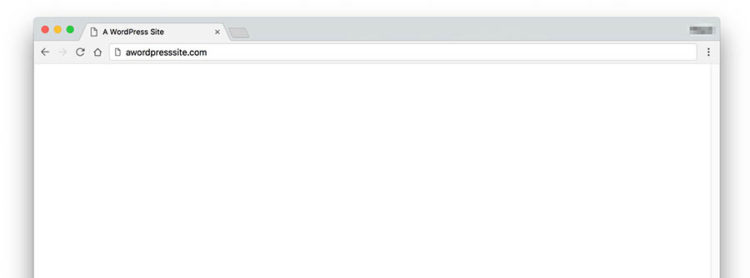
Common causes are a faulty plugin or theme, too little memory, a broken update, or a typing mistake in a code file.
Step 1: Turn on error messages
- Open File Manager in your hosting control panel.
- Open
wp-config.phpin your WordPress folder. - Find the line
define( 'WP_DEBUG', false );. - Change it to the lines below.
- Save and reload your site.
define( 'WP_DEBUG', true );
define( 'WP_DEBUG_LOG', true );
define( 'WP_DEBUG_DISPLAY', false );
This writes errors to a file named wp-content/debug.log. Open it to read the message. It usually names the plugin or theme at fault. Set WP_DEBUG back to false when you finish.
Step 2: Turn off all plugins
- Open
wp-contentin File Manager. - Rename the
pluginsfolder toplugins_off. - Reload the site.
- If it works, rename the folder back and turn plugins on one by one in the dashboard.
Step 3: Switch the theme
- Open
wp-content/themes. - Rename the folder of your active theme.
- WordPress falls back to a default theme if one is installed.
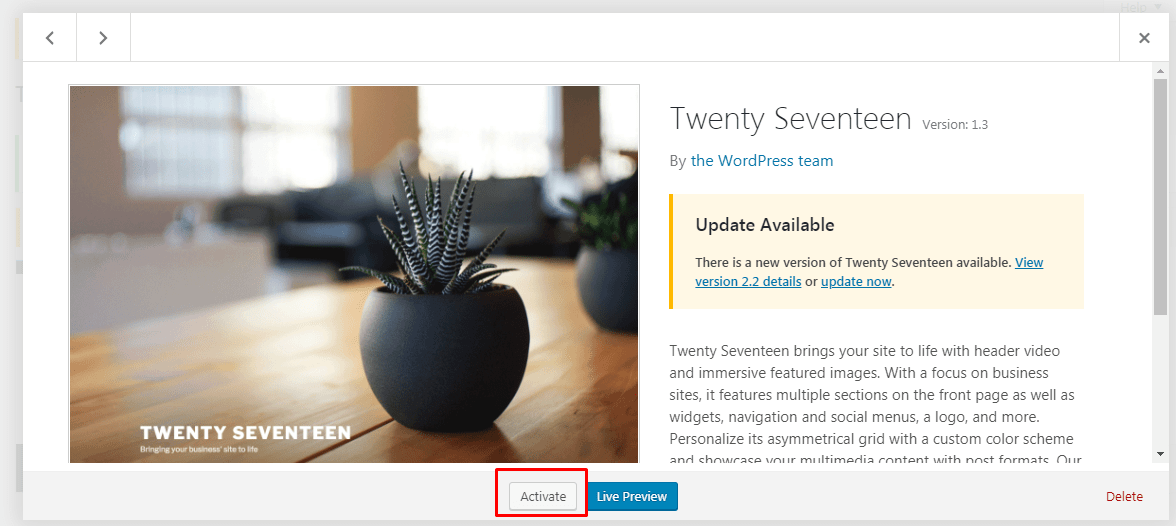
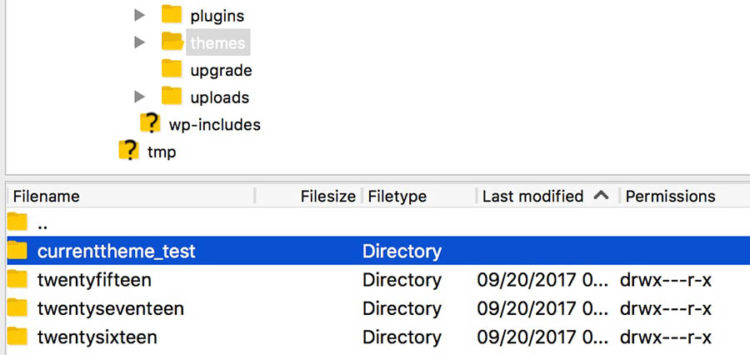
- Reload the site.
Step 4: Add more memory
Add this line to wp-config.php above the text "That's all, stop editing":
define( 'WP_MEMORY_LIMIT', '256M' );This lets WordPress use more working space. Your plan may have its own limit.
Step 5: Check for a stuck update
If the page broke during an update, look for a file called .maintenance in your site folder and delete it. Run the update again later.
Step 6: Check the PHP version
Some old plugins do not work on new PHP versions. Your control panel may let you pick the PHP version. Try a nearby version to test.
Quick recap
- A white screen means a hidden PHP error.
- Turn on the debug log to read the cause.
- Test plugins, theme and memory next.
- Always back up first.