

Why update?
Hackers look for old software with known weak spots. An update patches those spots. Updates also add new features and fix errors. Keeping WordPress up to date is one of the best ways to protect your site.
Warning: Always take a full backup of your files and database before you update. An update can sometimes break a theme or plugin.
Update from the dashboard
- Log in to your WordPress dashboard.
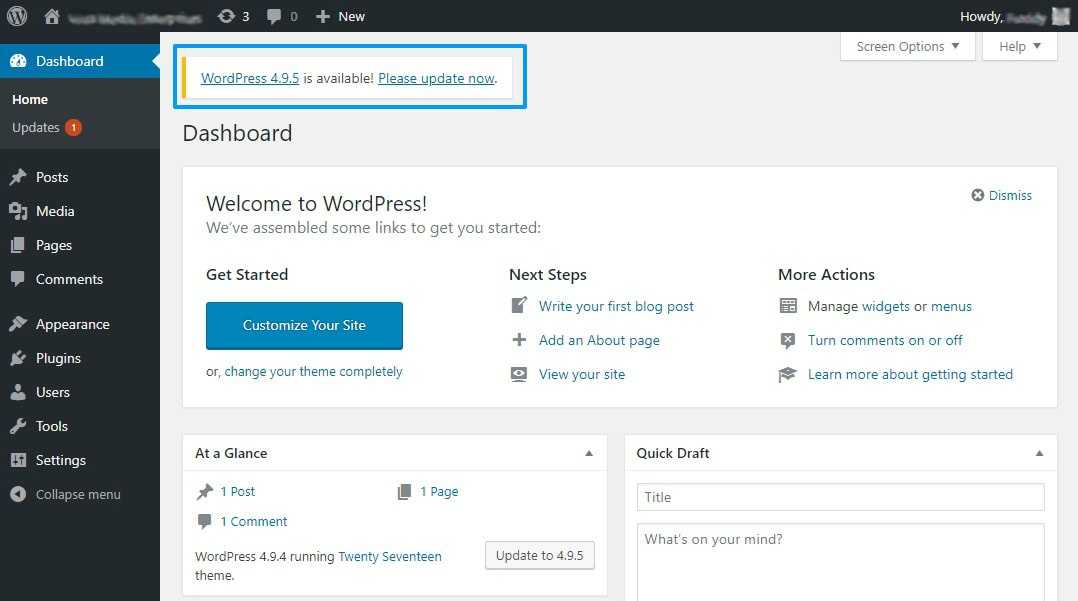
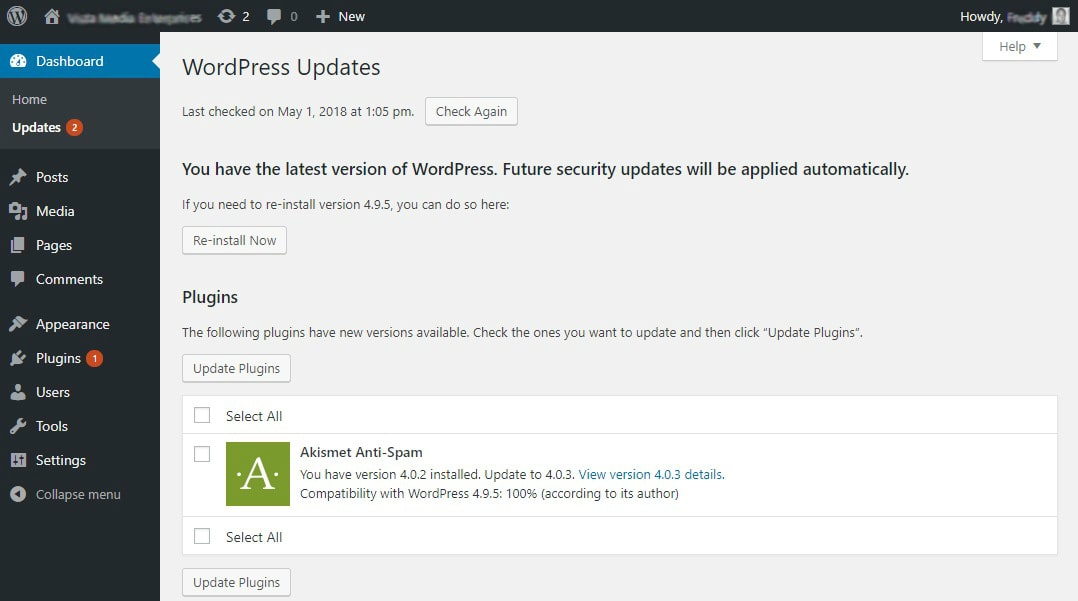
- Go to Dashboard and then Updates.
- If a new WordPress version is ready, click Update Now.
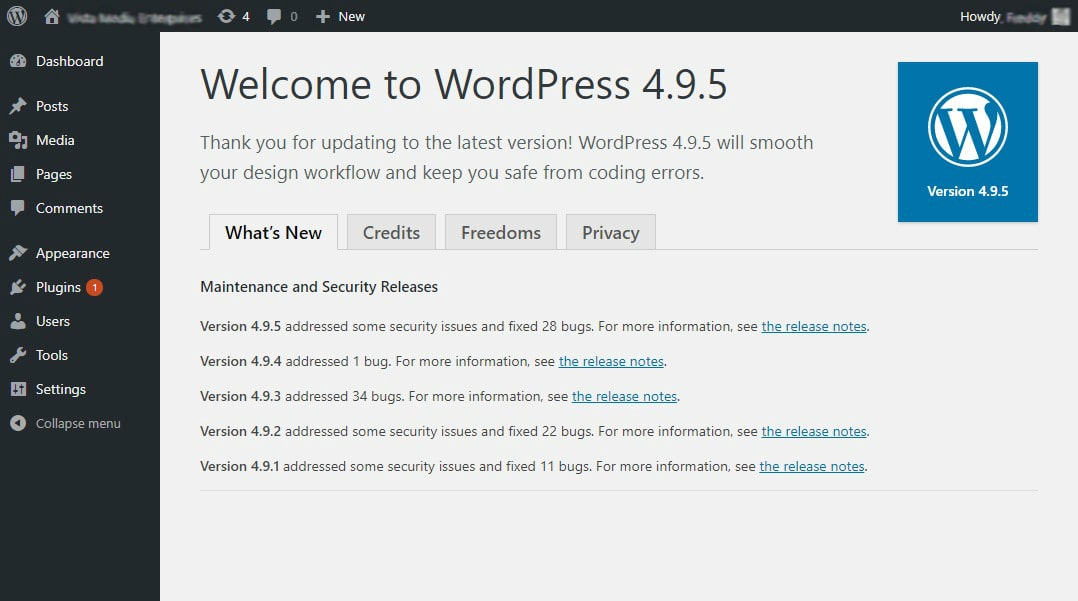
- Wait until the page says the update is done. Do not close the tab.
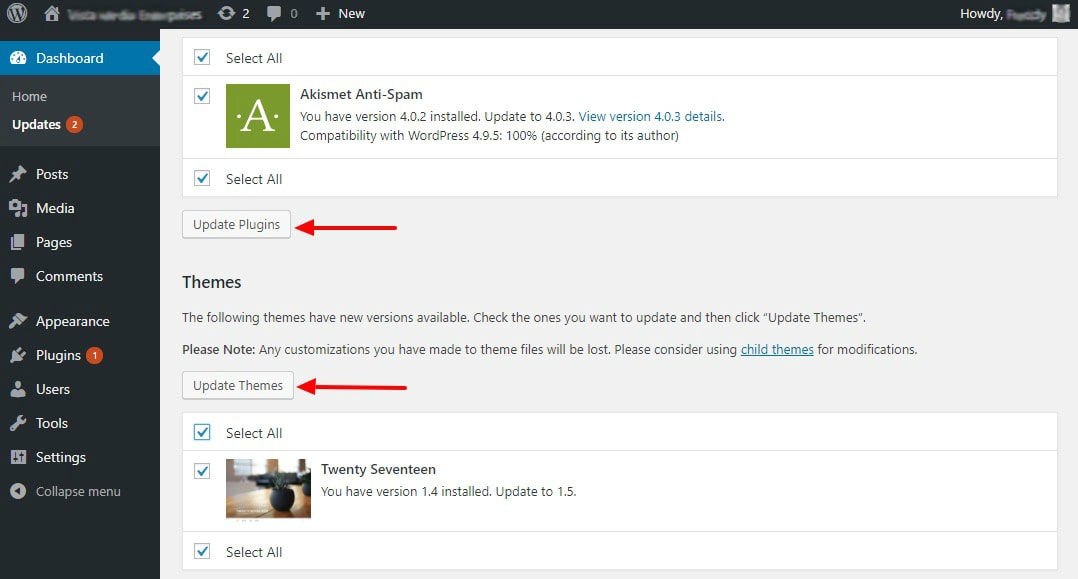
- Scroll down to the plugins list. Tick the plugins you want to update.
- Click Update Plugins.
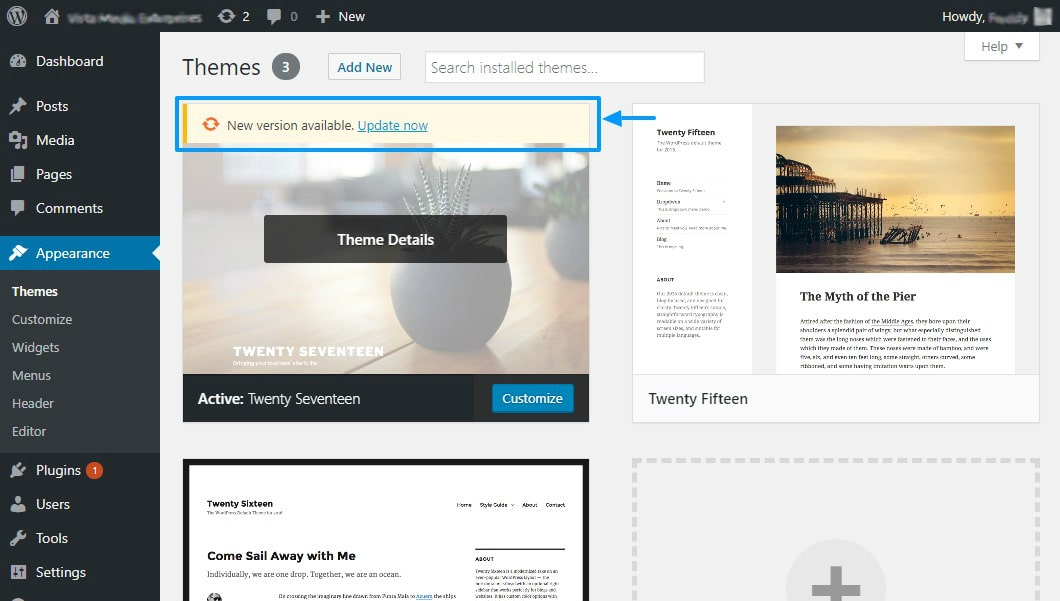
- Do the same for themes with Update Themes.
- Open your site and check that it still looks right.
Turn on automatic updates
WordPress can update itself. Small security updates are usually on by default. You can also turn on automatic updates for each plugin and theme.
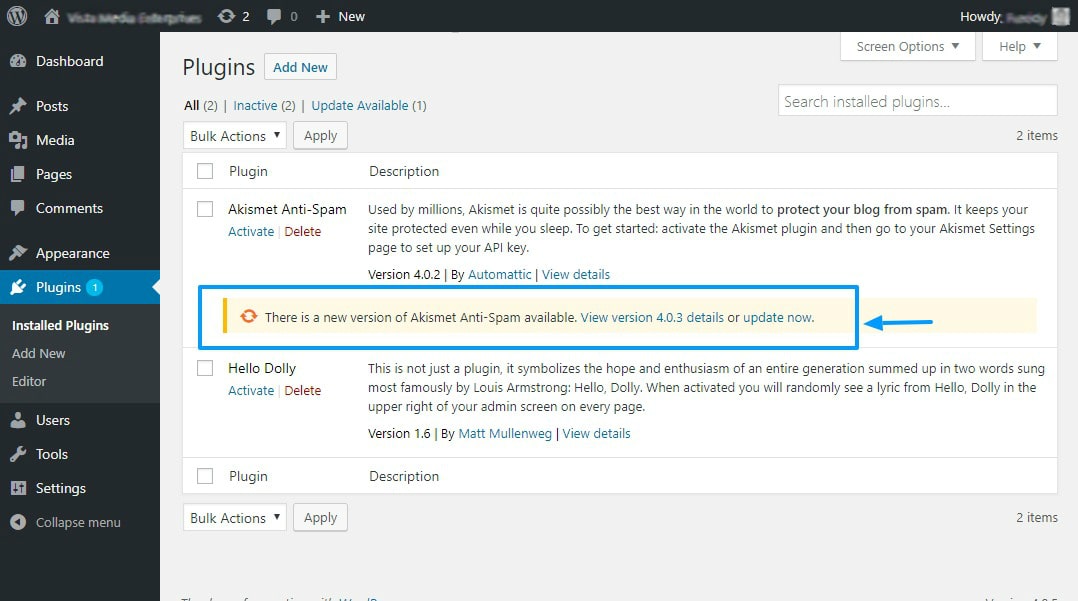
- Go to Plugins and then Installed Plugins.
- Find the plugin you trust.
- Click Enable auto-updates in its row.
- Repeat for other plugins. Do the same under Appearance and Themes.
Some control panels also offer an auto-update option for WordPress installs. Ask Hostvento support what your plan offers.
Update with WP-CLI
WP-CLI is a tool that runs WordPress tasks from a typed command. You need SSH access, which is a safe way to type commands on your server.
wp core updateUpdates WordPress itself.
wp plugin update --allUpdates every plugin.
wp theme update --allUpdates every theme.
Update by hand with files
Use this only if the dashboard update fails.
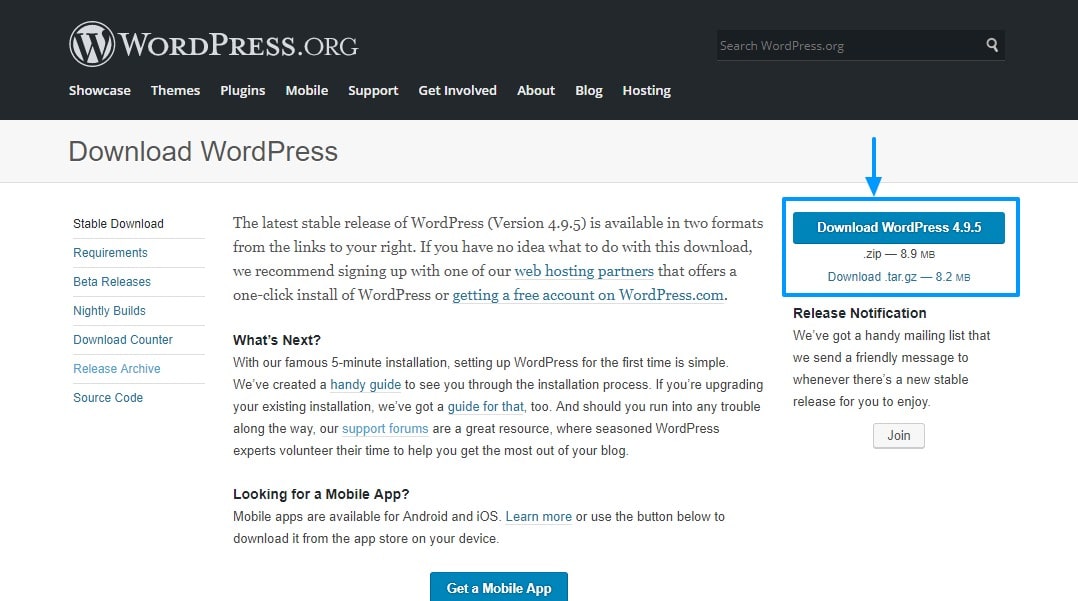
- Download the latest WordPress from wordpress.org and unzip it on your computer.
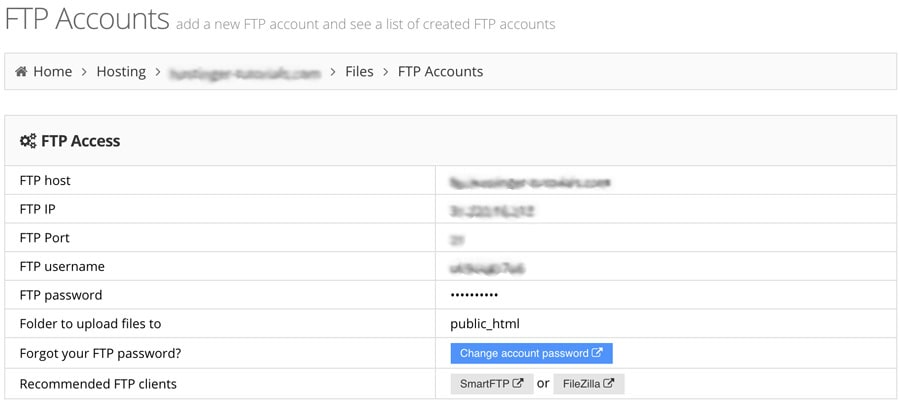
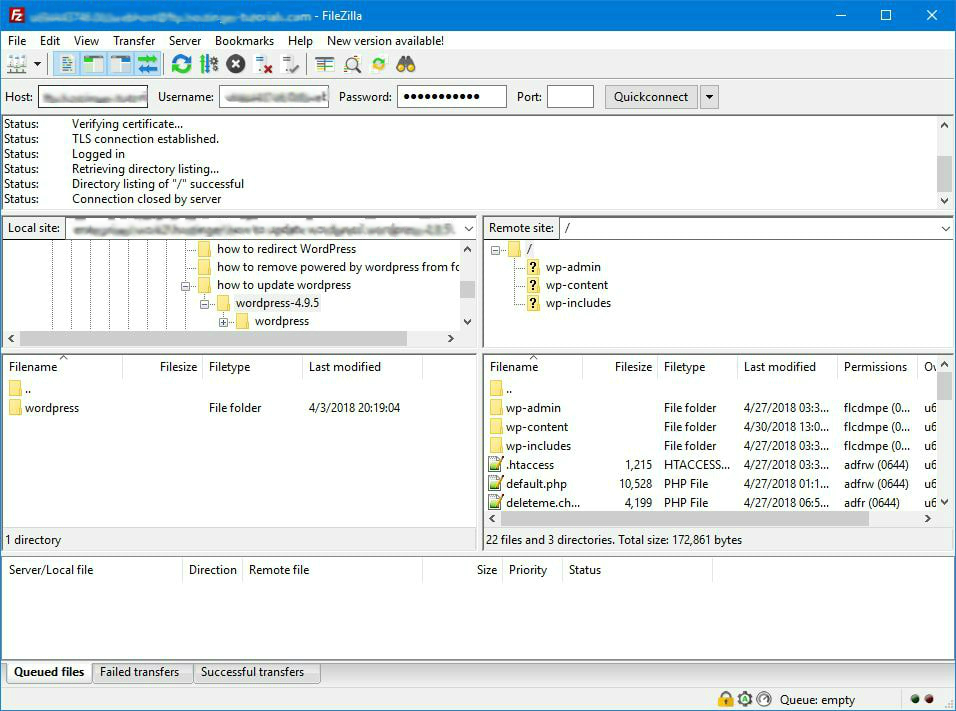
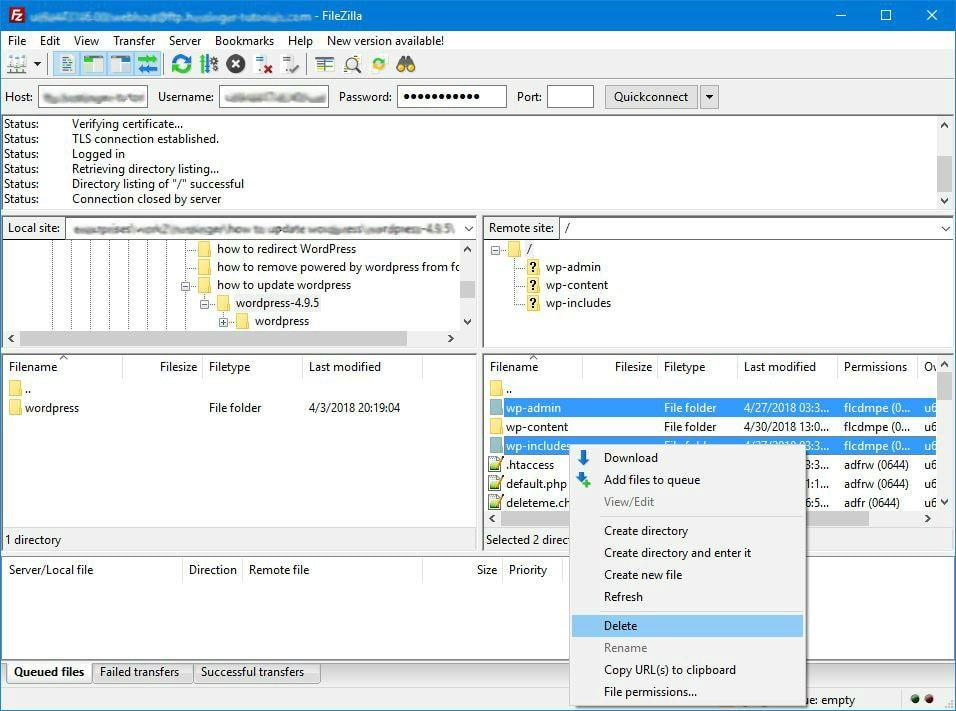
- Open File Manager or an FTP program. FTP is a way to move files to your server.
- Upload the new
wp-adminandwp-includesfolders. Replace the old ones.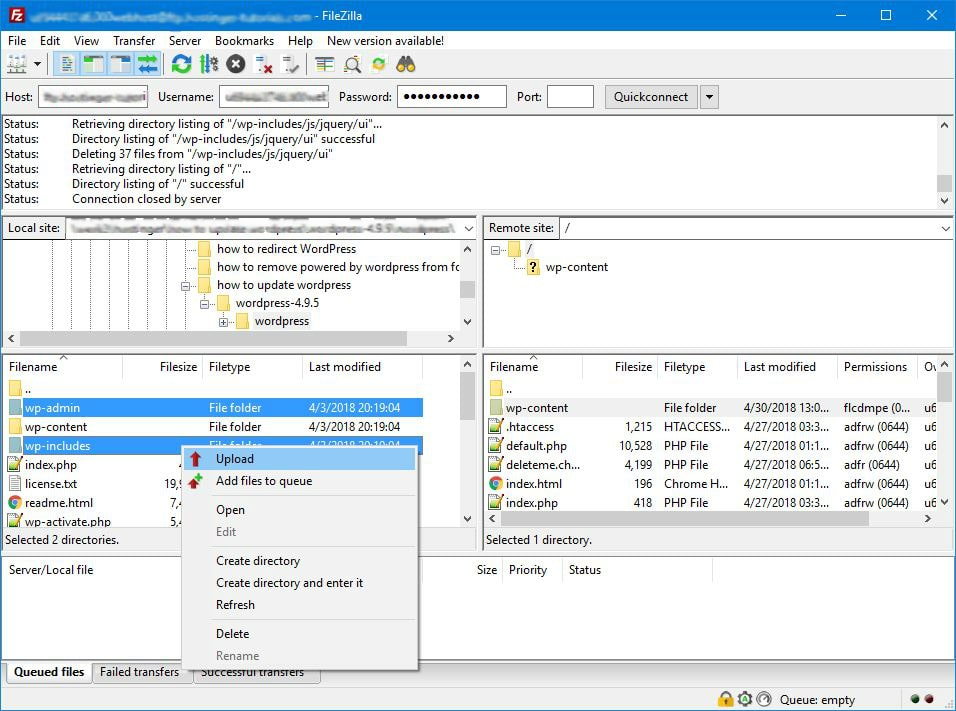
- Upload the loose files in the top folder, but do not overwrite
wp-config.php.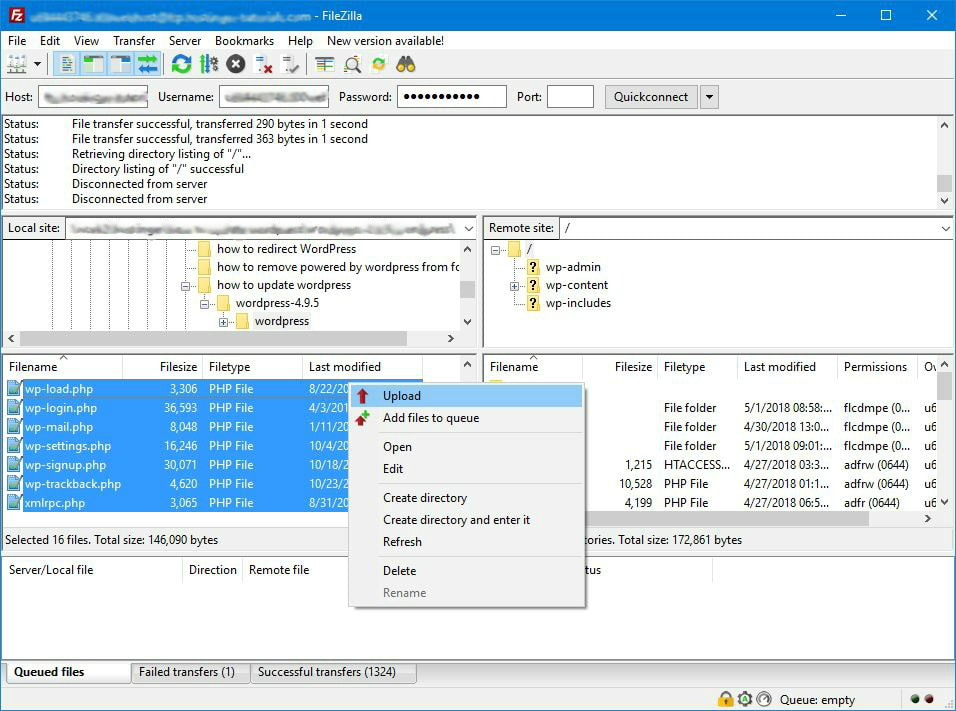
- Do not replace the
wp-contentfolder. It holds your own work. - Visit
/wp-admin. If asked, click to update the database.
Tip: Update one thing at a time on a busy site, and test in between.
Quick recap
- Back up first, every time.
- Use Dashboard then Updates for the easy way.
- Turn on auto-updates for trusted plugins.
- Manual file upload is the backup plan.