

What Weglot does
Weglot is a translation plugin for WordPress. It translates your pages automatically and lets you edit the translations.
Key features
- Automatic translation. It translates your pages quickly with machine translation.
- Manual editing. You can improve the translations in the Weglot dashboard.
- SEO friendly. Each language gets its own URL, such as
/fr/, so search engines can index it. - Language switcher. It adds a button to change the language.
- Compatibility. It works with WordPress, WooCommerce, page builders and other platforms.
Note: Weglot is a paid service with a free plan for a small number of words. Check the current limits on the Weglot website.
Step 1: Install the plugin
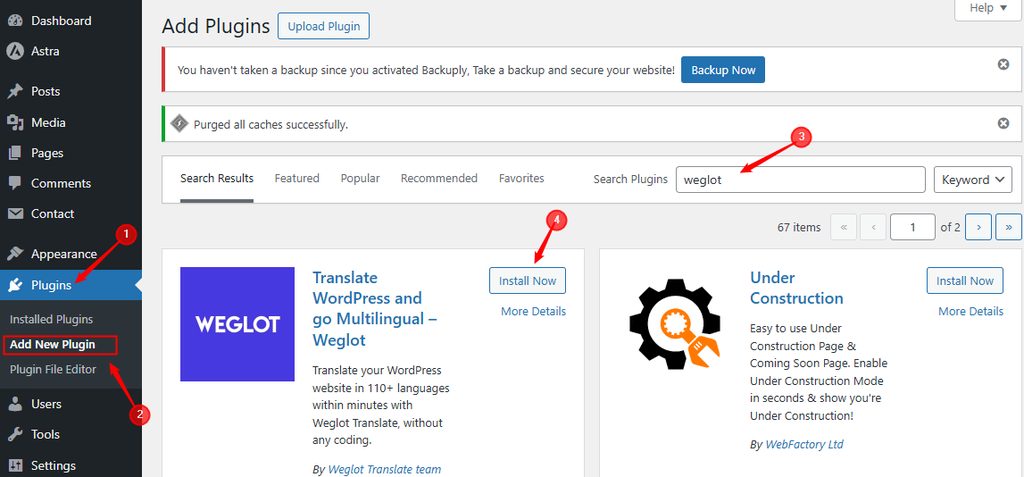
Go to Plugins > Add New, search for Weglot and click Install Now.
Step 2: Activate it
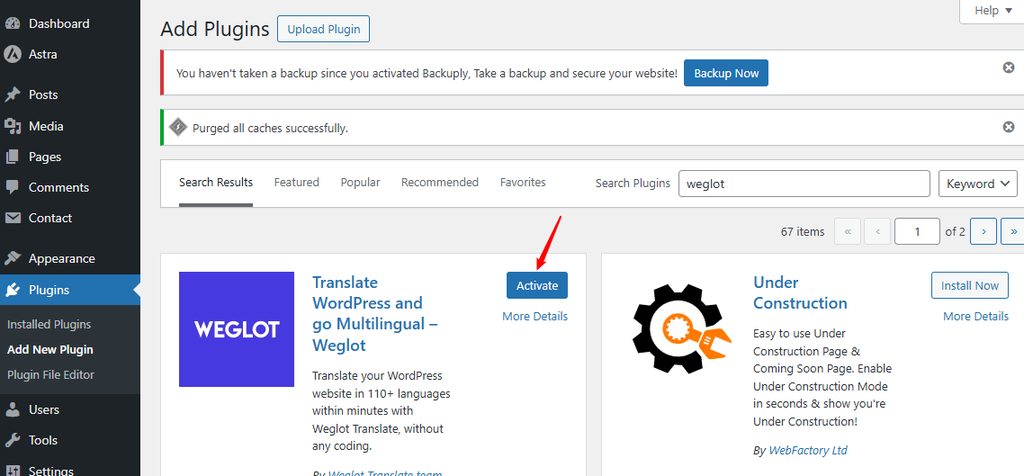
Click Activate.
Step 3: Create a Weglot account and project
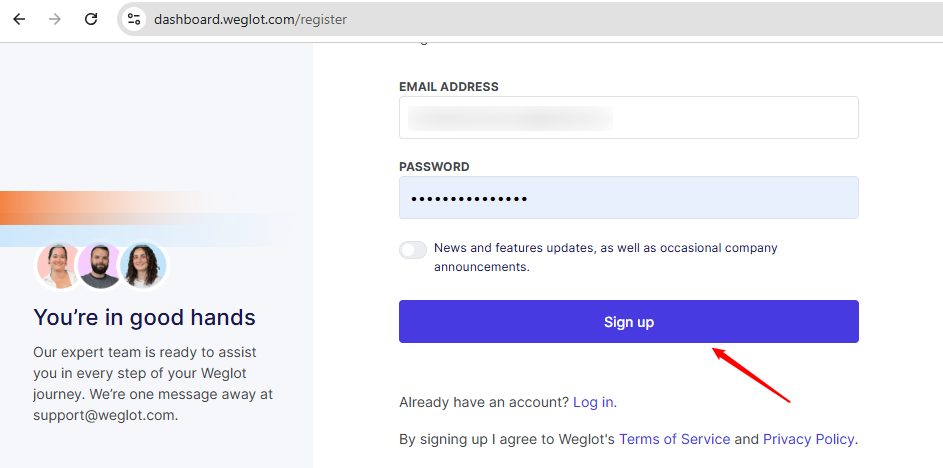
- After activation, a Weglot menu appears. Open it. Click to sign up for a Weglot account.
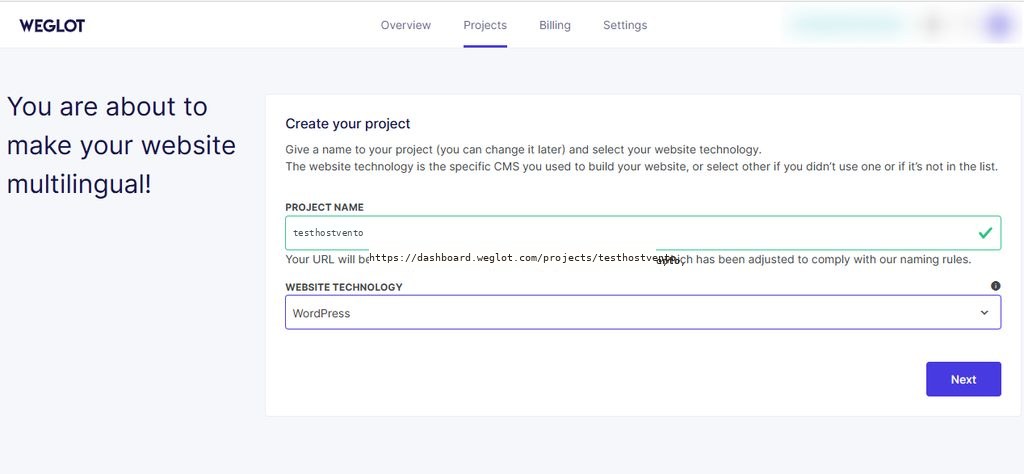
- Create a project for your site.
- Copy your API key from the Weglot dashboard.
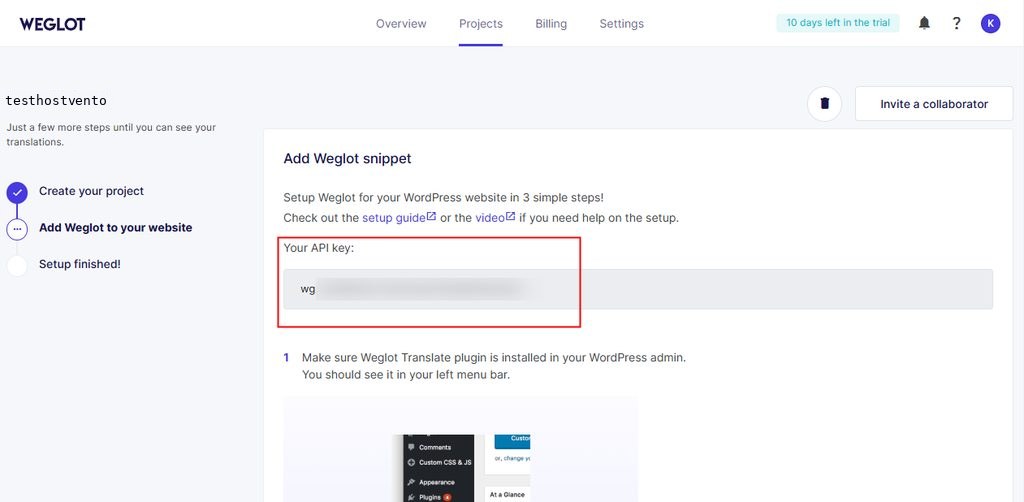
Step 4: Configure Weglot
- Paste the API key in the plugin settings.
- Choose the original language of your site, and the destination languages.
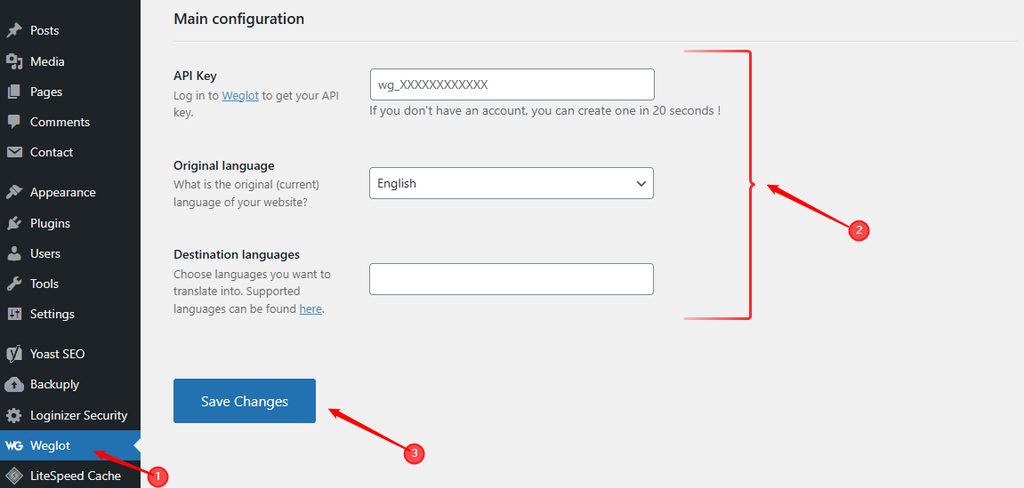
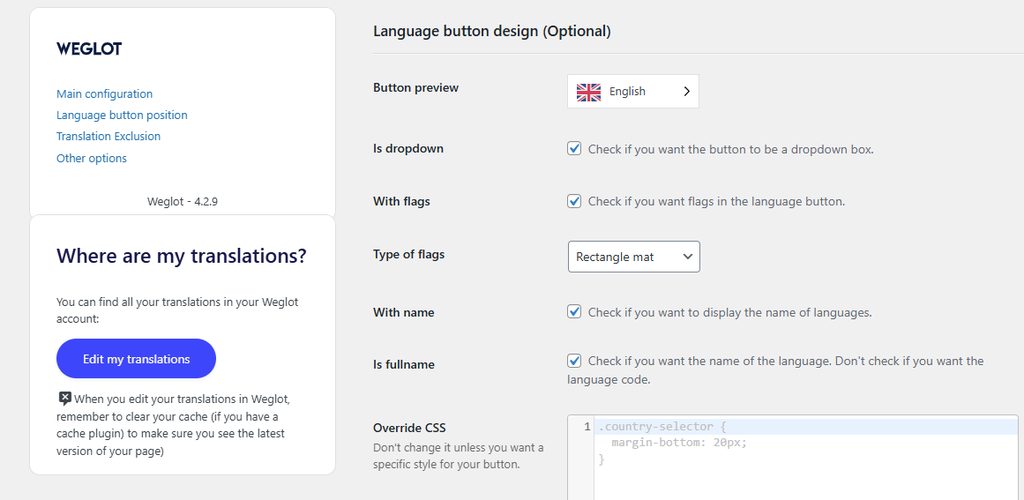
- Set the language switcher options, such as the flags, the language names and the position.
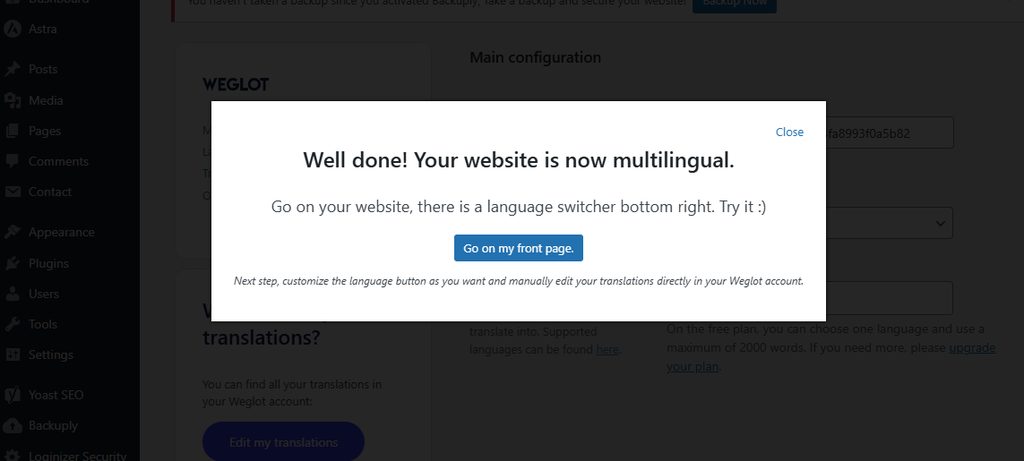
Save the settings.
Step 5: Translate and test
Visit your site. Pages are translated at the first visit. Use the language switcher to change the language and check the result.
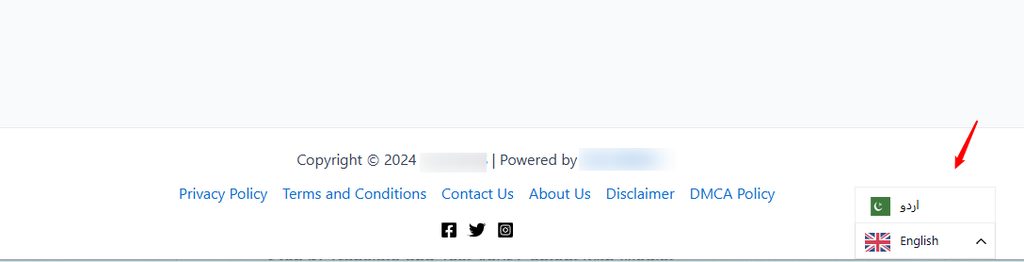

To fix a translation, open the Weglot dashboard and go to Translations, or use the visual editor on your site.
Change the switcher button
You can change the look and place of the language switcher in the Weglot settings.
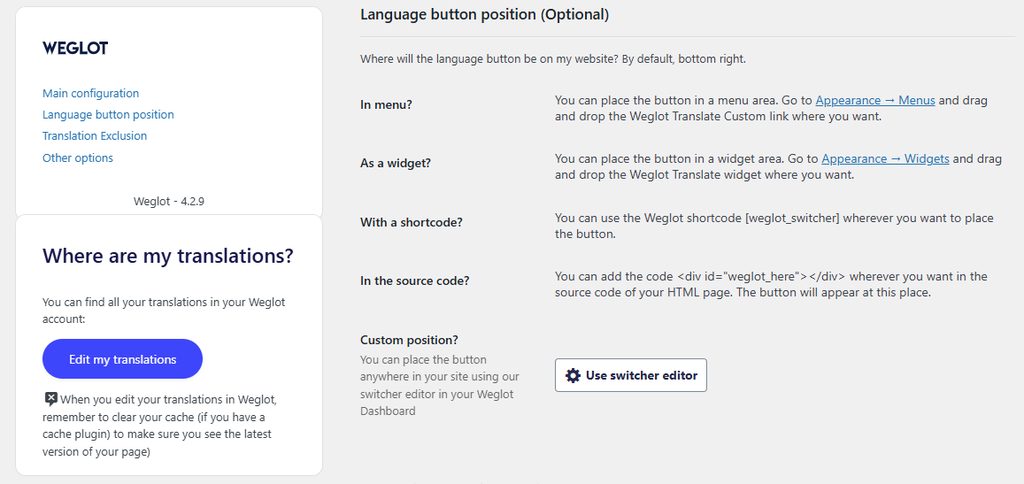
You can also place it in a menu, in a widget or with the shortcode.
Tips
- Check the main pages by a native speaker.
- Exclude the content that should not be translated, like names or code.
- Test the cart and checkout in each language if you have a shop.
- Use caching plugins that work with Weglot, and clear the cache after changes.
Quick recap
- Install and activate Weglot, add the API key, choose languages and test.