

What is Jetpack?
Jetpack is a plugin from Automattic, the company behind WordPress.com. A plugin is an add-on that gives your site new features. Jetpack offers security tools, backups, stats and speed tools. Some features are free. Paid plans add more. Plan names and features can change, so check them on the Jetpack website.
A license is the right to use a paid plan. It is tied to a WordPress.com account, which is a free account you make on WordPress.com. Hostvento does not sell or manage Jetpack plans. Ask Hostvento support if you need help with the server side.
Before you start
- A working WordPress site that can be reached on the internet
- A WordPress.com account (free to create)
- Your Jetpack plan, or the license key you received
Step 1: Install Jetpack
- Log in to your WordPress dashboard.
- Go to Plugins and then Add New.
- Search for Jetpack.
- Click Install Now and then Activate.
Step 2: Connect to WordPress.com
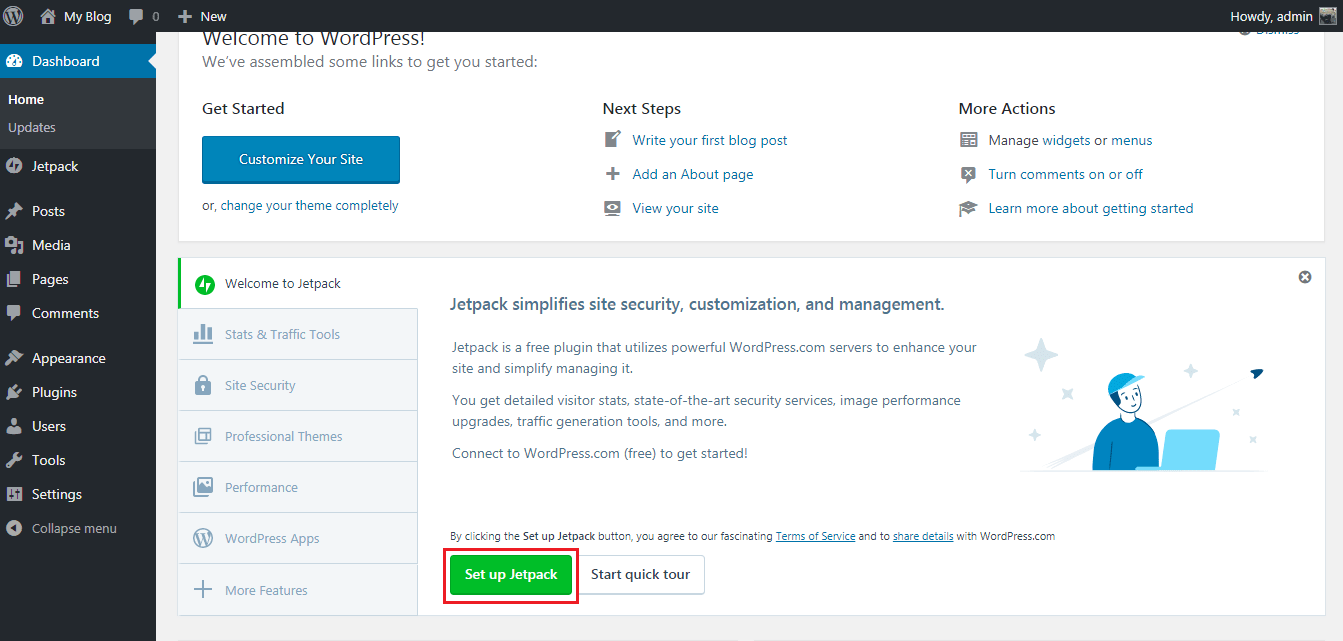
- After activation, click Set up Jetpack.
- Log in to your WordPress.com account, or create one.
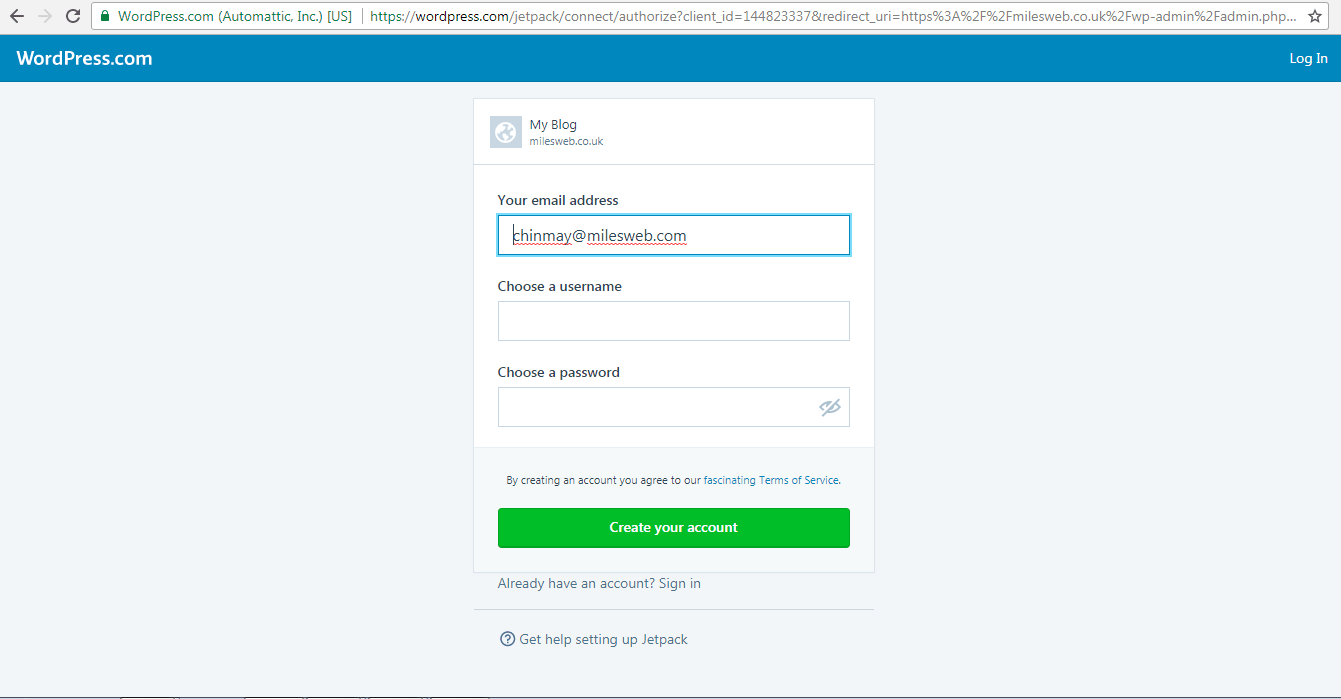
- Click Approve to link your site to your account.
Step 3: Attach your license
If you bought the plan on the Jetpack website for this site, it may link by itself after you connect. If you received a license key, do this:
- In the dashboard, open the Jetpack menu.
- Look for an option to activate a license. It is often on the Dashboard page or in the "My Plan" area.
- Paste your license key into the box.
- Click the button to activate it.
If you do not see this option, go to the licenses area of your WordPress.com account and pick the site there. The menu names can change, so describe the problem to Jetpack support if you cannot find it.
Step 4: Turn on your features
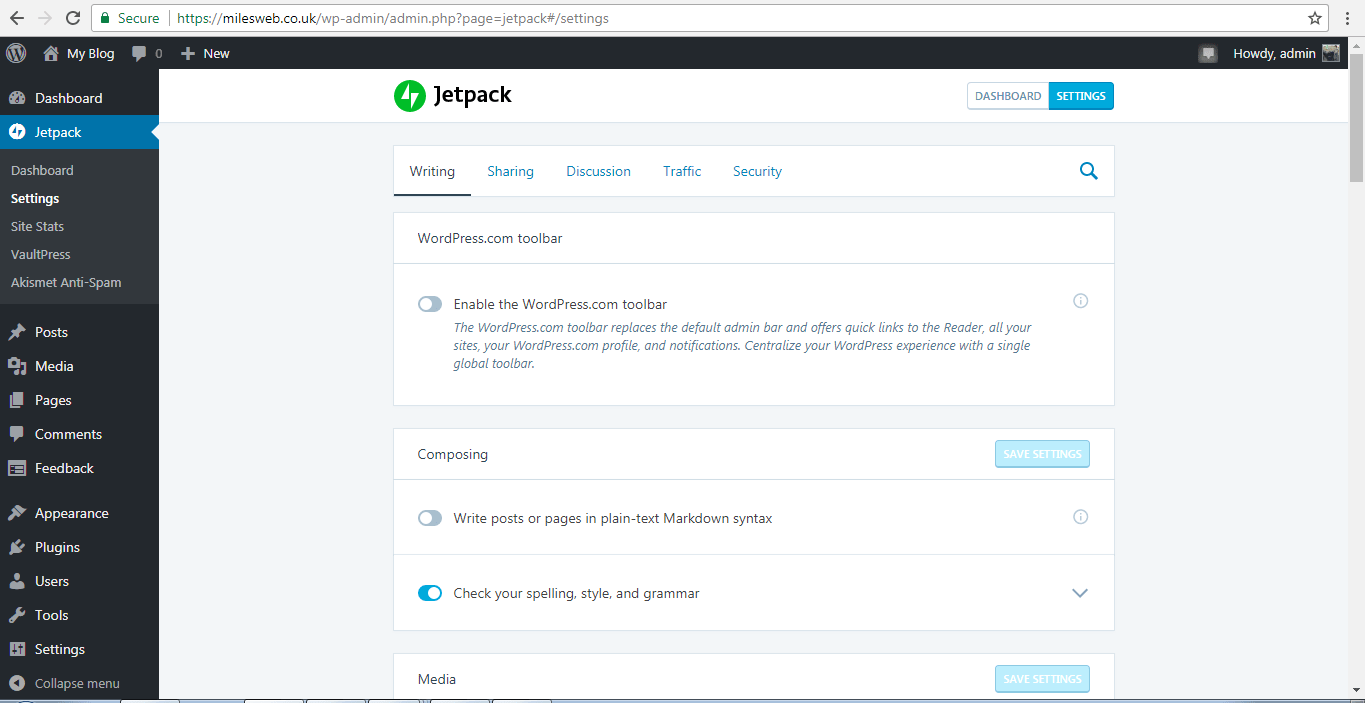
- Open Jetpack and then Settings.
- Go through the tabs, such as Security and Performance.
- Switch on the features you want.
If the connection fails
- Check that your site address in Settings and General is correct.
- Make sure the site is not in "coming soon" or password protected mode.
- Some security plugins or firewalls block the link. Pause them and try again.
- If the Jetpack connection was attached to the wrong account, disconnect it and connect again with the right one.
If your server blocks the connection, open a support ticket.
Quick recap
- Install and activate the Jetpack plugin.
- Connect it to your WordPress.com account.
- Attach your plan or license key.
- Switch on the features in Jetpack then Settings.