

What you need
- Windows 10 or later.
- Administrator access.
- Basic knowledge of web development.
- XAMPP (Apache, MySQL, PHP) and, for the Composer method, Composer.
Step 1: Install a web server
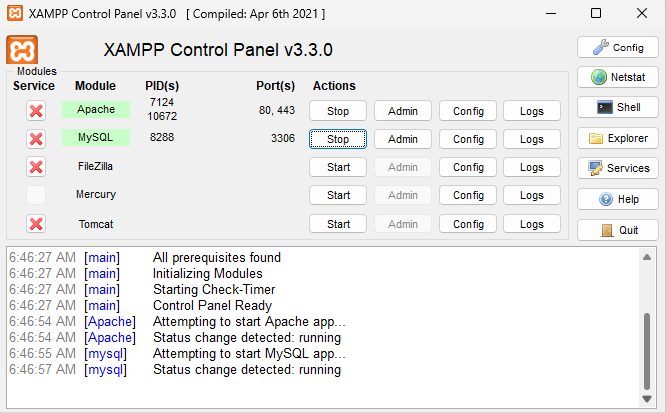
Install XAMPP and start Apache and MySQL in the XAMPP Control Panel.
Step 2: Choose how to get October CMS
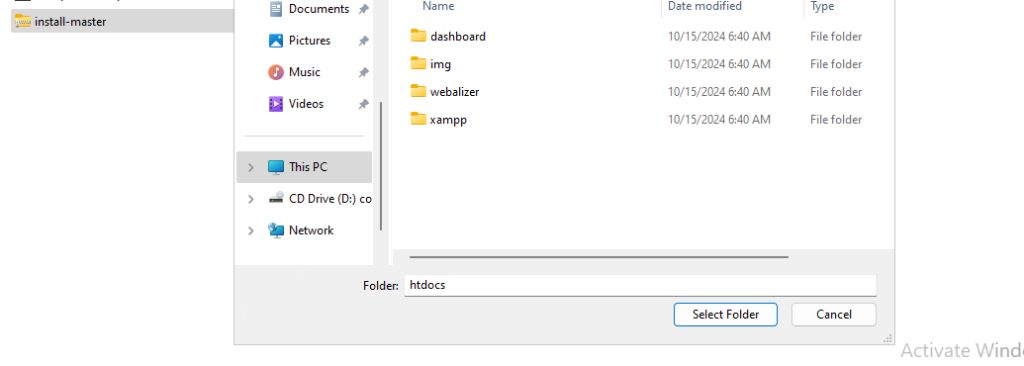
You can install October CMS in two ways: download the installer from the October CMS website, or use Composer.
Step 3: Install with Composer (optional)
Composer is the dependency manager for PHP. Install it first (see our guide on Composer for Windows). Then open Command Prompt and go to the XAMPP web folder:
cd C:\xampp\htdocs
Create a folder and go into it:
mkdir october_cms
cd october_cms
Create the project (the final dot installs into the current folder):
composer create-project october/october .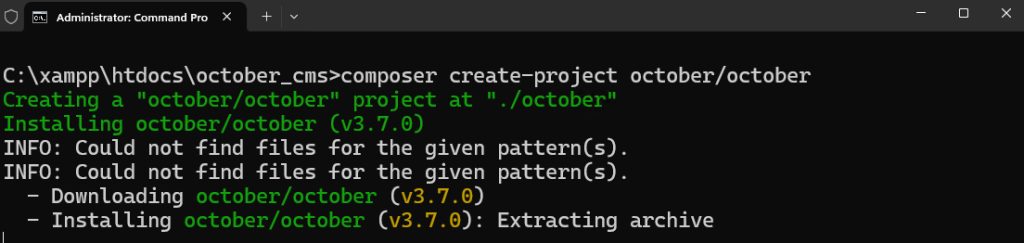
Step 4: Create the database
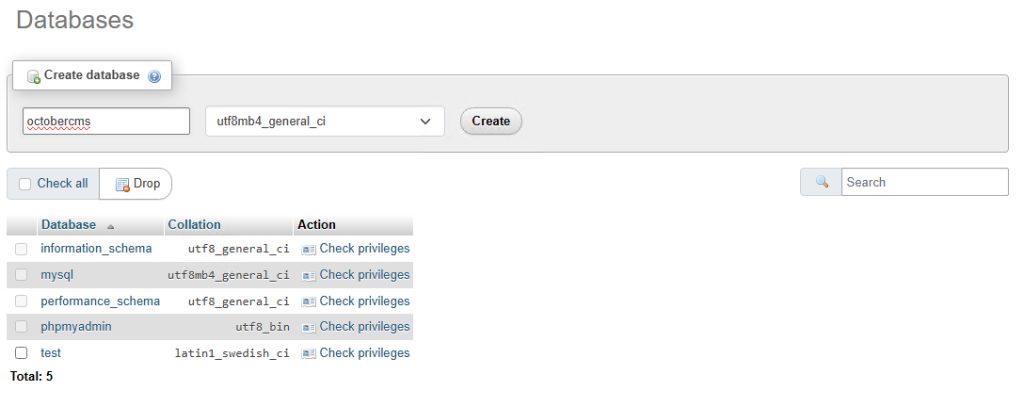
Open phpMyAdmin at http://localhost/phpmyadmin. Click New, enter a name such as octobercms and click Create.
Step 5: Configure October CMS
Open http://localhost/october_cms/install.php (or follow the setup that the installer shows) in your browser.
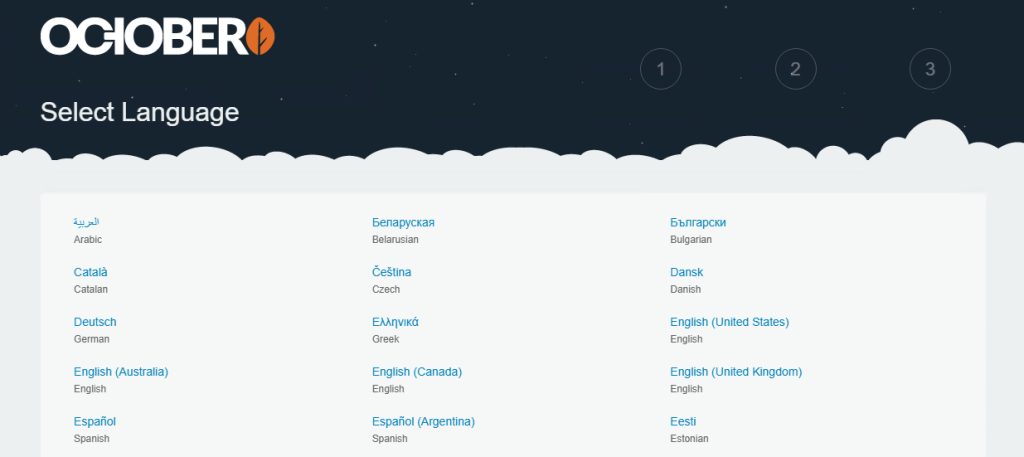
Database settings
- Database type: MySQL
- Host:
localhost - Database name:
octobercms - User name:
root(or your MySQL user) - Password: empty if you did not set one
- Table prefix: leave empty
Administrator account
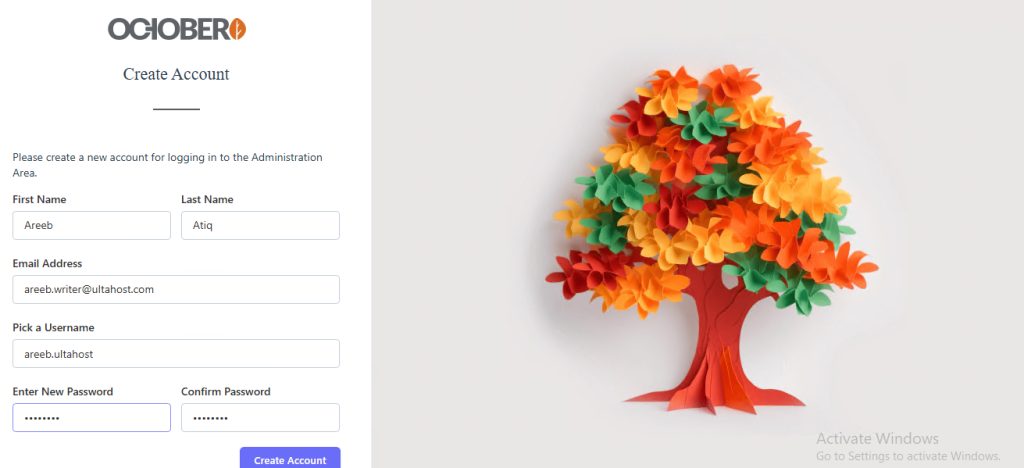
- User name:
admin - Password: a strong password
- Email: your address
Click Finish Installation.
Step 6: Open the back end
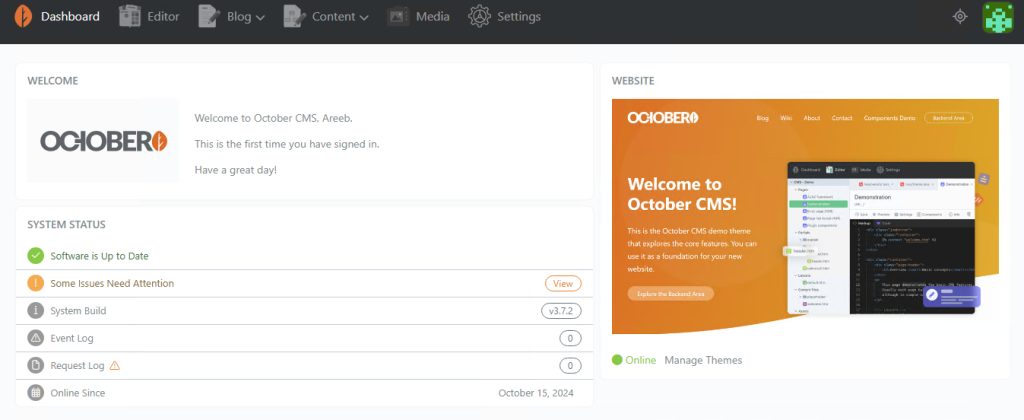
Go to http://localhost/october_cms/backend and log in.
Quick recap
- Install XAMPP (and Composer), then create the project.
- Create a database in phpMyAdmin.
- Run the wizard and log in to
/backend.